There are two reasons for lines on your MacBook screen: hardware issues or software issues. Generally, a MacBook screen lasts at least 5 years before developing issues. Before getting an appointment at an Apple service center, read this detailed guide to find out the reason and the solution.
If the issue is easy to fix, you can save tons of money by fixing it yourself. We will show you 6 easy, tried-and-tested ways to fix lines on MacBook screen.
There are two types of causes: one is physical, and one is software. Generally, software issues are easy to fix, and for physical issues, you need professional help.
Another common cause of lines on the screen is the environment. When the device runs at a high temperature for a long time, it can cause screen line issues. You can easily check if the issue is caused by software or hardware.
Simply take a screenshot on your MacBook by pressing Shift + Command + 3 together. Open the screenshot on another device and see if the lines are still there or not.
If there are lines on the screen, it means it’s a software issue, and the lines are caused by a software issue or a faulty script on your MacBook. If there are no lines, the issue must be physical, and you need professional help to fix it.
Restarting your MacBook can fix any corrupt files, stop running processes, and restart all the applications and drivers. It only removes the lines if the issue is caused by software.

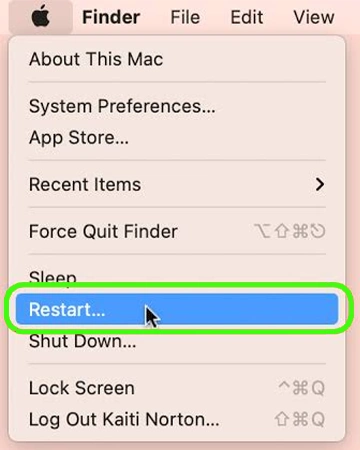
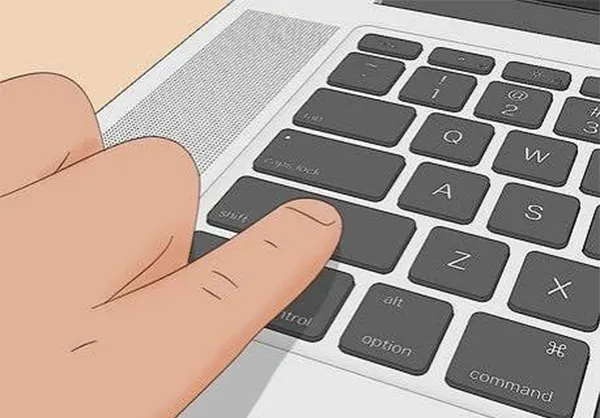
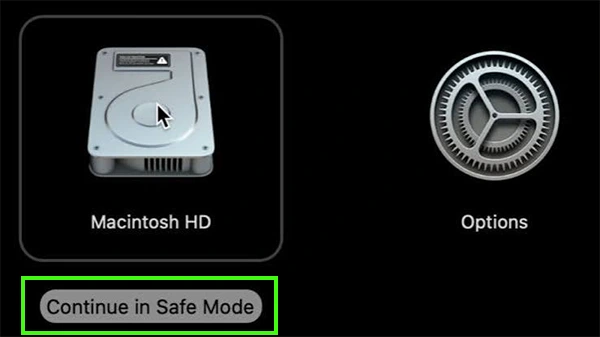
Boot your MacBook into Safe Mode by pressing the Shift key after restarting your Mac. If the line disappears in Safe Mode, it is caused by a background application or graphics driver.
Running Apple Diagnostics will help you to find any issues on your MacBook.
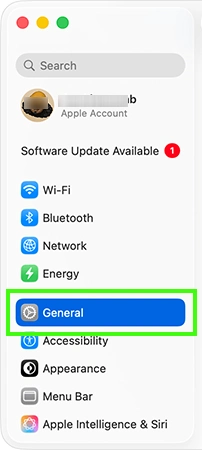
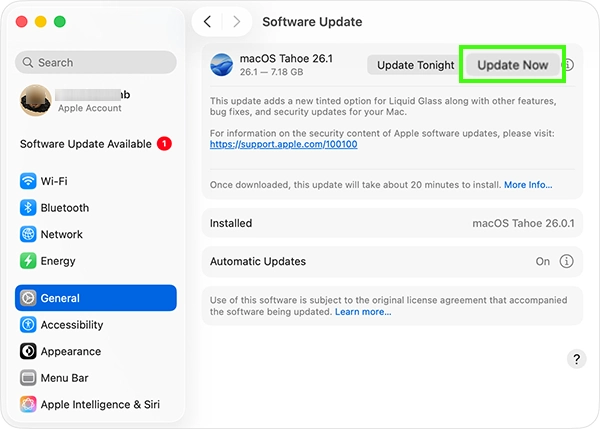
Updating your macOS will help you remove any corrupt files, software glitches, and driver issues.
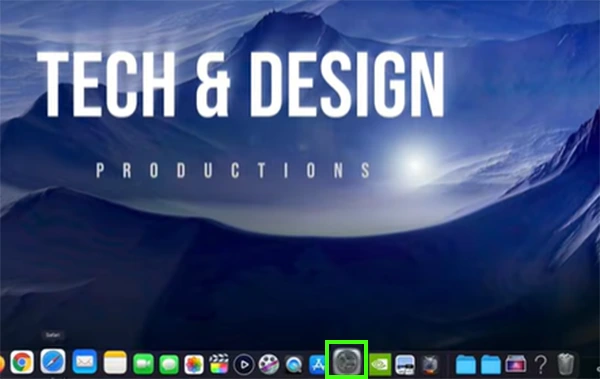
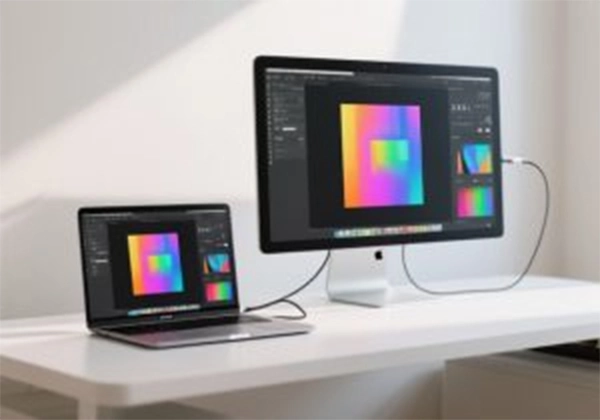
Testing an external monitor will show whether your MacBook has a physical or software issue. If the line appears on the external monitor, then there is a software issue.
Overheating will cause screen burn, performance lag, and interrupt the GPU from running smoothly, which may cause a line on your screen.
Lines on your MacBook can occur due to software and hardware issues. You can try these 6 simple and easy methods to fix it and check whether it’s physical damage to your screen.
After checking your MacBook for physical damage, you need to contact an Apple Authorised Service Provider for professional help to repair physical damage as soon as possible to prevent further damage. If this guide is helpful, you can check out more such guide videos on the Getassist YouTube channel.
The lines on your MacBook may appear due to software and hardware issues.
You can restart, boot into Safe Mode, and update your MacBook to fix it.
Yes, software glitches or graphics-related issues may cause lines on your screen.
Yes, excessive heat can affect performance and cause display problems.
Yes, it may fix the software issue, but it does not help you to fix a physical issue.