The default browser on Mac, Safari, is outdated and comes with few features compared to other browsers. You can easily change your default browser on any Mac version in just a few clicks. New and updated browsers are more powerful and feature-rich and improve your user experience.
Let’s see in this guide how to change default browser on Mac.
Changing the default browser will change the user experience, and you can use a more powerful and feature-rich browser on macOS Ventura or later. You can change any browser to default in just a few easy clicks.
Here is how to change default browser on mac:
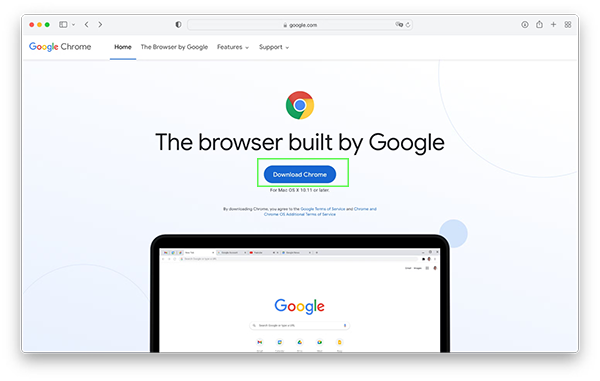
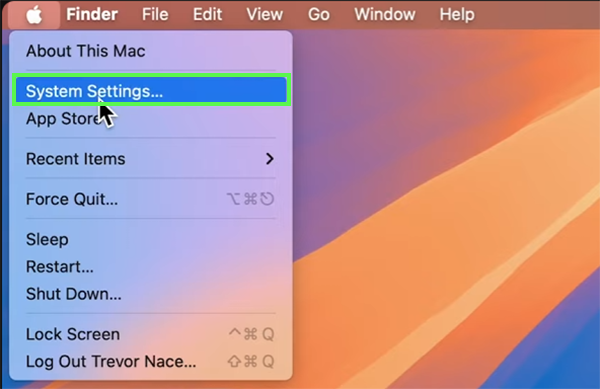
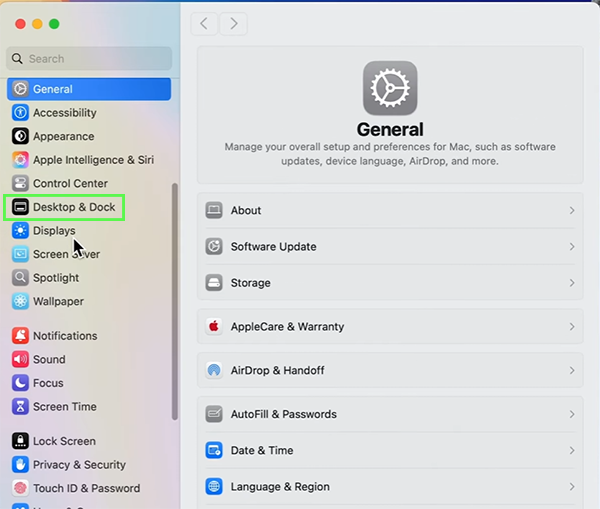
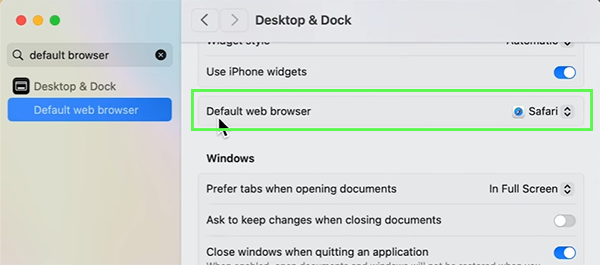
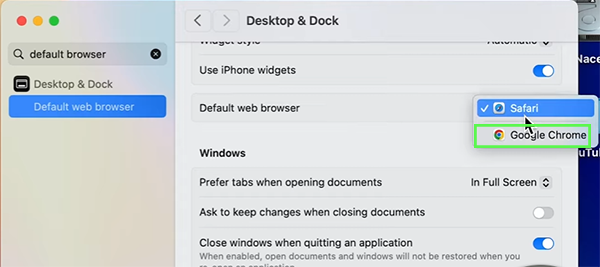
In older macOS versions, the default browser is laggy. New browsers are more powerful and have more options to increase user experience and workflow. You can set any browser as the default in just a few easy steps: click on Settings and go to General, then change the default browser to a new one.
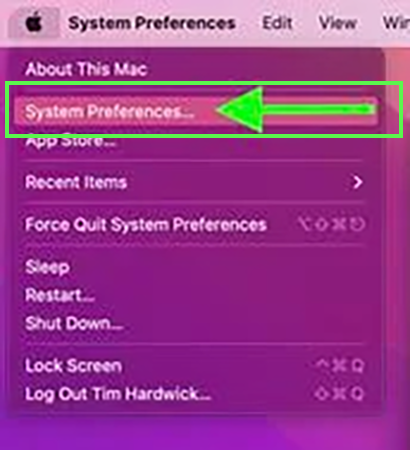
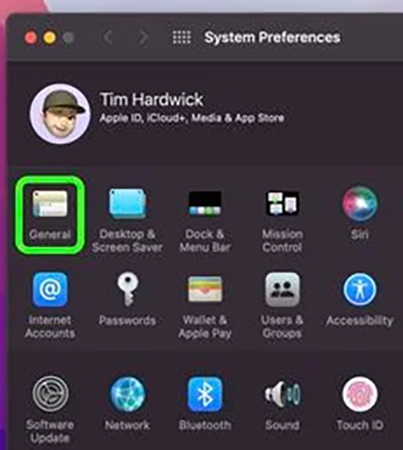
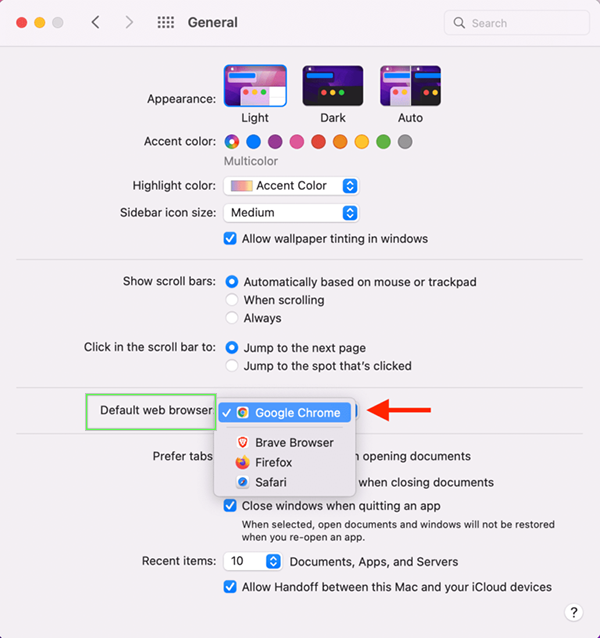
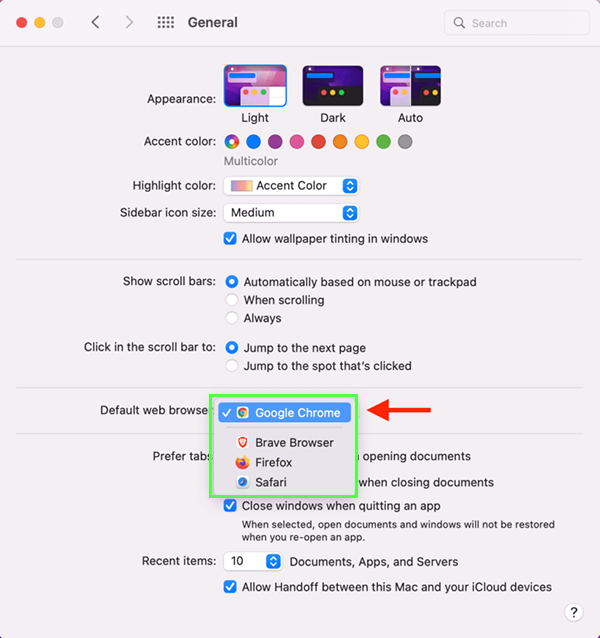
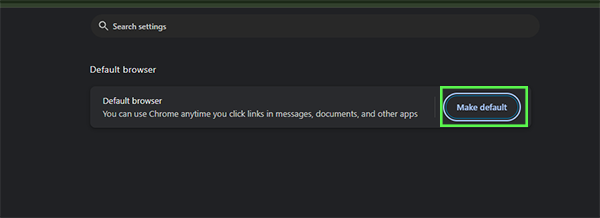
Some modern browsers offer direct settings to set the browser as default without diving into settings and changing the default browser. This feature works on all macOS versions.


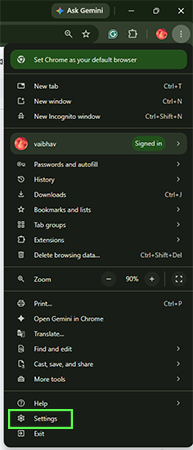
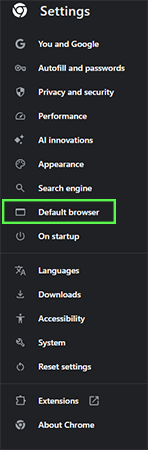
Default browsers on mac os are old, and there is no extra option where the newly launched browser offers good performance and new features that improve user experience. You can easily change the default browser in System Settings on the Desktop & Dock tab. In this guide, we have shown you how to change the default browser on a Mac. If this guide is helpful, you can check out more such guide videos on the Getassist YouTube channel.
The default web browser on a Mac is the browser set to open any link or any direct search, and links will always open in that browser.
If you previously changed your default browser, you can change the default browser to Safari again. Open System Settings, then open the Desktop & Dock tab and change the default browser.
You can change your default browser with these steps: open System Settings, click on the Desktop & Dock tab, and change the default browser from there.
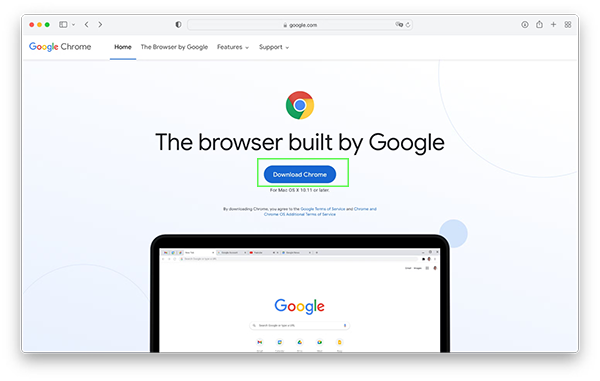
You can easily make Chrome the default browser on your MacBook. First, download and install Chrome, then open System Settings, go to the Desktop & Dock tab, and change the default browser to Chrome.
No, you cannot delete Safari completely from your Mac because it works as a system protection; you can change the default browser.