While using your Apple MacBook, if you ever see a sudden spike in your device storage without installing any new program, then you will get frustrated without any doubt and start deleting your favourite apps.
But the real problem might not actually be them; most likely, the conversations you are having with multiple people and spam messages are taking over your device memory. You can easily deal with this situation by understanding how to delete messages on MacBook using beginner-friendly methods mentioned in this GetAssist guide.

Deleting messages on a MacBook is not at all complicated; in fact, you can do this using a few clicks and the Touch Bar. Even if you are using the MacBook for the first time and don’t know basic features like creating a folder on Mac, you can still do this using these three steps. Read them carefully and follow them in the exact order mentioned for best results.
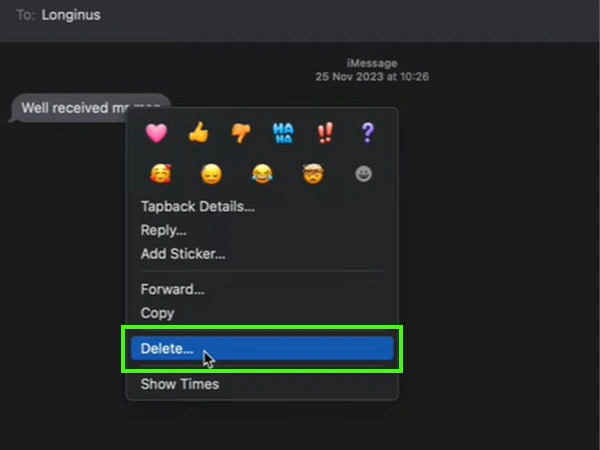
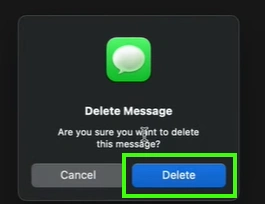
Removing a single message is great if you just want to eliminate items that you don’t want to take a look at regularly, and to do this, follow the process written below.
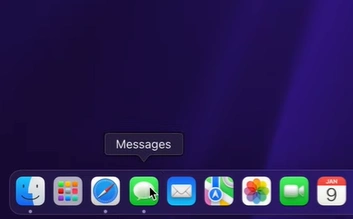
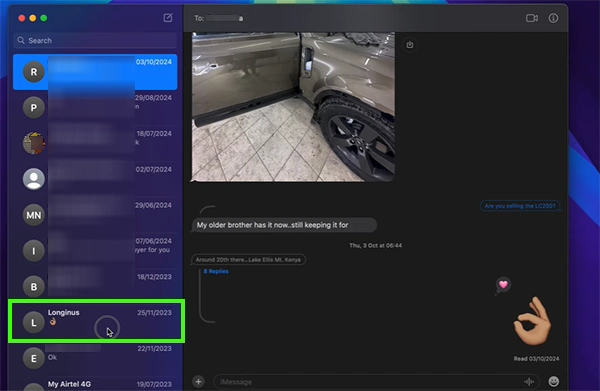
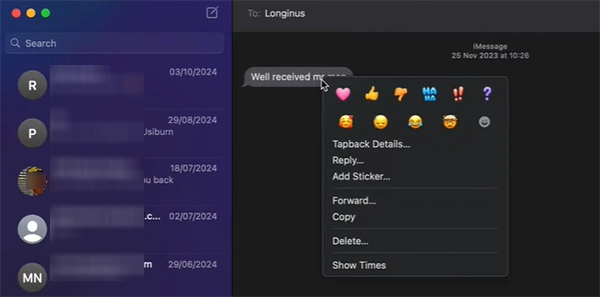
Using Messages, you can also delete entire conversations in just a few clicks without manually selecting text and wasting hours. All you need to do is follow these steps.
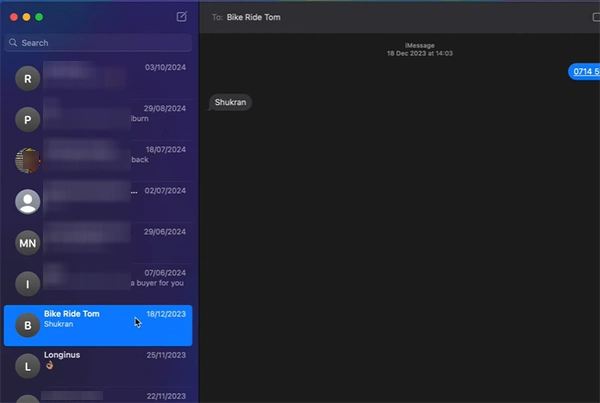
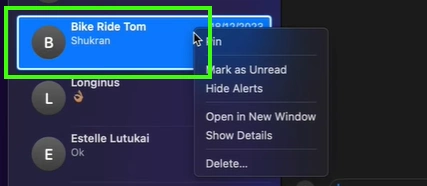
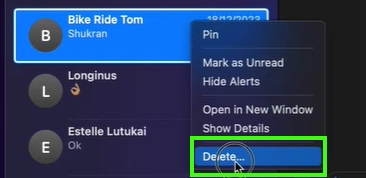
This is the best way to delete messages in batches, without using any complicated clicks.
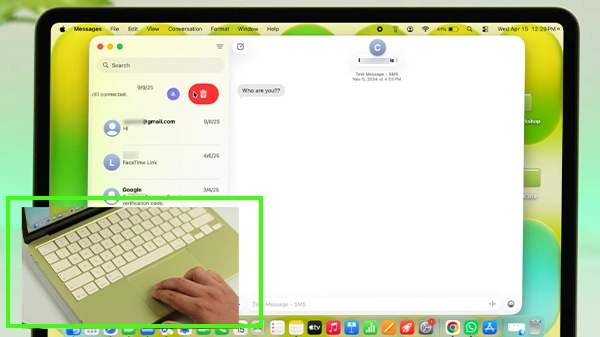
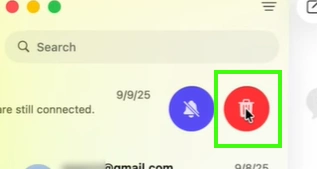
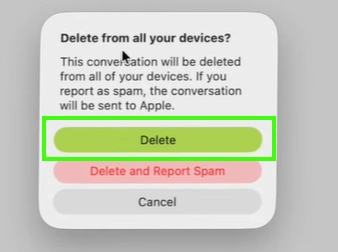
MacBooks have so many interesting features, and swiping chats to delete them is one of them. If you want to learn the most creative way to remove your texting junk, then follow these steps as mentioned.
Well, this guide is just about how you can delete text messages on a MacBook in batches or with manual selections, but the Apple ecosystem is full of immersive features, updates, and effective shortcuts to make your workflows smarter and sharper. To learn all the new elements of iPhones, iPads, and MacBooks, make sure to subscribe and press the bell icon on the GetAssist YouTube channel.
Here’s how you can delete messages from your MacBook without any complex clicks or opening storage settings. The Messages app is handy for chatting with friends and family, but your inbox can fill up your storage very quickly. Deleting messages on your MacBook can free up plenty of storage space and clear out clutter from your conversations.
From deleting single messages to deleting entire conversations and automating message deletion, managing your messages only takes a couple of clicks, which you can easily do no matter how busy your schedule is. Learn more interesting tips and tricks about MacBook by sticking with GetAssist.
You can quickly delete a conversation on Mac by swiping left with two fingers on the conversation in the sidebar, then clicking the Delete icon.
On macOS, Control + K (Control-K) cuts (or “kills”) text from the current cursor position to the end of the line or paragraph.
No, the standard Windows Ctrl + Alt + Delete shortcut does not work natively in macOS to open a task manager or perform any task.