If your MacBook is lagging, glitching, or some apps have stopped working, then restarting your Mac helps your system clear active memory, fix slow performance, stop hidden background glitches, and more.
By knowing how to restart MacBook, you can simply help its system return to working condition in minutes. Go through this whole article and learn the 3 ways by which you can restart MacBook.
There are a total of three steps by which you can restart your MacBook: The normal restart, the keyboard shortcut, and the force restart if your screen freezes for some reason.
Here is how to restart macBook in brief:
This is the standard and most well-known method by which you can restart your MacBook.
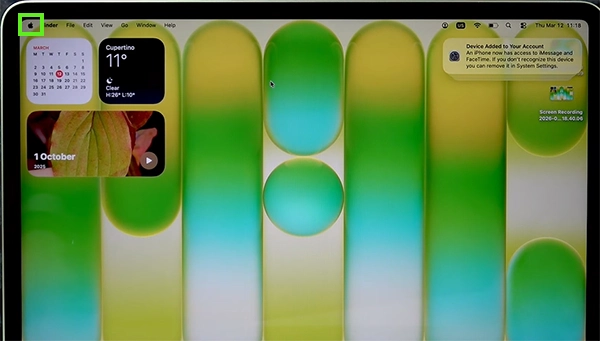
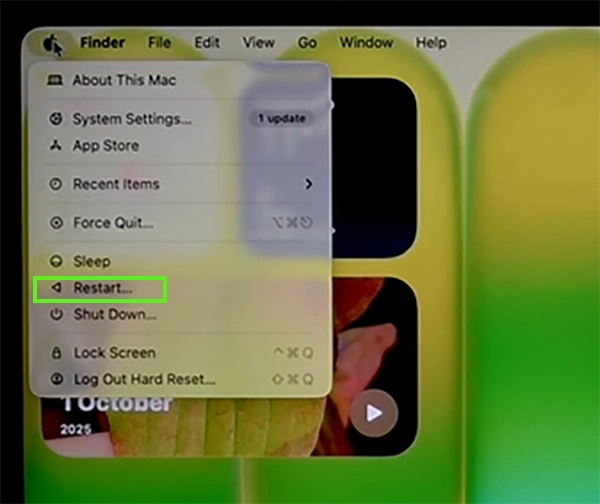
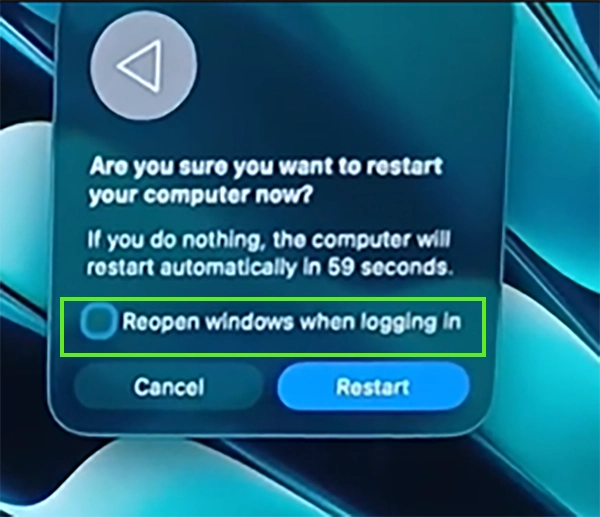
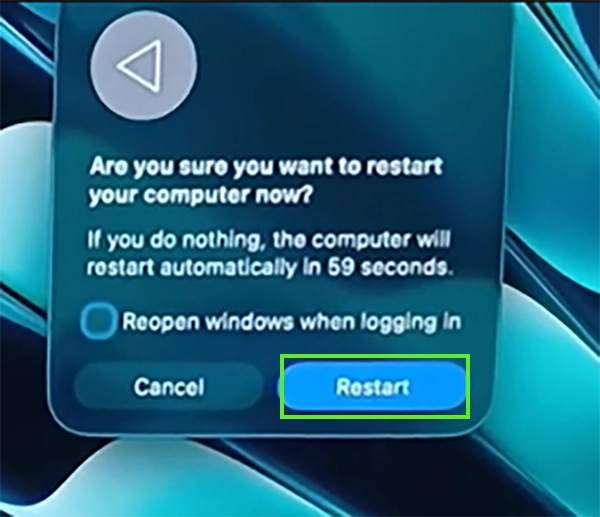
This is the simplest way to restart your device by just pressing a few buttons on your keyboard.
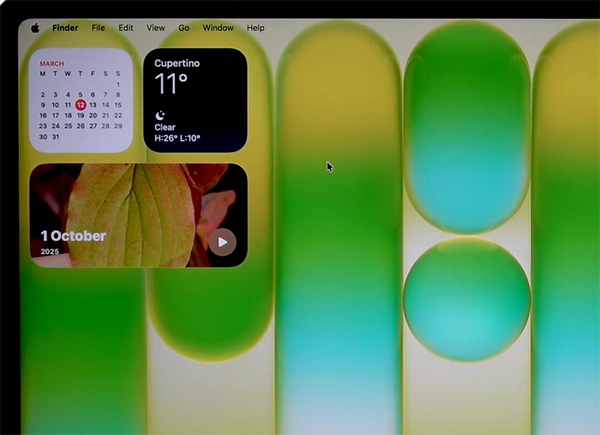
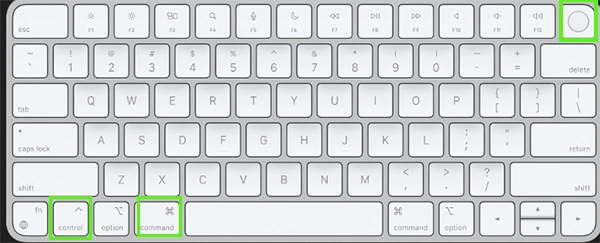
After following this, the laptop will automatically restart.
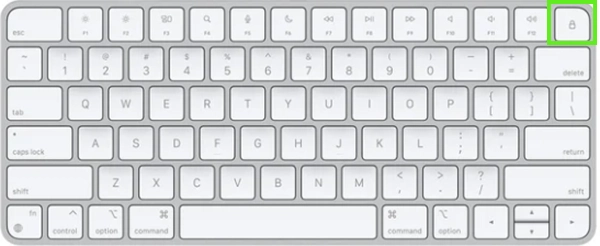
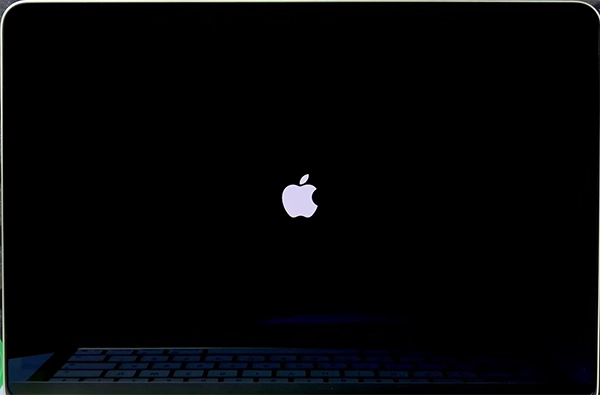
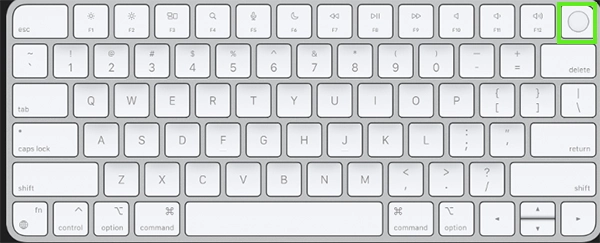
If your screen gets stuck and is not going back and forth, then the only option left is a force restart of your MacBook. Check out the steps for how to force restart Mac.
The steps are:
Restarting your MacBook might help you get rid of the lagging problems, frozen screens, and minor system bugs, but it might not help you with major hardware health or software glitches.
If you are still facing problems after trying all the 3 methods, consult an expert for guidance. Similarly, for other troubleshooting problems, visit the GetAssist you tube channel.
You should disconnect all external accessories like USB drives and hubs, then hold the power button down for 10 seconds to force a shutdown. Wait for 10 seconds, and then turn it back on. If it continues, boot into Safe Mode.
You should not restart your Mac every day. MacOS handles sleep mode well. However, restarting once a week or once every two weeks helps clear temporary cache files, apply pending security updates, free up active system memory, and keep your computer performance fast and smooth.
The automatic restart is often caused by a kernel panic, which is a critical system error. It can be the result of faulty third-party hardware, corrupted software drivers, or an external device conflict. Check your Energy Saver or Battery settings to make sure automatic power-sharing or power nap features are not misconfigured.