A Mac frozen screen can interrupt your work and stop you from using apps or accessing any files. There are many reasons this issue may occur, like overloaded memory, unresponsive applications, low storage space, outdated macOS, overheating, malware, or hardware problems. In this guide, we will show you 5 easy methods to restore your MacBook to normal.
The quick, easy methods include force-quitting apps and stopping demanding processes, restarting your Mac, freeing up storage, and running Apple Diagnostics. You can also try Safe Mode to identify software issues. Follow these steps to fix your Mac frozen screen.
If your MacBook becomes unresponsive, don’t panic. Try these 5 simple methods that can help you resolve the issue without visiting a repair center.
Start with these simple steps, such as closing frozen applications, checking resource usage, and restarting your MacBook to fix your Mac frozen screen.


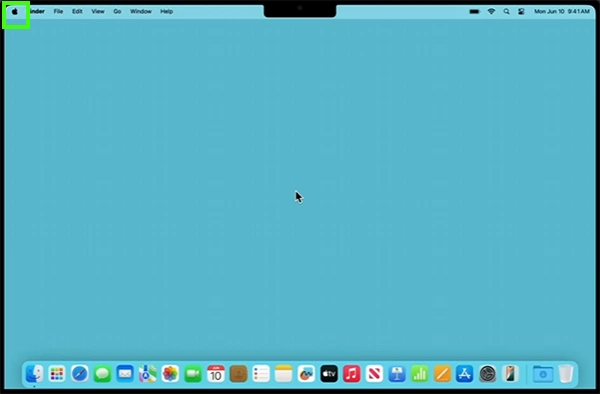

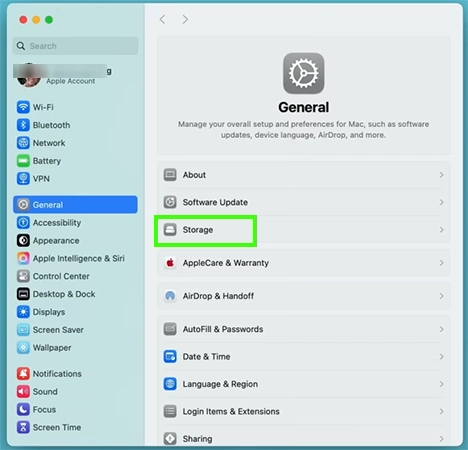
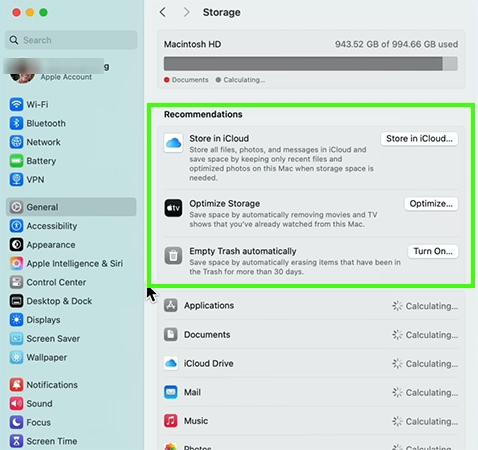
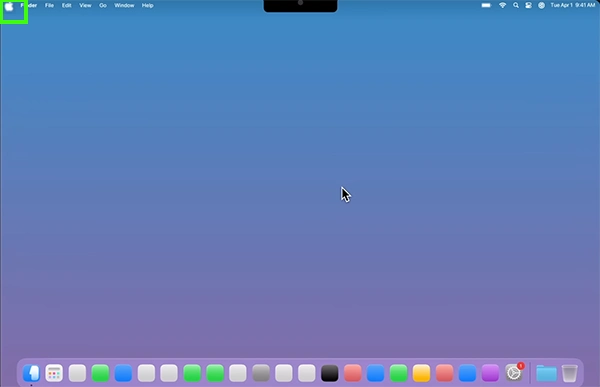
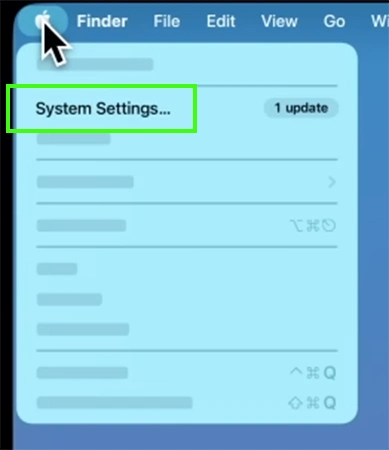
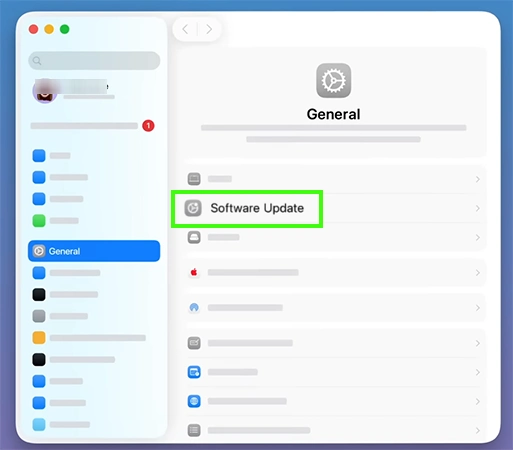
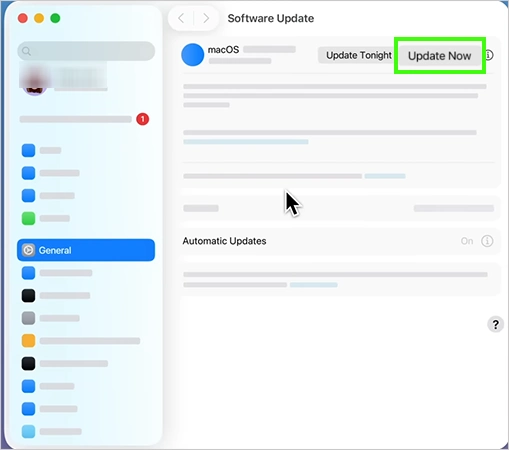



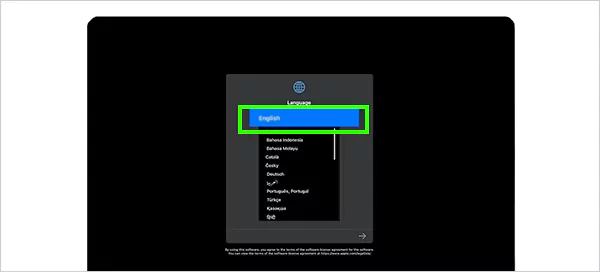

A Mac frozen screen can be frustrating and stop you from using any application. In this guide, we will show you the easy steps to fix your frozen display without any professional help.
Steps include trying Safe Mode, freeing up storage space, or running Apple Diagnostics, etc. If none of these solutions work, contact Apple Support for a repair technician for the issue. If this guide is helpful, you can check out more such guide videos on the Getassist YouTube channel.
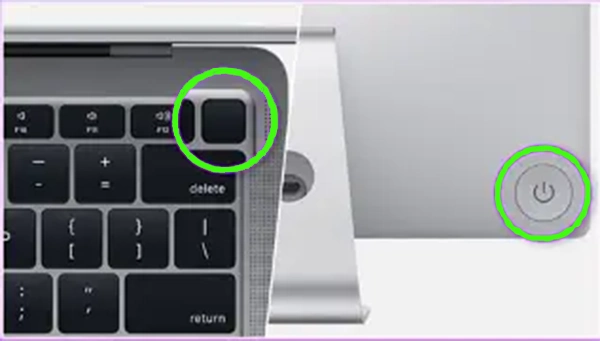
To get our Mac to respond again, try a force restart by holding the power button until the screen shuts off.
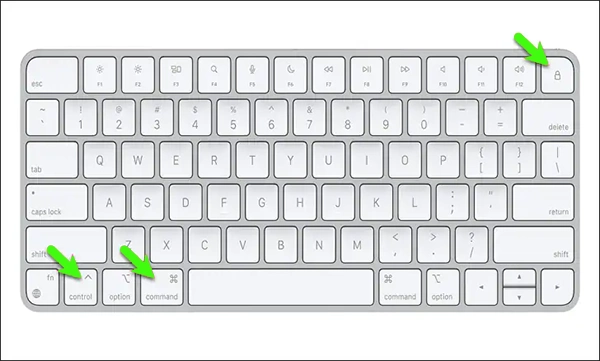
If your MacBook is on but frozen, hold the Touch ID/power button until the screen goes black and the Mac restarts. For the Intel-based MacBooks, press and hold Control + Command + Power.
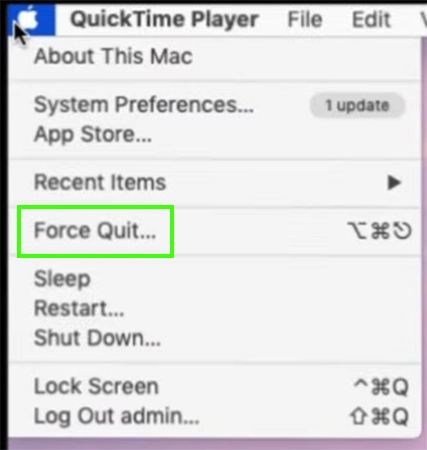
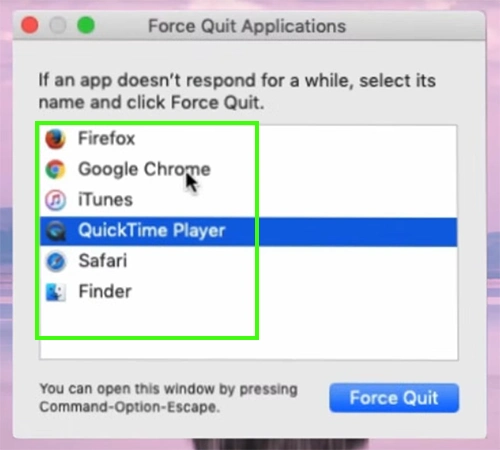
Try to close the unresponsive app by using Option + Command + Esc to save your work whenever possible before restarting.
Yes, Safe Mode can help to identify the main issue that is causing your Mac to freeze.
Yes, low storage may cause your Mac to freeze. It also slows down performance and response.