If you want to send an important notice to multiple people at the same time or deliver an important meeting link just a few mins before it starts, then learning how to schedule a text on iPhone using iMessage can be really helpful for managing your daily professional chaos.
In this detailed guide by GetAssist, you will be reading the quickest way to schedule a text message, along with some essential drawbacks to dodge during message planning. Let’s start without any more delays.
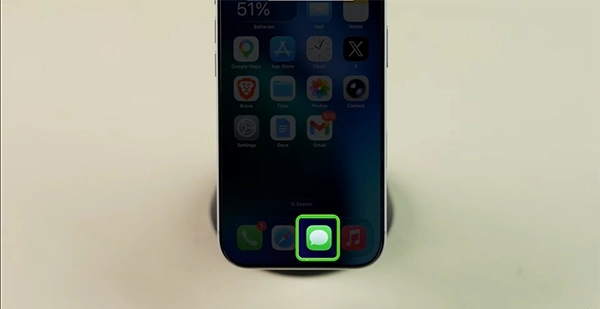
Scheduling a text on iPhone has become easier with the new iOS update; all you need to do is turn on your device’s WiFi or cellular data and follow these steps in the exact order mentioned.
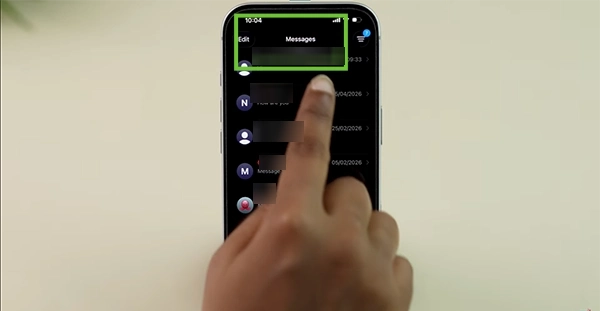
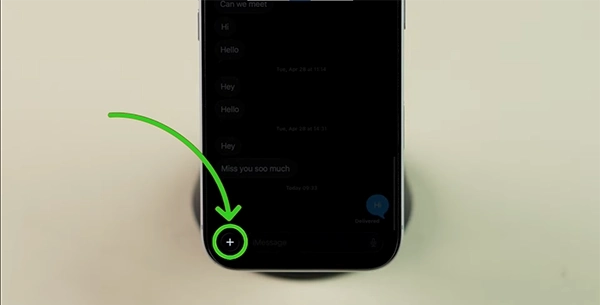
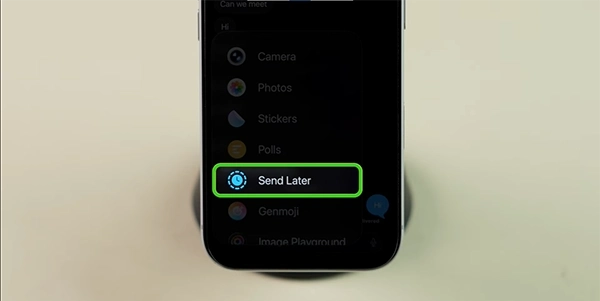
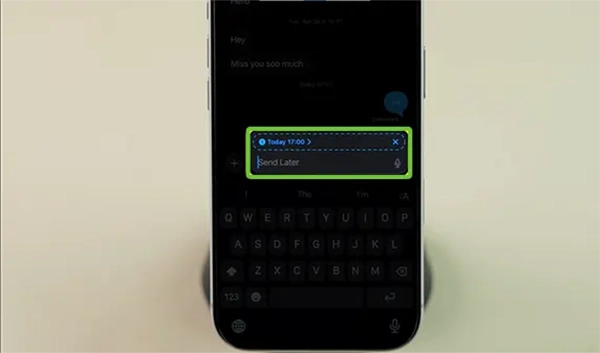
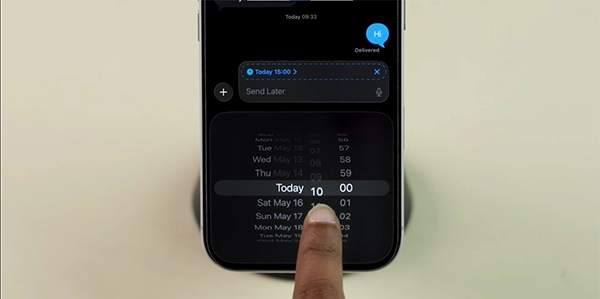
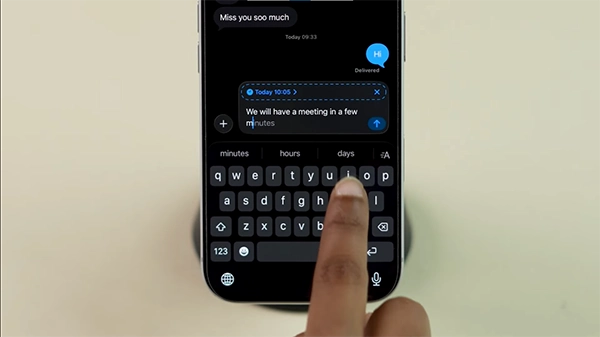
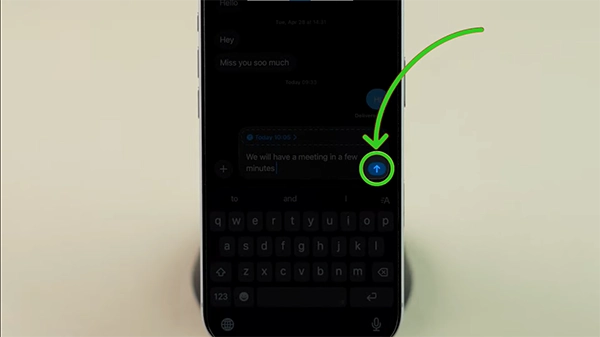
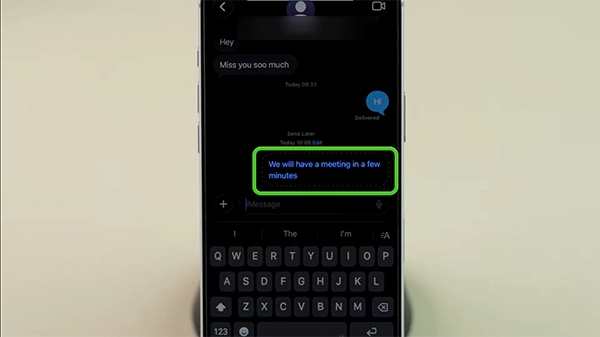
Well, that was just a glimpse. If you want to enable more automotive features in your iPhones and learn about interesting updates about the Apple ecosystem, then you can check out the GetAssist YouTube Channel.
Scheduling text messages on iMessage comes with some problems like feature restrictions, editing constraints, and connectivity dependencies, which might break your reminder planning or delay important drafts. Read them carefully to avoid mistakes while scheduling the texts.
To conclude, we would like to say that basically, it takes only a second to set up a scheduled text message, and no additional apps are needed. So, do not worry about missing any important messages and let your iPhone do the hard work for you! Just follow each step in the mentioned order, and you are ready to go.
Going for third-party solutions in this scenario is a waste of time and effort because the official way is the most reliable and fastest. Other than that, there are some common problems that you might face if you don’t follow the steps accurately. For more such intriguing content, make sure to GetAssist.
Ans: No, scheduling a text message does not tell the other person. The other person receives the text like any normal message at the exact time you chose. They have no way of knowing it was written or scheduled in advance.
Ans: To fix texting issues on your iPhone, restart your device and verify that iMessage Settings have iMessage turned on and your correct phone number selected under Send & Receive.
Ans: Scheduled texts fail to send because of weak cellular service, missing final confirmation taps, or unsupported device types like green-bubble SMS on iPhones