What is WindowServer on Mac? Exploring its Meaning and Core Usage Principles

| Updated on October 30, 2026
What is WindowServer on Mac Exploring its Meaning and Core Usage Principles

Have you ever experienced lags, bugs, and glitches appearing on your Apple MacBook frequently but can’t figure out what the actual issue is? Then don’t worry; you are not alone. 

This is something that almost every Mac user faces often because most of them are unaware of what is windowserver on Mac. But by the end of this blog post, you will learn everything about the importance of this factor and some tips to make your device more efficient and stable. 

Let’s start!
What is WindowServer on Mac?

WindowServer on Mac

WindowServer is one of the most vital components of macOS, as it handles all of the visual elements you see on your screen, like windows, desktop backgrounds, the Dock, the menu bar, animation, translucent effects, and external displays.

It also pulls off multi-display setups between two devices, virtual desktops (Spaces), window tabs, and Stage Manager, which are integral for creating an omnichannel experience throughout the Apple ecosystem. 

Why is There High WindowServer Usage on Mac? 

As we mentioned earlier, WindowServer is responsible for saving, rendering, and managing all the graphical elements of macOS, like browser data, folders, images, and operating multi-channel distribution. If you think your WindowServer usage is high, then there are some reasons and their quick fixes mentioned below, which you should definitely check out. 

  • The first reason is very predictable, and people usually think it’s normal, but it isn’t. If you are someone who connects high-resolution monitors (such as 4K or 5K panels, ultra-wide screens, or high-refresh-rate displays), then it will extract so much power from both the CPU and GPU. 
  • Using visual enhancement features in MacBook, like macOS transparency, Mission Control spaces, and heavy interface animations (such as newer UI elements), puts a heavy load on the system, causing spikes in the WindowServer process. 
  • Also, using too many apps at the same time or using multiple browser tabs at once is also very exhausting for your MacBook to handle, and it can become unstable after a while. So limit using tabs and apps by closing them when they are no longer needed. 
  • Downloading third-party applications can leak memory or continuously request screen updates, driving up WindowServer resource usage. This is why it is always recommended to download programs using official platforms.  

How to Reduce WindowServer CPU Usage?

If your MacBook is stressing too frequently, then most probably it’s happening because of high CPU usage. To reduce that, you can follow some of the basic yet effective methods that will make your device better in every aspect. 

  • Quit All Unnecessary Apps and Tabs: Sometimes all the unwanted tabs and applications (their internal data as well) are the real culprits behind the random CPU spikes. By using simple shortcuts like Command + Option + Esc, you can easily close all of them without any manual selection or major scroll-through on your MacBook. 
  • Minimize Display Settings: If you are someone who uses the MacBook all day long without any breaks, then it is highly likely that display power consumption is stressing all the internal components, including the CPU. So using the display in warm tones, a 60 Hz refresh rate, and without any special modes can reduce the burden on your system. 
  • Reboot or Restart a Mac: You know MacBooks or any other computing system can cause bugs and glitches whenever it gets updated with a new OS, comes into contact with new applications, or receives information from third-party drives. These elements cannot be seen easily in any file, Finder, or folder, so in order to eliminate them, you need to reboot your Mac and put your MacBook into Recovery Mode to launch the fresh operating system free from all digital clutter. 
  • Keep Your MacBook Updated: Keeping your MacBook up to date with all the latest OS updates and security patches is something you should never miss out on. Using an older version can make new-gen applications unstable, and all the cache files will be retained on the device. The only way you can obtain a brand new experience on an older device is by updating it. 

Getting updated with new tech updates, the latest Apple news, and the best tips to make devices faster is harder to find. But the GetAssist YouTube Channel has it all. By subscribing and pressing the bell icon, you can easily receive daily interesting tidbits about your favourite niches under one roof.  

Conclusion

To make your Mac run fast & draw flawlessly, the WindowServer process must work smoothly and consistently without any crashes. This process handles all graphics work on your Mac desktop and accelerates everything you see, from windows and menus to zooming animations. 

If this process has to work harder, it can stress out your Mac frequently. So, if you see your Mac struggling with performance, then go for the methods mentioned above to reduce CPU usage of WindowServer.

FAQ

What happens if I quit WindowServer on Mac?

If you quit or force-quit the WindowServer process on a Mac, your screens will immediately go black, your active graphical session will end, and you will be logged out of your account. 

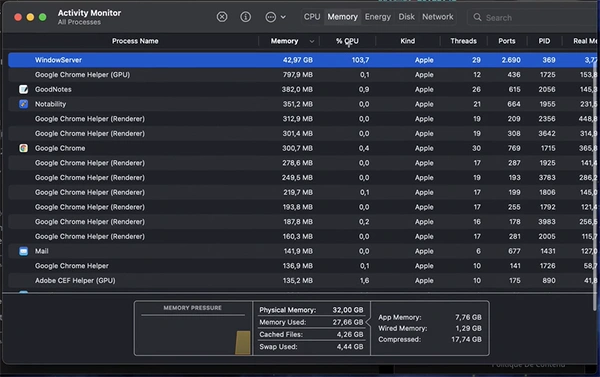
Why is WindowServer using so much RAM on my Mac?

The WindowServer process is drawing and rendering all open windows, desktops, icons, menu bars, screen effects, and more, which is why it is using so much RAM in the background.

My MacBook Pro is randomly shutting down. What can I do to fix this?

Your MacBook Pro can easily shut down because of software glitches, battery wear, overheating, or failing hardware components. While some software-based issues can be easily fixed using basic troubleshooting solutions, hardware issues or failures require professional assistance.


Sources


Rajesh Pandey

iOS and Gadgets Writer


Related Posts

×
×