For sending messages to different people as an Apple user without any disruptions, you need to enable MMS on iPhone. On most of the phones, it is pre-enabled, but sometimes due to iOS updates, restarts, or factory resets, it gets disabled. In this blog post, we are going to show you how to turn it on or off in the quickest way possible.
Read till the end!
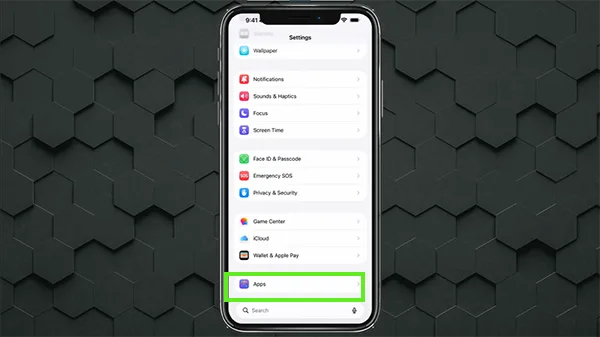
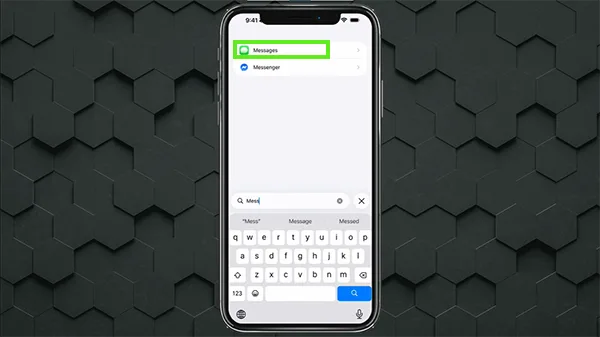
To enable MMS on iPhone for sending uninterrupted text messages to anyone, you need to follow these steps in the mentioned order.
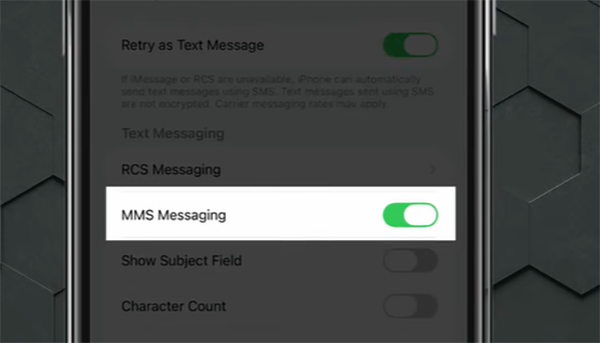
When enabling MMS on iPhone, many users run into common problems you may see too. So, to provide clarity and help you to dodge them, we have mentioned these issues in detail:
iPhones have so many unique features that most users ignore, and they have limited access to them, but if you want to explore new things about the Apple ecosystem every day, then make sure to check out the GetAssist YouTube channel.
To conclude, the process of enabling MMS on your iPhone is simple and takes only a few taps in your settings. You can turn on MMS Messaging and Group Messaging in your cellular settings to start sending pictures and videos right away. If you ever have any problems, you can always do a network reset or power down your phone to restart it. Update your settings now and start sending messages to all of your friends! Don’t forget to follow GetAssist for more such content.
Ans: If MMS is not working, then you should try enabling MMS messaging again or turn on cellular data on your iPhone.
Ans: To enable MMS on your iPhone 17, open the Settings app, scroll down to Apps, select Messages, and toggle on MMS Messaging.
Ans: MMS messaging should generally be turned on on your iPhone so you can send pictures, videos, and group texts to non-iPhone users (like Android users)