Voice Control is a feature that responds to your voice commands and lets you control small operations like volume adjustments, opening apps, playing music, and sending personalized text messages without touching your phone. If you want to turn off Voice Control iPhone, read out the steps mentioned in this guide ahead.
You can disable Voice Control from your device settings. After you turn off Voice Control, your voice commands will be restricted.
Check out the steps to turn off Voice Control iPhone.

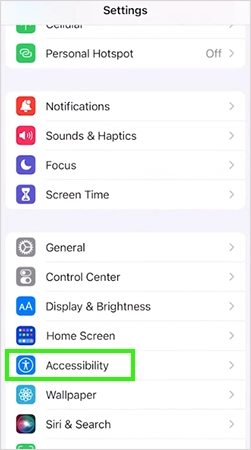
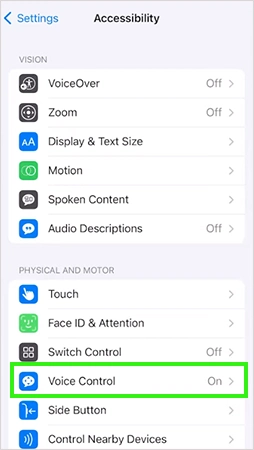
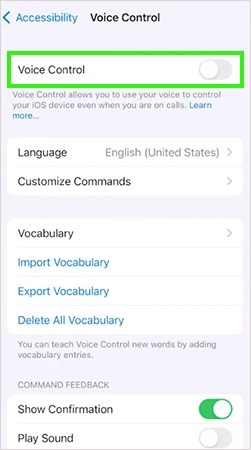
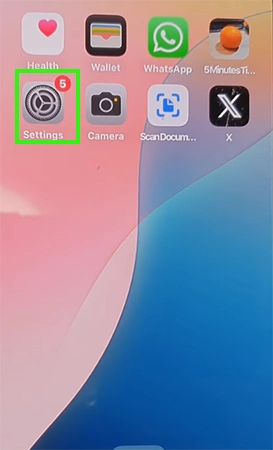
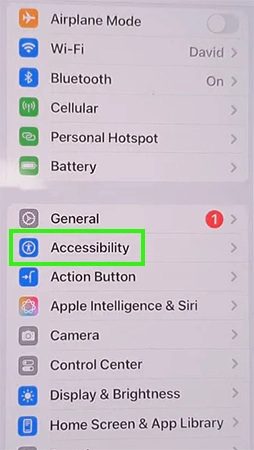
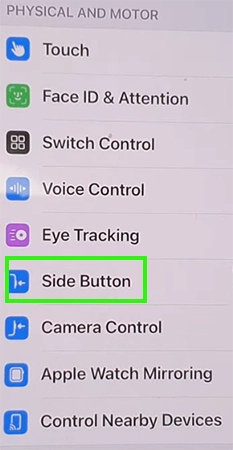
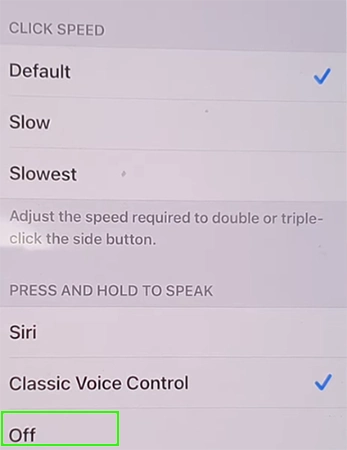
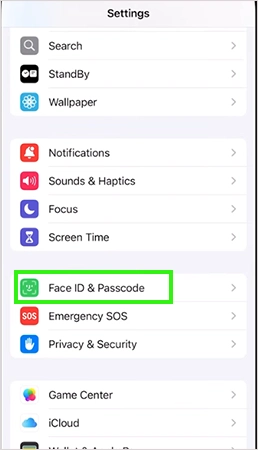
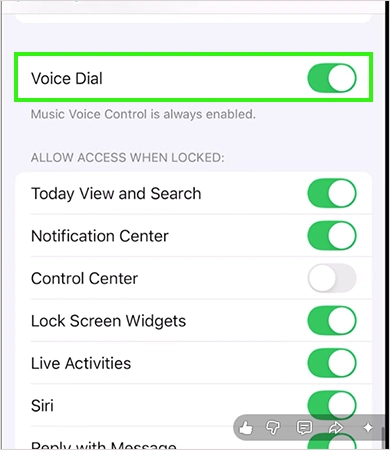
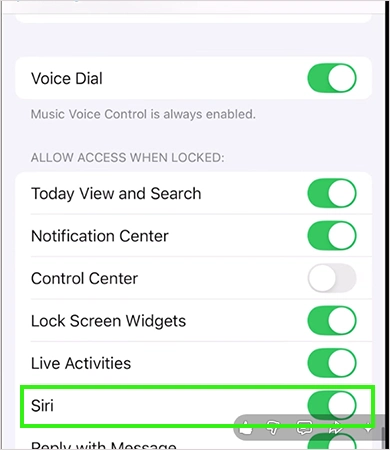
You can easily turn off these settings. Open your Settings, tap Face ID & Passcode, then scroll down, find Voice Dial, and turn it off, then find Siri and turn it off. Check out the steps with images below.

Your iPhone Voice Control feature can be very helpful when you need to use your iPhone hands-free. But it quickly becomes a problem when you activate it accidentally while typing. With the help of this guide, you can turn off voice control iphone, and for more such video guides, check out the Getassist YouTube channel.
You can easily stop Voice Control; follow these simple steps: open Settings, open Accessibility, find Voice Control, and turn it off.
Disabling Voice Control doesn’t affect your ability to dictate text and email through your keyboard.
Open Settings, go to Accessibility, then open Voice Control and turn it off to prevent it from turning back on again.
Go to Settings, search for Siri, tap Siri, then tap Talk to Siri, turn off Listen to Siri, and turn it back on.
Try to restart your iPhone. If you don’t know the shortcut, press and hold Power and Volume Up.
Siri and Voice Control are similar, but Siri needs internet access, while Voice Control doesn’t.