Tired of finding download links for educational videos, fetching project documents, and your important lecture recap, and want to find a solution that will help you to instantly capture them on your Chromebook?
Then don’t worry; if you learn how to screen record on Chromebook you won’t have to struggle again to find and install necessary video units. You can save the recorded files in your preferred device folders also. Read till the end to understand the complete step-by-step process.
Quick Answer
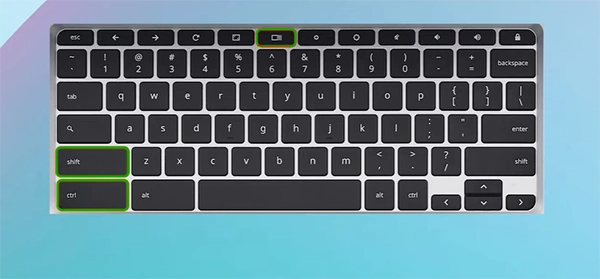
You can record your screen using the built-in tool by pressing Ctrl + Shift + Show Windows. After recording, you can save your files in your desired folders or create a new one for them.
Screen recording on a Chromebook can be done using this simple method, which requires only the keyboard and a few simple steps using the cursor. Follow the process in complete chronological order.

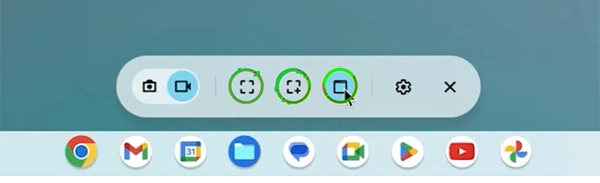
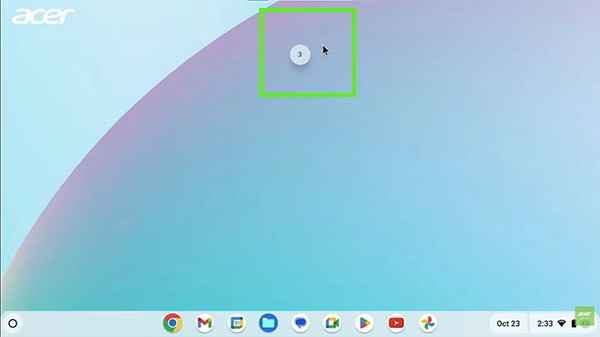
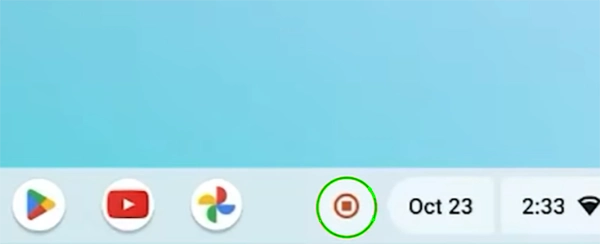
This way, you can easily download and save all your recordings to your device without any internet usage or third-party tools.
You can find all your screen-recorded videos in the folders you want. All you need to do is make a few tweaks in the screen recording toggle. Note the variations carefully to find your saved files without any hassle.
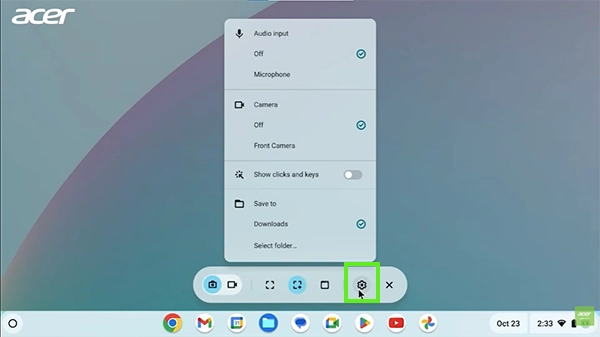
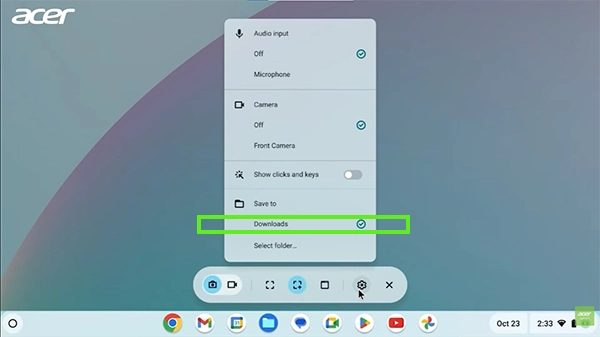
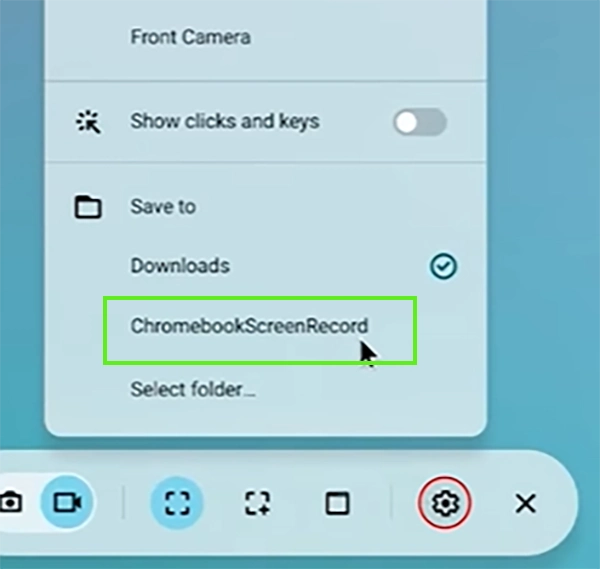
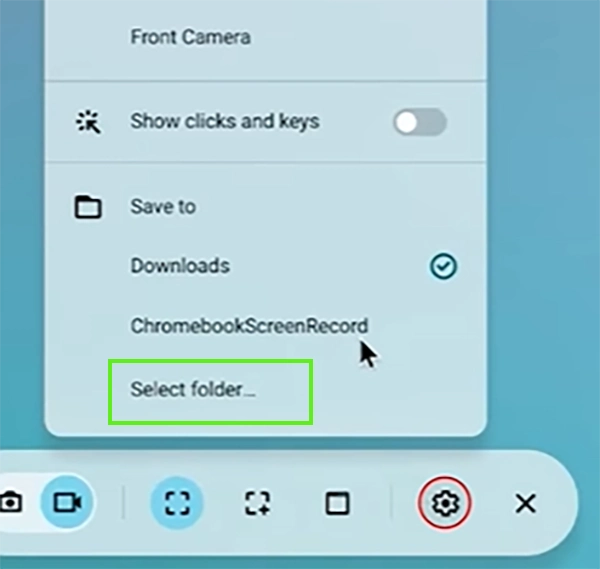
This is how you can save all your recordings in your desired folders and find them whenever you need.
In conclusion, recording your screen on your Chromebook is fast, easy, and doesn’t require any special software. You only need to press the Ctrl + Shift + Show Windows keys, and this will allow you to record either your complete screen, a region, or a particular window in a few seconds! So if you need to record a class, produce a how-to video, or help someone with a problem, you are in the right place. Don’t forget to follow GetAssist for more such informative quick guides.
Ans: Pressing Ctrl + Alt + Z on a Chromebook turns the built-in ChromeVox screen reader on or off. It is a spoken feedback tool that reads and speaks all the information present on the screen.
Ans: Google Chrome does not have a built-in, native screen recorder built directly into its core settings, but you can record your screen by installing an official extension like the Google Vids Screen Recorder Chrome Extension or other third-party tools from the Chrome Web Store.
Ans: This shortcut immediately secures your computer when you step away by locking it. To unlock the screen and return to your work, you must type your Google Account password or PIN.