When creating sheets, flowcharts, and projects with multiple segments, we often overlook the importance of adding accurate navigation symbols. Among all the signs that indicate directions, the arrow is the most important one. You can learn how to make an arrow on the keyboard in a few steps, which are mentioned in this guide by GetAssist for Windows and Mac devices. It will make your project more defined with appropriate markings.
You can make an arrow using the keyboard in both Windows and Mac; you just need to follow the steps for your device’s operating system.
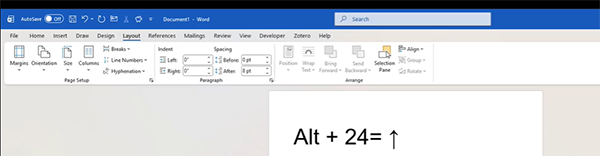
In Windows, the easiest way to add arrows in the document can be done with the help of the Alt and Num keys. Follow these simple shortcuts to learn how to make an arrow on keyboard.



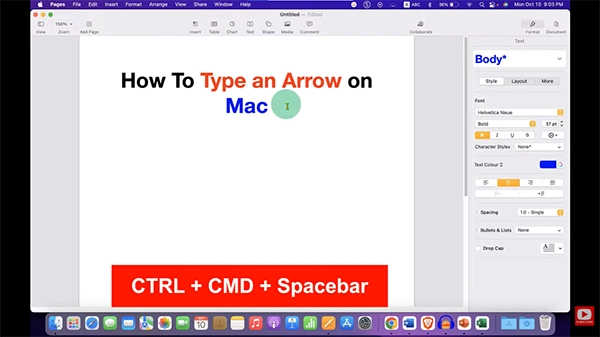
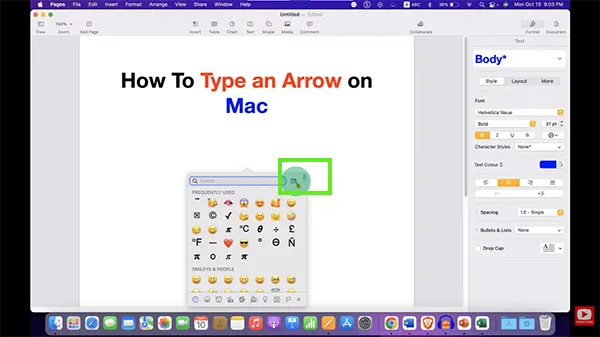
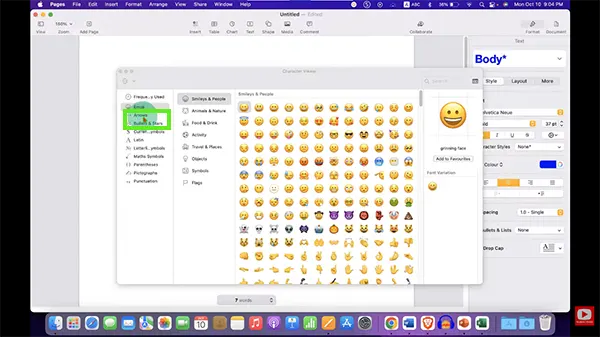
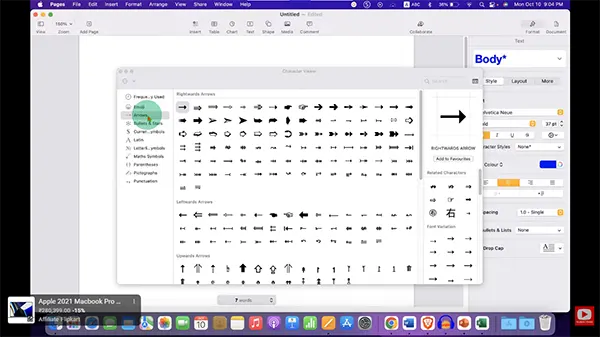
To type different arrows on Mac, you can use the Character Viewer, which has a vast list of all the navigational symbols. Follow these steps to open this feature.
This is just a glimpse of keyboard shortcuts; you can learn more about PC hacks, troubleshooting common problems, and the latest updates about different devices on the GetAssist YouTube channel.
To conclude, note that using the arrow keys while typing on the keyboard is a very simple and fast process. It does not matter what operating system you are using: Windows or Mac- there are several ways to add arrows made of symbols →, ←, ↑, ↓ in the text of a note or message. These include using special character viewers, emoticon sets, or just using keyboard combinations. Use one of these simple tricks and add arrows to your keyboard typing to make your project better than ever before. Make sure to stick with GetAssist for more such informational content.
Ans: You can make arrows on your keyboard using a combination of the Alt key and numbers, or on a Mac you can use Character Viewer.
Ans: The symbol ↑ (upward-pointing arrow) means an upward direction, increase, or higher value depending on the context. It is important for navigation in many documents and when surfing websites.
Ans: The numeric codes for arrows are distinguished according to their navigational position. For Windows, these are some combinations: Alt + 26 for right (→), Alt + 27 for left (←), Alt + 24 for up (↑), and Alt + 25 for down (↓).