Arranging files that are misplaced into different categories is something that you should never ignore, as it helps to make your Apple MacBook clean and organized.
To make this possible, you need to understand how to make a folder on Mac in just a few clicks. Here are three effective ways mentioned in this GetAssist guide that you must follow.
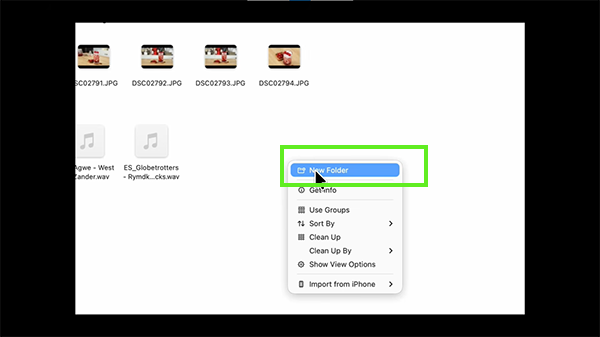
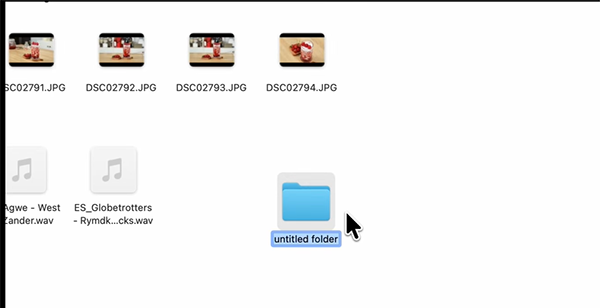
Creating a folder on a Mac is pretty easy if you use methods like basic trackpad clicks, keyboard shortcuts, and manually dragging the files into the folder. We have mentioned each step in detail; make sure to follow them in the correct order.
The first method uses your MacBook’s trackpad and a few clicks; let’s see how it works.
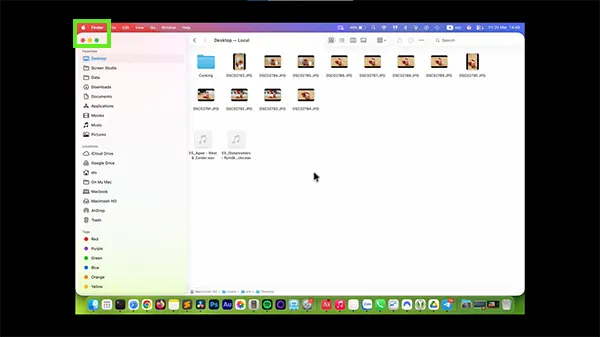
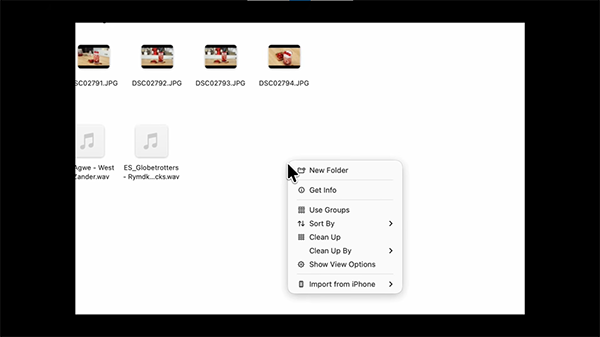
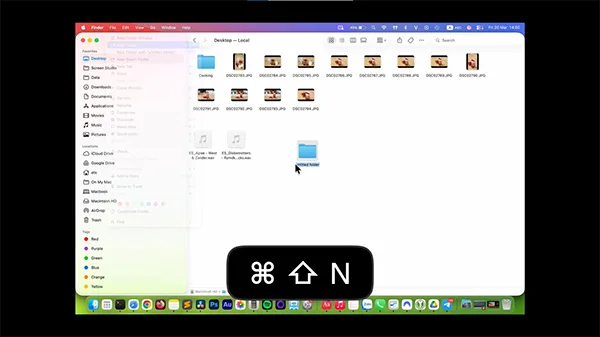
If you prefer using the keyboard more to access multiple features across MacBooks, then you can use this shortcut instead.
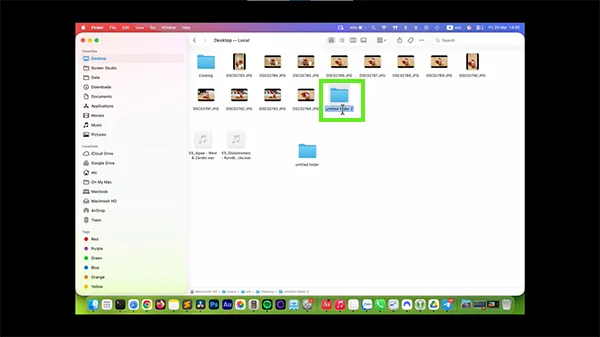
The drag-and-select method is something that most of the Mac users use to create folders and stack their data into different groups. Here we are going to explain that method quickly.
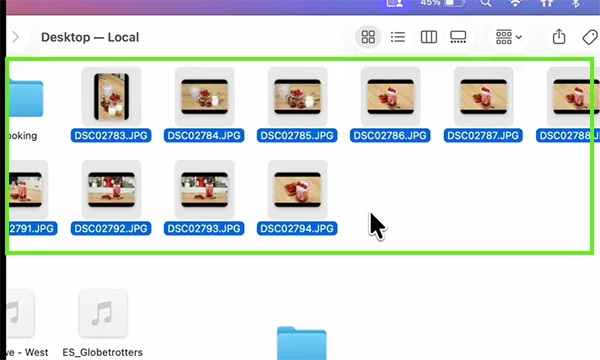
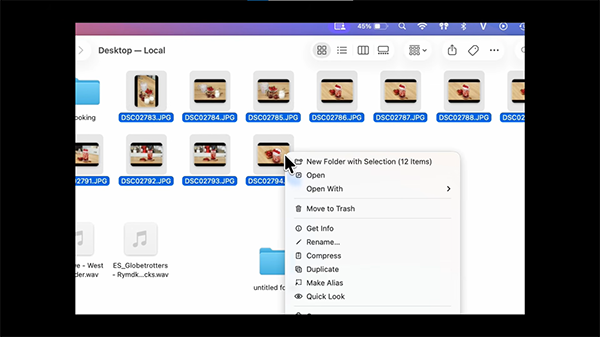
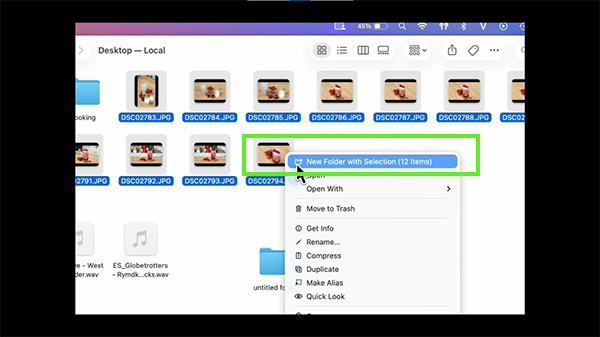
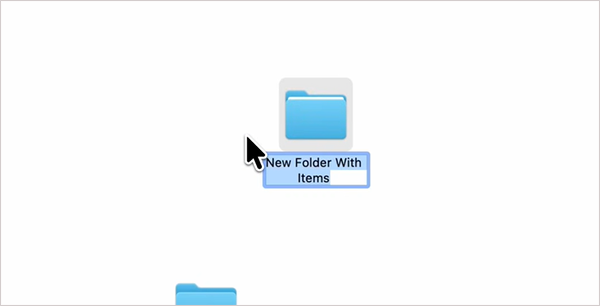
When you need a folder, it takes only a second to create it right on your Mac. Creating folders on Mac can be quick, easy, and efficient with these three different methods explained above.
Whether you feel like using your keyboard shortcut, right-clicking, or going to the top menu bar, each method is simple and will have you creating folders in no time. Keeping your desktop and documents clean and organized can make you more productive and help avoid clutter. For more such content, make sure to follow GetAssist.
Ans: You can decorate and customize folders on a Mac by using built-in system tools like Get Info and Preview to change their colors or swap the icons for custom images.
Ans: On macOS, Control + K (Control-K) cuts (or “kills”) text from the current cursor position to the end of the line or paragraph.
Ans: Pressing Control-H deletes the character to the left of the insertion point (acting the same as pressing the Delete key)