In order to make your device more stable and secure, you have to clear the cookies on your device. Clearing your device frequently can improve user experience, make your device faster, fix bugs, and boost your privacy with a few easy clicks.
Read this article till the end to understand how to clear cookies on iPhone and optimize your device without any major drawbacks.
There are a total of 3 steps that can help you to clear cookies on your device according to your needs. The steps are clearing the history and cookies of the Safari browser. Clear Safari cookies without clearing history, and clear cookies in third-party browsers.
If your device is continuously getting ads, you can clear the history of your Safari browser to prevent tracking files used by advertisers to follow your browsing history by following these steps:
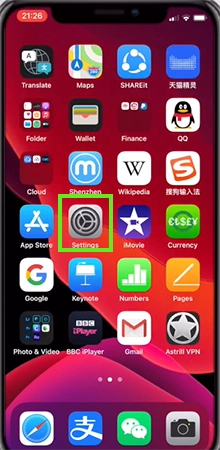
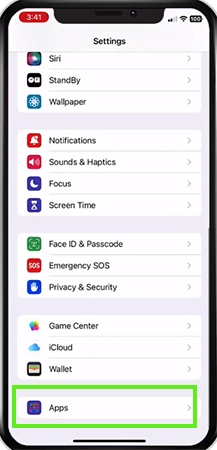
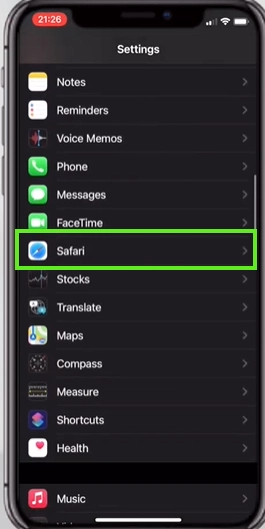
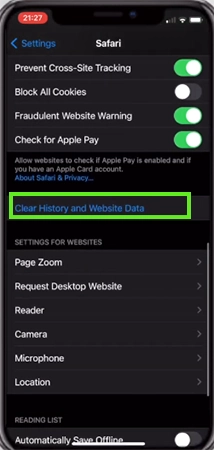
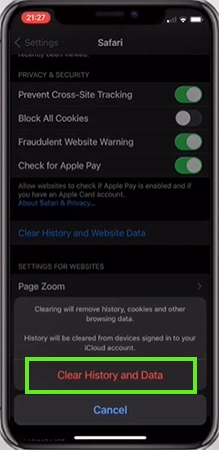
This step removes all the saved files, data, passwords, and tracking files without deleting your browsing history list, which helps you return to any important website with the help of your browsing history.
The steps to do this are:
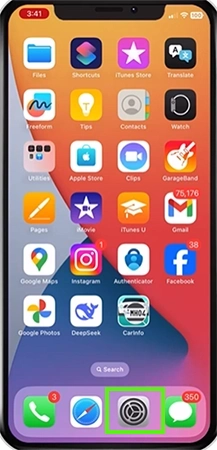
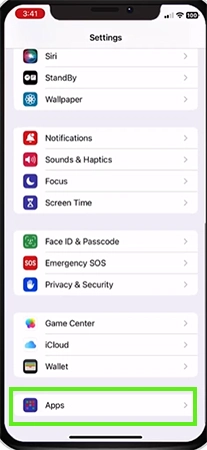
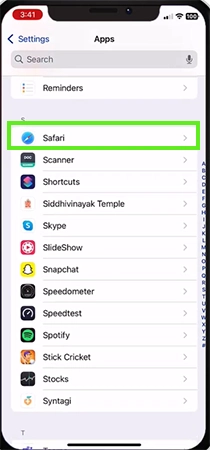
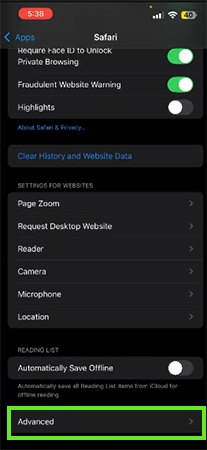
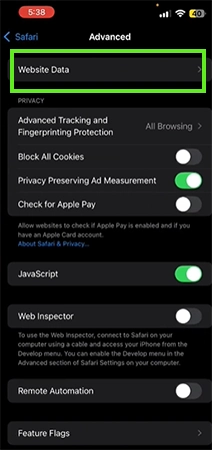
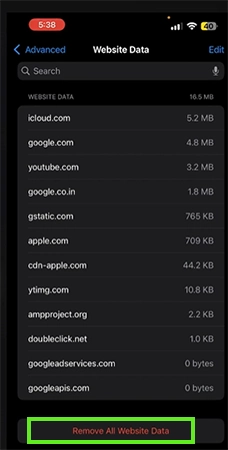
After tapping this, the data from all websites will be removed, but your history will not be deleted.
Every other third-party browser has its own respective steps to clear cookies. Since the Chrome browser is the most used third-party browser on iPhones. The following are the steps to clear cookies from the Chrome browser.
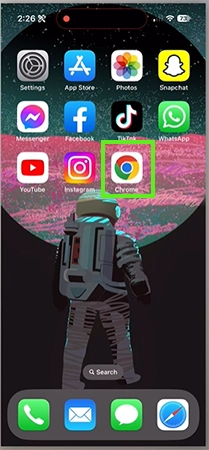
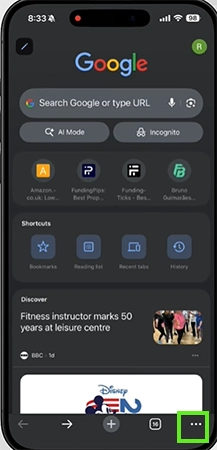
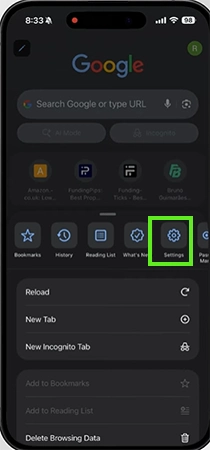
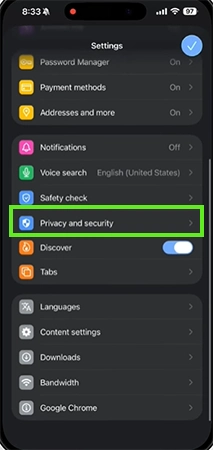
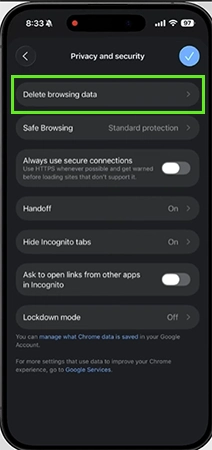
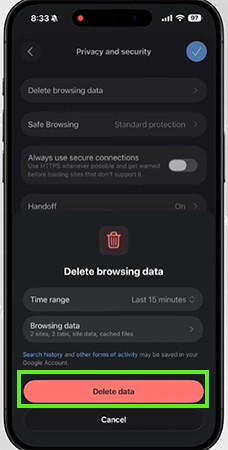
Clearing cookies on your phone might not sound like a very major task, but it is a very important task that helps you maintain your privacy and boost the performance of your browser.
The cookies on your device might help give you a personalized web experience and save your passwords, but it also slows down your browser speed and allows activity trackers to monitor your online activity on other platforms as well.
By clearing your cookies using the steps in the above article, you can easily make your web browser faster, more stable, and take back control of your own personal information. For more such updates on troubleshooting, visit the GetAssist YouTube channel.
Ans: Clearing Safari website data logs you out of web-based accounts accessed through Safari. However, it does not affect native apps installed on your home screen, like Instagram or banking apps, because those apps store their login tokens and session cookies in separate, isolated system containers.
Ans: Private browsing tabs do not store cookies continuously after you close the tab. Any session data, temporary cookies, or form inputs generated while browsing in private mode disappear automatically the moment every private tab is closed, leaving no footprint on your device.
Ans: Cookies themselves do not consume active battery power, but tracking scripts inserted within them force your CPU to process background data constantly. Over time, expanded cookie files make websites load slower, indirectly causing your iPhone to work harder and use more battery energy during browsing sessions.