During your Chromebook usage, if you ever encounter unwanted flickering, light flashes, and straight lines appearing on your display, the first thing you will think is Why is my Chromebook screen glitching?
This confusion can lead to frustration and ruin your entire user experience. So, through this blog post, you will understand how to fix a glitchy Chromebook screen using some simple methods.
You can experience a glitching Chromebook screen due to many hardware and software anomalies, which can significantly break your user experience. Some of the major ones are listed below:
Fixing a Chromebook screen glitching is very easy if there is no physical damage involved. You can do it by booting the Chromebook into recovery mode, keeping ChromeOS updated, disabling special display modes, and ejecting hardware accessories. Let’s break down each method in detail.
The first thing you should do to fix your glitching Chromebook screen is to boot it into recovery mode. Doing this will delete all the unnecessary files and local data present in the software that might be causing actual trouble. Follow the steps below to get it done perfectly.
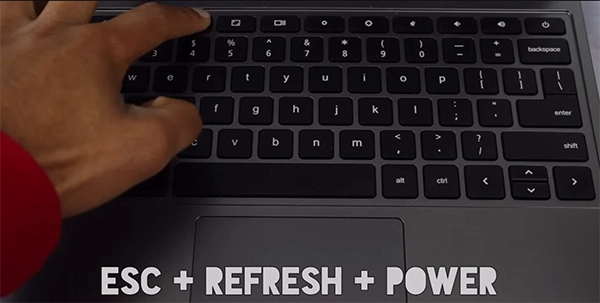
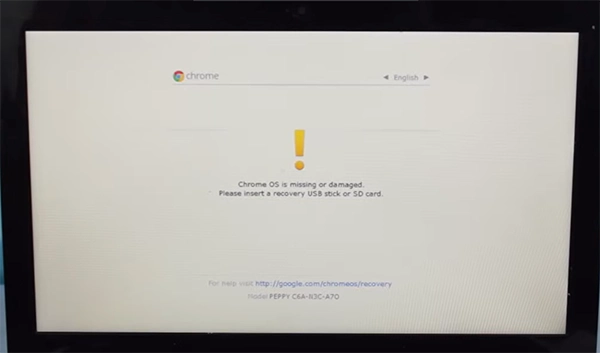
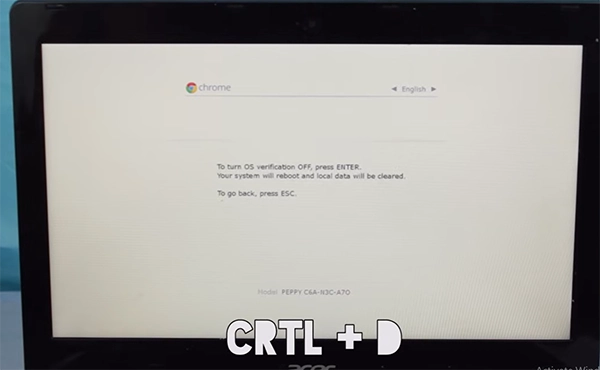
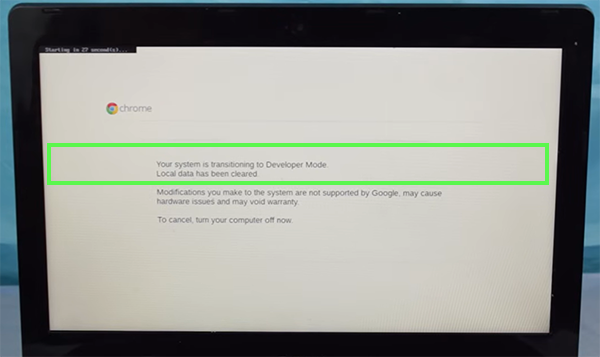
Now all the junk files, cache, and glitch-causing elements will be eliminated from your Chromebook’s software.
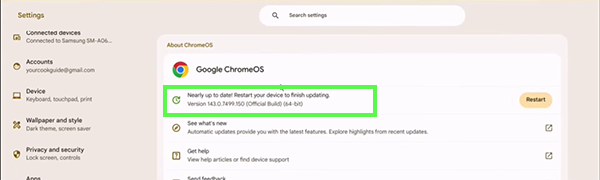
Keeping your ChromeOS updated is hands-down one of the finest ways to protect your PC from regular bugs, glitches, and unwanted crashes during heavy use. This is the aspect which you should never ignore, as it not only fixes Chromebook screen glitching but also maintains system stability and optimum performance throughout.
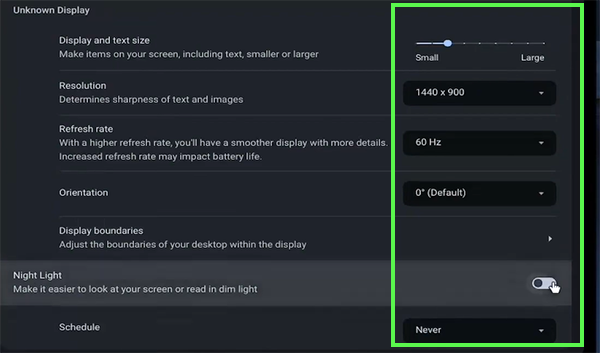
Another thing which you should do here is to disable night mode and minimize other aspects of display consumption, like setting the resolution to 1440 x 900 and keeping the refresh rate at 60Hz. This will decrease the load on hardware, and your Chromebook might stop flickering or flashing glitchy colors.
GetAssist Recommendation
If any of these troubleshooting methods don’t work and you are still seeing screen glitches on your Chromebook, then most likely it is hardware damage that cannot be fixed at home or at your workplace. In this case you should reach out to official service care units or head up to PC/laptop repair shops nearby.
Lastly, disconnect all the USB-based accessories like pendrives, hard drives, mouse, keyboards, charging cable, etc. In many cases, the display gets damaged because of faulty cables and electrical bypass. To prevent major damage and stop the Chromebook screen from flickering, avoid integrating multiple accessories, as the hardware of this device is not capable enough to handle them frequently.
After reaching here, we are assured about the fact that you won’t be thinking about how to fix a glitchy Chromebook screen anymore because these four methods do the job in most cases. Booting the device, keeping it updated, disabling special display modes, and disconnecting unwanted accessories remove and prevent many bugs and glitches from appearing.
If any of these things do not give you the desired results, then you should head over to a professional to get hardware inspection and repair done on the display or other hardware parts. Don’t forget to follow GetAssist for exciting troubleshooting blogs, reels videos, and many more content updates.
If you open multiple tabs, add heavy background extensions, keep your storage filled, or run your device without updates, then your Chromebook can feel glitchy.
You can fix a glitching or flickering screen by restarting your device, checking physical connections, or updating your graphics drivers.
To easily reset a Chromebook touch screen, you can use the shortcut Search + Shift + T.