How to Transfer Contacts Android to iPhone?

| Updated on October 12, 2026
How to Transfer Contacts Android to iPhone

Switching from Android to an iPhone comes with so many data transfer challenges, and sharing contact lists with proper names, labels, and addresses is one of them. 

So if you want to understand how to transfer contacts Android to iPhone without any drawbacks, then you are in the right place. This article by GetAssist covers 3 methods for completing this process that never disappoint. 

Things to do before transferring contacts from Android to iPhone 

  • Fully charge your Android and iOS devices. 
  • Sync all your contacts to Google using a Gmail account backup. 
  • Ensure storage is available on your iPhone to store the contact backup data.
  • Connect both devices to the same WiFi.

How to Transfer Contacts Android to iPhone Without Losing Data 

To export contacts from Android to iPhone without losing a single number from your dial list, you can rely on these three simple methods, which will do the job rapidly without any compromises. Let’s dissect them one by one. 

Option 1) Move to iOS.

Move to iOS is an official Apple platform that was made to seamlessly transfer all the important data, like images, videos, contacts, documents, etc., from Android to iPhone. Follow the procedure below to share contacts to iPhone.
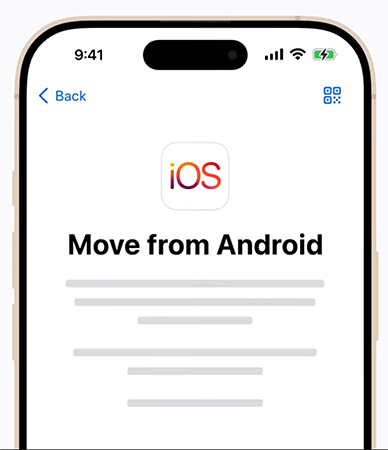
  • Download Move to iOS on your iPhone. 
     Download Move to iOS on your iPhone. 
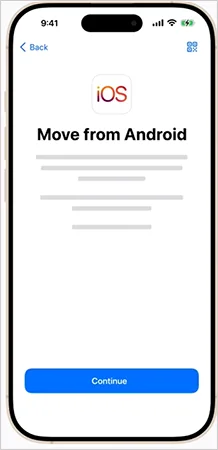
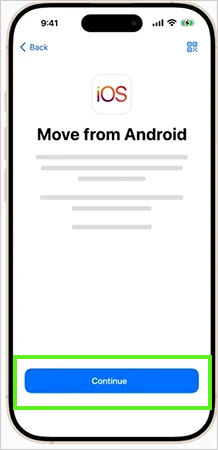
  • Tap on Continue. 
    Tap on Continue
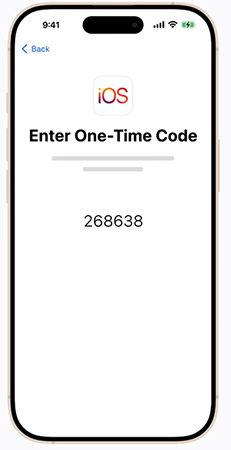
  • Now, in this window, you will see a one-time code. Stay on this screen and don’t close your Android. 
    Now, in this window, you will see a one-time code.
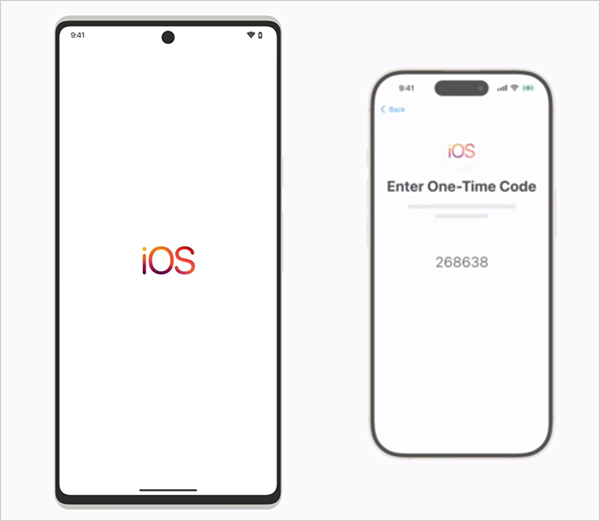
  • Open your Android and download the Move to iOS app. 
    Open your Android and download the Move to iOS app. 
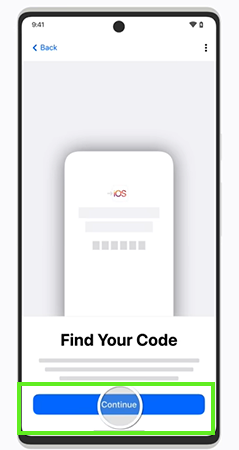
  • In the Find Your Code window, tap on Continue. 
    Tap on Continue. 
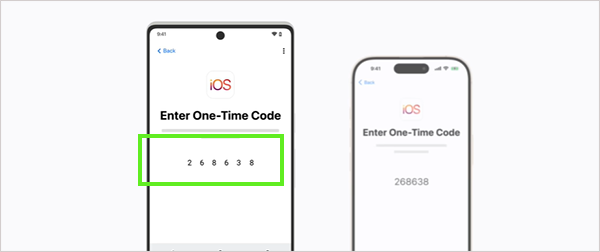
  • Enter the one-time code on Android. 
    Enter the one-time code on Android. 
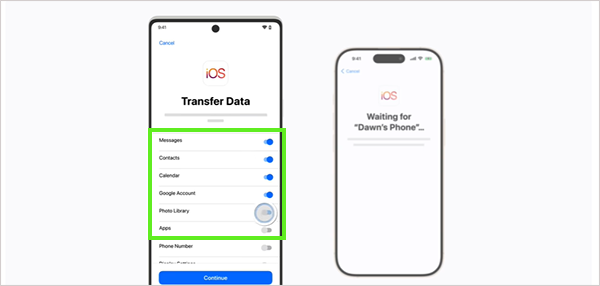
  • Select all the data units you want to transfer, including your contacts. 
    Select all the data units you want to transfer, including your contacts. 
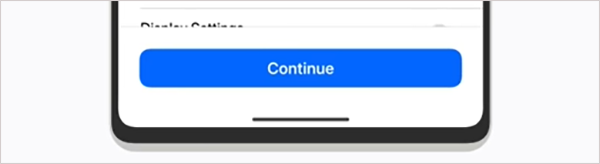
  • Tap on Continue 
    Tap on Continue 
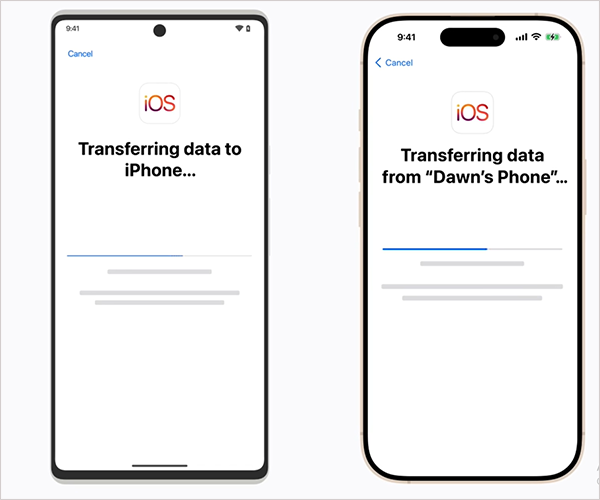
  • Data transfer will take a few minutes to complete. 
    Data transfer will take a few minutes to get completed. 
  • After the transfer completes, you can view and use all your contacts that were present on your Android device. 
    After the transfer completes, you can view and use all your contacts

Option 2) Using a Gmail Account 

You can also transfer contacts to an iPhone using a Gmail account that has your synced contacts. Using this method, you can access the contacts anytime on different Apple devices. Carefully follow each step. 
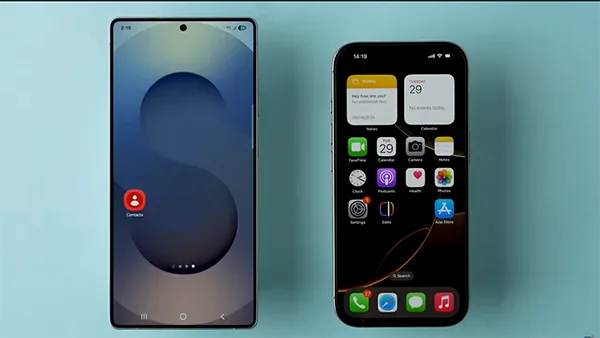
  • Keep your iPhone and Android device together. 
    Keep your iPhone and Android device together. 
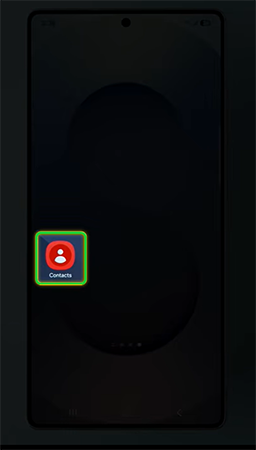
  • Open Contacts on your Android. 
    Open Contacts on your Android.
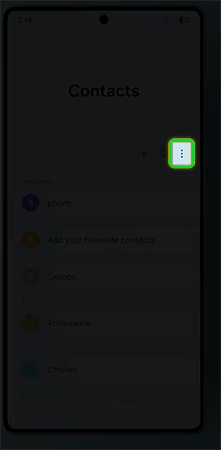
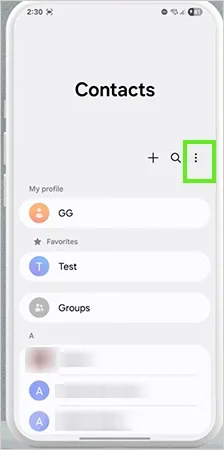
  • Tap on the three dots. 
    Tap on the three dots
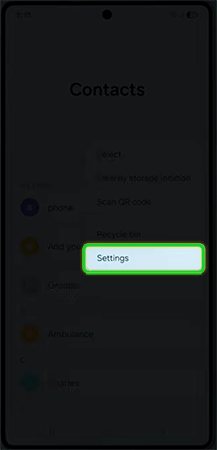
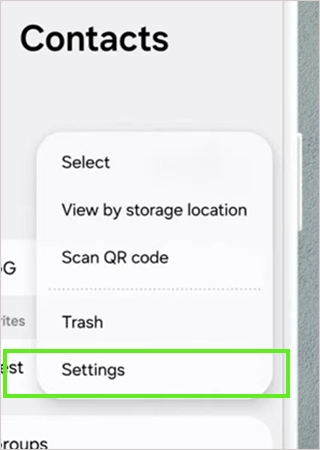
  • Tap on Settings. 
    Tap on Settings
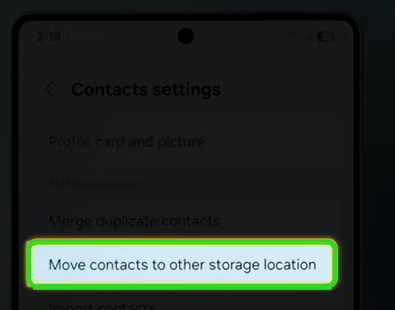
  • Tap on “Move contacts to other storage locations”. 
    Tap on “Move contacts to other storage locations”. 
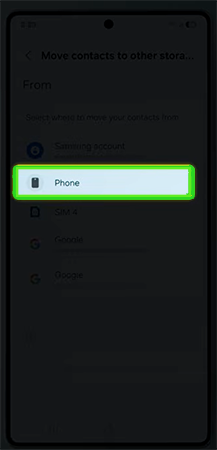
  • Tap on Phone. 
    Tap on Phone
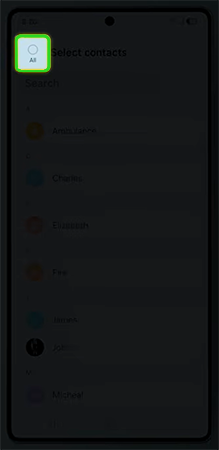
  • Tap on All. 
    Tap on All. 
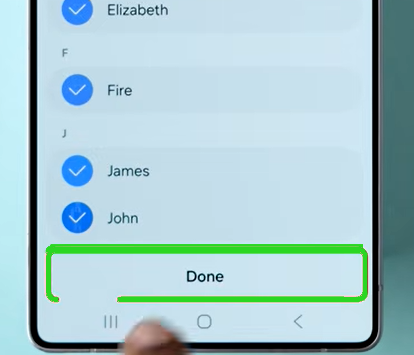
  • Tap on Done 
    Tap on Done
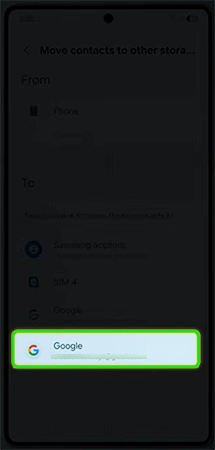
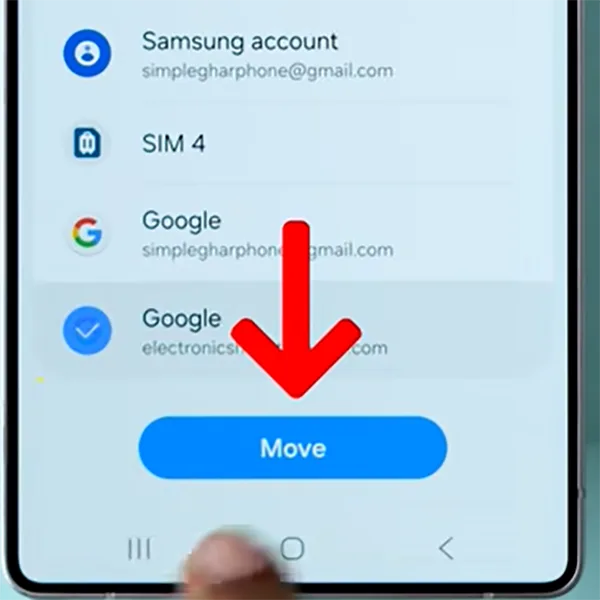
  • Select your Google Account. 
    Select your Google Account. 
  • Tap on Move. 
    Tap on Move. 
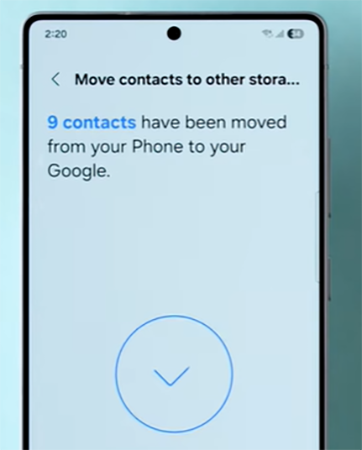
  • If you see this pop-up, then all your contacts have been transferred. 
    If you see this pop-up, then all your contacts have been transferred. 
  • Now, come back to iPhone and ensure it is logged in with the same Gmail as your Android device. 
    Come back to iPhone and ensure it is logged in with the same Gmail as your Android device.
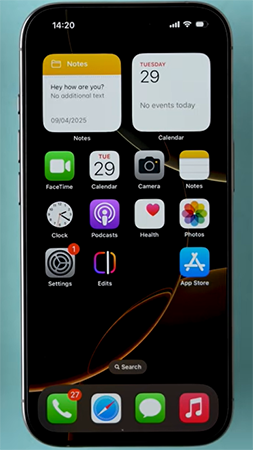
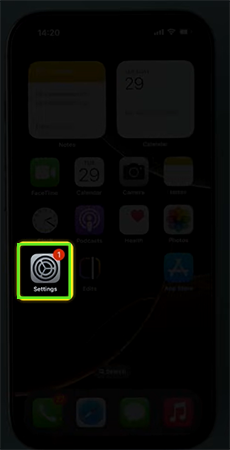
  • Open Settings. 
    Open Settings
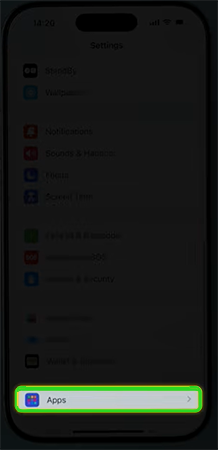
  • Select the Apps option. 
    Select Apps option. 
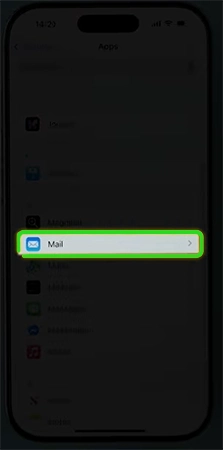
  • Tap on Mail. 
    Tap on Mail. 
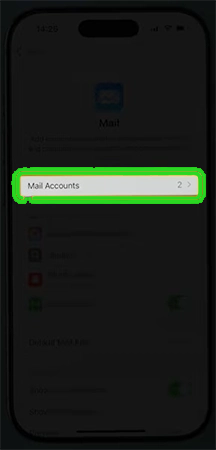
  • Tap on Mail Accounts. 
    Tap on Mail Accounts. 
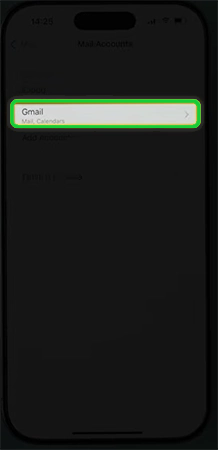
  • Select Gmail. 
    Select Gmail. 
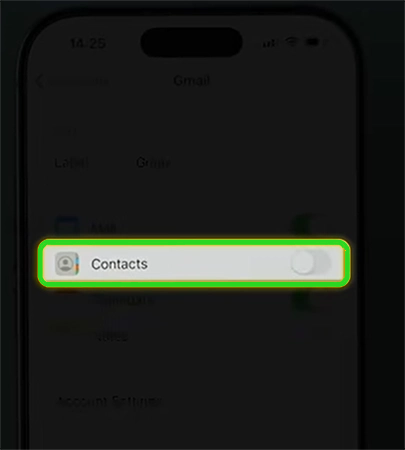
  • Enable the Contacts toggle. 
    Enable the Contacts toggle.
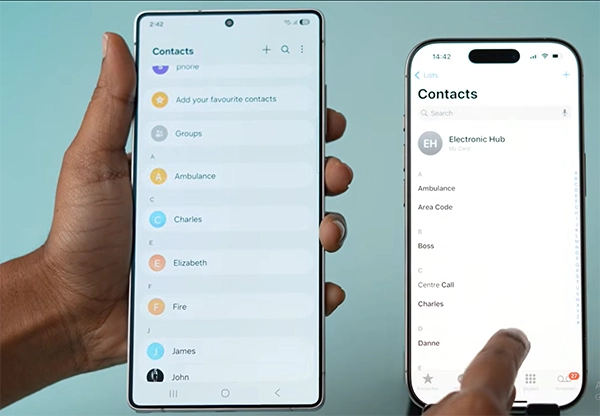
  • Now you can see all your contacts on both devices. 
    Now you can see all your contacts on both devices. 

Option 3) Transfer Contacts to SIM Card

Lastly, if you don’t want to use any of these methods, then directly copy all the data to your SIM card. This is the shortest way to export contacts from Android to iPhone, which is why you can see so many errors in the information. But follow the process below if you still want to do so. 
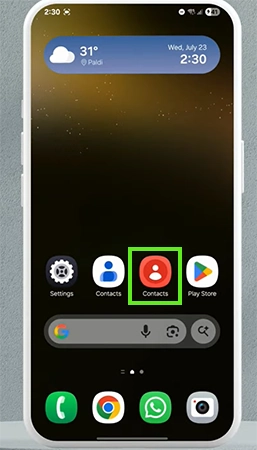
  • Open Contacts 
    Open contacts
  • Click on the three dots. 
    Click on the three dots
  • Tap on Settings. 
    Click on the setting
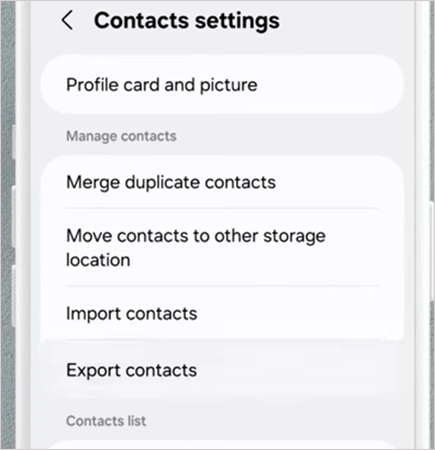
  • Tap on Export Contacts 
    Tap on Export Contacts
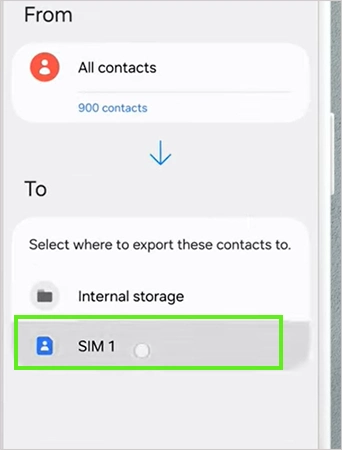
  • Tap on SIM 1 
    Tap on SIM 1
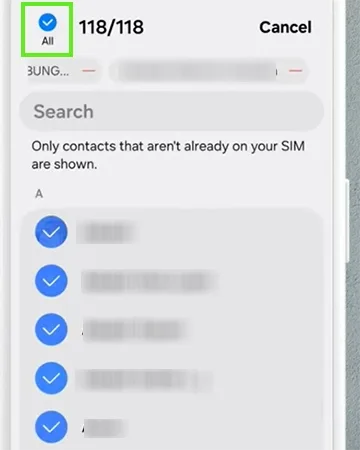
  • Tap on All
    Tap on All
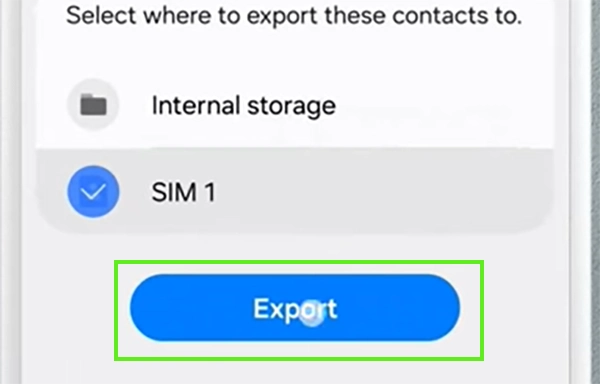
  • Tap on Export. 
    Tap on Export

Risks Involved in Exporting Contacts from Android to iPhone

Transferring contacts from Android to iPhone involves some data-threatening consequences that many people face when they don’t follow the procedures and pre-transfer steps carefully. Here are some common risks that you need to stay away from: 

  • Incomplete SIM data Transfers: SIM cards can have problems storing information, like truncating long names, leaving out some phone numbers, and eliminating important notes mentioned with the contacts. This happens because SIM cards do not have space to hold all the data, a large chunk of backup data from contacts.
  • Duplicate Contacts: There is a high chance that after shifting data to a new iOS device, you will witness that some contacts are repeating in the contact list over and over again. This situation is caused when you sync your contact details with two or more backup programs, like logging into iCloud along with inserting a SIM card that was present in your Android phone. 
  • Information Mismatched: Sometimes, while transferring the contact-based information, important tags like photos, birthdays, and custom labels do not get accurately mapped. It happens because iPhones cannot retrieve every piece exactly like Android due to platform variations. 
  • Risks of Third-Party Applications: Using third-party apps for transferring contacts to different devices may expose vital details like locality, names, gender, and banking information of your close ones to malicious entities. Always rely on official methods first, and before using any third-party platform, ensure its credibility via reviews and rankings. 

Final Thoughts

Well, these are some of the easiest ways to transfer contacts from Android to iPhone without using any third-party platform, app, or hardware devices. Among these methods, you can opt for Gmail transfer or the Move to iOS app for the best and error-free results. 

If you are saving data on your SIM card, then it is highly likely you will face some issues like truncating long names, ignoring the listing of some contact numbers, and eliminating important notes mentioned with the contacts due to its insufficient storage capacity. That’s the end of the topic. Make sure to follow the blog page and the YouTube channel of GetAssist for more such intriguing content. 

FAQ

1. Can I just transfer my contacts from Android to iPhone?

Ans: Yes, you can easily transfer your contacts from Android to iPhone using official Apple setups like Move to iOS, Google account backups, and porting data from SIM cards. 

2. Will I lose my contacts if I switch from Android to iPhone?

Ans: You won’t lose your contacts when switching from Android to iPhone, as long as your backups are stored in your Gmail account or iCloud storage. 

3. What to do before switching from Android to iPhone?

Ans: Before switching from Android to iPhone, download Apple’s official Move to iOS app on your Android device and keep both phones plugged in. You can also store the data in a Gmail account and iCloud storage so you can access it on any device, anywhere.

Janvi Panthri

Senior Writer, Editor


Related Posts

×
×