While removing unwanted photos, videos, or documents from Google Drive, have you ever deleted something very important? Well, if yes, then you are not alone; it happens to most of us.
But the worst part is that many of you are unaware of the steps to retain them using official methods and waste effort finding third-party tools. Which is why, through this article by GetAssist, we are going to tell you how to recover deleted Google Drive files easily with the help of Google support platforms.
Quick Answer
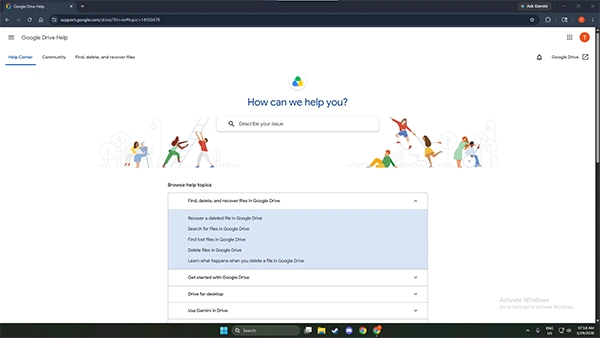
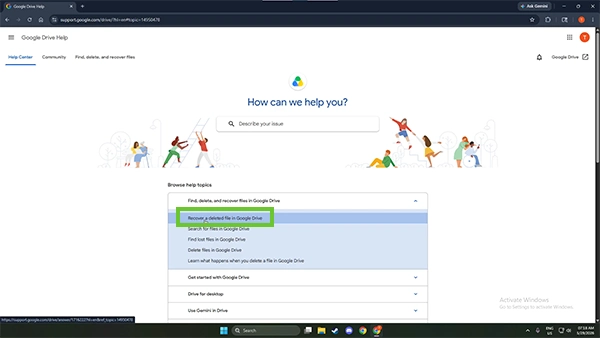
To recover Google Drive files, you need to search “Google Drive file recovery,” then click on the first official link you see, or simply click here.
(https://support.google.com/drive/answer/1716222?hl=en&co=GENIE.Platform%3DDesktop)
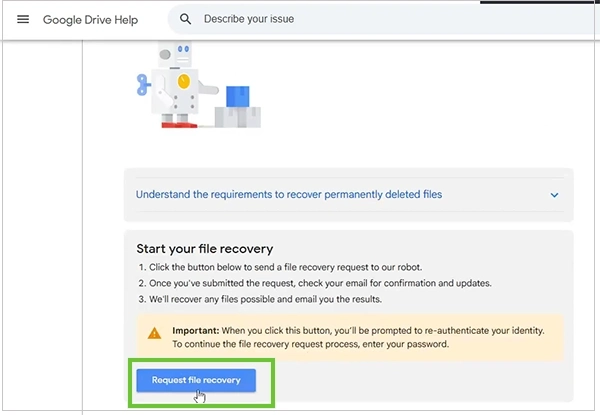
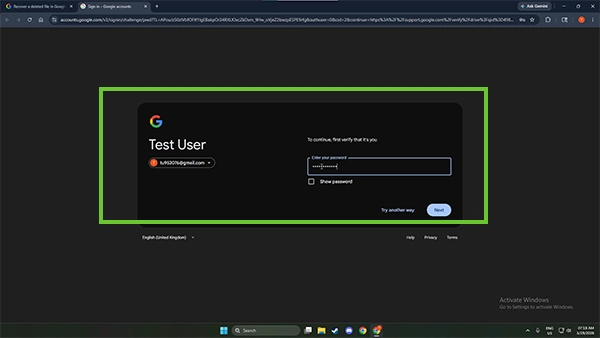
- Then add your email credentials, verify, and fill out the recovery form. Once it’s done, you will receive an email that confirms that your request has been submitted.
- Wait for a few hours or 1-2 days, and if the recovery is eligible according to Google’s policy, you will find the file in the same location from where it was deleted.
Recovering deleted files from Google Drive is pretty simple, as you just have to submit details to verify your Gmail on the recovery help page and then fill out a form to raise a ticket. Follow this process in the mentioned order to avoid loose ends.
(https://support.google.com/drive/answer/1716222?hl=en&co=GENIE.Platform%3DDesktop) to reach this homepage.
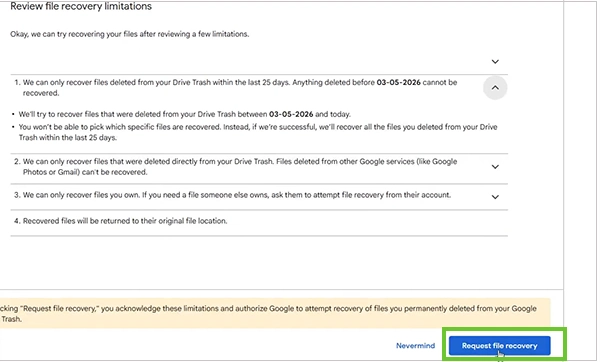
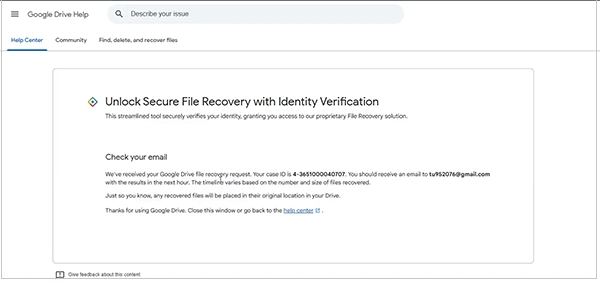
If you’re restoring deleted Drive files for the first time, you’re likely to run into some pitfalls. We have listed some of the most common ones below so you can prepare and follow essential preventive measures.
For learning more about Google services, their latest programs, and new updates on pivotal tools like Gemini, Sheets, Docs, etc you can check out the GetAssist YouTube channel. Subscribe and press the bell icon to stay tuned for new videos.
Google Drive recovery is a process that demands patience and a quick response for accidental deletions in most scenarios because it is a cloud platform that offers a limited time window for data recovery. Using the official method, many users have already regained their resources without any complaints, but sometimes, with bulk backups, people face issues like data overwriting, lost collaboration access, and missing file changes.
To avoid such cases, try to back up files one by one or carefully restore all your necessary files from the trash bin before clearing it.
Ans: Yes, you can recover permanently deleted files from Google Drive if they were emptied from your trash within the last 25 days.
Ans: Your Google Drive files can vanish for many reasons, like accidental deletes, being moved, being unlinked from their parent folder, or being affected by a sync error.
Ans: As long as your account is active and you are not running out of Google storage, you can keep your files safe and access them at any time using multiple devices.