How to Show Hidden Files Mac? 3 Primary Ways to Try

| Updated on August 20, 2026

Hidden files on Mac are hidden applications, user files, and system files that are deliberately kept hidden from users to prevent any accidental modification. 

If you want, you can hide your important files or documents as well. But if, out of curiosity, you unknowingly hid your file and are struggling to locate it, read the article and find out how to show hidden files Mac. 

Steps to find hidden files on Mac 

There are a total of three ways to find hidden files on Mac that can give you access to your hidden files: Using keyboard shortcuts, the Library folder, and Terminal. 

Go through this article and learn the steps in detail, and use whichever suits you the most.

Using Keyboard Combinations

In this method, you can access your hidden files by pressing a few keys on your keyboard. 
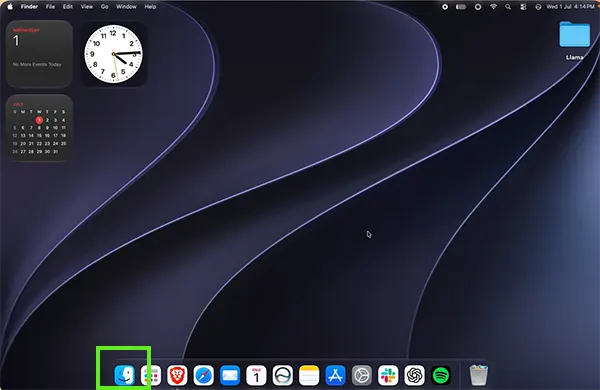
  • Click on Finder on the bottom-left side of your Mac. 
    Click on Finder 
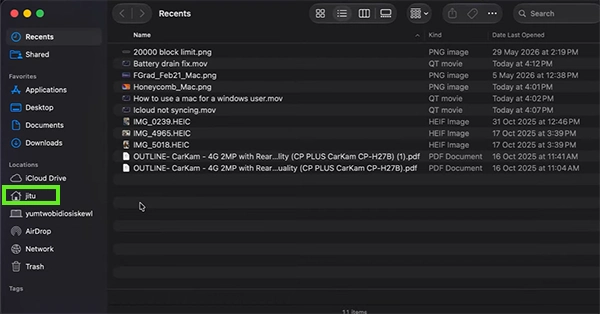
  • Select the folder you want to view hidden files in.
    Select the folder you want to see the hidden files in 
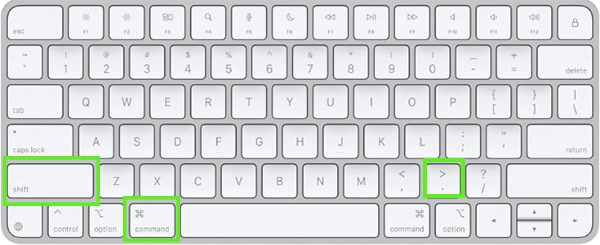
  • Press the keyboard shortcut on the keyboard, which is Command + Shift +. (Period) 
    Using keyboard combination 
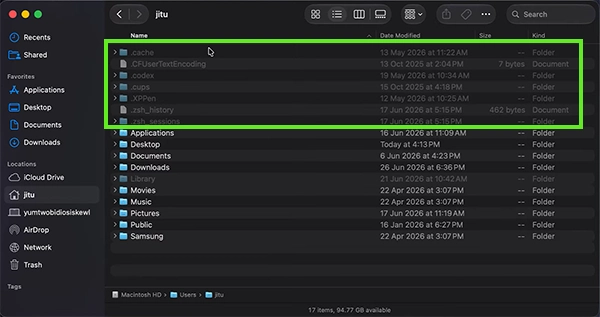
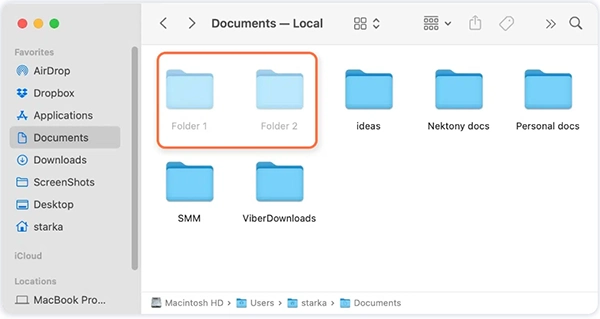
  • The files that are highlighted in grey are the hidden files of this folder.
    The hidden files will be greyed out.

By Using Terminal Option 

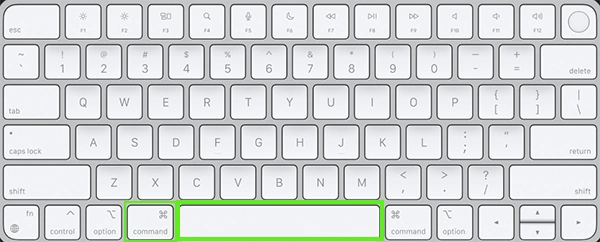
  • Press Command + Space Bar on your keyboard. 
    Press the keys on the keyboard
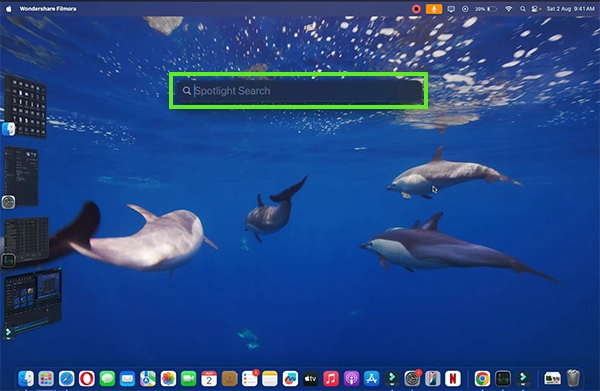
  • The Spotlight Search option will appear. 
     The Spotlight search option will appear
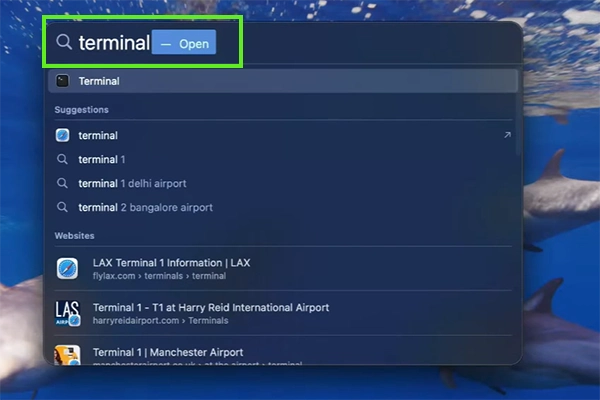
  • Search and type Terminal in the search bar.
    Search and type Terminal in the search bar 
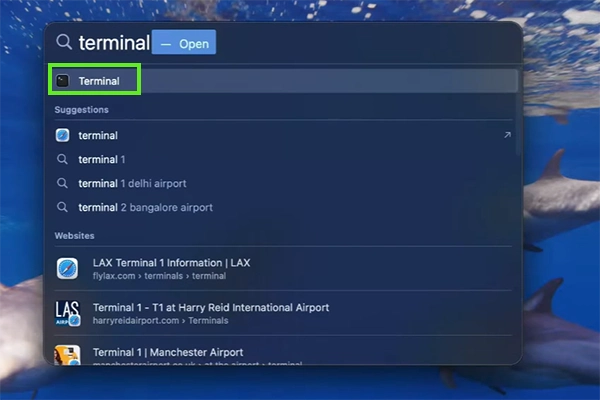
  • Click on Terminal.
    Click on Terminal 
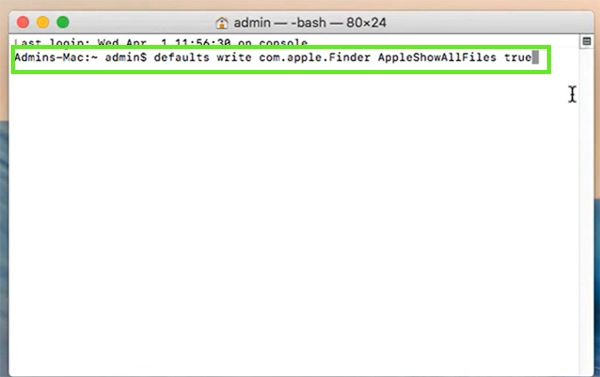
  • Then type the code: “defaults write com.apple.Finder AppleShowAllFiles,” and press Return. 
    Then type the code
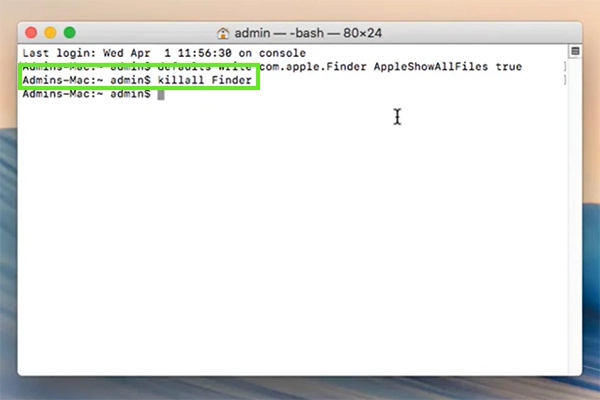
  • Then type the code “ KillAll Finder” and press Return.
    Then type the code “ KillAll Finder” 
  • After typing the code, press Return again. This will restart the Finder and the hidden files will appear. 
    Hidden files will appear 

Using the Library folder 

If both of this trick doesn’t works for you or you find the other step too complicated, try going through the Library folder. 
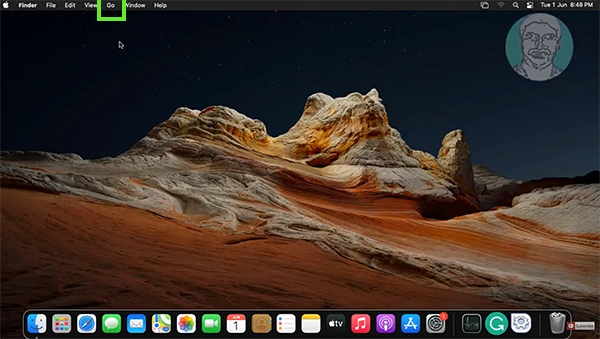
  • Click on Go.
    Click on Go 
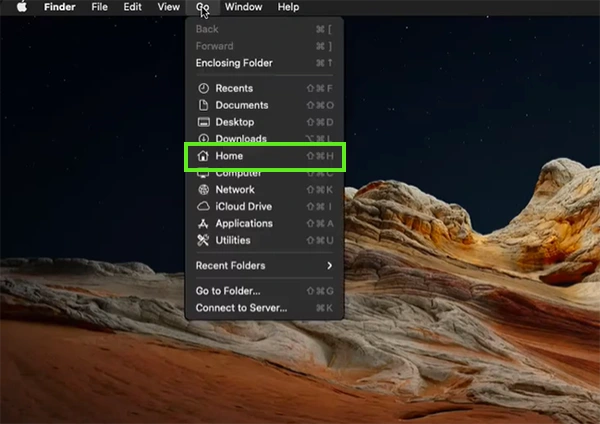
  • Click on Home. 
    Click on Home
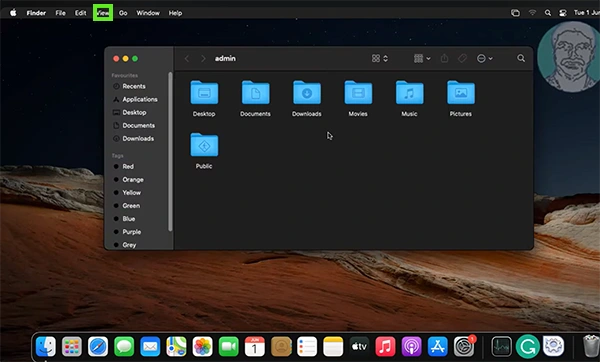
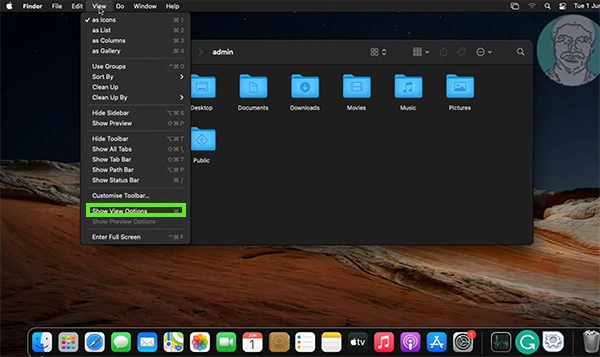
  • Now click on View. 
    Click View 
  • Navigate and Click Show View Options. 
    Click Show View Options 
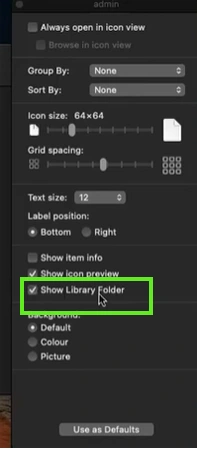
  • Checkmark Show Library Folder
    Checkmark Show Library Folder 
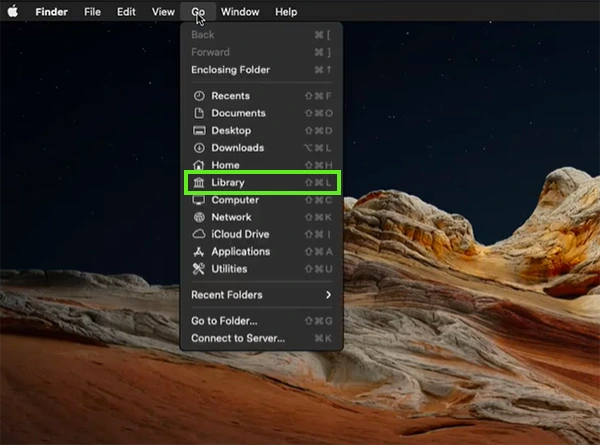
  • Click Go again on the top left, and you will be able to see the Library option on your device. Click that. 
    Click on the Library app. 
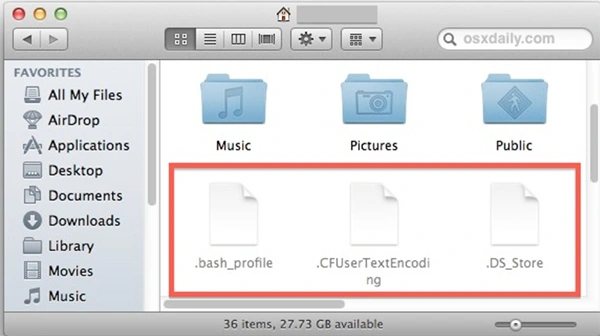
  • Press the shortcut Command + Shift +. (Period) in the Library to see the hidden files. 
    Hidden files will appear 

Notes

You can also use third-party apps to see the hidden files on your Mac.But please note that using those apps might be a risky call, as this is not an official method.

Final Thoughts 

Finding the hidden files on the Mac is a bit confusing but can become easy if you learn the steps by following the steps in the guide. The Mac itself keeps the files hidden to avoid cluttering and also because many hidden folders and multiple files contain important system data. 

Even if you open any hidden files on your Mac, make sure not to attempt to make any changes, as it can cause harm to the smooth running of your device. And for any other troubleshooting problems, don’t forget to get help from the GetAssist YouTube channel. 

FAQ

Q1. Can I permanently unhide a hidden file on my Mac? 

Ans: Yes, you can use Terminal commands to change a folder from hidden to permanently unhidden. But you should only do it if you understand the file so that your system doesn’t face any issues. 

Q2. Is it safe to open hidden folders on my device? 

Ans: Yes, it is generally safe to Mac show hidden folders on your device, but don’t try to edit, move, or delete any files because it can affect your device’s performance. 

Q3. Can I create my own hidden folder on Mac? 

Ans: Yes, you can always use the Terminal command to mark a folder as hidden, which will allow you to keep personal files out of normal Finder view. 


Rajesh Pandey

iOS and Gadgets Writer


Related Posts

×
×