While doing your daily tasks or casually using your Mac, have you ever wanted to select multiple files in the system but were unaware of the keys that can do this action and were cluelessly pressing right-click on a Mac? Well, you are not alone here; it happens with many users, which is why we have listed five easy ways on this page that will help you learn how to select multiple files on Mac.
To select multiple files on your MacBook, you have a couple of options, but to make your experience convenient, we have mentioned five systematic methods that work on every iOS generation and can be applied to any folder. Let’s uncover them one by one.
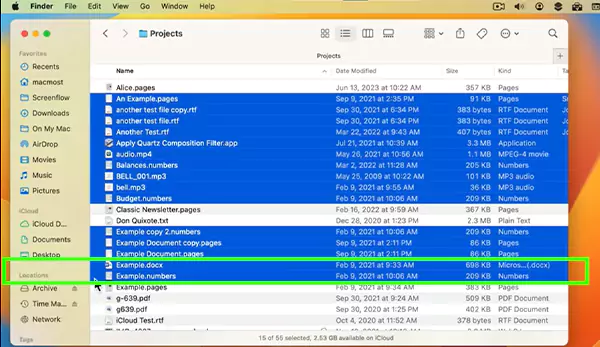
Now the first method, which we are going to use, includes the role of the command key, and it will help you to select orderless files in just a few clicks:
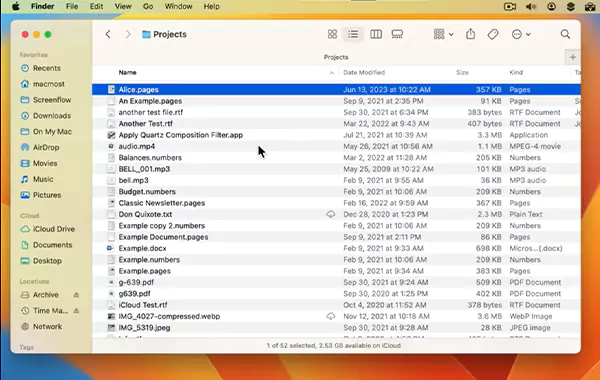
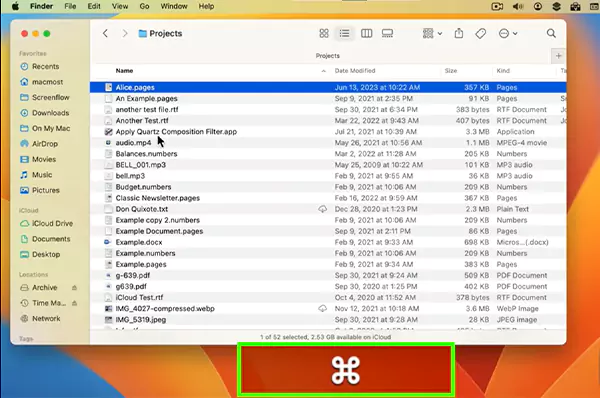
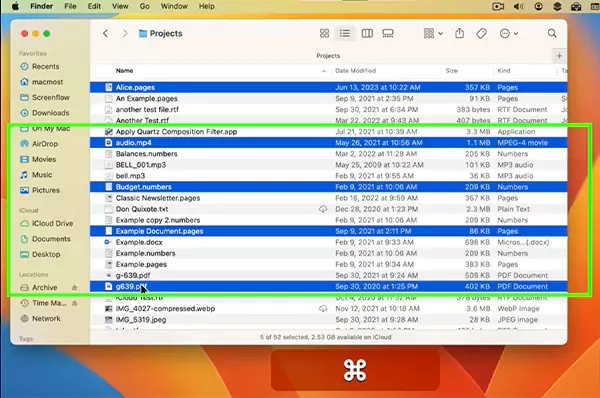
Now learning this selection method with the shift key is also very crucial yet feels very easy like copy and paste on Mac, as it involves the combination of your cursor and button. Let’s see how it’s done!
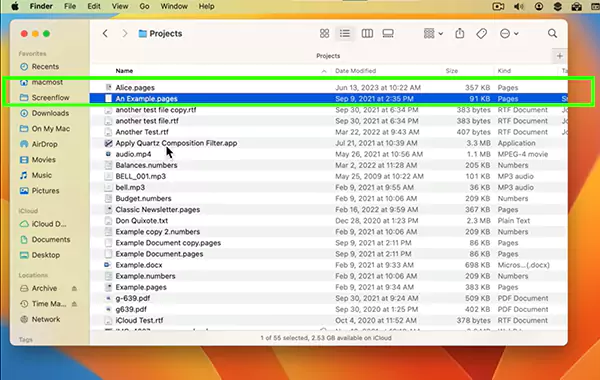
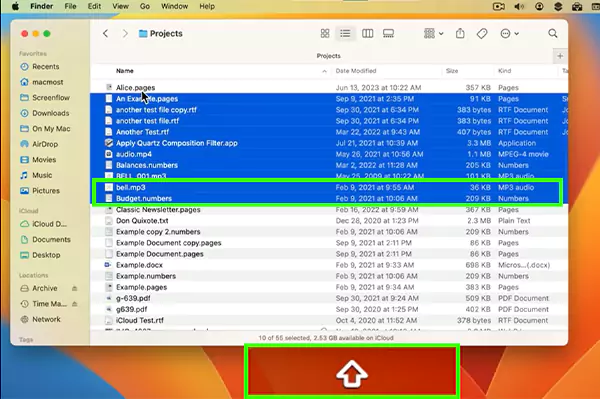
The multiple range selection is a combination method that can be done using the right pattern of Command, Shift, and cursor, and it will help you to select all the scattered files in your folders precisely.
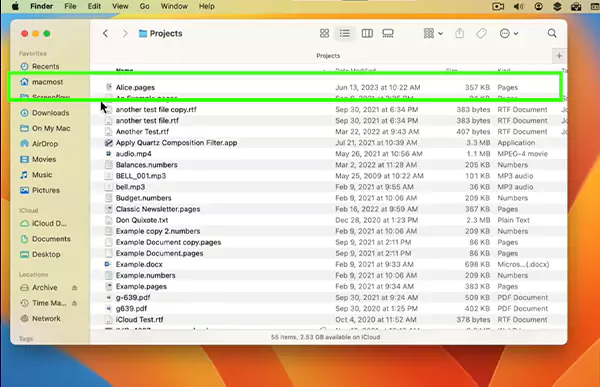
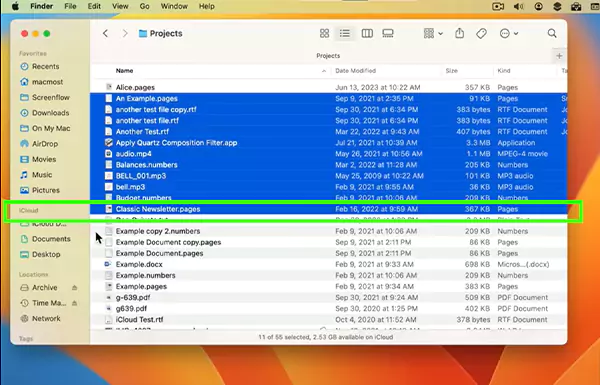
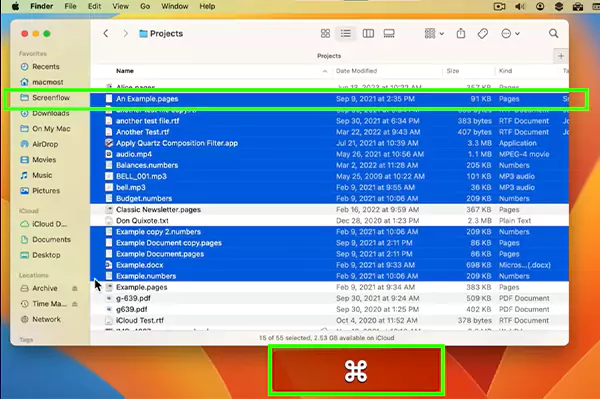
Well, selecting all on Mac is a very beneficial feature, as it can reduce the time of your manual selection significantly. Hence, users look for more and more stuff like this to minimize their effort. So if you are one of them, then make sure to subscribe to the GetAssist YouTube channel and press the bell icon for the latest updates.
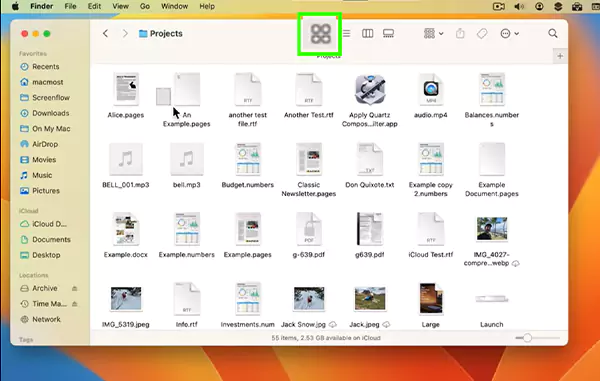
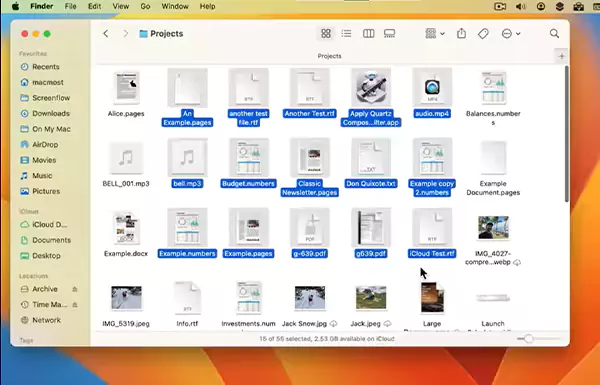
Next up, we have one of the easiest ways to select all on Mac: drag a rectangle when you view files in icon view, and to do it, things are very simple.
Lastly, the most used method to select multiple files on Mac is the shortcut consisting of Command+A, and this is how it looks:

Learning how to select multiple files on Mac is very necessary to improve your overall productivity on your system and streamline your MacBook utilities by dropping files to your desired accessibility. The shortest way to select all the files, texts, and photos on a Mac is Command + A, although you can use other methods as per your requirements.
It also helps to categorize your desktop and scatter all the files into their respective folders and brings a clean Apple ecosystem visualization. For insightful blogs and troubleshooting solutions, follow GetAssist.
The easiest way to select multiple files on a Mac is Command+A, and it works on icons, files, texts, and everywhere.
Ctrl+Shift+T on Mac helps you to reopen the closed tabs in the exact order during emergency shutdowns or error crashes.
Doing this is perhaps easy; all you need to do is click near the first item, press and hold the trackpad or mouse button, then drag over all of the items.