If you skipped Time Machine and now think your file is just gone forever. But it’s not true. First, check out the Trash, then iCloud; if not there, then check whatever autosave your apps might’ve saved without ever telling you. If you can’t find anything there as well, using dedicated recovery software is something you should try exploring. Also, stop adding more data on that drive; every download or save afterward is actually like flipping a coin when it comes to seeing your file again.
Truth is, deleting something on a Mac doesn’t remove it on the spot. What macOS actually does first is check the directory entry — kind of like tearing a name out of a library index while the book still hangs there on the shelf somewhere. The content itself sits around until something else needs that space. That’s the whole reason recovery is even possible.
SSDs make this difficult, though — TRIM goes around clearing out deleted blocks over time, so things shift faster there than on an old-school hard drive. Either way, sooner beats later.
And it’s really not about the important so much as what you do afterward. Leave the Mac alone post-deletion and your odds are strong. Start installing things, downloading stuff, exporting files? Those odds drop fast.
Sounds too simple to even mention — but in reality the step people forget when they’re freaking out. Open it, look around, hit restore if it’s sitting there. Nothing faster.
Got Desktop and Documents syncing to iCloud? Good chance the file never really deleted— check iCloud Drive or the Recently Deleted location on iCloud.com. Photos, Notes, and Files apps all operate their own separate recently-deleted stash too, so it’s worth a quick look there even if you’re not wholly sure where the file came from.
Pages, Numbers, Keynote, Microsoft Office, Adobe’s apps — enough of these quietly hold onto local versions or autosaves on their own, no backup system needed. Comes in especially easy when the file was something you’d been actively working on, not just something you saved once and forgot about.
If Trash and cloud backups don’t turn anything up, this is where a good data recovery tool comes in. For most people, it’s the most realistic route — it checks the drive for whatever traces are left of the deleted file and shows you a preview before you go to restoring anything. Recoverit is one option worth mentioning here; it’s designed specifically for Mac recovery and keeps things guided, so you’re not fumbling around blind.
If the file actually is important and Terminal isn’t your thing, start with Recoverit. It saves time, gives you previews before you commit, and cuts down on the things you accidentally do that make things worse when trying to do it manually.
Download link: Recoverit Mac Data Recovery
Stop downloading, installing, or saving anything on the affected machine. If you can, operate the recovery software from an external drive, or better yet, an entirely different Mac. This reduces the risk that new data overwrites the file’s old space.
Fire up Recoverit — or your recovery tool of choice — and point it at either the internal drive itself or, if you know roughly where the file used to live, that special folder. Then let it run a deep scan. This part takes a bit; it’s combing through deleted file records and leftover fragments, getting together anything that still looks recoverable.
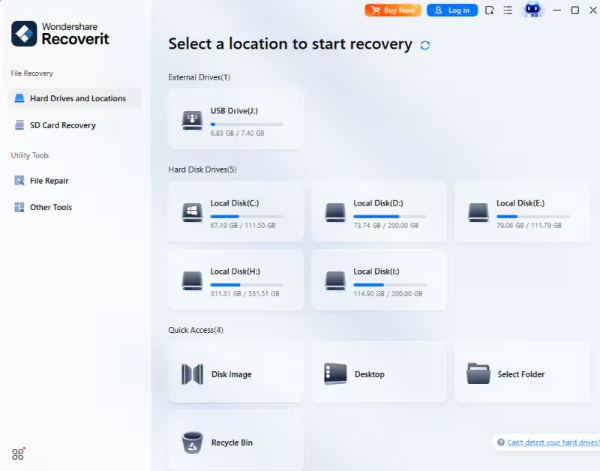
Look through what comes up, confirm you’ve got the right file, and save it somewhere that isn’t the original spot— a different drive, a different folder, doesn’t matter which. Keeps the recovered copy somewhere away from any more write activity happening on the source drive.

People come up with command-line recovery a lot. And sure, Terminal has its uses in niche conditions— finding hidden files, pulling from local snapshots if any happen to exist. But it’s not some secret undo button for deleted files. If you’re not already sure about it, a proper recovery tool is going to be safer and honestly faster for data recovery.
Honestly: the file matters, the deletion was recent, and you’d rather follow a guided process than playing with command-line guesswork. That’s the situation something like Recoverit is designed for — regular users, urgent recovery, no Time Machine backup to fall back on.
Honestly, the fix for most of this is boring: switch Time Machine on. Do it today, not “eventually” — future-you will thank present-you. If certain files matter more than others, make sure iCloud sync is something catching them (don’t just assume it is). And where you can, spread important stuff across more than one spot— a cloud copy plus something offline, a drive that isn’t plugged in 24/7. None of this is exciting advice, but a decent backup habit will save you more grief than any recovery app ever will.
Bottom line: if you’re thinking about a deleted file with no Time Machine backup, speed matters. Stop using the drive, don’t add anything new to it, and get a recovery tool running before that spot gets claimed by something else. For most people in this space, Recoverit ends up being the least painful way back from “wait, did I just delete that” to genuinely having the file back.
Some of the alternatives to Time Machine for Mac backup are Carbon Copy Cloner, ChronoSync, and SuperDuper!.
Apple Time Machine is the best free backup software for Mac.
EaseUS Todo Backup is the best backup and restore software.