As a beginner on a MacBook, there are instances where you want to remove or add things again on your project, but you keep using manual methods and burn a lot of time. Instead, the best thing you can do is learn how to undo on Mac along with redoing, using basic shortcut key combinations or menu bar utilities to spike up your efficiency in day-to-day life.
Through this article, you will learn the two crucial methods to perform this action.
GetAssist in a Glance
To undo on a Mac, the easiest shortcut is:
- Command-Z on your keyboard
And for redo, you can use the shortcut:
- Command-Shift-Z.
You can easily undo on Mac using two different methods. The first one is a shortcut that you can perform using a basic combination of keys, and the second one is more of an accessibility feature that is present in the menu bar. We will break down each practice one by one.
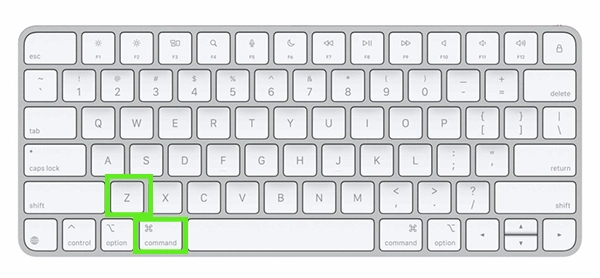
The shortcut for undo includes a combination of two simple keys:
Command+ Z
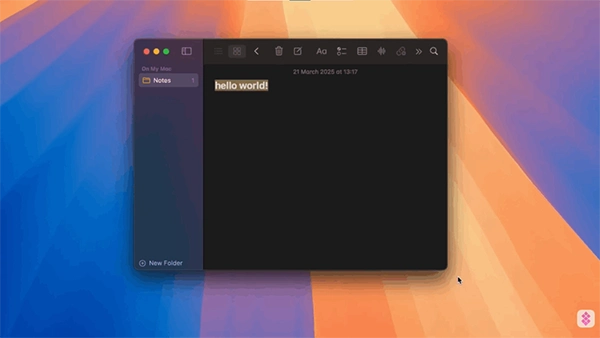
The menu bar gets tweaked according to the work you are doing on your Mac, and to make things clear with the undo feature, we are going to take an example for Notes, but don’t worry, this accessibility feature works with every application. All you need to do is:
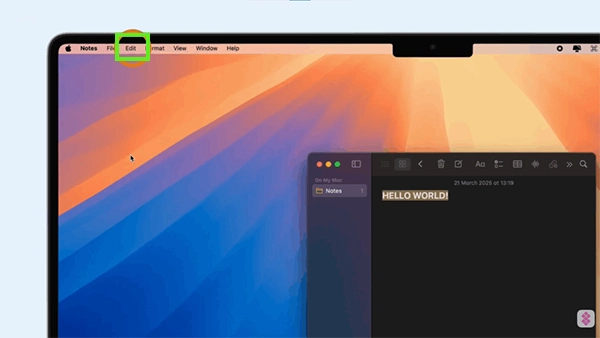
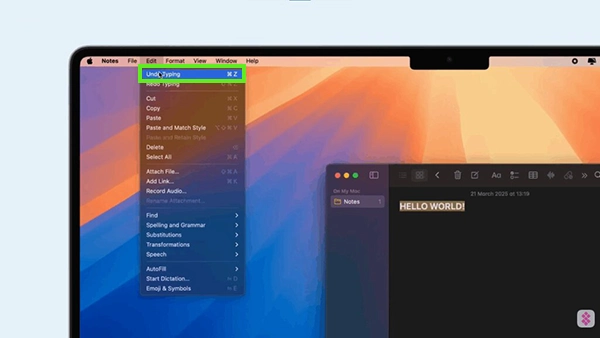
Similarly, redo on Mac can be done in two ways, just like undo: one with the shortcut and the second with the accessibility menu. The accessibility menu gives more options to explore their MacBooks freely, allows them to learn more features like snipping on Mac, and lets them use their laptop according to their preferences. Methods are as follows
The shortcut for redo includes a combination of three simple keys:
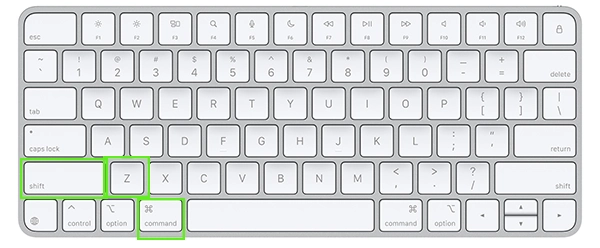
The same way you used the menu bar for undo, you can use it for redo too, as they are available under the same set of options and you need to perform almost similar actions. Let’s see how it works:
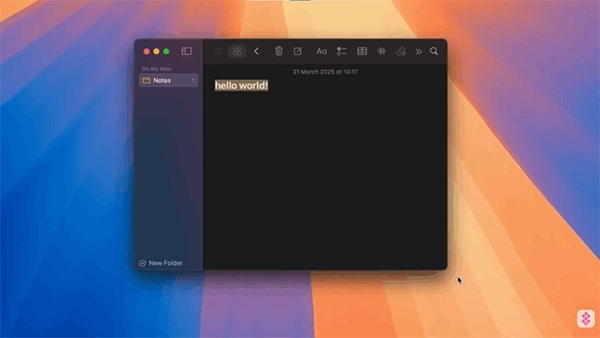
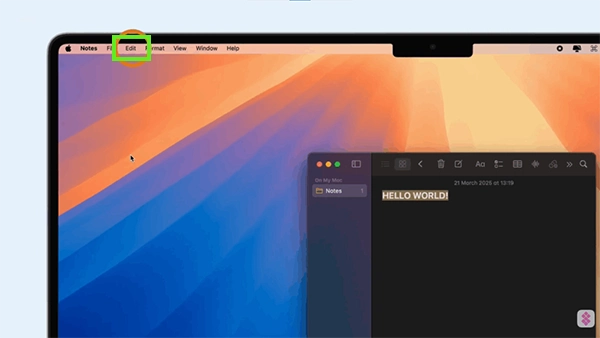
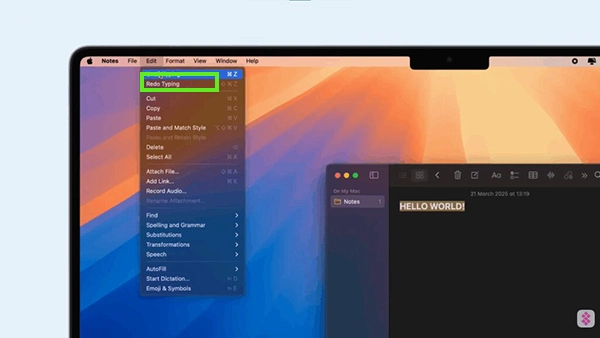
Well, this is how undo works on macOS, and undoubtedly it is one of the most critical functionalities that every user must learn to speed up their work, while simultaneously improving hand-eye coordination on the keyboard. You can use this shortcut while watching content, composing documentation, working on spreadsheets, and many more professional and personal activities.
We advise you to use shortcuts for operations, as they work perfectly in almost every use case. And for more macOS updates, shortcut info, and troubleshooting solutions, you can stick with the GetAssist community and the GetAssist YouTube channel, where thousands of queries are answered every day.
Ans: If you want to force quit on a Mac, you have to use the combination of Command + Option + Escape, as Ctrl+Alt+ Delete is used for Windows laptops.
Ans: On a Mac, the Control + F4 shortcut moves your keyboard focus directly to the active window or the next open window.
Ans: A three-finger swipe up on your Mac trackpad opens Mission Control, which displays all your open windows and app spaces at once.