If you have hidden an app on your iPhone in one of the following places—the Hidden Library, directly from the home screen, or it got restricted by your iPhone settings—and you don’t know how to unhide it again, then don’t worry; it can be easily done by just following a few steps.
Go through this article and learn the 3 primary ways to know how to unhide apps on iPhone.
There are a total of 3 ways by which you can find hidden apps on iPhone: Unhiding apps from the Hidden Library, resetting home screen layouts, and checking Screen Time restrictions.
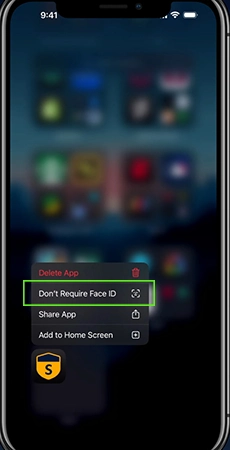
This is the first place someone thinks the app must be hidden when they can’t find it.
To unhide an app from the Hidden Library, the steps are
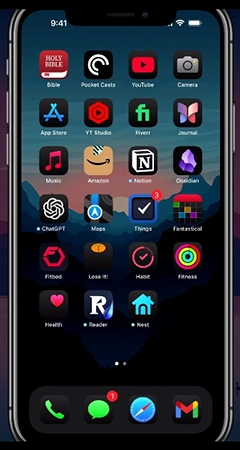
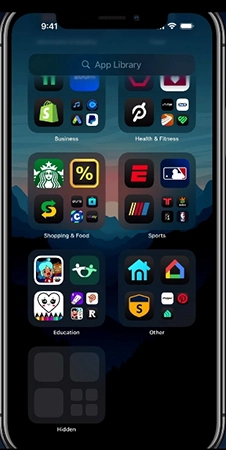
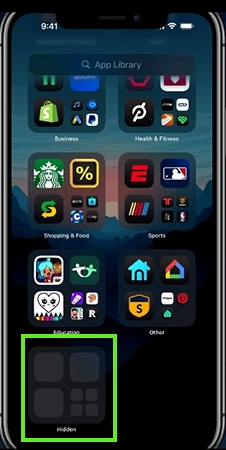
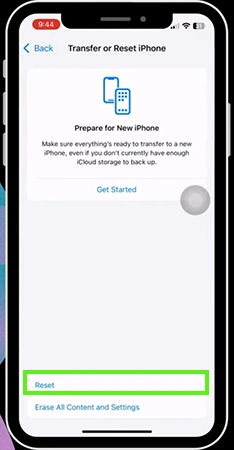
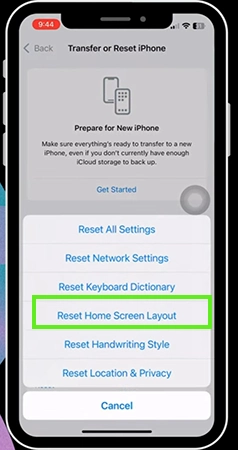
By resetting your home screen layout, you can quickly unhide your custom apps by moving them straight into your phone’s main App Library.
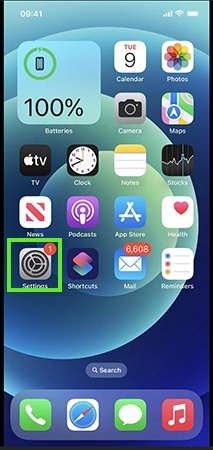
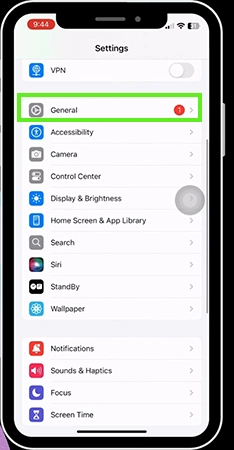
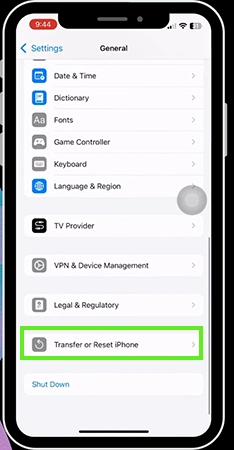
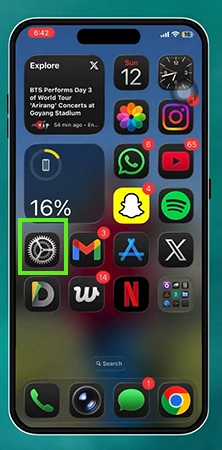
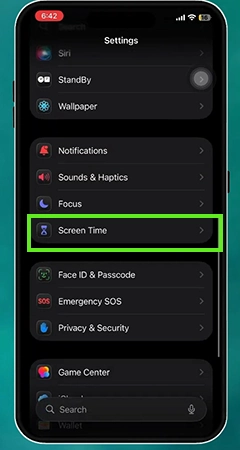
Sometimes your apps hide automatically on your phone when you reach your daily screen time limit to block further app usage.
To restore your apps, follow these steps:
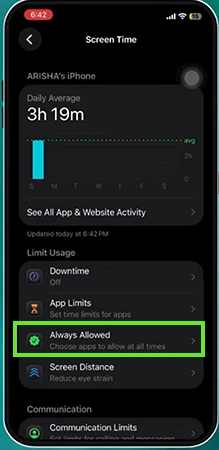
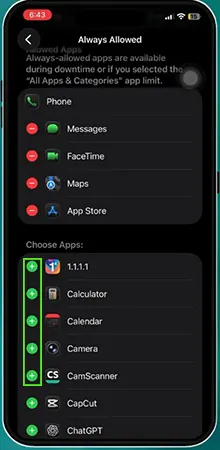
Finding a hidden app on an iPhone is much easier than it seems. The most important thing is to understand why the app is not visible. The app can either be hidden in the hidden library, removed from the home screen, or restricted due to Screen Time restrictions.
Once you figure out the reason, you can easily bring your app back by following the steps given in this article. And for more such tips on troubleshooting, you should visit the GetAssist YouTube channel.
Ans: Yes, you can hide an app without deleting its data. Apple’s Hide App feature is designed to keep the app installed while preventing it from appearing normally on your Home Screen or App Library. The app’s documents, account information, and other locally stored data remain on the device. When you unhide the app, you can continue using it as before.
Ans: A hidden app still functions in the background, but the iPhone’s hiding feature reduces the app’s visibility. Information from a hidden app, including its content, may not appear in certain places in the usual way. This helps prevent other people from using your iPhone from easily discovering or seeing information associated with the hidden app. Getting notifications can also depend on the app and your notification settings.
Ans: The standard iPhone interface does not provide an option to unhide all hidden apps at the same time. If you have several apps inside the Hidden folder, you will have to open the folder, authenticate, and change the visibility setting for each app individually.