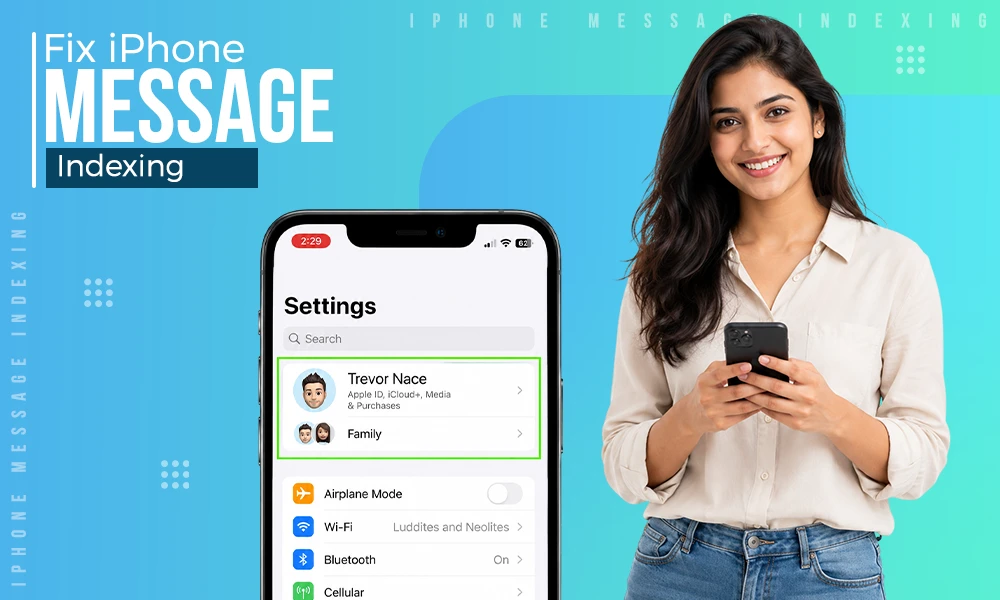
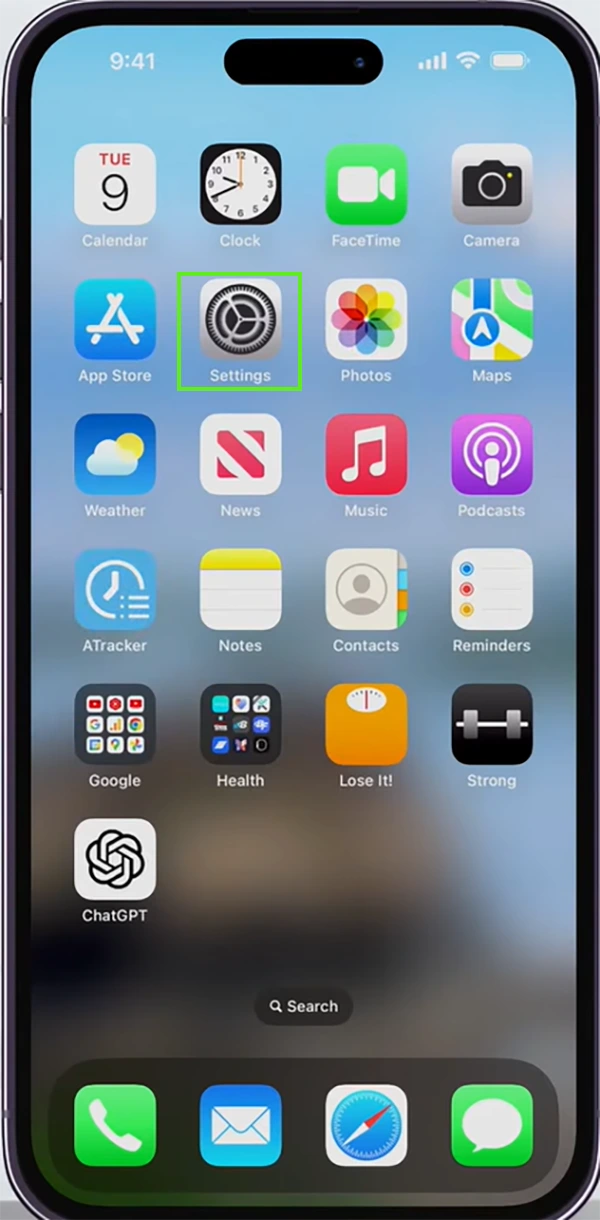
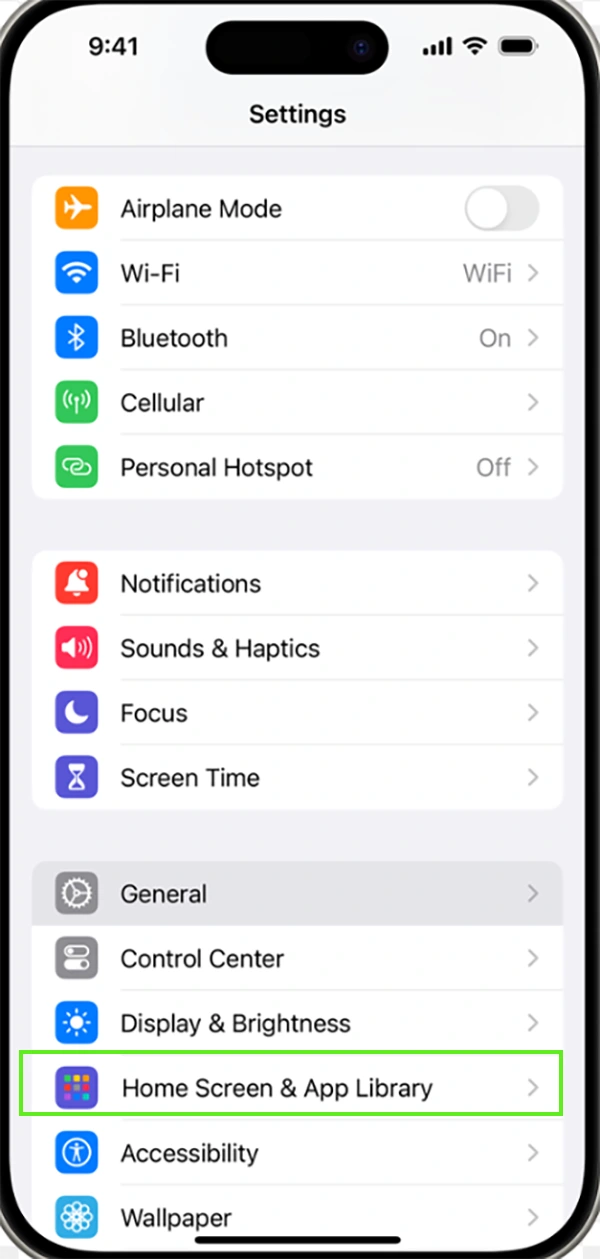
If you are setting up your new Apple iPhone and want to get rid of those green message bubbles, turning on iMessage is the fix you need.
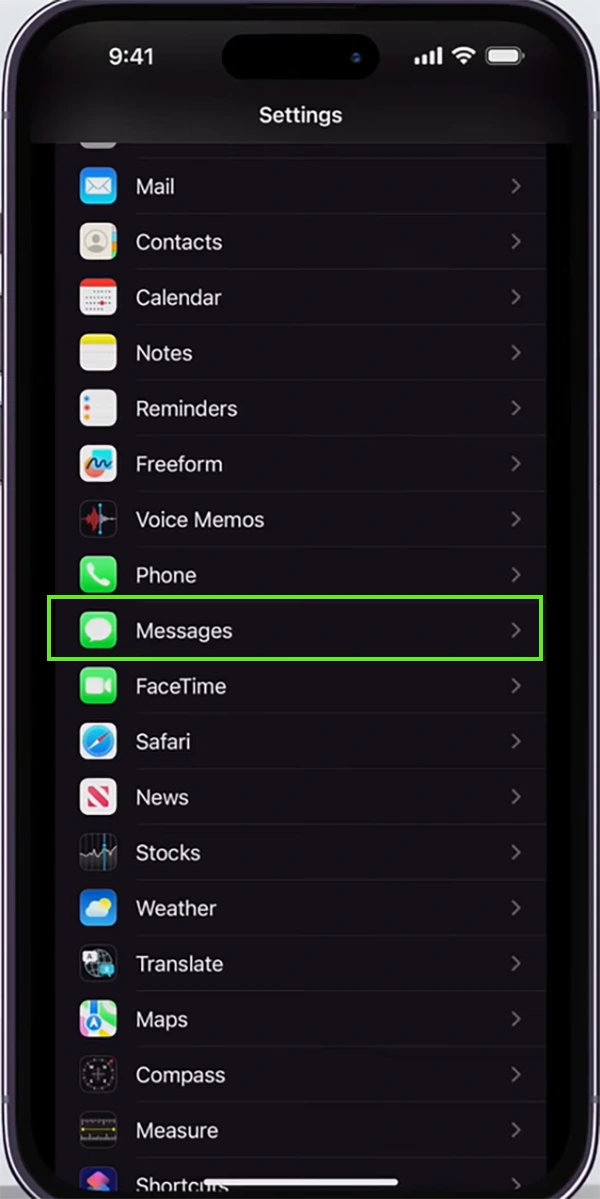
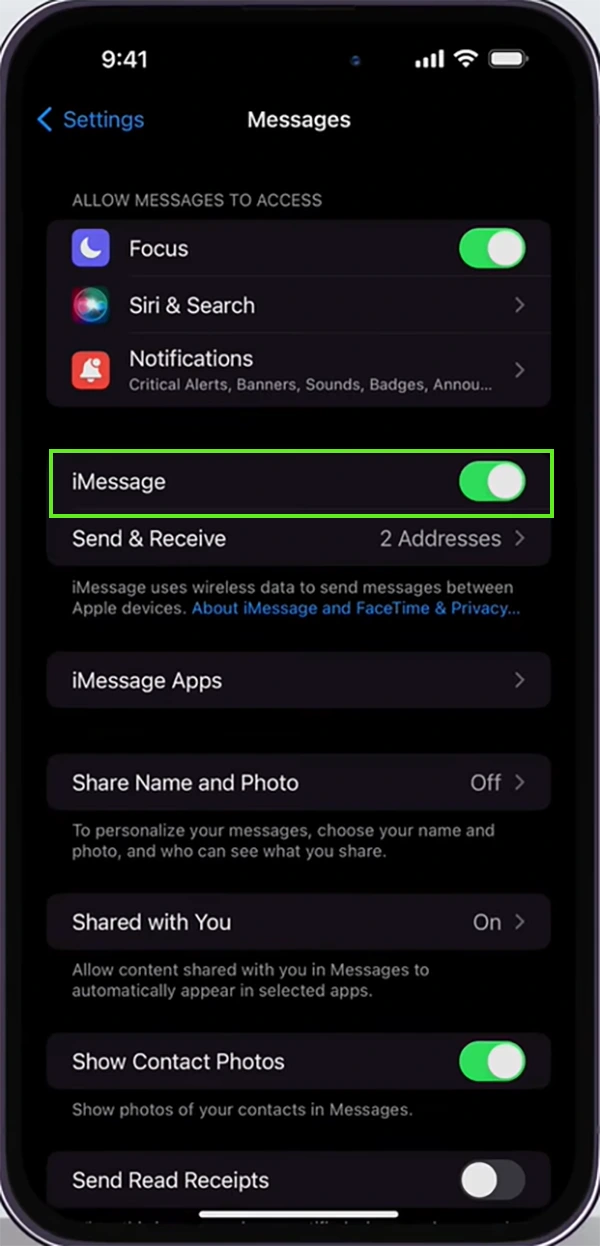
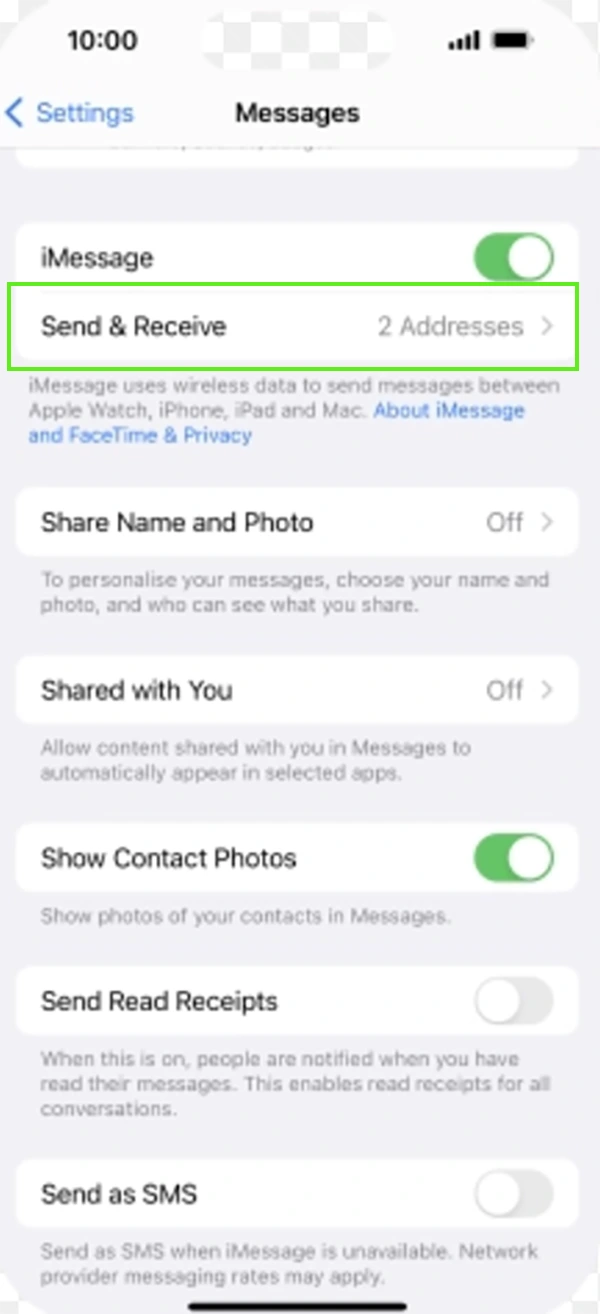
iMessage is a quick internet-based messaging and media-sharing tool with other Apple users that helps you connect exclusively with Apple users. Unlock this feature for yourself by going through this article and the step-by-step explanation on how to enable iMessage on iPhone.
Enabling iMessage on iPhone lets you send free text, high-resolution photos, videos, and audio messages over Wi-Fi or cellular data. Follow along and learn how to turn on iMessage on iPhone.
Even after following all the steps, you are still facing the problem and your iMessage is not activating or working; then the given steps may be the reason.
Sometimes the iMessage server may be down, and it can be off for a while. It doesn’t happen regularly, but it can happen once in a while. You can check if Apple’s online servers are facing any problems and report the same to Apple Contact Support.
iMessage uses mobile data or an internet connection to run, and if you don’t have a good connection or enough data, it will not work. Without internet, you will not be able to send messages. Make sure to have a good connection and enough data while running iMessage.
iMessage may not run due to some glitches on the device. Make sure to turn the device off and on and restart iMessage.
The next reason can be the outdated iMessage app. In this case, too, iMessage will not work. Therefore, always keep your device updated to the latest iOS version.
Some users have also reported that they can’t send or use iMessage properly if their device is not aligned to the correct date and time. Fix the time and date as per your country zone and again try to use iMessage.
This is the last and final step that can be done if any of the other ways are not working and are not effective in helping your iMessage work.
Perform a reset network settings by following the simple steps:
Go to Settings > General > Transfer or reset iPhone > Reset > Reset network settings.
If even resetting the network settings doesn’t make your iMessage work, then the last way is to contact and get an appointment with a tech consultant at the Apple Store.
Turning on iMessage on your iPhone can really turn your texting experience from basic to fully upgraded. Turning on iMessage really helps you use those classic blue text bubbles, send higher-quality pictures, and text seamlessly. Turning on this feature can really help you connect with other Apple users smoothly around the globe.
And also, to connect with the latest and best solution for your troubleshooting problems, please visit the GetAssist YouTube channel.
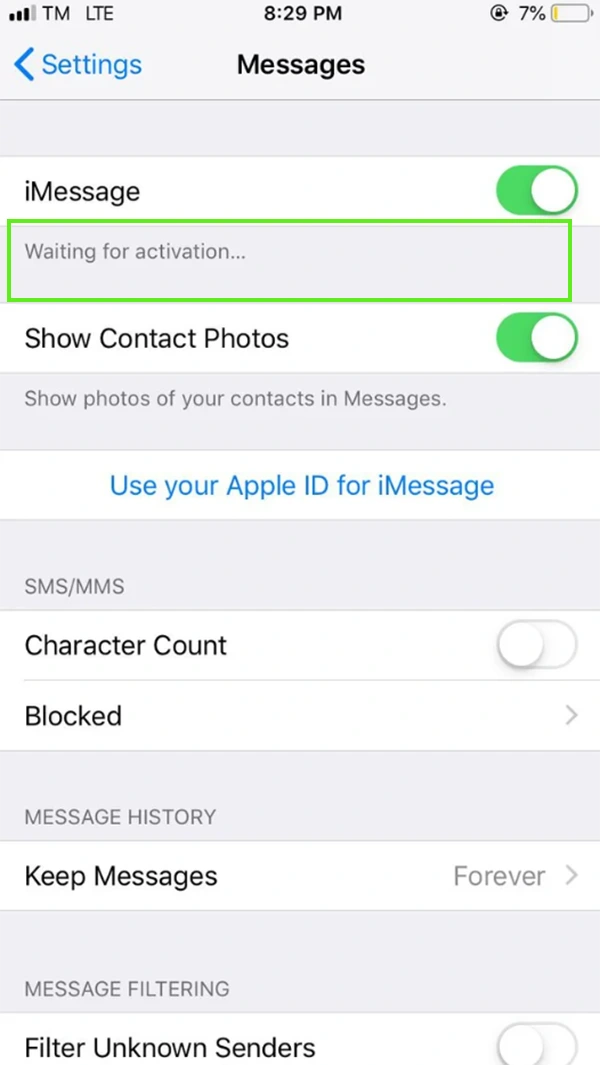
Ans: If your screen shows that, it means your phone is trying to connect to Apple servers using your cellular network and connection. It usually gets active within minutes if your phone’s data is strong and stable.
Ans: Yes, you can easily use iMessage on both iPad and Mac. The only thing you have to take care of is that you should sign in with the same Apple account on both devices and also turn on the service in your device settings
Ans: Yes, a bad SIM card will definitely block iMessage. It can block iMessage by preventing phone number registration and triggering a persistent “Waiting for Activation” error, and also iMessage requires your iPhone to send a hidden, silent international SMS to Apple’s servers during activation; a corrupted SIM stops this text from sending.