A cluttered phone menu can make it difficult for you to locate the right app at the time you need it. Deleting the apps on iPad that are not in use can make your home screen look clean and organised.
So, if you are on the run to learn how to delete apps on iPad, read till the end. There are two primary ways that can help you perform this process: from the Home screen and through the iPhone Storage Settings.
There are two steps to delete an app from an iPad. The first one is from the Home Screen or App Library directly, and the second one is through iPad storage settings. Check out the methods and learn how to delete apps on iPad:
You can easily delete the app directly from the Home Screen or the App Library if the option “Deleting app” is enabled and says ” Allow “.
The steps are:
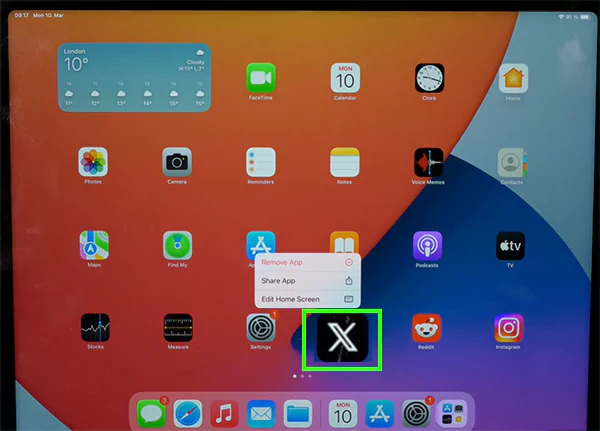
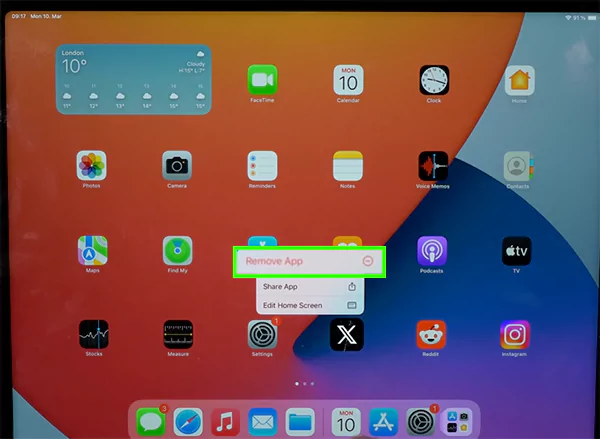
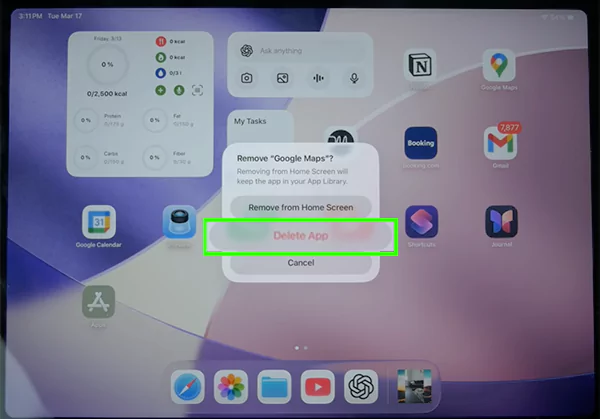
If your settings are not set to “Allow,” then you won’t be able to delete the app directly from the home screen or app library; you’ll have to delete the app through iPad storage settings.
To delete the app from an iPad through iPad storage settings:
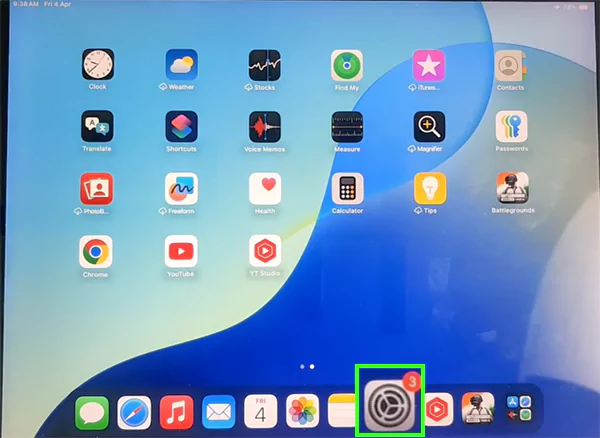
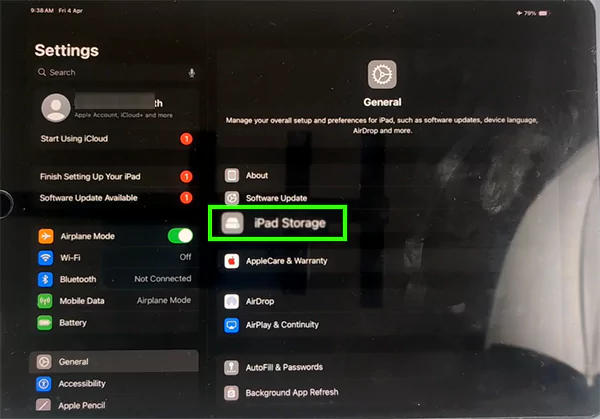
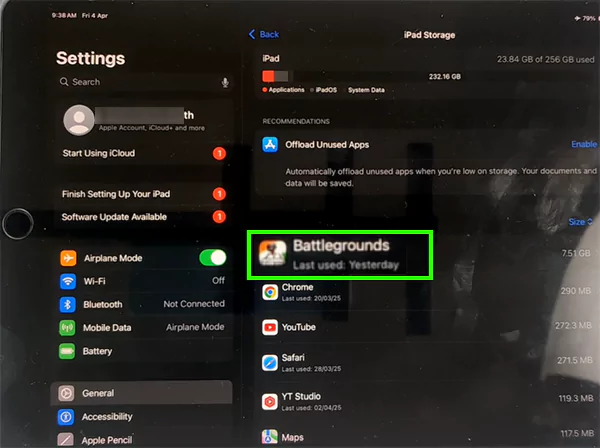
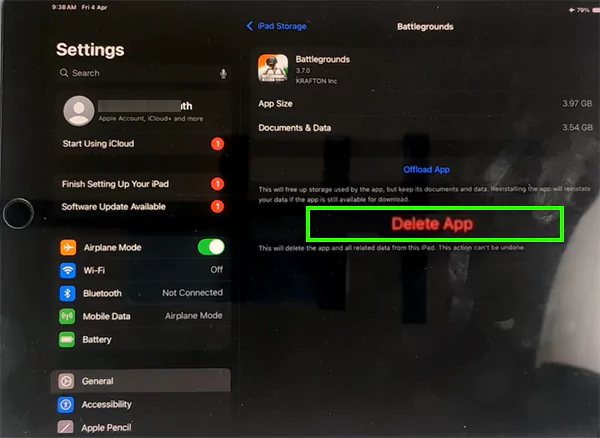
For a clear and clutter-free menu interface, you should often delete apps on iPad. You can delete apps directly from the home screen or using the iPhone storage settings process elaborated above on your iPad. Therefore, the process mentioned in this article works for the iPhone also.
“Remove from the home screen” means the app will be hidden from your view, but it will remain on your iPad in internal storage. But “Delete app” means that it will not just be removed from your view but also from your internal storage.
No, even if you delete an app, all of your previously purchased or downloaded apps are tied to your Apple ID. You can download them from the App Store whenever you want.
Deleting an app from your iPad deletes your locally stored data and the data stored in the storage of your iPad, but if your deleted app uses cloud storage like iCloud, then all the data generally will come back when you reinstall and log in to the app.