Many Macbook beginner faces problem when their screen gets stuck, or their window is not performing the task, and they mistakenly fail to use Ctrl Alt Delete on Mac, as this option is slightly tweaked here.
Well, panicking here won’t get the job done; instead, learn some simple shortcuts and simple methods that include just right-clicking on the Mac mentioned in this blog post by GetAssist.
At a Glance
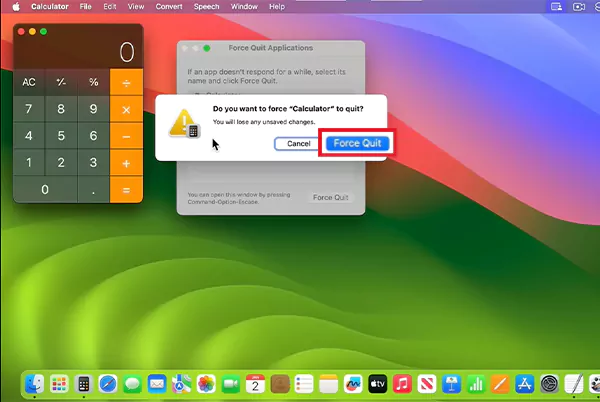
As there is no Ctrl-Alt-Delete on mac for force quitting, you have to use Command – Option- Escape, which is a shortcut that will do the job when an application becomes stuck or when you want to quickly end the functionality.
Other than these keys, you can force quit using 5 easy methods also:
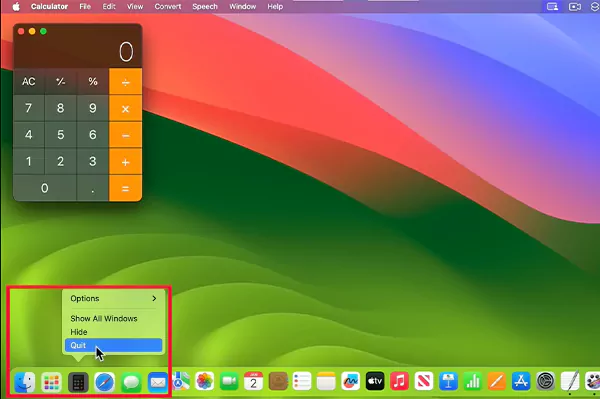
- Dock Method
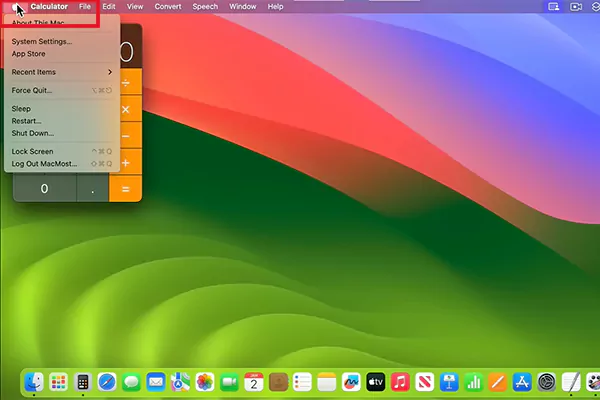
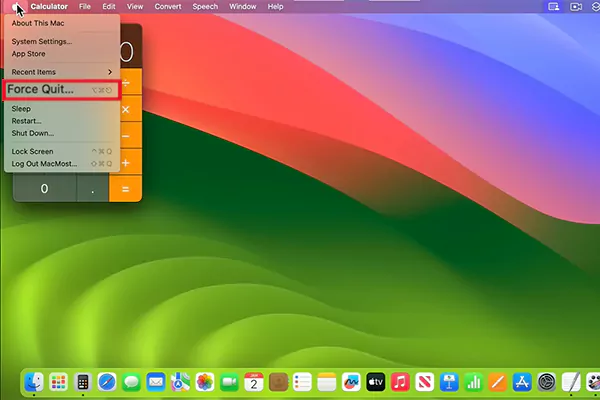
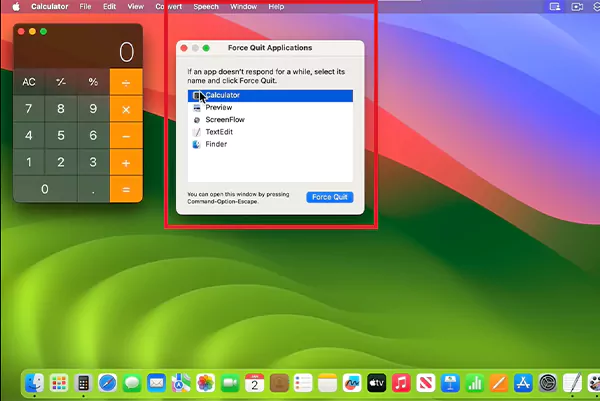
- Using Apple Menu
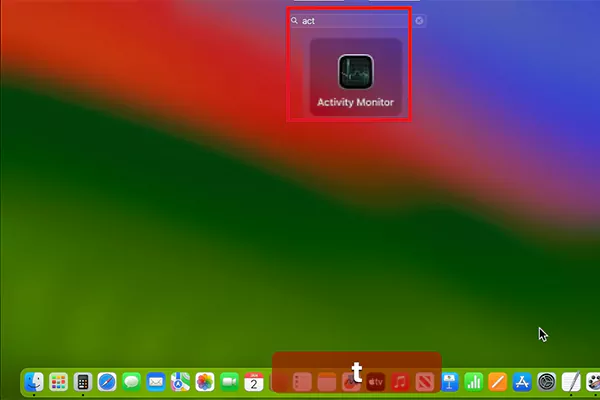
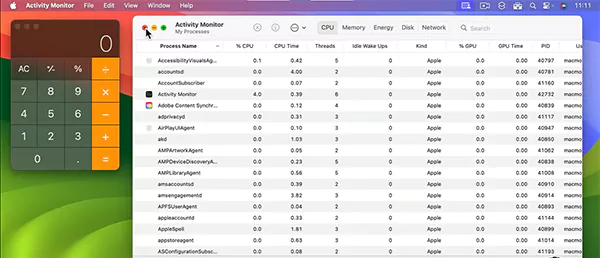
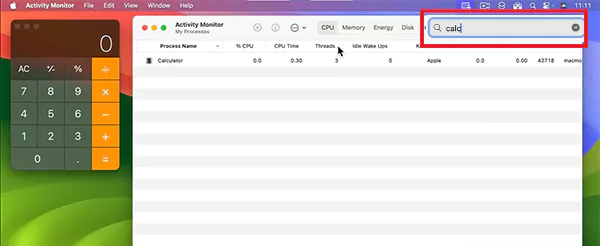
- Through Activity Monitor
- Keyboard Menu Options
- Finder Relaunch
Command – Option- Escape is a shortcut that triggers Force Quit on your computer during situations where an app is stuck, or you want to close the functionality rapidly, like screen sharing to protect the on-screen data from someone.
Force-stopping running apps can delete the recent data of the work you are doing, as your device is in a hurry to take action.
This is not it; you can perform this action using 5 more methods, which are easy and yet give you more options to reduce system failures.
In the first method, we will learn force quitting using the dock, as it is the most basic way in this list.
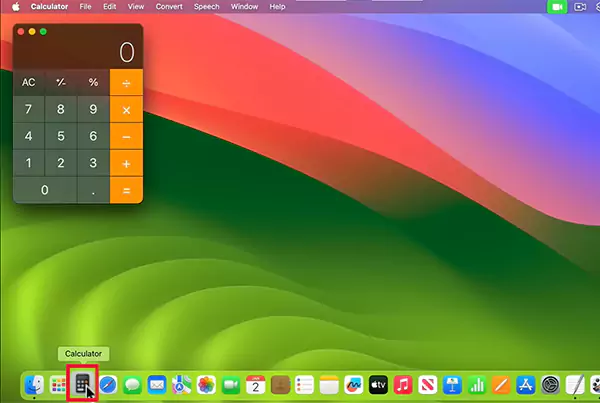
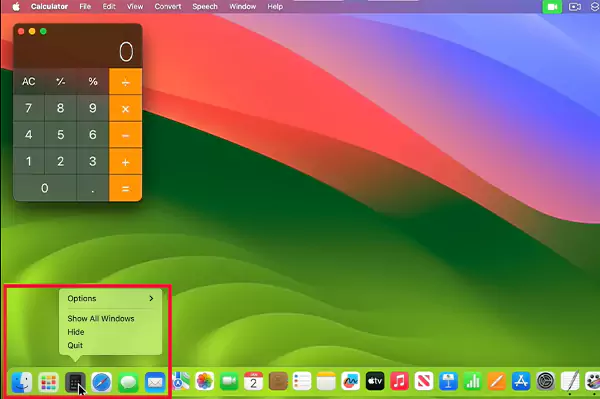
There is also a force-quitting option, which can be done using the Apple menu that is directly available on the main menu.
Here’s the best part: sometimes you want to stop or pause background activities on your system, and then using Activity Monitor for that is the best choice.
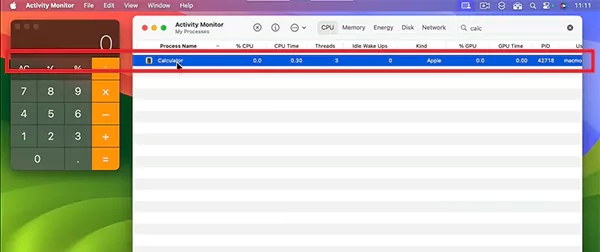
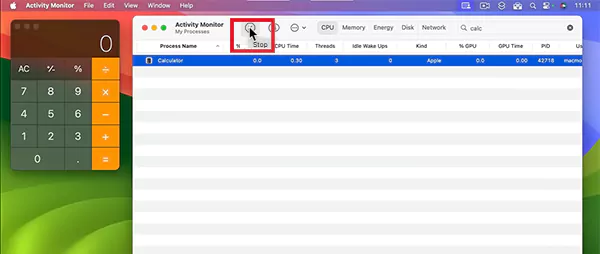
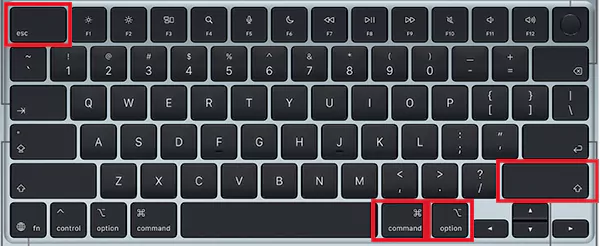
Now, one of the easiest ways to force quit is to use a keyword, in which you have to press Option + Shift + Command + Escape for 3 seconds.
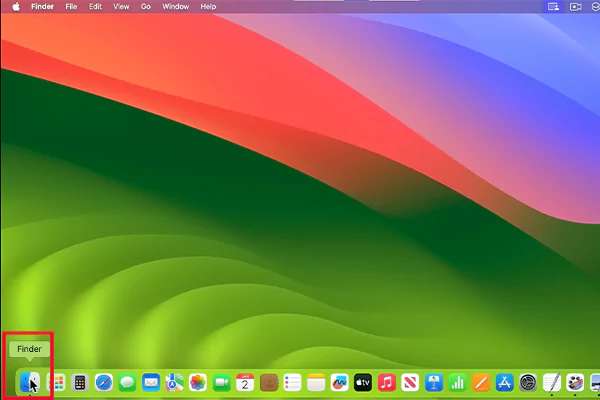
Lastly, there is a way to rapidly close an application by relaunching Finder.
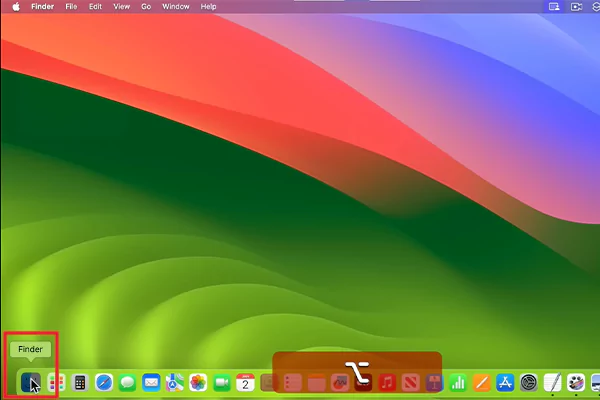
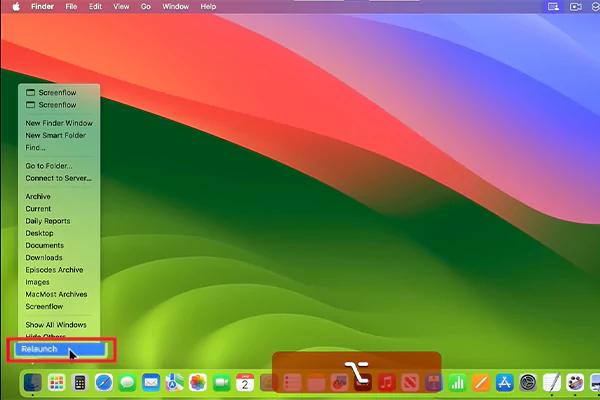
These are ways that you can use to force stop any application or active window running on the MacBook that is causing discomfort in your experience. Each process is very simple, but if the basic steps don’t work and you are still stuck in a web of errors, try contacting the Apple support team as soon as possible.
Lastly, don’t forget to follow GetAssist for more such expert trick articles.
To explore more tricks and latest updates of macOS, head up to the GetAssist YouTube Channel and subscribe it along with pressing the bell icon.
The Mac equivalent of Ctrl+Alt+Delete is Command + Option + Escape, which opens the “Force Quit” window to shut down frozen or unresponsive applications immediately.
Control-F5 is equivalent to Fn-Control-F5. It is a macOS shortcut that is used to move focus to the window toolbar.
To skip back the audio on your MacBook, you can use the shortcut of F7.