How to Screen Share on Mac? A Guide for Professional Collaborators

| Updated on April 16, 2026

Want to empower collaborations among your colleagues or study together with your classmates, then for that, you need to learn how to share screen on Mac. As an Apple user, doing this is not very tricky, but to make it easier, this article by GetAssist has compiled some easy steps to learn how to screen share on mac without any hassle.

Things to Note

  • Make sure that your and the receiver’s Mac systems are equipped with the latest updates and security patches.
  • Ensure that both devices are connected to a stable internet connection.
  • Don’t run screen sharing in low power mode, as it can create a bit of lag in your experience.

How to Screen Share on Mac?

Now, to share the screen on a Mac to your other Apple desktop or laptop, like an Apple MacBook Pro, you need to follow some easy steps in proper sequence.
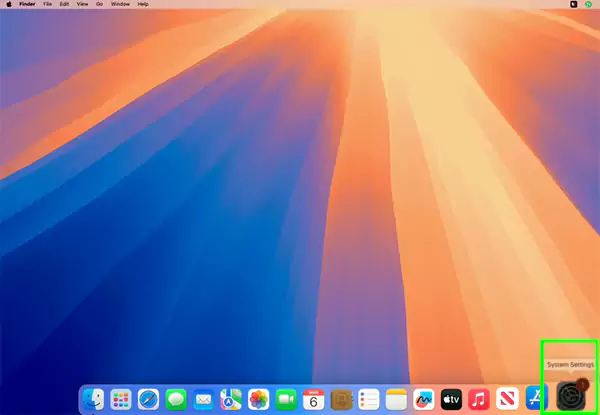
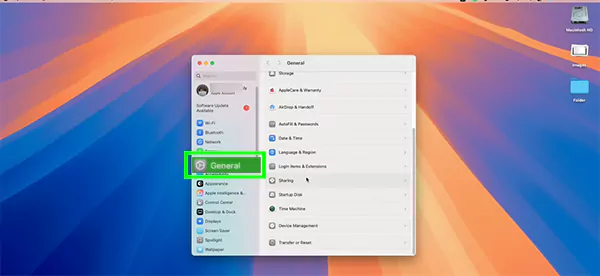
  • Open the MacBook and go to the Settings.
    Open the MacBook and go to the settings
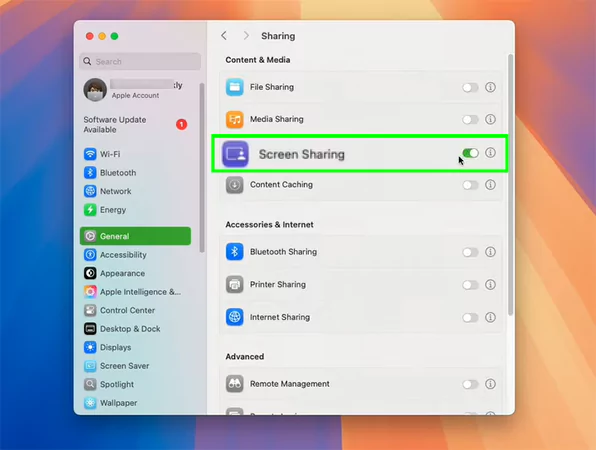
  • Go to the General settings.
    Go to the general setting
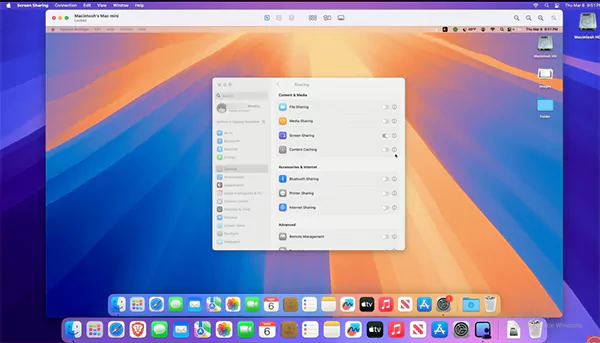
  • You will see a Screen Sharing toggle there; click on it.
    Enable screen sharing toggle
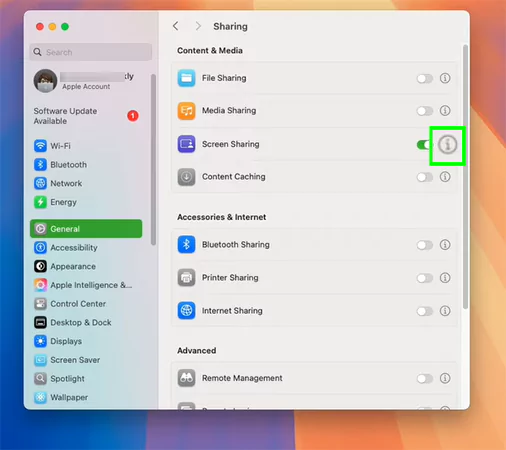
  • Click on the ‘i ’ button beside the toggle.
    click on i button beside the toggle
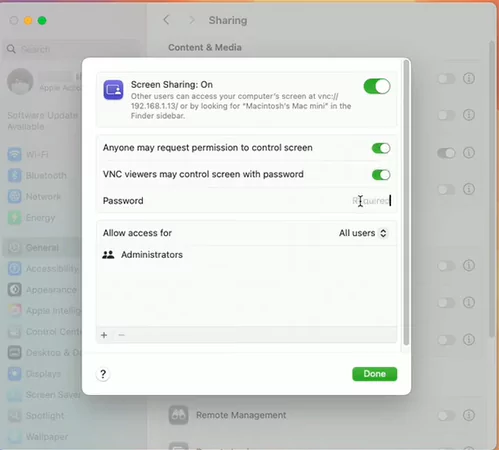
  • Then enable both toggles that state “Anyone may request to control screen” AND “VNC viewers may control screen with password.”
    Enable both toggles
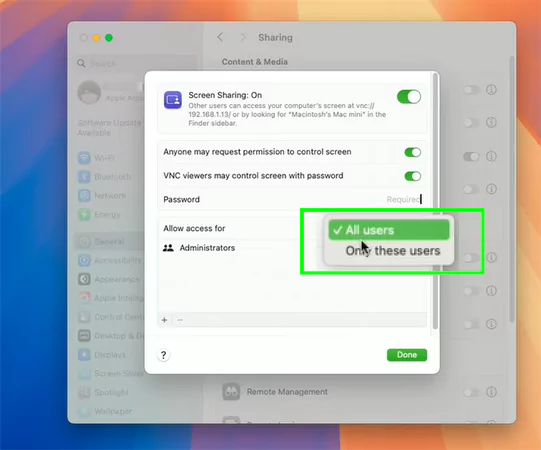
  • Select access for all users.
    select access for all users
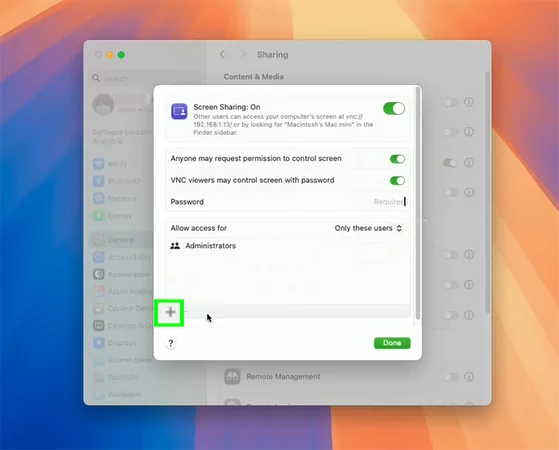
  • Then click on the (+) plus icon.
    click on the plus icon
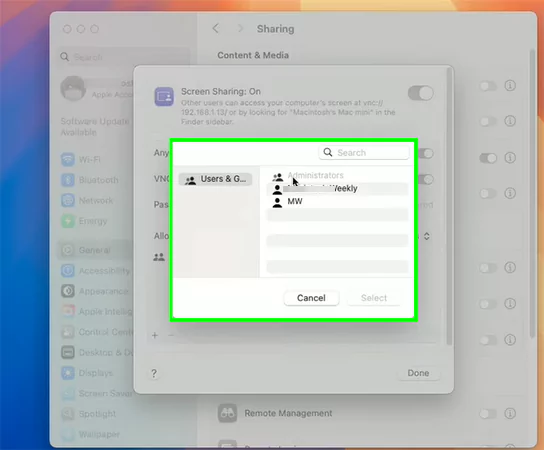
  • Select the name of the pairing devices.
    Select the name of the pairing devices
  • Now open another device.
    Open another device
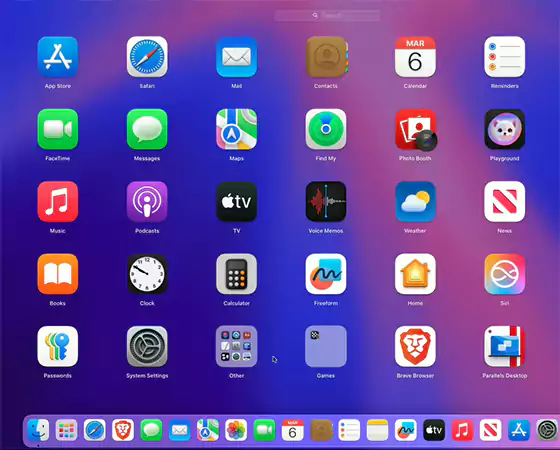
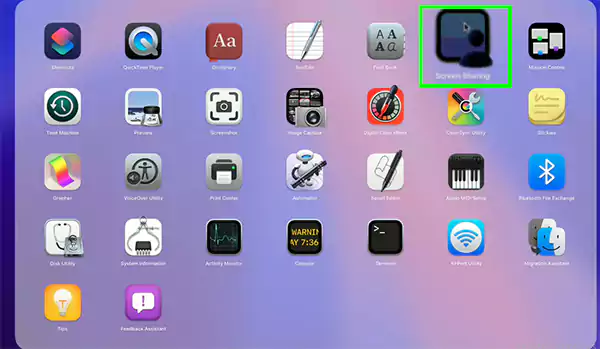
  • Go to the screen sharing options with the same steps mentioned above, or with a shortcut.
    Open screen sharing
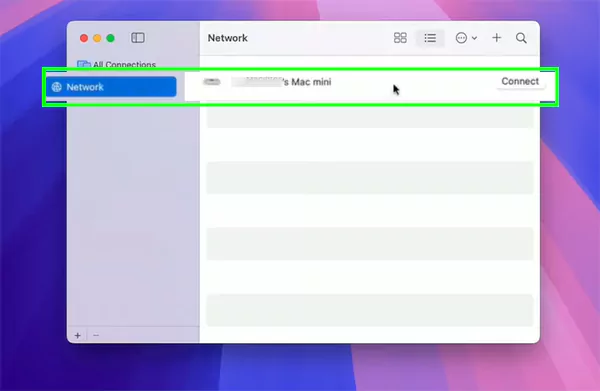
  • Open network options and select the device.
    Open network options and select the device
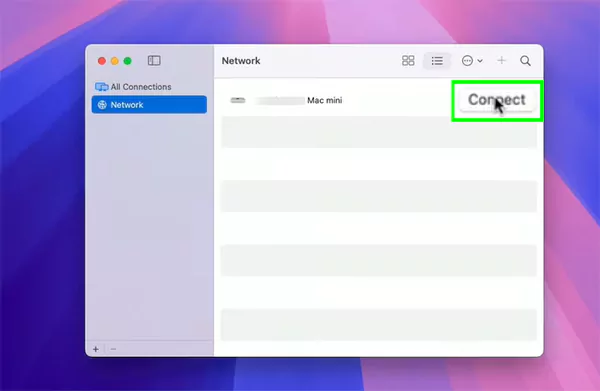
  • Click on “Connect.
    Click on Connect
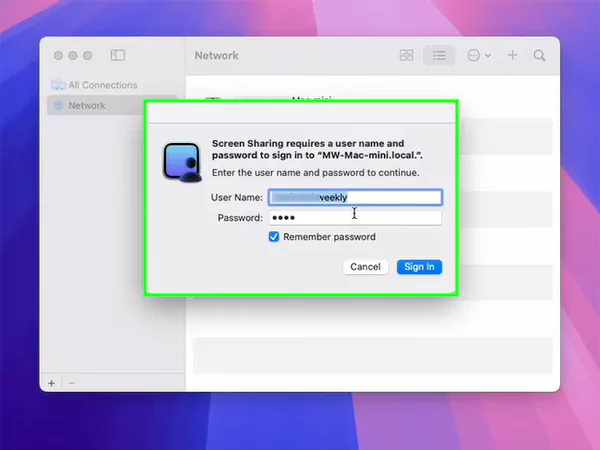
  • To launch screen sharing, add your password.
    Add your password
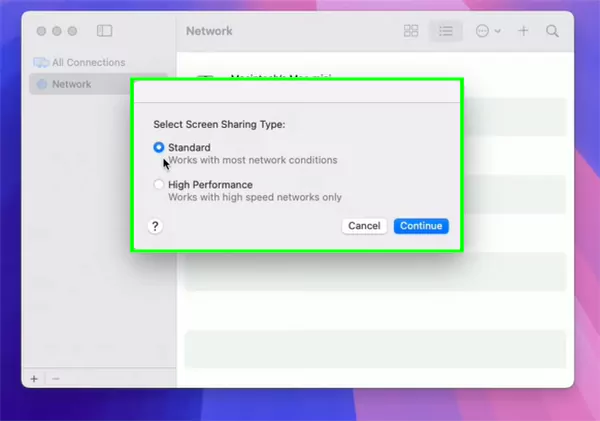
  • Select your sharing type from Standard or High Performance.
    Select the screen sharing type
  • Now your screen has been shared.
    Screen has been shared now

As you know, MacBook is full of exemplary features like this.  If you want to explore them along with the latest macOS and iOS updates, then don’t forget to subscribe to the GetAssist YouTube channel and click the bell icon.

How to Screen Share in Mac via FaceTime?

It is even simpler to share screen in Mac via FaceTime after the latest macOS update, as this can be done only in a few clicks: Let’s see how to screen share on mac via FaceTime:
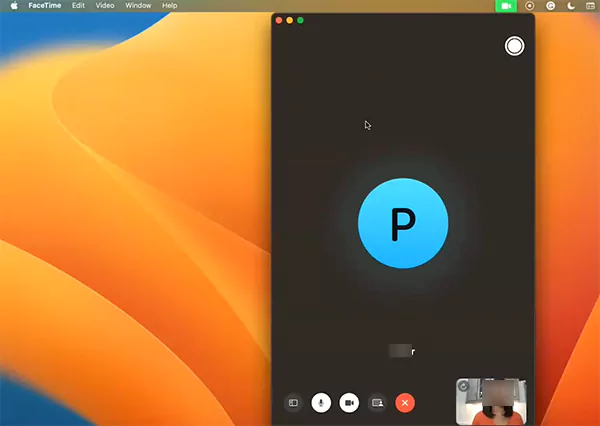
  • Open FaceTime and call your friend.
    FaceTime your friend
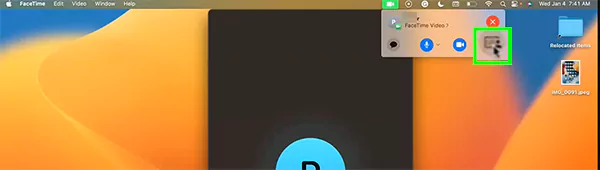
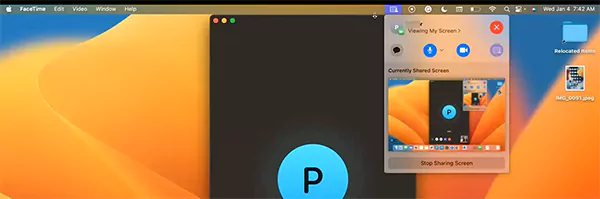
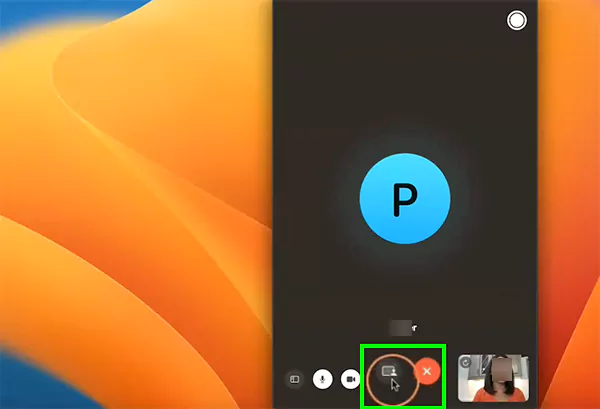
  • Then click on this share screen option.
    click on this share screen option
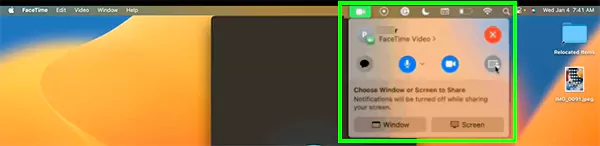
  • A toggle will appear with the same option; click on it.
    A toggle will appear with the same option click on it
  • Then choose your preferred option.
    choose your preferred option
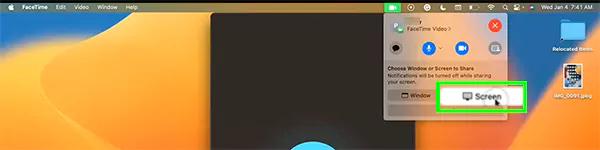
  • Select the screen option.
    Select the screen option
  • Now your screen sharing has started.
    screen sharing has been started

Conclusion 

To end this on a good note, we hope that you’ve learned how to screen share on mac through these detailed explanations for both conventional and FaceTime mirroring. If you are still facing some issues, then we recommend that you update your device to the latest versions or security patches. Lastly, make sure to follow GetAssist for more feature explanations and troubleshooting.

FAQ

Why is my Mac not screen mirroring?

If screen mirroring (AirPlay) is not working on your Mac, first ensure both devices are on the same Wi-Fi network, restart them, and toggle Bluetooth/Wi-Fi off and on.

Why will my Mac not connect to my TV?

Well, it can happen due to two common issues, which are poor internet reception or the use of an outdated version.

How do I connect my MacBook to my TV?

Connect your MacBook to a TV wirelessly via AirPlay by selecting your TV in the Control Center’s “Screen Mirroring” option.


Sources

Share the screen of another Mac by Apple support


Janvi Verma

Tech and Internet Content Writer


Related Posts

×