In the latest generation of iPads, there is no physical Home button; they come with gestures and Face ID. Whether it’s the older or newer set of iPads, stopping apps from running in the background consuming more CPU and memory is essential for improved performance
The more apps running in the background, the more your iPad runs laggy. Let’s discuss how to close apps on iPad in detail.
You can easily close any application on the latest iPads with the help of gesture control.
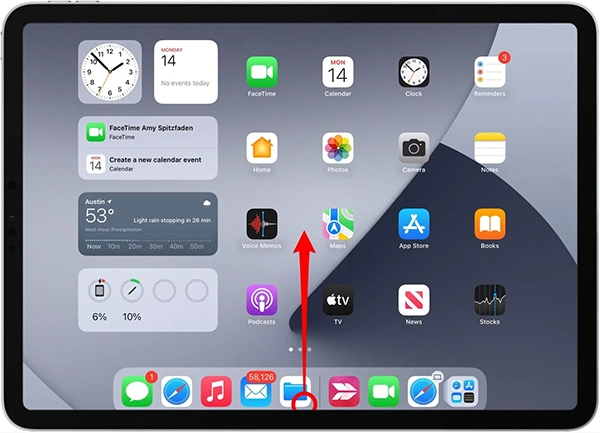
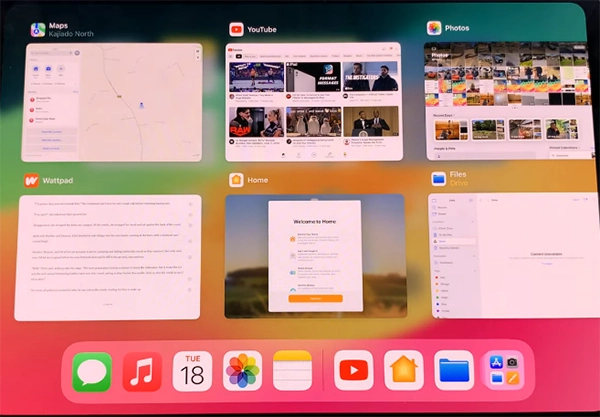
You can also perform a restart to close the background running apps
Press and hold the power button for 10 to 15 seconds and the side button to turn off the iPad; wait for 30 seconds, then press it again and it will turn on automatically, and all background applications will be cleared.
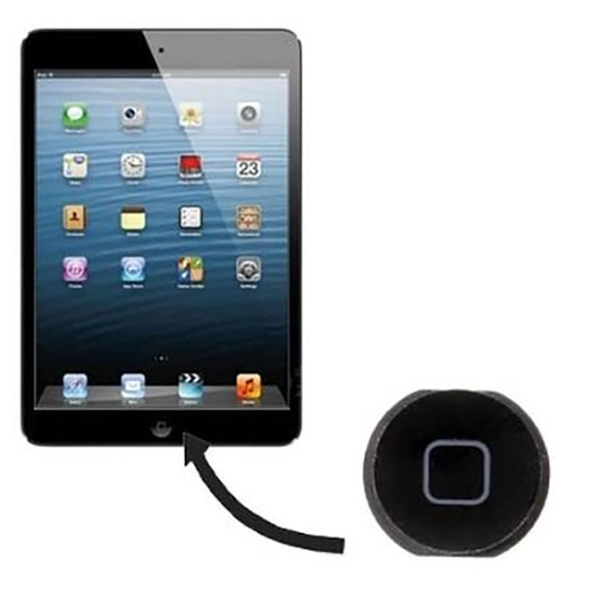
iPads with a Home button are the older generation iPads. On those iPads, you can easily close the app in just a few clicks on the Home button. Let’s discuss all methods to close the application from the background on Home Button iPads. You can also disable background app refresh to stop the application from running in the background when you are not actively using it.
Method 1: Close the App
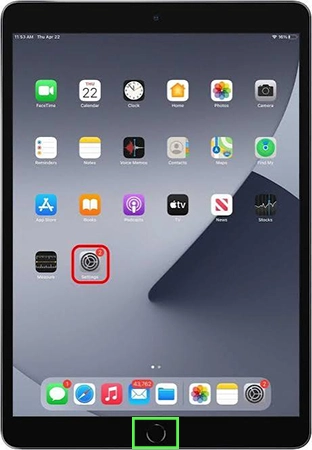
Method 2: Close the App from the Background Apps
Closing the application is not enough; you need to close the app from the background. To close the application from the background, just double-tap the Home button; the App Switcher will display open apps. Just swipe upward to close the application.
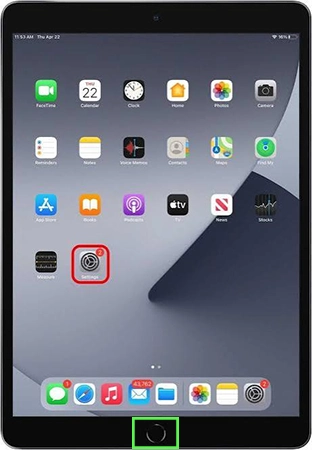
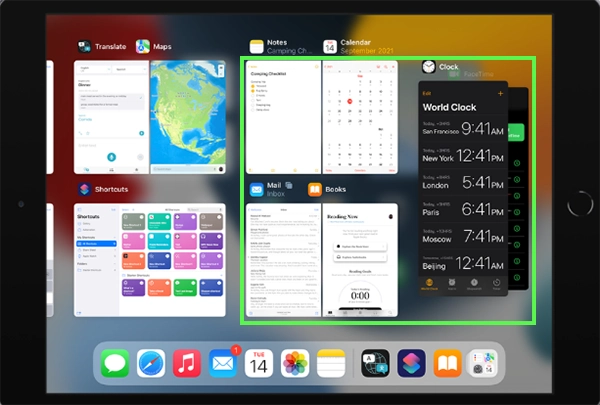
Method 3: Force restart your iPad
Some apps that are not downloaded from the official App Store are running in the background, tracking all your actions, and can also steal your personal information.
Similarly, some web pages that are running in your iPad’s background have viruses and malware, which can decrease your battery life and iPad performance and freeze your device, along with increasing the risk to iPad security and personal information.
Clearing your iPad’s background running apps can improve performance and protect your privacy. In addition, don’t download any third-party applications, and clear background apps frequently. Always update your iPad to the latest iOS for the best antivirus and performance.
If you have an iPad, follow this guide and learn how to close apps on iPad for the overall benefits. For more such guide videos, check out the Getassist YouTube channel.
The iPad manages all the background-running apps in order to save the battery and increase performance. iPad pauses the majority of apps or stops them from refreshing in the background to reduce CPU and memory use, which results in good battery life and performance.
Yes, if there is any app containing viruses and malware running in the background on your device, it can access your personal information, record all your actions, and steal data.
Yes, background-running apps affect battery backup because multiple apps refreshing and running in the background also need CPU and memory. Due to high percentages of CPU and memory usage, they consume more power and affect battery backup.
Yes, closing background running apps saves battery on iPads by reducing CPU and memory usage and load.
9th-generation iPads come with a Home button; you just double-tap the Home button to access the app switcher, swipe to find the app you want to close, and then swipe upward to close the app.