Searching for a downloaded file on iPhone after an update or switching your phone can be really frustrating.
But don’t worry; here are a few simple and easy steps on how to find downloads on iPhone. Follow along and learn the ways to find downloaded files from both the Files app and Safari.
There are two places on an iPhone where you can find your downloads. The first one is the Files app, and the other one is Safari. You can search for the downloads in both apps.
Finding the downloads in both apps is very easy and takes only a few steps.
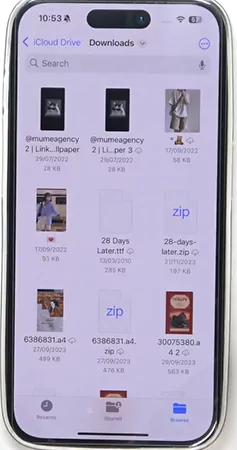
To access the downloads in the Files app, there are a few very easy steps.
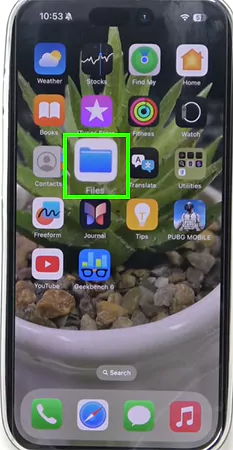
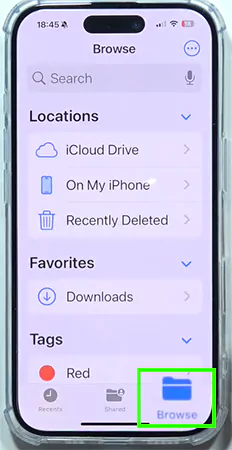
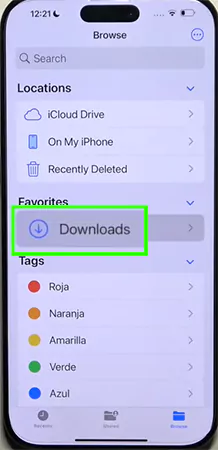
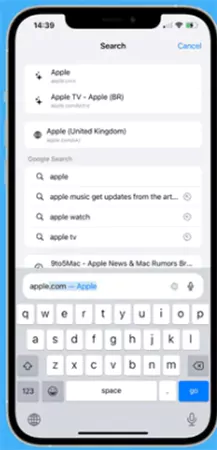
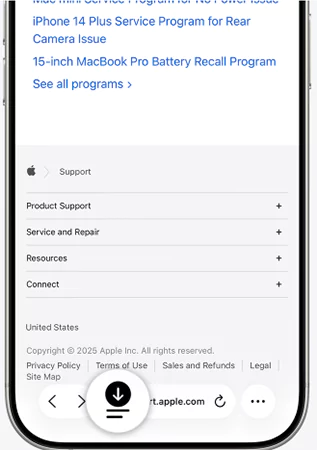
If you have downloaded something from Safari and are trying to view it directly from there, then the steps are:
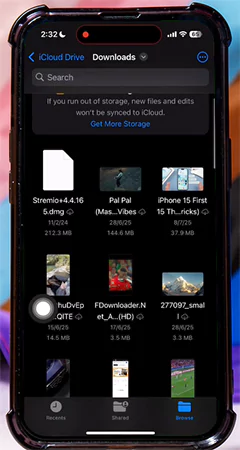
Accessing the downloads can sometimes be a little frustrating and feel like finding a needle in a stack of straw. But the Files app has completely changed the game and has made the job easy.
But if you still feel the need to get help in finding the downloads on the iPhone, make sure to go through this whole article. If you are facing any other troubleshooting concerns like this, then visit the Getassist YouTube channel and get your queries resolved in minutes.
Yes, the content we download in Safari gets saved in Files as well. We can access the downloads of Safari in Files too if your device is connected to iCloud storage. You just have to go to Files, Browse Menu, iCloud Storage, and your Safari Files can be easily accessed.
The downloaded content or file remains permanently downloaded and stored in the Files app until you decide to delete it.
No, if you simply save the Items in the Downloads folder. But if you enable iCloud Drive and save the documents to a location that syncs with iCloud, like the Files app and Photos app, then it will automatically get uploaded to iCloud.