Checking RAM speed in Windows and Mac is equally important because RAM is one of the most important hardware and software components.
You can upgrade your RAM in two ways: speed or GB. Both of them play an important role in the performance of the operating system; the more RAM, the more software you can use at once, and the higher the RAM frequency (speed), the more responsive your hardware is.
In this article, we will show you how to check RAM speed in both operating systems, Windows and Mac.
RAM speed matters a lot in any operating system, especially your daily work system. Always use a good amount of RAM with a higher frequency (speed). You can check your Windows system RAM speed in many different ways. You can follow any one of the following to get to know how to check RAM speed.
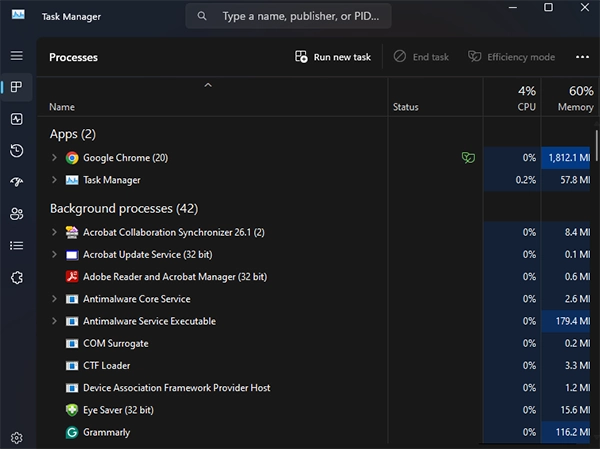
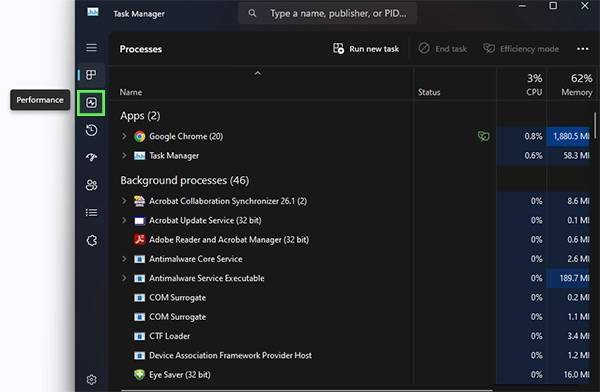
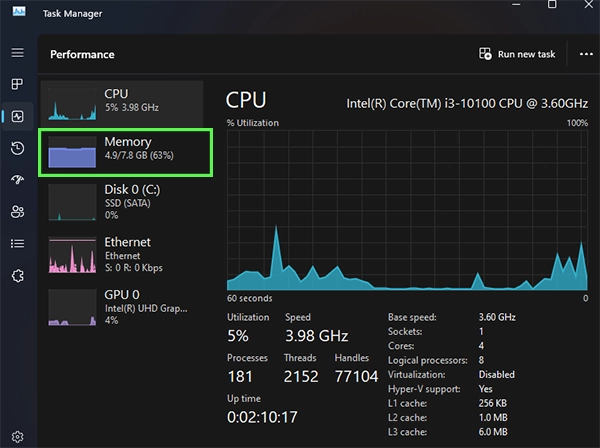
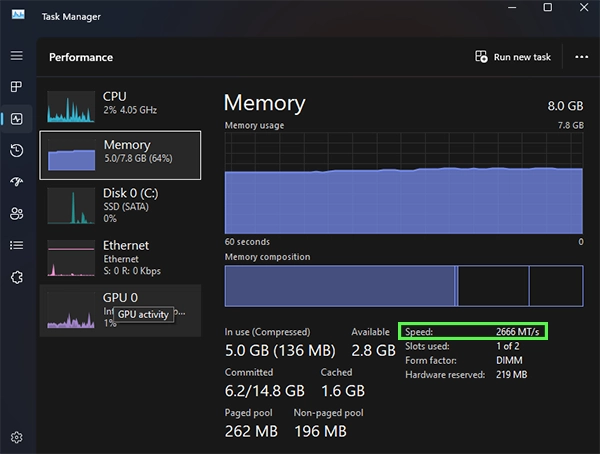
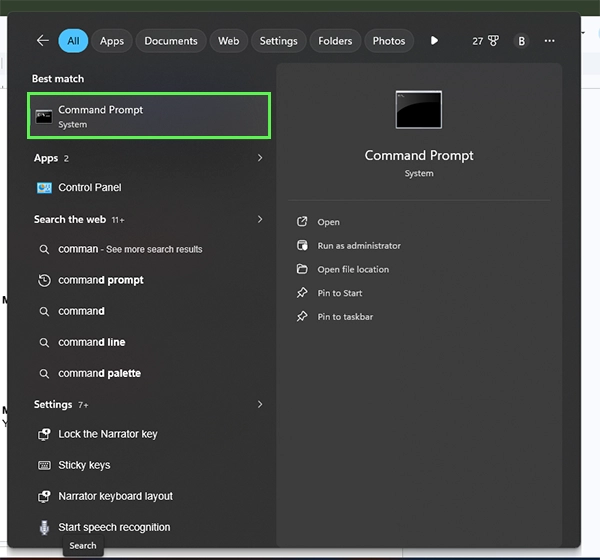
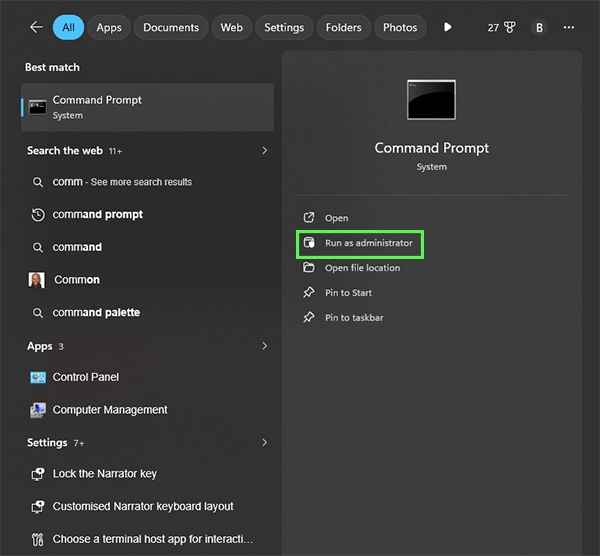
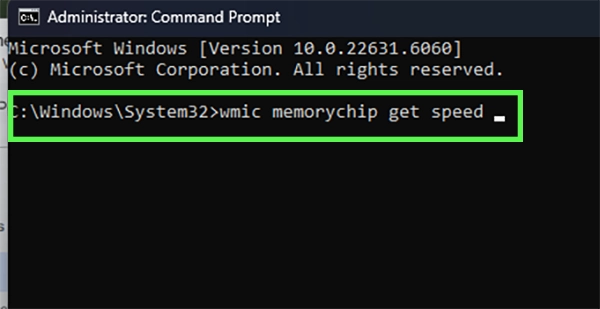
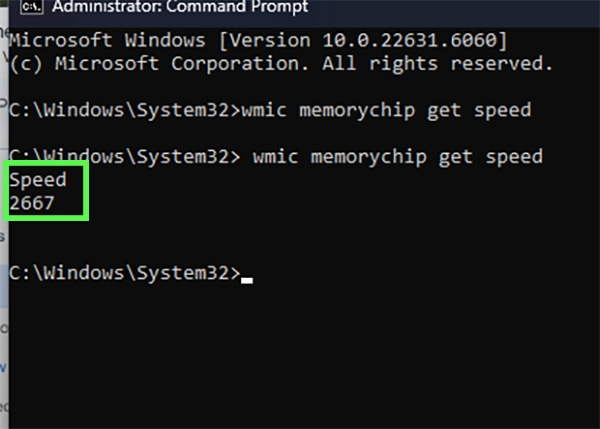
You can use PowerShell for detailed information about RAM.

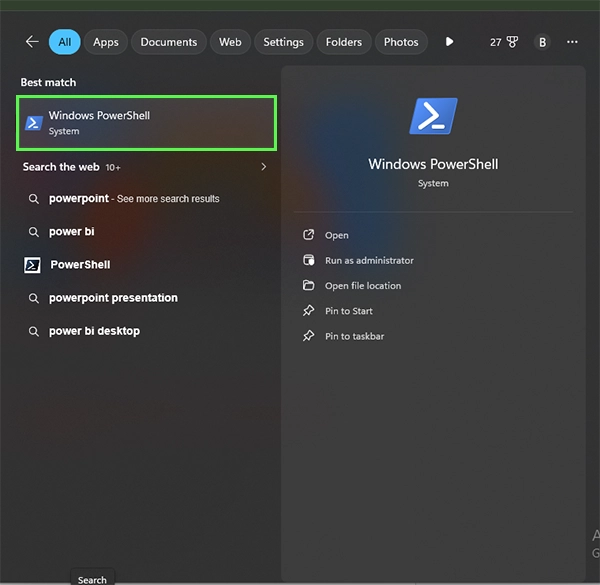
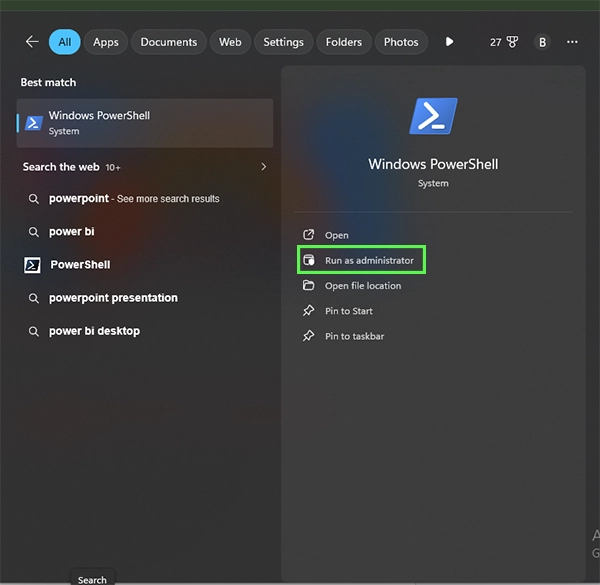
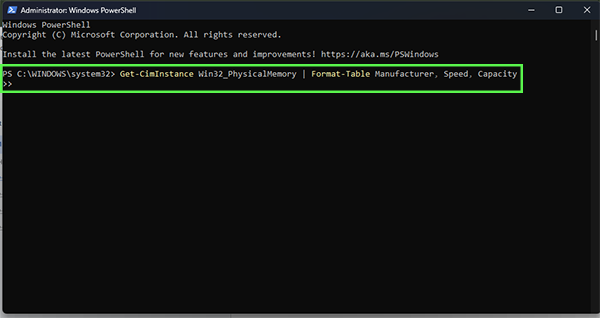
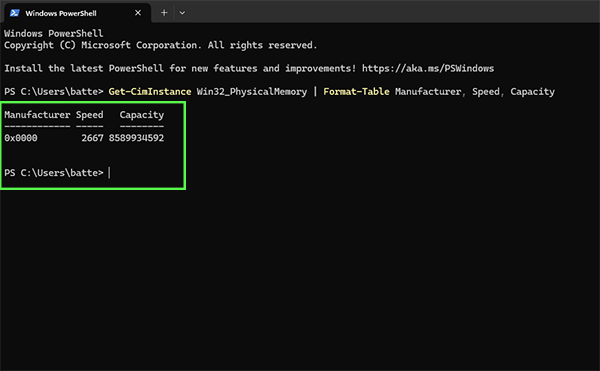
There are many third-party applications that help you find the RAM speed on your device, but there is a high risk of using third-party applications; try to avoid using unauthorized apps.
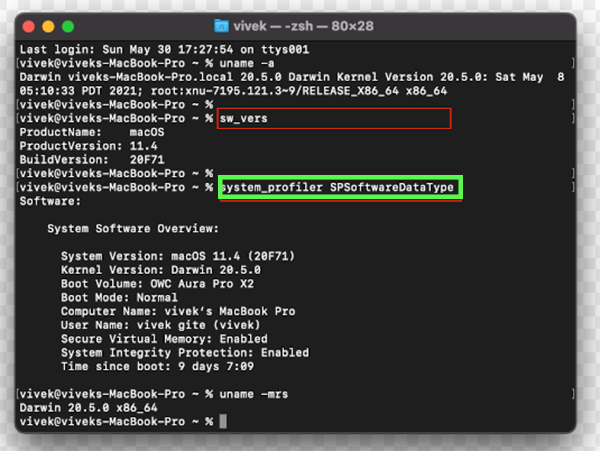
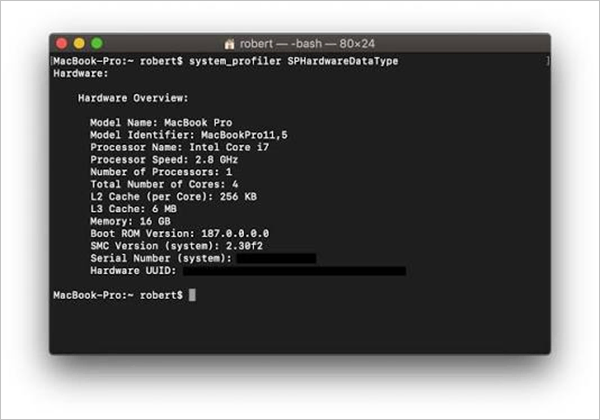
There are 2 methods to check the RAM speed on a Mac; you can follow any of them to find your RAM speed.

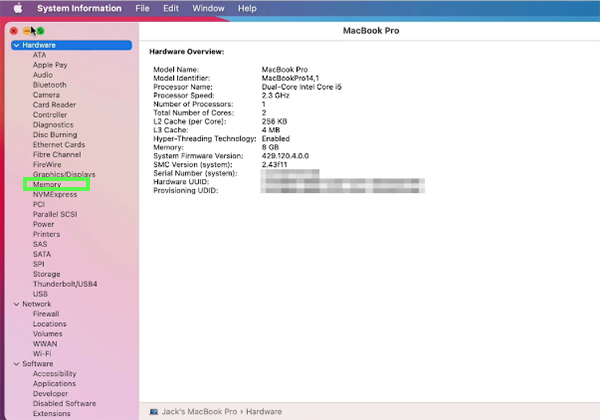
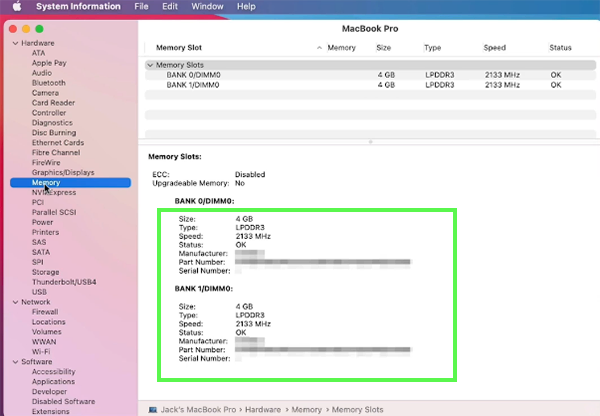
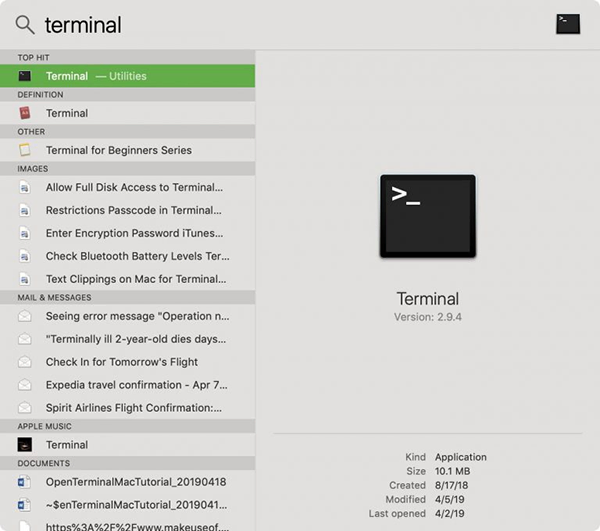
system_profiler SPsoftwareDataType
RAM is one of the most important parts of the operating system. RAM handles so many tasks at once, and if you have faster RAM, your operating system will respond quickly.
Always check your system’s RAM speed, whether you are using Windows or Mac. You can follow this guide to check your RAM speed on any device. For more such video solutions, you can check out our Getassist YouTube channel.
You can easily check your RAM speed with the built-in feature in the taskbar. Go to the Performance tab, then click on Memory; here you can see the RAM speed.
6000MHz is the best and the sweet spot for most modern and high-performance desktops.
Yes, 4000 is better than 3200, but there is a very small noticeable difference. You can see a difference in CPU-intensive tasks.
Yes, 64 GB of RAM is overkill for most of the people. It will be better for extreme-level multitasking.
Yes, 95% RAM usage shows that you need more RAM in your operating system. 95% RAM usage will also make your device freeze and experience lag.