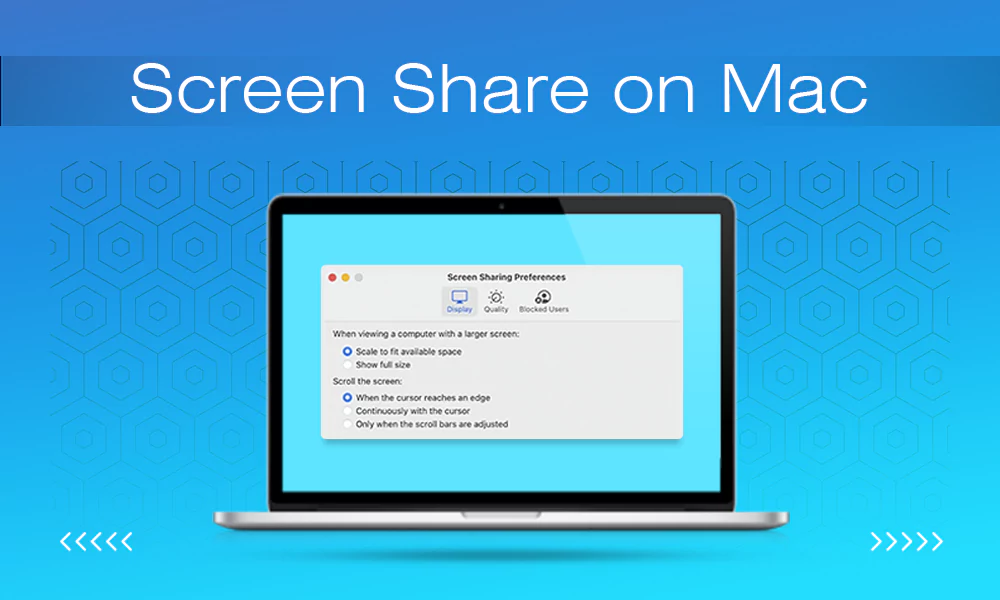
As a MacBook beginner, you might face many problems while doing simple things, such as screen sharing on Mac and charging your devices, due to a lack of Apple ecosystem awareness. You plug the wire in, but how do you know if your Mac is charging or not? Then learn every way to notice changes that happen in your system’s powerhouse through this article.
Quick Answer
To check the charging status of your MacBook, you can rely on 5 methods
- Battery Menu/ Icon
- LED Indicator
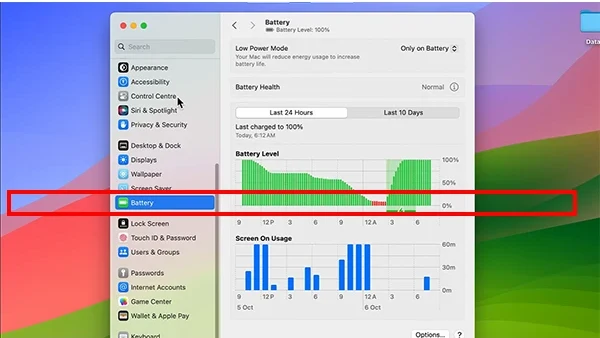
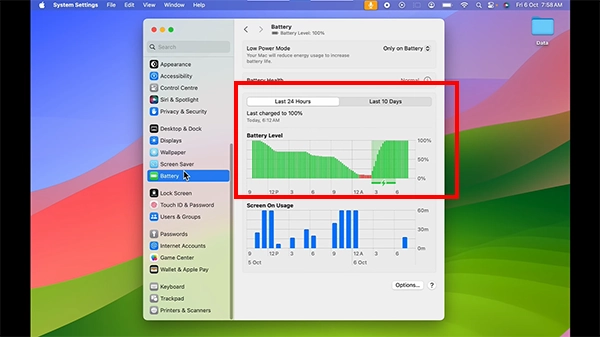
- Battery Health
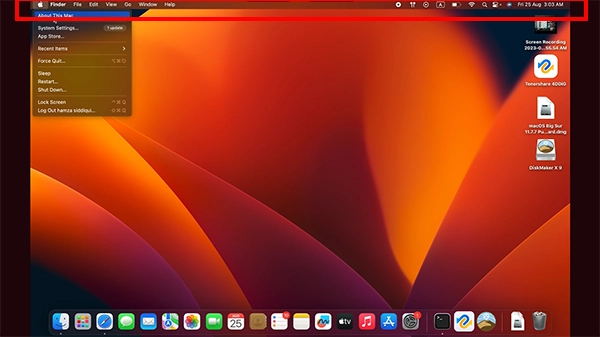
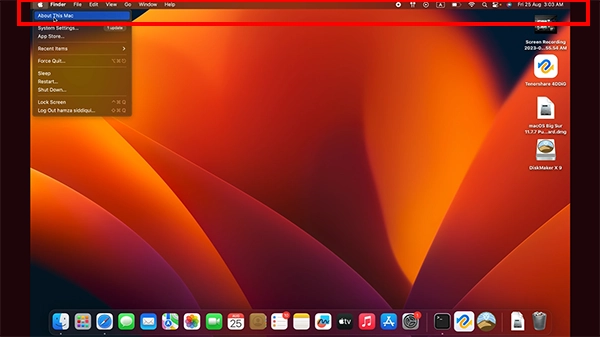
- System Report
- Charging Sounds
Well, to check whether your Mac is charging at the right speed without interruption, you have five easy, visible ways that indicate this with constant monitoring.
Now, we will start things off with the most basic way to check your battery status in your Apple MacBook Pro, which is by enabling the icon that is available at the top right side of the screen. Let’s see how to apply it!
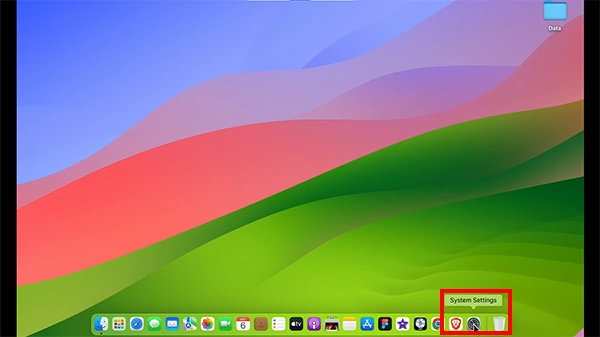
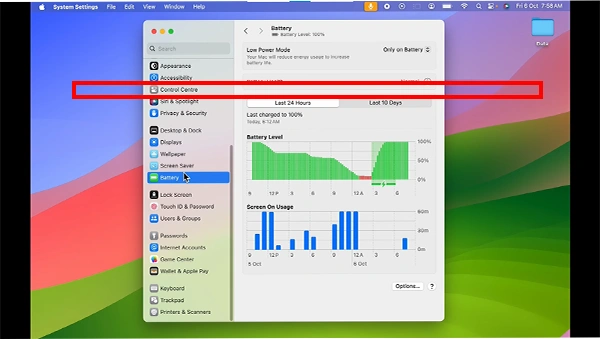
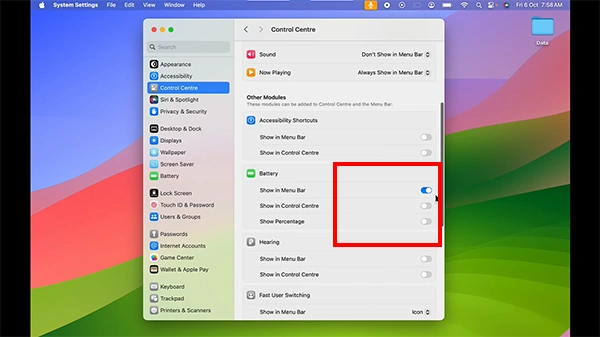
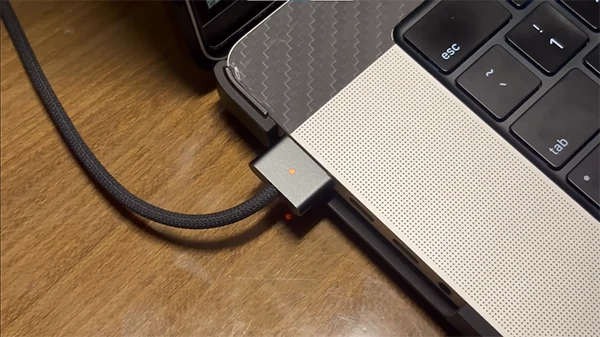
In almost all the previous models of MacBook, the charger comes with a built-in LED indicator that gets ignited when you plug it into the MacBook.
Hence, it is the most reliable indicator due to its dependence on hardware rather than macOS. If the light is not visible, then try to fix the USB-C port of your MacBook by removing the dust or debris within the system.
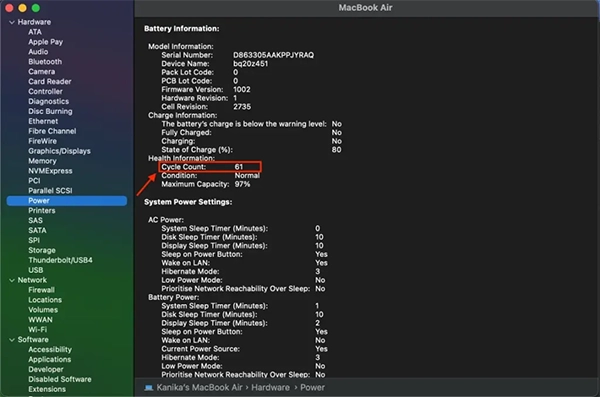
You can also check the battery stats in the battery health by just following a few steps:
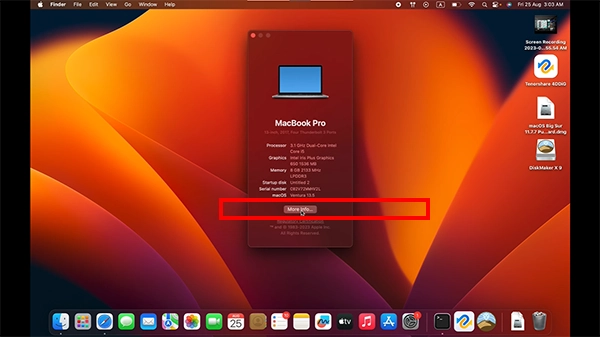
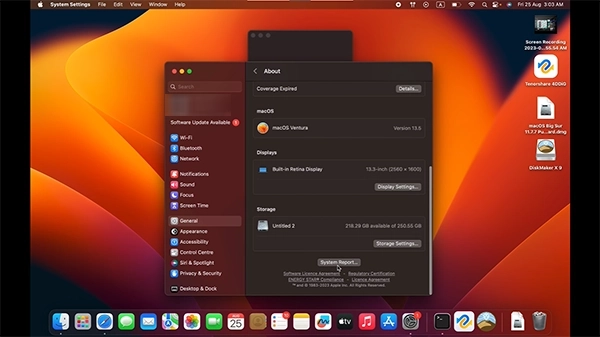
System Report is the most crucial part of your entire MacBook as it calibrates and presents the true condition of all the features in your device. That’s why to learn about each fragment of the system’s powerhouse, you need to follow some easy steps:
A pop-up sound will come from your system that indicates the charging has started in your device when you plug the charger into your Type-C port. An animation will also appear that will tell charging has started on the battery bar icon with a lightning bolt logo.
That’s how do you know if your mac is charging without delays or complex buttons, as macOS provides a user-friendly interface to every user. Although the easiest way to check the power info is through the battery icon, if that doesn’t work for some reason, then other ways are also mentioned below. We are 100% sure that if you have read this article till here, then you will never be stuck again with multiple charging queries.
MacBooks are often built for fast charging, and they can be completely charged within 1.5 to 4 hours, depending on the generation and charger potency of your MacBook.
The primary sign that shows the charging info in the MacBook is the lightning bolt at the battery icon in the menu bar.
Technically, it won’t hurt your MacBook even if the device is 100% charged and kept idle for a few hours, but in a few conditions, the device might overheat.