Wondering how to change wallpaper on Mac and get rid of that boring landscape for something that you like and which really fascinates you, but don’t know how to do it? Don’t worry; follow along, and I’ll show you how to do it in just a few easy and simple steps on your Apple MacBook.
You can either opt for the built-in wallpaper options in your Mac or customize one from your personal gallery images. For both, the process remains the same. The steps to change the desktop background on a Mac are –
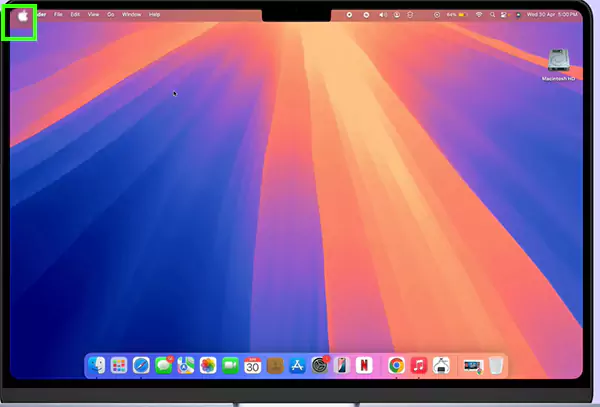
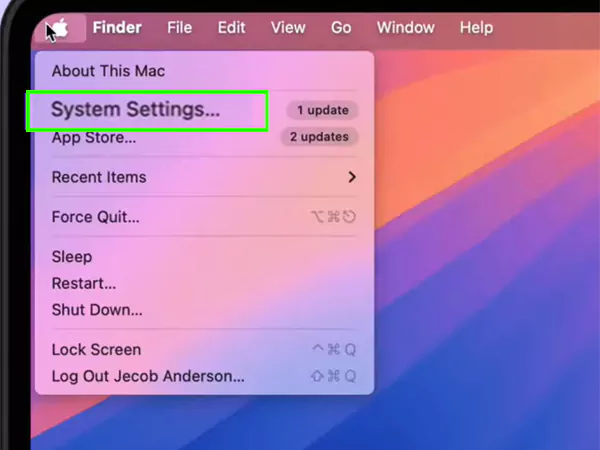
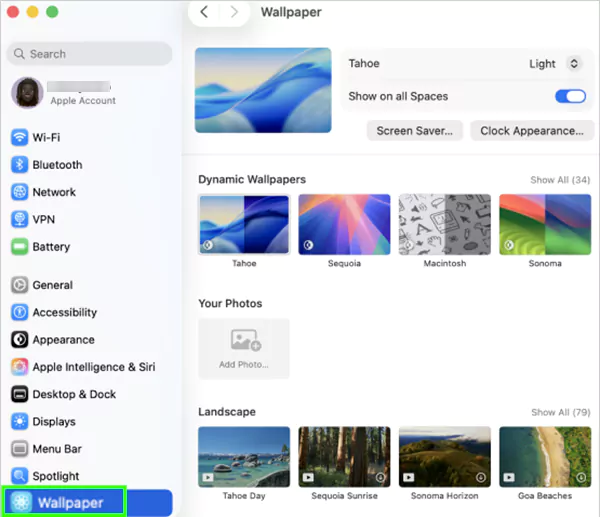
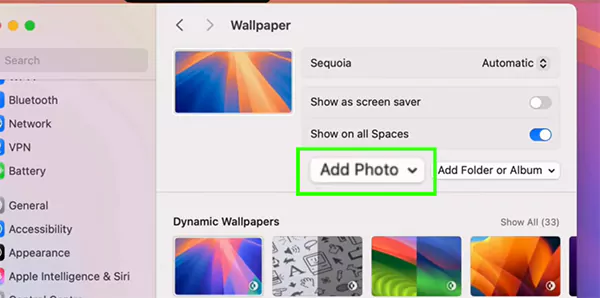
The steps mentioned above can help you to change the wallpaper for your Mac in literally minutes. You can add as many wallpapers as you want by following the same steps repeatedly. If you are a beginner and want to learn and read more about tech, then visit the Getassist channel and resolve your day-to-day troubleshooting queries.
Yes, you can set your wallpaper to rotate from one wallpaper to another automatically. After selecting the add folder option, you just have to turn on the auto-rotate option and choose the time interval, and your wallpaper will start rotating after the selected time interval.
Yes, Mac gives a lot of options to select from. You can select any of them and even create your own with the help of Apple’s support guide on Mac wallpaper.
Yes, you absolutely can. After clicking on the wallpaper option on your Mac, instead of Add Photo, select Your Pictures, scroll down, and you can select your downloaded pictures very easily.