If you are using Notes regularly on iPhone or iPad, you already know it has no permanent built-in undo button. Due to this situation, you may end up questioning yourself: how to undo on iPhone Notes. The answer is that there are many built-in gesture options to undo in iPhone Notes while writing.
The four different methods are shaking, tapping, the Undo button, and manual copy-pasting. Let’s discuss all those gesture undo options in detail.
iPhone has 4 different and easy ways to undo in Notes. These include shaking your iPhone, double-tapping on your display with three fingers, which will pop up a menu bar for undo and redo, and using an external keyboard with a built-in keyboard shortcut.
Check them out in detail below:
There is no undo or backspace button on the iPhone keyboard. This feature makes the undo process difficult in Notes.
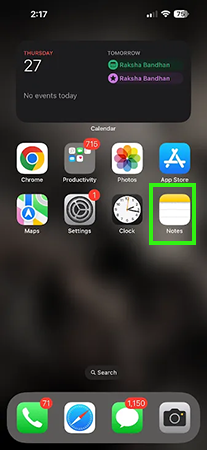
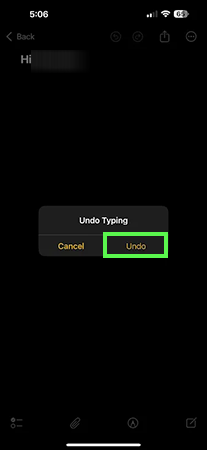
Shaking your phone in public looks stupid. Instead of shaking your iPhone, you can use a gesture to undo any text. Just double-tap on your screen with three fingers at a time.
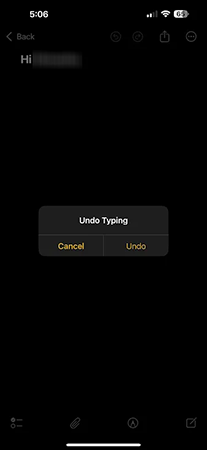
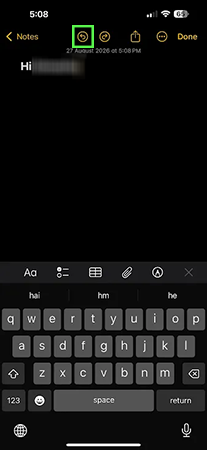
There is a classic bar at the top of the notes that has undo and redo icons, which can be used to perform this step.
Some people use an external keyboard while writing notes on their Mac and iPhone. While using an external keyboard, you can easily undo and redo on a Mac or iPhone with the help of built-in shortcuts on the keyboard.
If you like to use the Notes app to write your important facts and other information, then you may face some problems related to undo because the iPhone doesn’t have a permanent button in the Notes app.
There are some tried-and-tested methods we have discussed in this article above, like shaking your phone, double-tapping with your three fingers, and using an external keyboard. For more such video guides, check out the Getassist YouTube channel.
No, there is no undo button on the Notes keyboard. Notes have multiple undo buttons or gestures to perform an undo. Like shaking your phone, undo from the top menu, etc.
You can easily bring back accidentally deleted notes by checking the Recently Deleted folder in Notes.
You can use Ctrl+Z when you are using an external keyboard to write your notes. If you are using your iPhone, you can use the on-screen menu or hand gestures like shaking and double-tapping with your three fingers.
There are multiple options to undo deleted text in iPhone Notes, like the Undo gesture on the screen menu. Wherever you delete text, you can repeat that gesture to get the Redo pop-up, and if you delete the text with the screen menu, then just tap on Redo.
Yes, you can recover all your deleted notes in the Deleted Notes folder in the Notes application. There is a 30-day limit for all deleted notes; all notes are permanently deleted after 30 days.