There are many reasons for the touchscreen not working on your device; the problem can be hardware-level or software-level. Software issues are easy to solve, but hardware issues require professional help for better assistance.
Android and iPhone both have different methods to fix the touchscreen. In this guide, we will show you how to fix touchscreen not working on Android/iPhone in the easiest way possible.
Your Android device touchscreen suddenly stops working; don’t panic. There are many reasons for this breakdown, like a software glitch, a dirty or wet screen, and touch sensitivity issues. Follow these 4 easy methods to resolve your issue.
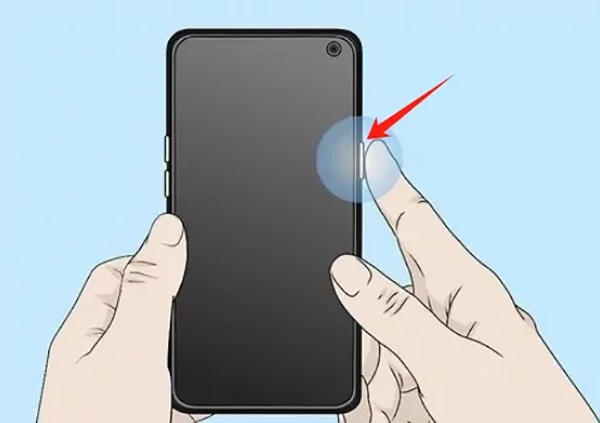
A force restart can stop all the background running applications and any problem-causing files.
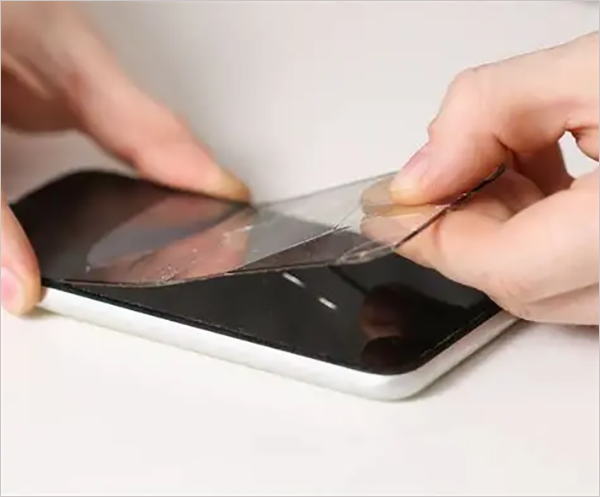
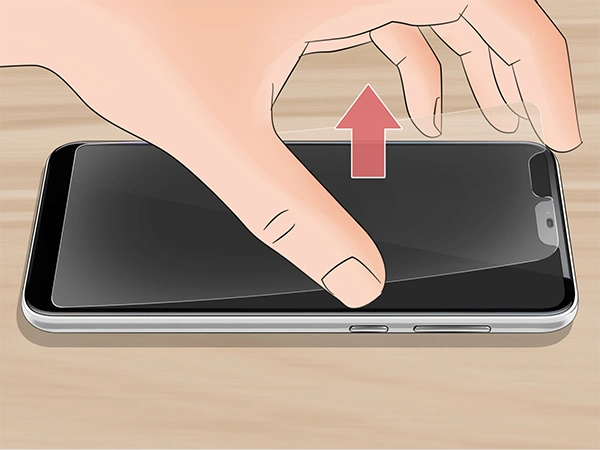
Sometimes the screen protector and cover can cause the mobile touch issue on the device. Try again after removing both of them.
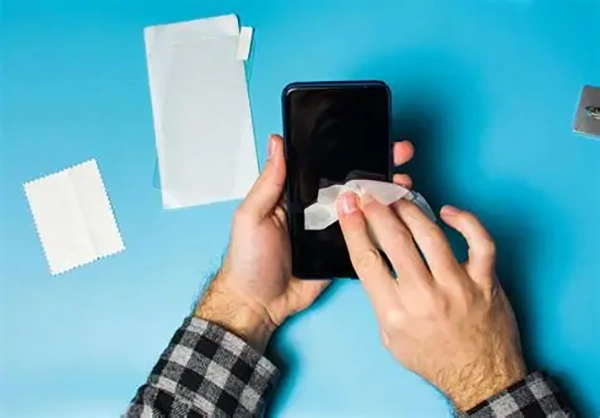
Dirt and moisture on the screen can reduce the touch sensitivity and make your tap and swipe less responsive.
Booting a device into safe mode will remove all third-party background-running applications and bugs. If it doesn’t work, turn off safe mode.
Your iPhone touchscreen stopped working suddenly. There are many reasons for it, like a software issue, a screen protector, moisture, or outdated software. Try these 5 easy methods to resolve your issue.
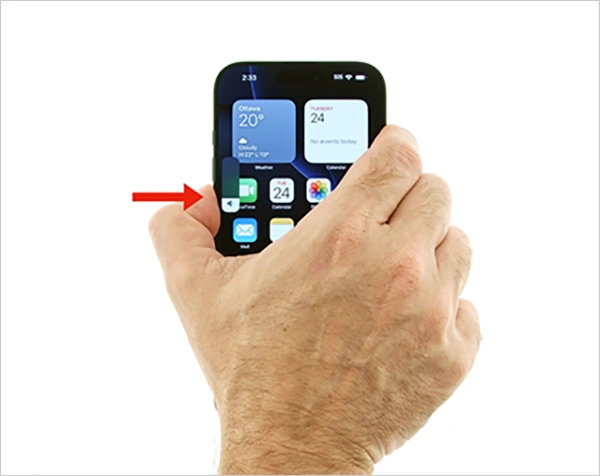
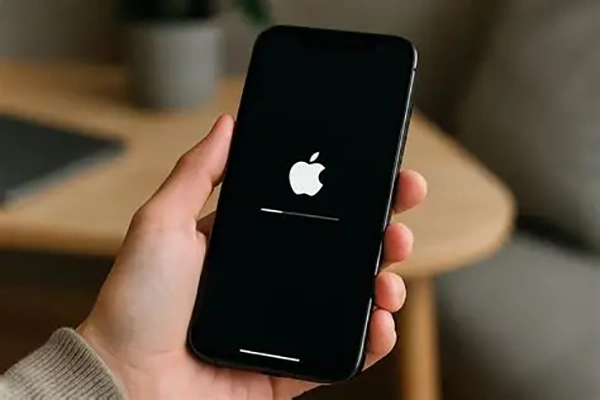
A force restart can stop all background running applications and any problem-causing files.
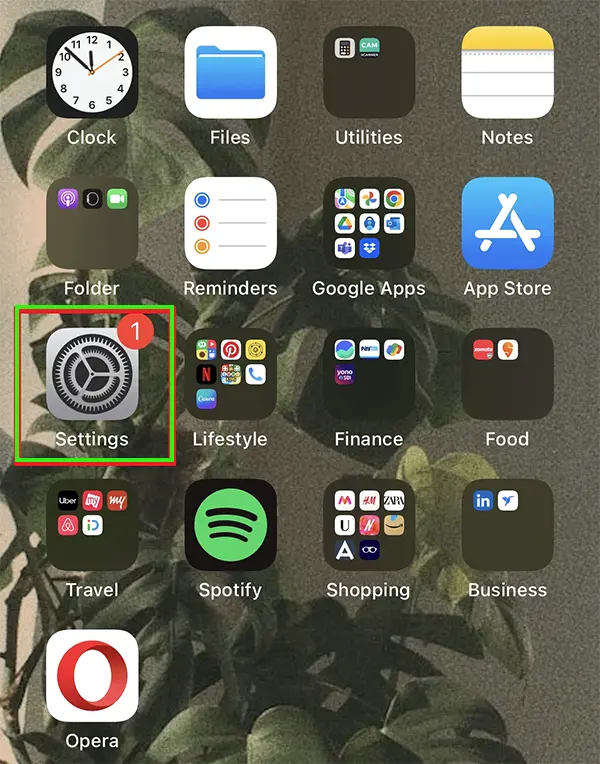
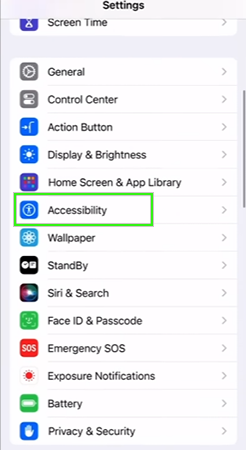
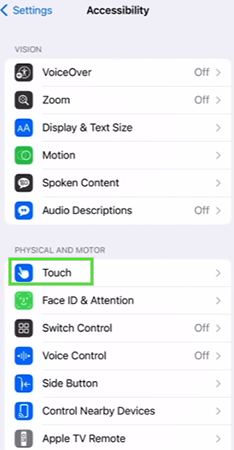
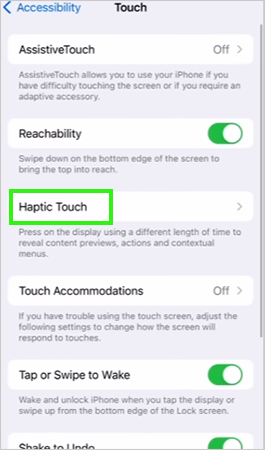
Adjusting touch response will ensure that there is no touch sensitivity issue.
The simple reasons for the touchscreen not working are hardware or software problems. Here is a list of the common reasons.
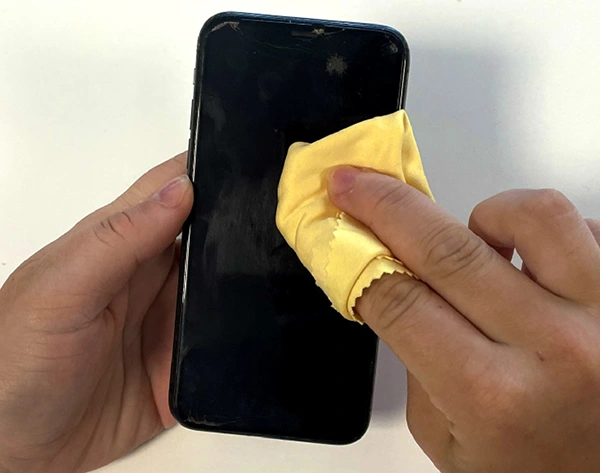
Dirt and moisture on the screen can reduce the touch sensitivity and make your taps and swipes less responsive.
A broken screen or faulty components can cause the touchscreen to stop working.
Low touch sensitivity will make your touches and swipes less responsive. Try increasing it and set it to the perfect level for your use.
Screen protectors and peripherals like wired earphones can also cause problems with touch response.
Outdated software can cause bugs and the touchscreen not working. A software update removes any corrupt files from the software and resolves your issue.
You can easily fix your touchscreen not working on Android and iPhone with just a few easy methods like force restarting, adjusting touch sensitivity settings, and removing the screen protector. In this guide, we have elaborated on how to fix touchscreen not working on Android/iPhone.
You can check out more such troubleshooting videos on the Getassist YouTube channel.
There are many reasons, such as a software glitch, screen damage, moisture, or a faulty touchscreen. Try to force-restart your device and see if the touch is working or not.
Press and hold the power button for 10-20 seconds, and your device logo will appear.
Charge your device for at least 30 minutes and then try to force restart the device.
First, try to force restart your device and check if the touchscreen is working. If the touch is not working, you need to repair your broken screen or replace it.
You can force-restart your device and update the operating system.