The clipboard is like virtual memory where you can copy or cut any text, file, or photos; it can only hold one item at a time. iOS does not feature a native built-in dashboard or manager to view past clipboard history. Consequently, restarting your iPhone, copying new content, or even copying a blank space automatically overwrites and clears the previous data.
Read till the end to know how to access the clipboard on iPhone and other additional functions.
The majority of iPhone users only know one way to access their clipboard; there are multiple ways to use and manage clipboard data. Let’s discuss each method to access clipboard on iphone.
Using the paste option is the basic one; you can paste the copied data into any app.
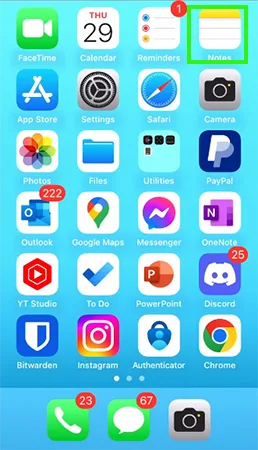
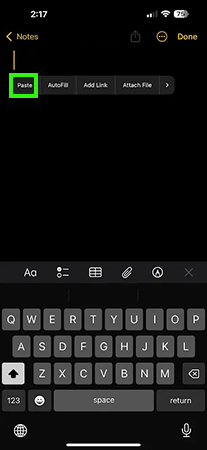
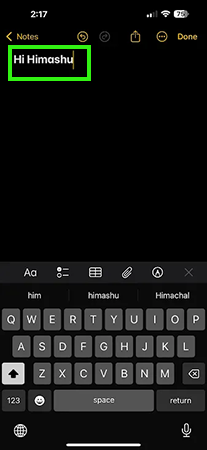
Creating a shortcut will help you to use the clipboard very easily on your iPhone in any text input.
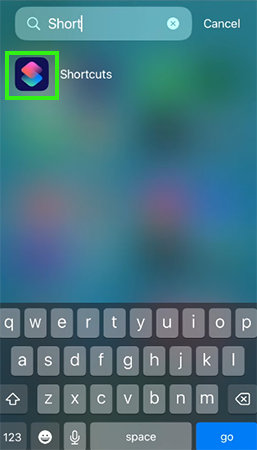
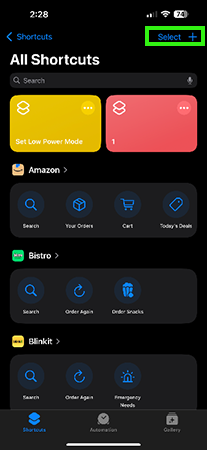
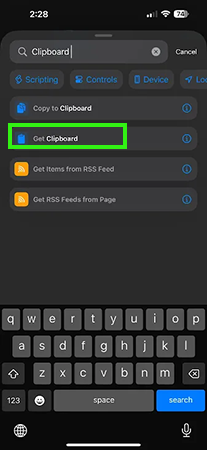
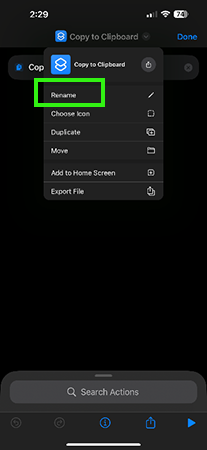
After making a shortcut on your iPhone for the clipboard, you can access the clipboard with Siri.
Using Clipboard in the Apple ecosystem is very convenient; you can copy any data on your first Apple device and paste it on another Apple device seamlessly. Both devices need to have the same Apple ID.
There are 3 ways to manage or clear your clipboard on iPhone. Whenever you copy any new text, file, or data, the Apple ecosystem updates it on all your Apple devices with the same Apple ID.
The iPhone clipboard holds one piece of data at a time; when you copy a blank space, your previously copied text will be replaced with a blank space.
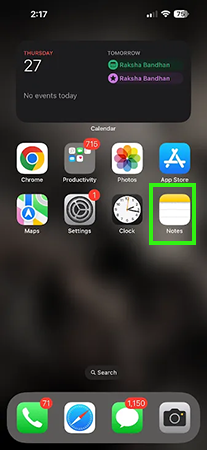
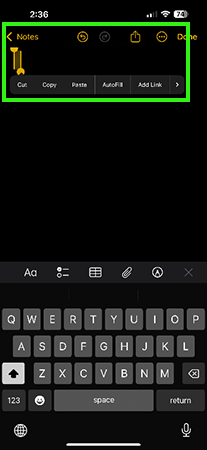
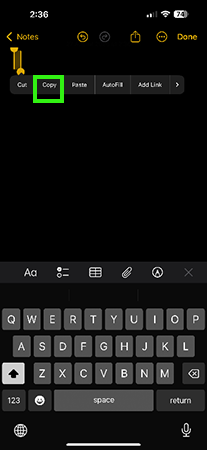
Restarting your Apple device will clear the clipboard data. This will be a bad move after you save some important data on your clipboard.
You can create a shortcut on your iPhone to clear the clipboard data. With this shortcut, you don’t need to copy any black space to clear out the data.
You can’t find Clipboard on iPhone because iOS doesn’t have any dedicated application or a pop-up for the clipboard. In this article, we explain every possible option to manage the clipboard without any third-party application. For more such video guides, check out the Getassist YouTube channel.
You cannot open a dedicated application for the clipboard on an iPhone. iOS only supports one clipboard item at a time. If you want to check the last clipboard data, just press and hold in a text input and paste the previous data.
On iPhone, the clipboard can only copy one text at a time, and the clipboard has its own virtual memory where the copied data goes.
No, the iPhone doesn’t have any dedicated app for the clipboard. iOS only supports one text, file, or piece of data at a time. This means you cannot see the clipboard history with any third-party application.
You cannot recover your old copied data on the iPhone clipboard because the iPhone doesn’t support copying data history or multiple items on a clipboard.
Yes, the clipboard works the same on iOS 18: no dedicated application, no history, only one text at a time.