Safe mode is a very useful feature on an Android device. It will give you so many benefits, like helping remove malware and corrupt files or identify any problem-causing application. It can also increase battery life and performance.
But the main drawback is, it doesn’t allow you to use any third-party applications. If you want to use those applications, just turn off Safe Mode.
In this guide, we will show you how to turn off Safe Mode on Android.
Turning off Safe Mode will allow you to use your third party downloaded applications. There are two methods for how to turn off Safe Mode on Android, which include a notification menu or restarting your device.
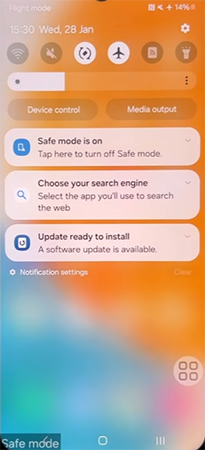
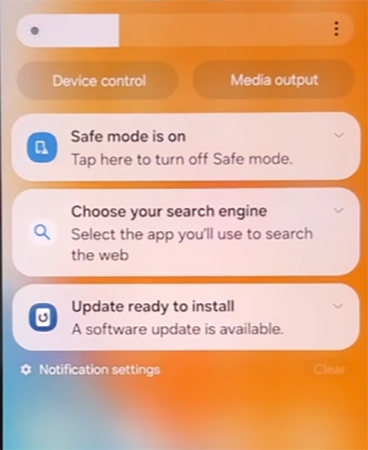
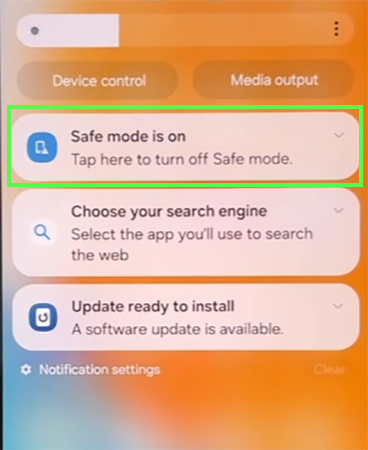
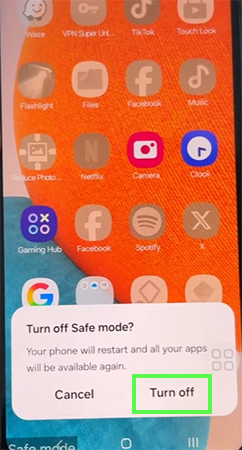


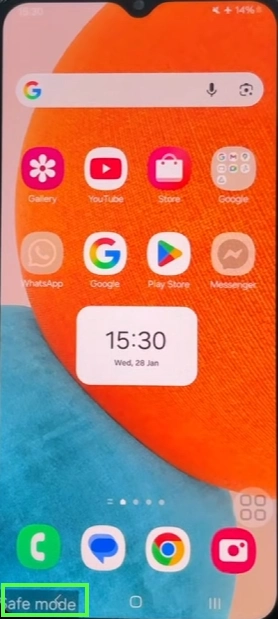
You can easily turn off Safe Mode when your device is off in just a few easy steps.

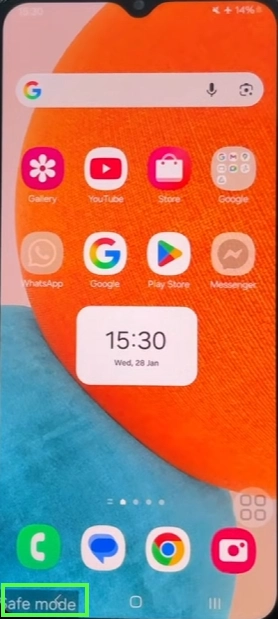
After turning on Safe Mode, whenever you restart your device, Safe Mode will turn off automatically.
Safe Mode has so many benefits; it will help you identify the reason for frequent crashes or any viruses and corrupt files, and it also fixes network issues. Let’s talk about them.
Sometimes we accidentally download an unauthorized application, which creates corrupt files and malware. Safe Mode stops all third-party applications from running in the background so that you can easily delete them.
You can easily identify which APK versions are causing any problem in the system. Safe mode stops all downloaded applications from running in the background. If you observe any performance boost after turning on Safe Mode, there is a chance that the downloaded applications have some problems or variations.
Personally downloaded applications use RAM and CPU in the background and increase lag and crashes. Safe mode removes all background applications, increases performance, and reduces crashes.
Safe mode removes background applications; after removing it, CPU and memory usage decrease, and performance and battery backup increase.
Some application interruptions in network and wifi connectivity; Safe Mode will stop these applications and resolve any network-related issues on your device.
Safe Mode can be used to remove lag and malware from your device, and it can also resolve network or wifi connectivity issues. However, it doesn’t allow you to use personally downloaded applications.
To use these applications, you need to turn off Safe Mode. In this guide, we show you how to turn off Safe Mode on an Android device in an easy way. For more such guide videos, check out the Getassist YouTube channel.
Safe Mode is a feature on Android devices. It boots the device into default settings and stops all third party downloaded applications.
After turning on Safe Mode, you just need to restart your device to turn off Safe Mode.
You can easily turn off Safe Mode on mobile; just restart your device.
No, turning off Safe Mode doesn’t delete your data; it allows you to use downloaded apps.
There will be a sign in the bottom-left corner (Safe Mode).