If the apps on your device or your whole system have become slow and laggy, clearing the cache helps your system remove temporary data, free up storage, reduce app lag, and make apps and the system run faster.
By knowing how to clear cache on Android, you can simply make your device and apps run smoother with just a few taps. Go through this whole article and learn 3 ways by which you can clear cache on Android.
There are a total of 3 ways by which you can clear the cache on your Android: clearing system cache, clearing app cache, and clearing browser cache if your browser is facing issues like slow load times.
If the storage on your device seems to be full, or the device is lagging, you can clear the system cache to free up some storage and make your device work smoothly.
The steps to clear the system cache are:
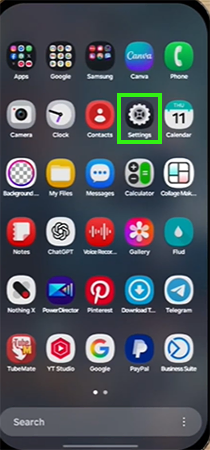
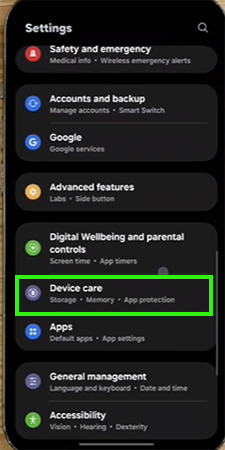
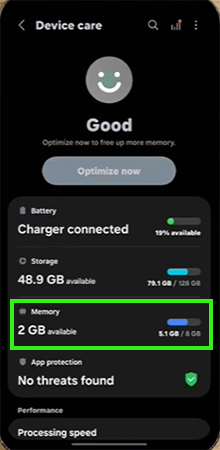
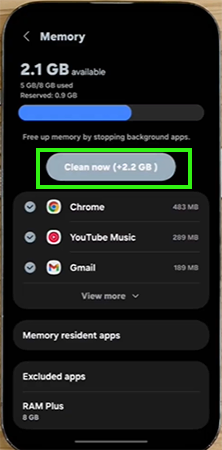
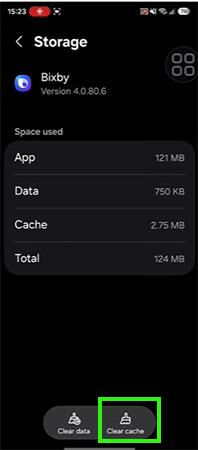
If your device is working fine but one of your apps is unresponsive or not working properly, then you can also clear the cache of that particular app.
Here is how to clear cache on android:
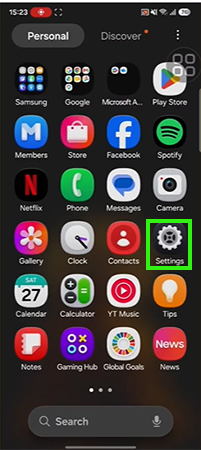
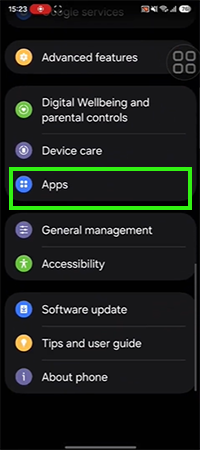
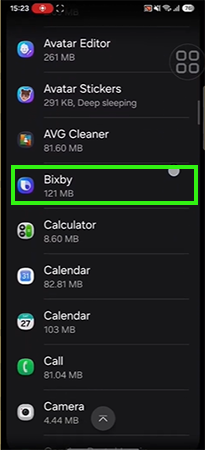
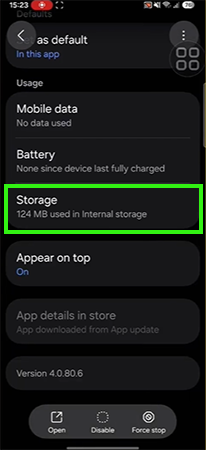
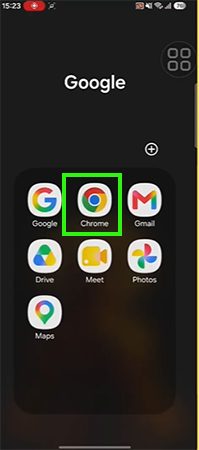
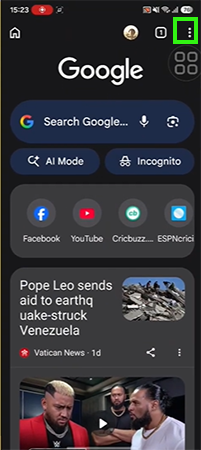
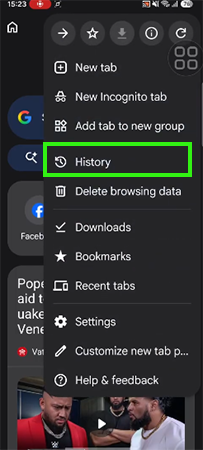
If your web browser is facing issues like lag and slow load times, you can clear the cache of your web browser for it to work better.
The steps are:
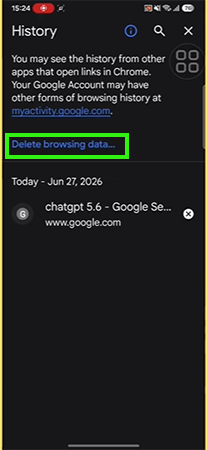
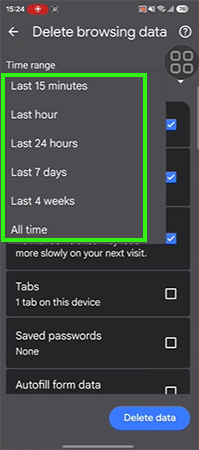
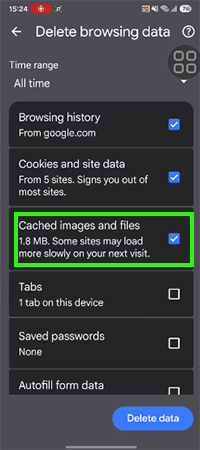
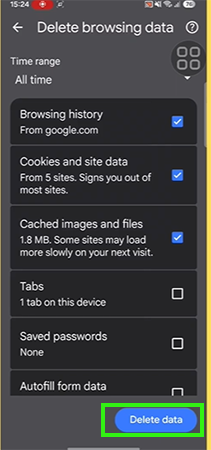
Clearing the cache from your device helps you fix lagging and crashing and also helps you get your phone storage back – and that too without deleting your personal information, photos, saved passwords, or account logins.
In case you are still facing these problems after trying all the 3 ways, consult an expert for guidance. Also visit the GetAssist YouTube channel for such troubleshooting concerns.
Ans: No, clearing your app cache will not delete any of your personal files, photos, music, or downloaded documents. Cache removal targets only disposable files that are making the device slow.
Ans: Clearing the cache only removes temporary files used to load pages or app elements faster. Whereas clearing data or storage completely erases everything, such as your account login details, saved passwords and more.
Ans: You can easily see the applications by opening your phone’s Settings app > Storage menu, then tap on Apps or Other apps to see the list of everything installed on the device. Tap the three-dot menu icon in the upper-right corner and select Sort by size.