Vibration and haptics can be useful but can become frustrating during meetings. If you want to turn off all vibration on your iPhone, these settings remove all haptics on your device, including emergency alerts and more. Read the article to learn how to switch off vibration on iPhone
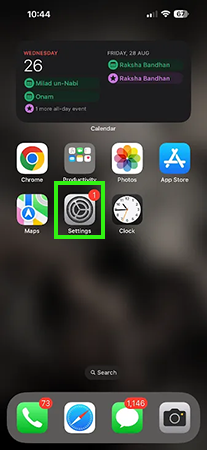
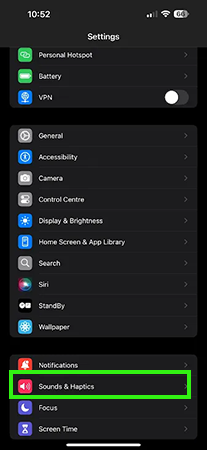
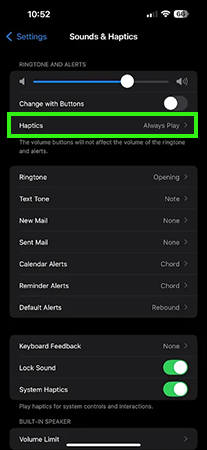
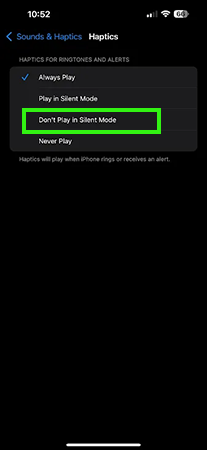
Constant phone vibrations can be disruptive during important meetings and interfere with restful sleep. You can switch off vibration on an iPhone in just 4 easy steps.
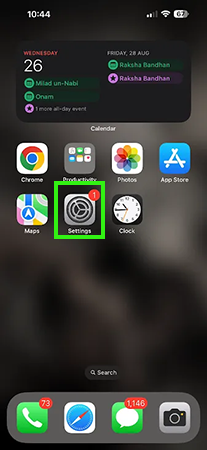
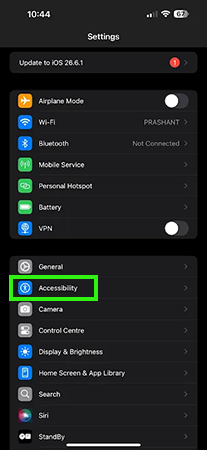
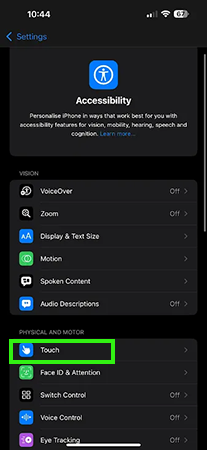
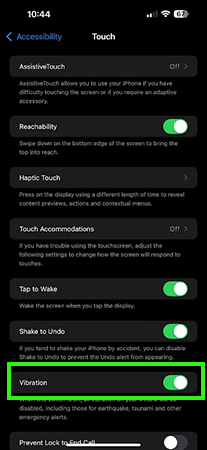
If you don’t want any notification haptics or sound in silent mode, you can turn it off by following the simple steps mentioned below.
Some notifications from apps we are not even using will distract with vibration and haptics. The process below will turn off vibration for a specific app that bothers you, so you don’t need to turn off vibration on your whole device.
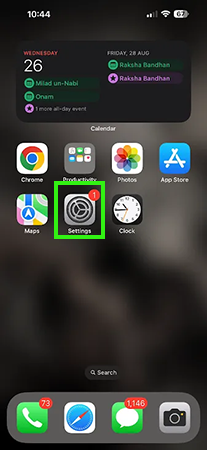
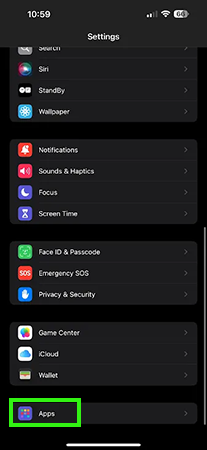
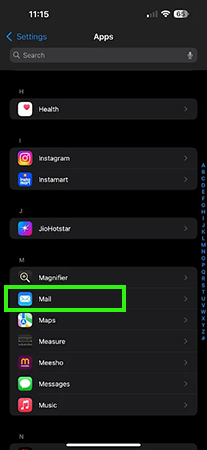
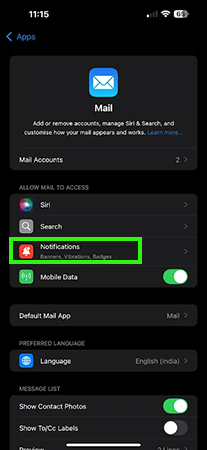
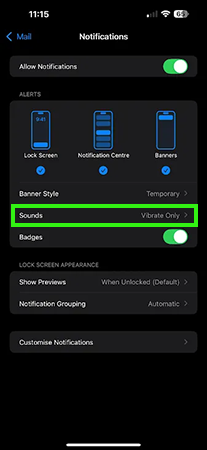
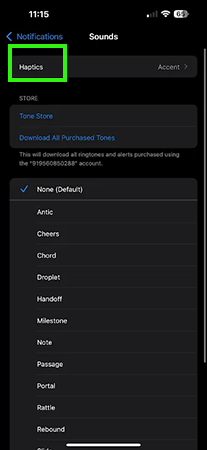
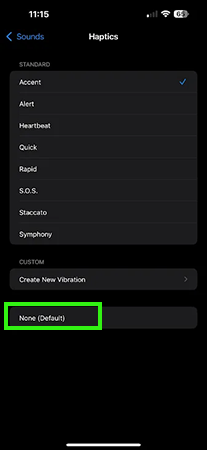
Tired of constant vibration for calls and text messages? This process will help you turn off all sound and haptics.
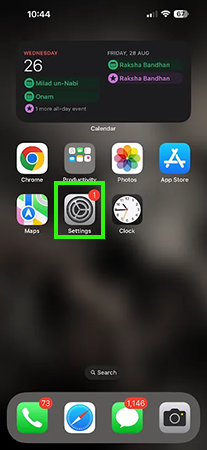
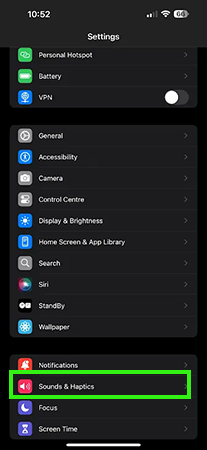
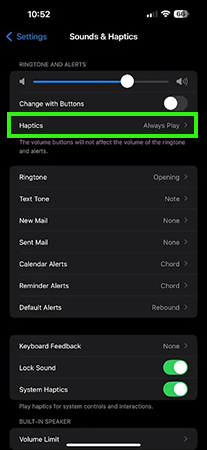

There are so many unwanted notifications on your device; all the notifications make your iPhone vibrate continuously.
With the help of this guide, you can easily turn off sound and haptics and control vibration and haptics in a specific application. For more such video guides, check out the Getassist YouTube channel.
Yes, you can turn off vibration from notifications by following these simple steps.
By following these steps, you can easily turn off all vibration on an iPhone 14.
You can turn off vibration on an iPhone when receiving text messages in 5 easy steps.
Your text messages are only vibrating because your Sound for text messages is turned off. Turn on your sounds for text messages by following these steps.
Vibration and haptics in silent mode are so annoying; you can turn off all the haptics in silent mode with these steps.