How to Run CMD as Administrator? 6 Quick Methods

| Updated on September 22, 2026

Giving administrator permission to any application is important and risky at the same time because administrator permission will allow you to make changes to files, data, services, drivers, and Windows files, which can be irreversible. That’s why you should always recheck before giving administrator permission to any application.

There are many ways to run CMD as administrator on Windows. In this guide, we will show you all 6 methods for how to run CMD as administrator.

How to Run CMD as Administrator: 6 Tried and Tested Methods

You can easily run CMD as administrator on your Windows device in 6 ways, like keyboard shortcuts, Windows search, and many more. Follow this guide step by step to learn how to run CMD as admin.
Method 1: Open CMD from the search menu 

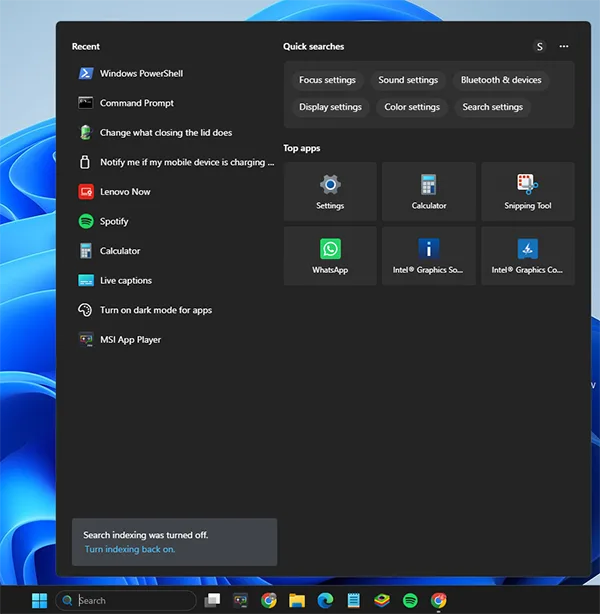
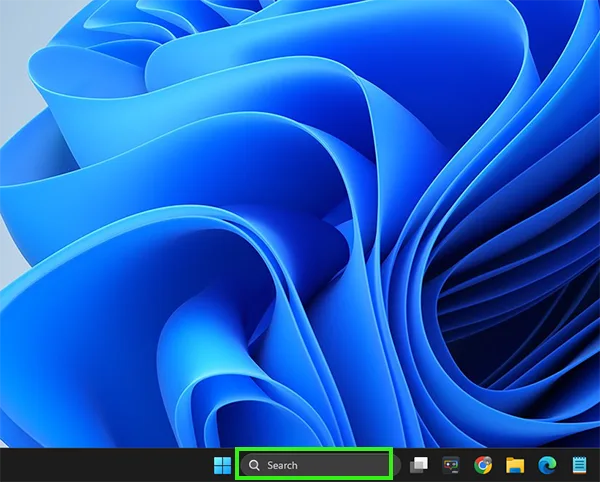
  • Click on the Windows search option.
    Click on Windows search.
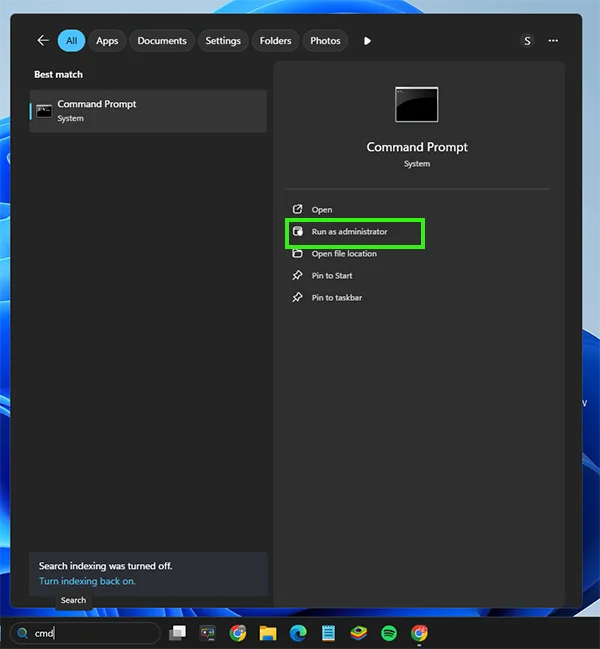
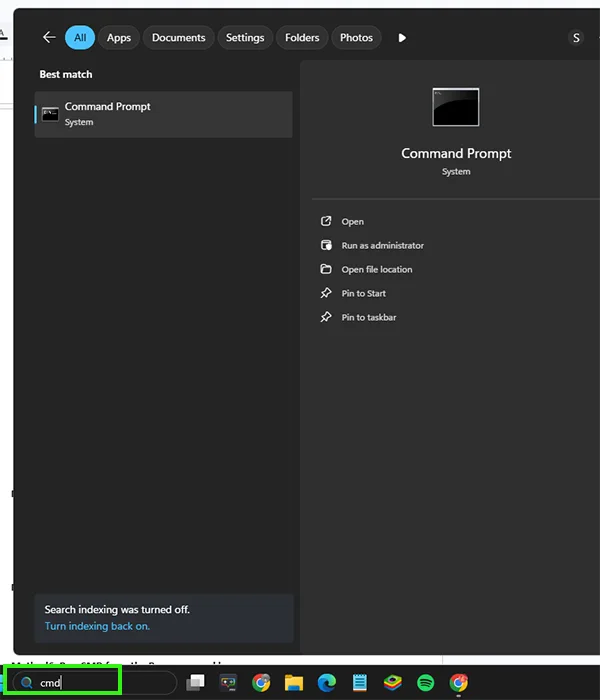
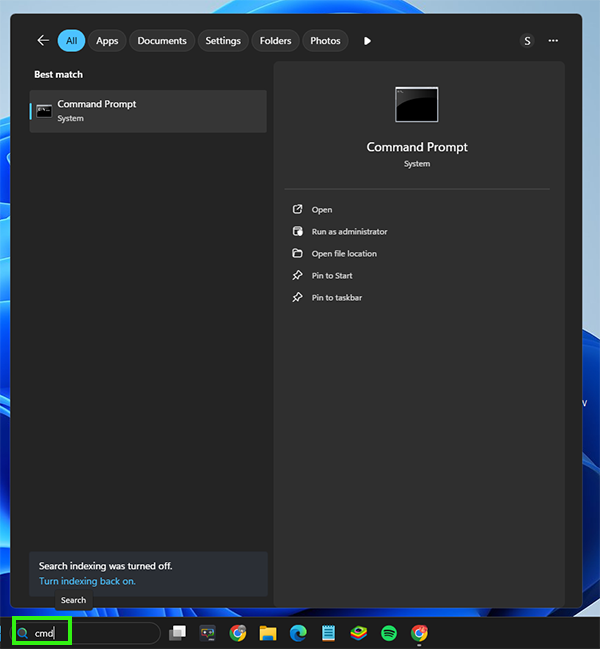
  • Search for CMD or Command Prompt.
    Search CMD
  • Click Run as Administrator. 
    Click Run as administrator

Method 2: Run Command as Administrator from Task Manager

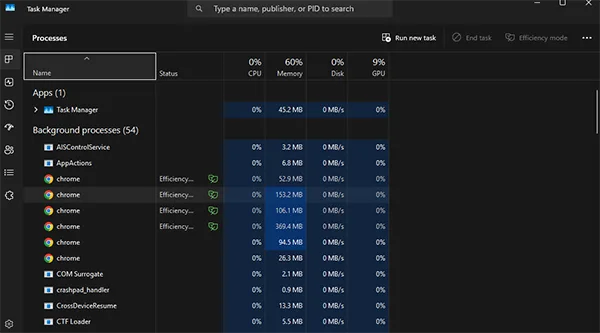
  • Click Ctrl+Shift+Esc to open Task Manager.
    Click Ctrl+Shift+Esc to open Task Manager.
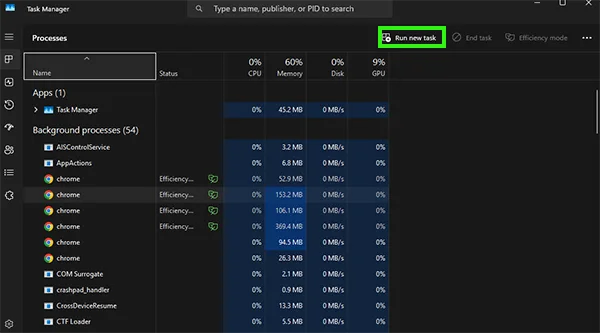
  • Click Run new task.
    Click Run new task.
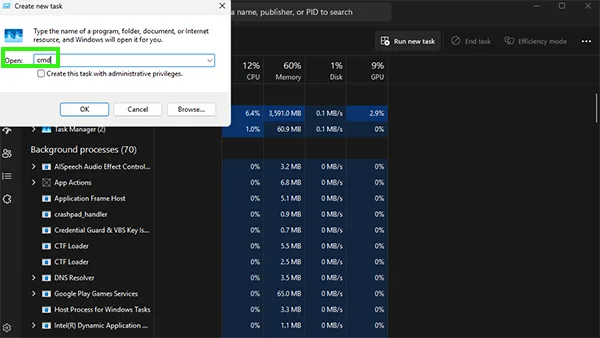
  • Search for CMD.
    Search for CMD
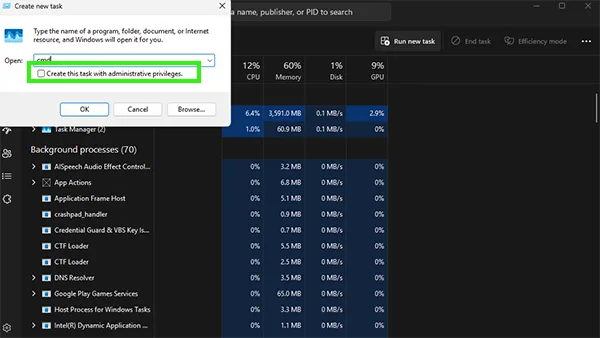
  • Check the box Create this task with administrative privileges.
    Check the box Create this task with administrative privileges.
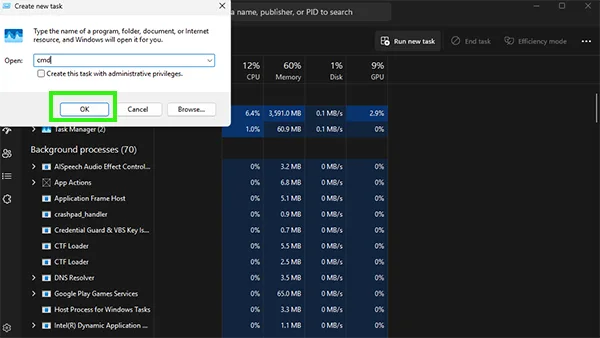
  • Click ok.
    click on ok.

Method 3: Open CMD from shortcuts

  • Click the Windows key + S to open the search bar.
    Click Windows + S to open the search bar.
  • Type cmd.
    Search for cmd
  • Press Ctrl + Shift + Enter.
    press Ctrl+Shift+Enter.

Method 4: Run CMD from File Manager

  • Open File Explorer. 
    Open File Explorer 
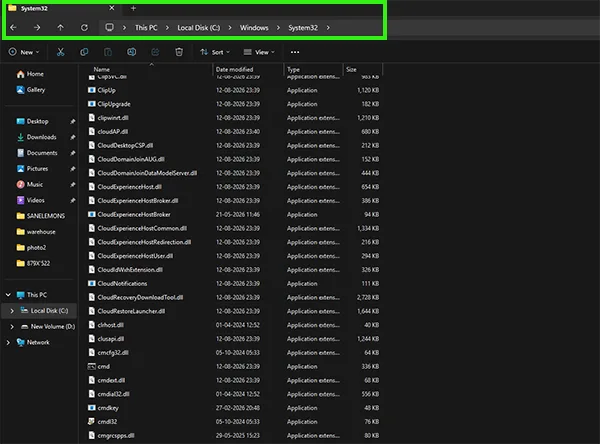
  • Navigate to C:\Windows\System32.
    Navigate to C:\Windows\System32
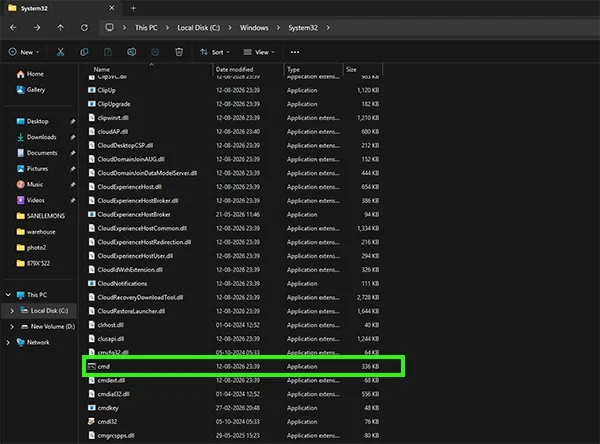
  • Find cmd.exe. 
    Find cmd.exe.
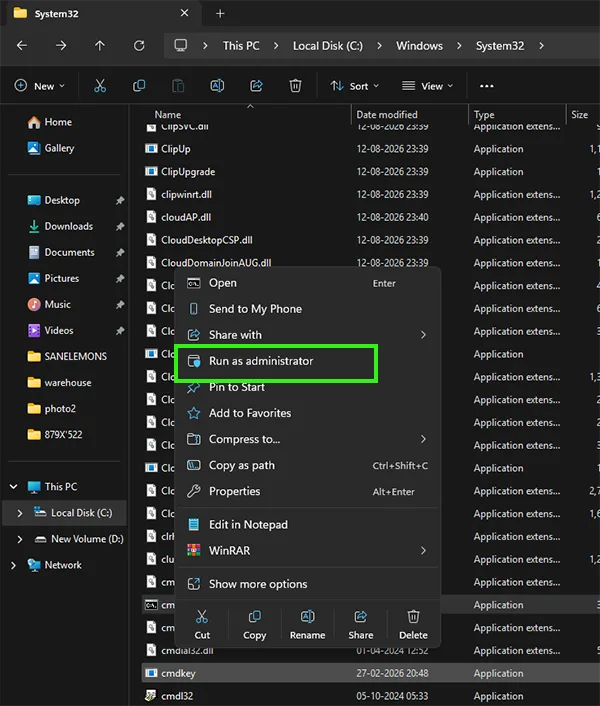
  • Right-click and choose Run as admin.
    Right-click and run as administrator

Method 5: Run CMD from PowerShell 

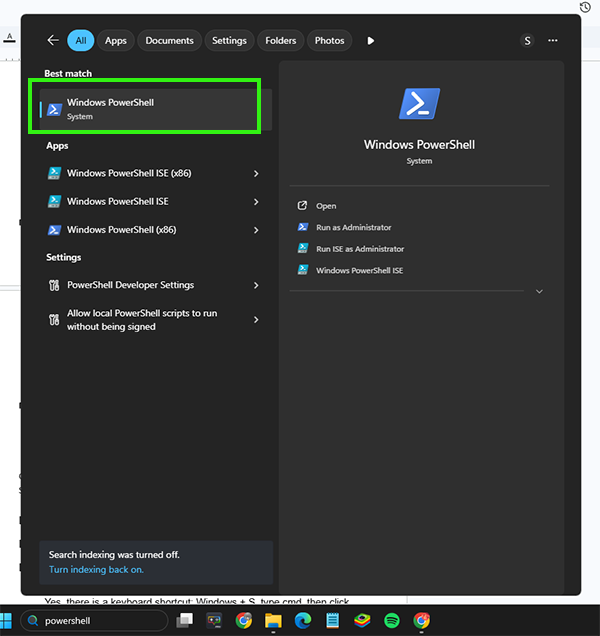
  • Open Windows PowerShell from the search box.
    Search PowerShell.
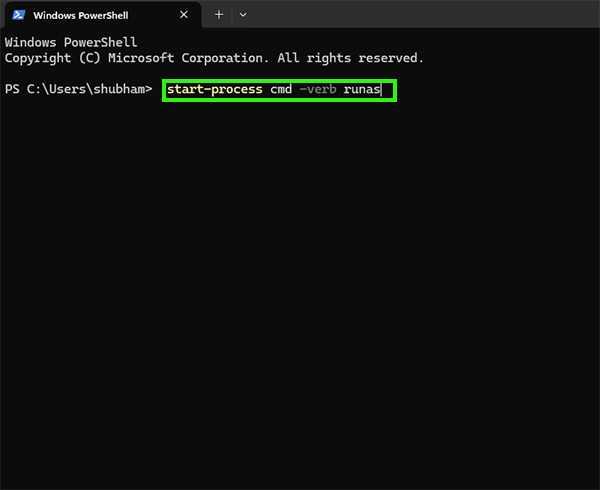
  • Type start-process cmd -verb runas and press Enter.
    Type start-process cmd -verb runas and press Enter.
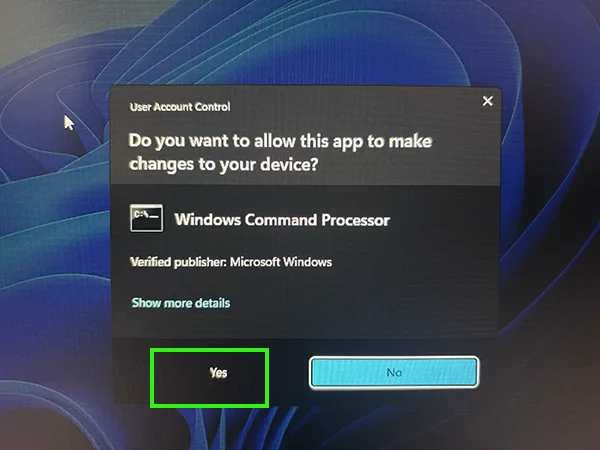
  • Click Yes in the prompt.
    Click Yes.

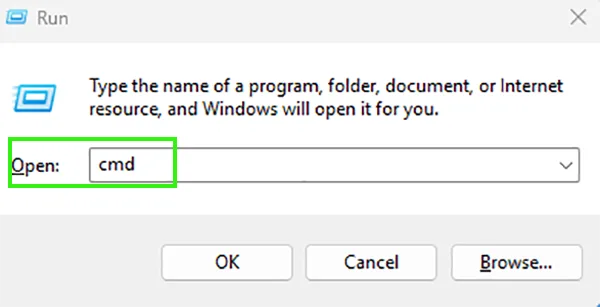
Method 6: Run CMD from the Run command box

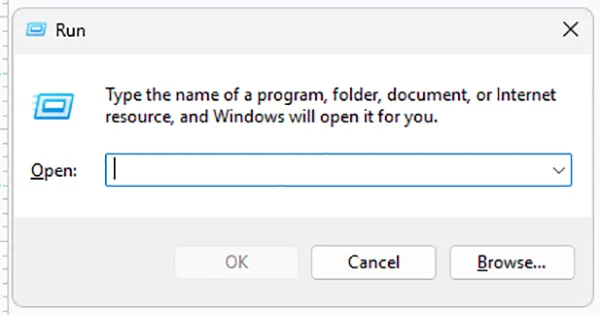
  • Click Windows + R. 
    Click Windows + R.
  • Type CMD.
    Type CMD
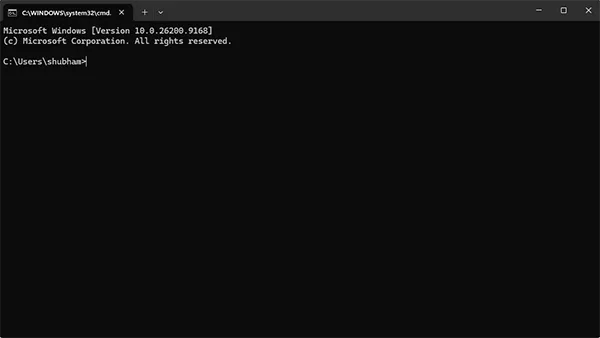
  • Press Enter.
    press enter

Conclusion 

Giving administrator permission to any application, like CMD, will allow it to make changes at the system level, like installing and uninstalling any software or changing any data file in Windows, so always double-check before giving permission to any application. 

In this guide, we will show you how to run cmd as admin in 6 easy methods. For more such guide videos, check out the Getassist YouTube channel.

FAQ

Is there a keyboard shortcut?

Yes, there is a keyboard shortcut: Windows + S, type cmd, then click Ctrl + Shift + Enter.

How do I run CMD as administrator from the Run dialog?

Click Windows + R, type cmd, and press Ctrl + Shift + Enter.

Why does an application need an administrator?

Some applications can change some system settings, files, services, or drivers in Windows. That’s why they require administrator access.

What does “Run as administrator” do?

When you click Run as Administrator, that application gets permission to edit or access parts of the operating system, such as system files and Windows files.

What does “Administrator” mean in Command Prompt?

The administrator in Command Prompt means the command prompt has the permission to make changes on the device at the system level, such as installing and uninstalling software, data files, and Windows.



Janvi Panthri

Senior Writer, Editor


Related Posts

×
×