When you are in the middle of an important task, and your laptop suddenly starts overheating, making your device laggy, slow, and difficult to use, that can lead to a frustrating experience.
A heating laptop doesn’t only irritate you; it can also damage the device and reduce its lifespan. Therefore, to prevent both of these from happening, go through this article and learn how to fix laptop overheating issues.
Reasons Behind Your Laptop Getting Overheated
Before performing the fixes, it is better to understand the root cause behind the overheating of your laptop.
1. Poor Airflow and Environment
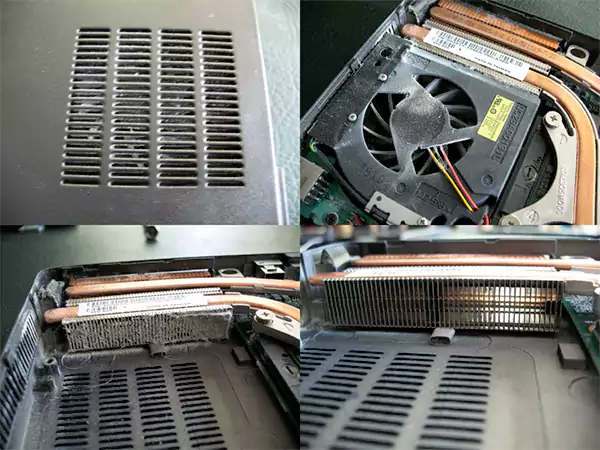
Soft Surfaces and Dust Build-up: If your laptop is placed on a surface like a bed or other soft surfaces, it blocks the intake vents underneath and traps the dust particles and lint into the internal fans, resulting in trapping the hot air inside.
High Room Temperature: High room temperature makes it hard for the laptop to draw in cool air. And because the air in the room is also hot, the internal fans also cannot keep the device cool. Resulting in the laptop cooling system slowing down the performance and the smooth working of the laptop.
2. Heavy Workloads and Software
Demanding apps and Background Processes: Performing heavy tasks like editing and gaming on your laptop, along with hidden apps, malware, or system updates running quietly, strains your CPU and GPU, resulting in excessive heat.
Charging while using: Charging your device while using it simultaneously can naturally add extra heat to the battery and power circuits.
3. Aging Hardware
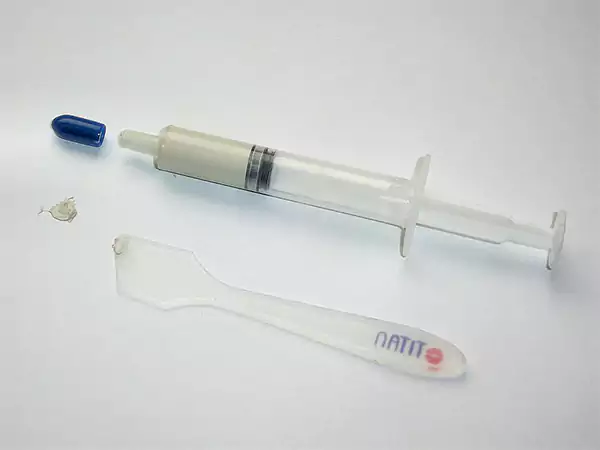
Old thermal paste: Thermal paste dries out as it faces continuous heat cycles, losing the collaboration between your processor and heat sink.
Failing fan: A worn-out or broken fan spins too slowly or stops working completely. This interrupts the internal system’s cool functioning and hence causes your device to overheat.
3 Tried and Tested Ways to Fix Laptop Overheating Issues
Now, when we have learnt the reasons behind the overheating of your device, let’s also learn the ways to reduce laptop temperature.
Physical Adjustments
Hard surfaces and clear out dust: Place your laptop on a hard surface like a flat desk or table, so that your air vents remain open. Also, blow compressed air into the side and bottom vents to remove trapped dust that blocks internal fans whenever needed.
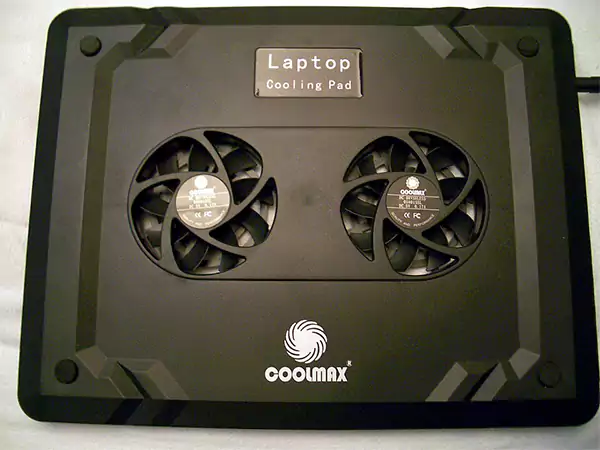
Use a cooling pad: Place your laptop on an external, USB-powered cooling pad equipped with built-in fans to push extra air into the system, so that your system remains cool while performing heavy tasks, simultaneously maintaining the temperature of the device.
Software and Settings Management
Change power plans: Switch your operating system’s power mode from high performance to a balanced or energy-saving plan while performing heavy tasks.
Close background tasks: Open your task manager to find and shut down heavy programs or background browser tabs that you are not actively using.
Maintenance
Replace thermal paste: If your laptop is old, changing the dried-out thermal paste on the CPU and GPU can restore proper heat transfer.
Fix failing fan: Your laptop’s fan needs continuous maintenance to keep your device cooling perfectly and avoid overheating problems. To do this, keep your fan lubricated and keep cleaning it every once in a while. Also, if you think that your fan is not working properly despite doing everything, replace it and install a new one.
Final Thoughts
Laptops that you use for daily tasks and work operations need continuous management and care to work perfectly and smoothly. Practice the above-mentioned fixes to avoid future overheating alarms.
For such general troubleshooting help and fixes, you can also visit the GetAssist YouTube channel.
FAQ
How often should I clean my laptop fans?
Consider cleaning your laptop once every 6 months. For better and more satisfactory results, get this done by dedicated technicians.
What is thermal paste and should I replace it more often?
Thermal paste is a liquid that transfers the heat from the chip to the heatsink, helping the laptop to not overheat. And no, you don’t have to replace your thermal paste more often. You can do it once every 2 to 3 years.
How can I check my laptop temperature and what is the ideal temperature?
To check your laptop’s temperature, you can use free tools like HWMonitor or Core Temp. The safe and ideal temperature of your laptop is 30°C to 50°C when idle, 50°C to 70°C during light tasks, and 70°C to 85°C under heavy loads like gaming.