Have you too switched from an Android to an iPhone recently, and are confused about how to record screen on iPhone like many others?
If you’re affirming yes, then this simple guide will act as an iPhone screen recording compass and help you record screen on iPhone 15 effortlessly.
So, without any foot-dragging, let’s head straight to the steps on how to screen record on iPhone.
Screen Recording on iPhone is a feature that lets iPhone users capture activities happening on the screen, both with and without audio, in high-quality.
Users can later store, share, and upload the screen-recorded clips without the need to download or update apps on their iPhone.
This useful feature is not present by default in the iPhone Control Center; users are required to add it to the Control Center to record the screen.
Screen recording on iPhone is a pretty straightforward process that requires basic configuration of the “Screen Recording” feature in the iPhone’s Control Center Settings.
So, let’s see how you add Screen Recording to the Control Center settings and learn how to screen record on iphone.
And that’s how to add screen record on iphone Control Center settings to start screen recording.
Now that you have added Screen Recording to the Control Center, here’s how to screen record on iPhone 15:
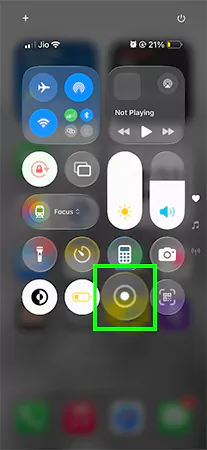
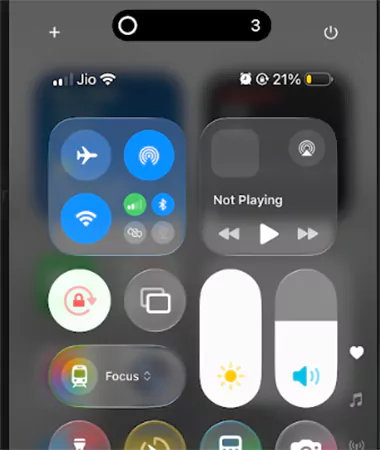
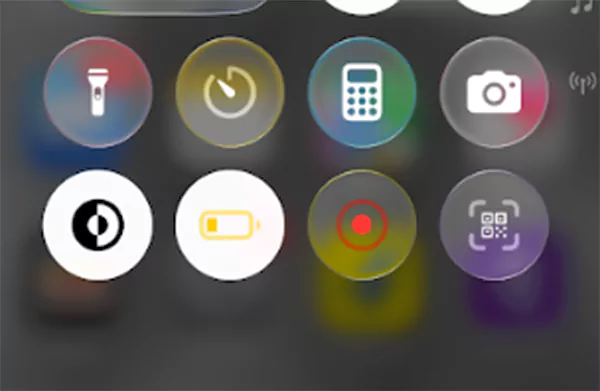
As we have mentioned above, screen recording on an iPhone is a simple process. Now, let’s see how you screen record with audio.
Akin to previous steps, taking a screen recording with audio on an iPhone is also easy. Simply follow the steps below to record the screen with audio on your iPhone 15.
Here are the steps to stop and save the screen recording clip on your iPhone:
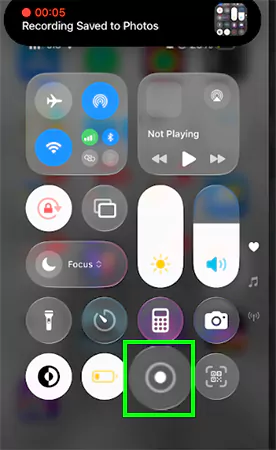
By following the above-mentioned steps, as a new iPhone user, you can effortlessly screen record with audio.
To find the screen recording option on your iPhone, you have to add it to your Control Center. Simply, navigate to Settings >> Control Center >> Tap the green icon next to Screen Recording to add screen recording to your Control Center.
H.264 QuickTime files in MOV is the default screen recording format for iPhone. You can also change the screen recording video format to the “High-Efficiency” option, and your iPhone will capture media in HEVC (H.265) format.
In the Photo app under Albums >> Media Types >> Screen Recordings, you will find all the screen recordings.