All Apple users around the globe have finally got the full version of iOS 26, and they are enjoying the upgraded features in their UI.
But on the other hand, some people are facing issues in enabling the freshly added Call Screening (iOS 26 exclusive). This issue can be bothersome to users who specially updated their system for this feature, and we, Getassist, have decided to address this in the quickest way possible.
Before You Start
- Make sure that your device is up-to-date with software versions and security updates.
- Disable power-saving mode and remove all your background apps.
- Delete all the third-party call monitoring apps.
Call Screening on iOS 26 is an exemplary feature that automatically answers calls from unknown numbers and asks crucial questions from the receiver’s end through AI assistants.
This feature helps to avoid unnecessary spam calls on your number and saves you from intended disturbances with its quick-action pop-up buttons.
This utility helps users in multiple ways, such as:
Here are the simple steps that you can follow to enable Call Screening on iPhone (iOS 26) effortlessly:
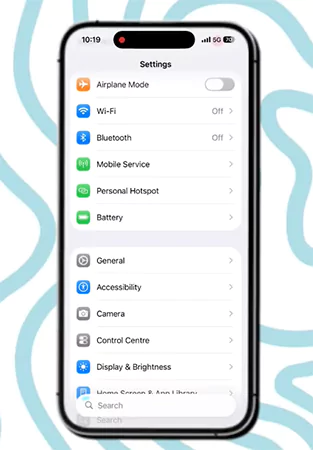
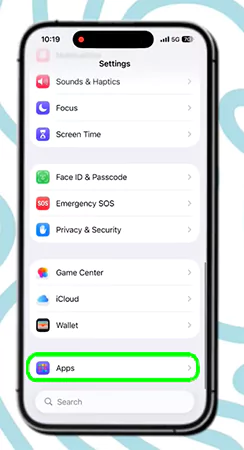
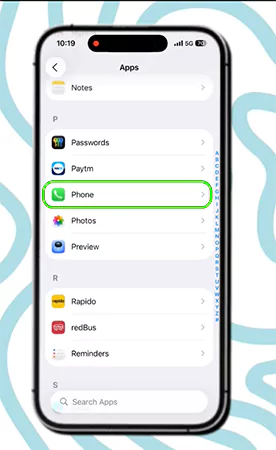
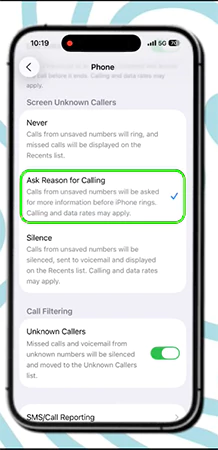
By setting everything in the right way, this feature will start working. Although the patch updates might tweak some options in the settings, to get the latest notifications of upcoming iOS features and bug fixes, you can check out the GetAssist YouTube channel.
Now, if you are facing some problems during the implementation of the Call Screening feature on your iPhone, then the mistakes mentioned below can be a reason:
It creates an automated response for answering or declining calls.
This can happen due to improper region or language selection and background activities of third-party applications.
No, they are different. Screening monitors calls and blocking just hangs up the call when it’s from unverified numbers.