Snapchat is not just for sharing pictures and starting a streak with your friends. It can also offer some features, like editing tools to make your photos look more attractive. You can also add filters, stickers, emojis, and text to your picture in just a few easy steps.
It doesn’t matter whether you capture the picture using Snapchat or your phone camera, you can edit all the photos on Snapchat. It also allows you to edit existing pictures; you can also crop, rotate, and adjust your photos easily.
In this guide, we will show you how to edit photos on Snapchat in just a few easy steps.
Snapchat provides different editing options that help you to improve the appearance of your picture. You can use different filters, stickers, text, and emojis in your photos for a unique look.
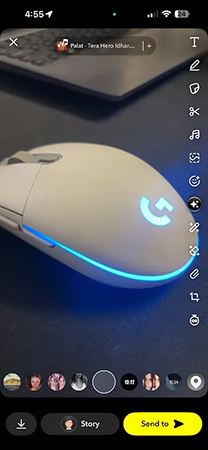
You can apply a filter by dragging left and right on the image.
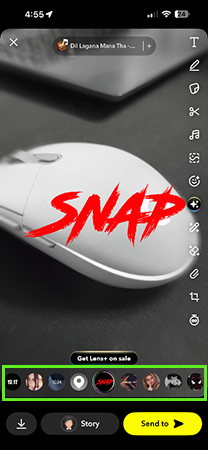
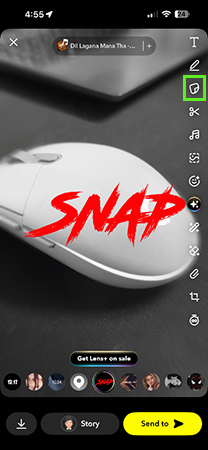
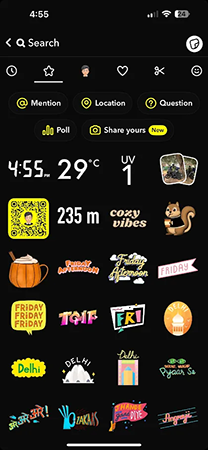
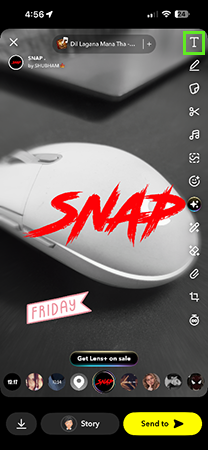
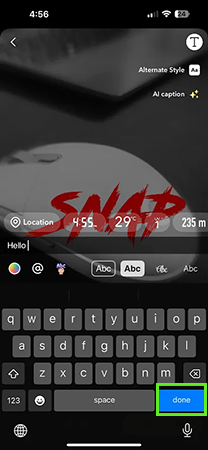
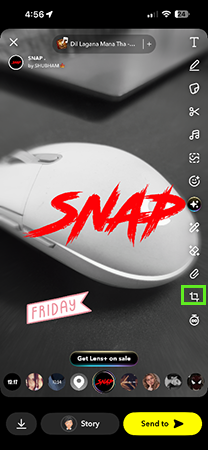
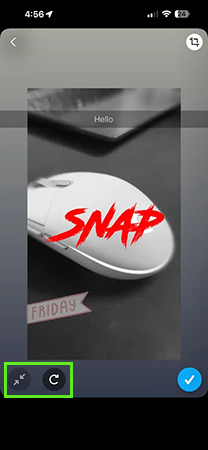
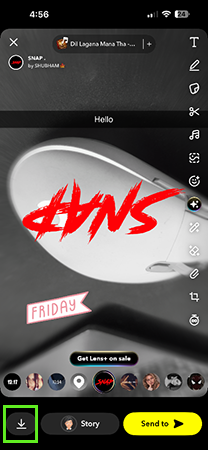
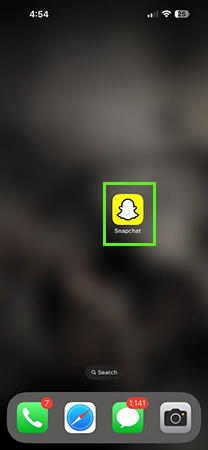
If you already have a picture saved on your phone, you can directly edit it on Snapchat. Here are some simple steps to edit the photo from the camera roll.
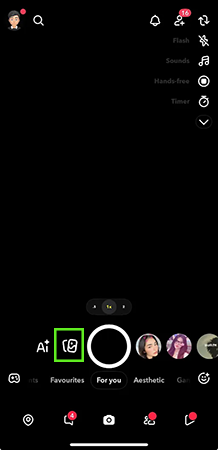
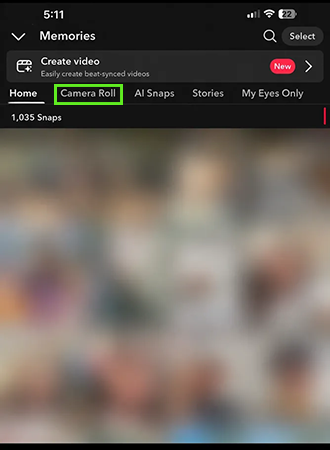
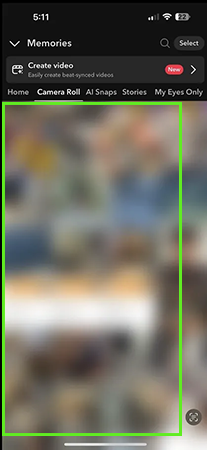
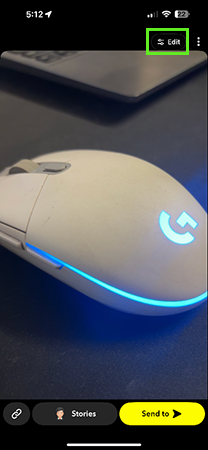
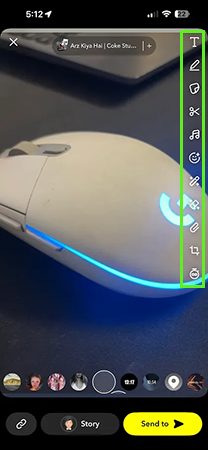
You can easily edit a picture on Snapchat with the help of the built-in editing tools on Snapchat, where you can add emoji stickers, text, and change filters.
To add text to your photo, click on the T icon in the editing tools option. Then you can enter your text and customize its font, size, and color.
Yes, you can add filters to existing photos on Snapchat. Open the photo on Snapchat and use the editing tool, then swipe left and right to change the filter.
Yes, you can crop and rotate pictures on Snapchat. Open a picture in the editing tool, and here you can crop and rotate your picture.
After editing your picture, tap on the save icon to save the picture.
Snapchat makes photo editing simple with the help of built-in editing tools. You can add filters, stickers, emojis, and text to make your picture more attractive. Snapchat also allows you to edit existing photos directly from your camera roll using the Memories section.
You can save and share your edited photos with your friends. If this guide is helpful, you can check out more such guide videos on the Getassist YouTube channel.