Steam is undoubtedly the biggest gaming heaven for the PC audience and a place where millions of players interact every day. But due to the rising demand, you may encounter a Steam cloud sync error that disrupts your entertainment.
Well, this problem mostly occurs on their servers, but sometimes issues lie on your systems; that’s why, to solve this confusion and resolve this concern, this article covers six easy troubleshooting methods that will get the job done for you in a few clicks.
Steam Cloud sync errors is a type of technical failure that happens when the client cannot automatically upload or download your game save files and settings to Valve’s servers. In simple terms, this usually occurs when your local PC and cloud data are not aligning with each other.
Although many causes can create this problem, in most cases poor internet connectivity, previous-generation versions of Steam, and verification of game files are responsible. Often, it has been seen that the Steam Cloud servers are not working properly or are crashing due to some complex failure, which also causes this issue among gamers
Well, to fix this Steam Cloud sync error, you can follow some easy methods that only require some basic changes in your device and simple steps. Also starting two methods have helped a large percentage of users, but if the problem persists, then the other four will definitely resolve your concern. So let’s take a look at them one by one.
First of all, check the strength of your internet connection and ensure that both download and upload speeds are stable, as they are responsible for performing all the crucial online operations. If there are any issues with your internet speed, you are highly likely to disconnect from the cloud servers. Also, if your internet isn’t secure, ensure you improve its security through measures like strong password creation and VPN integration.
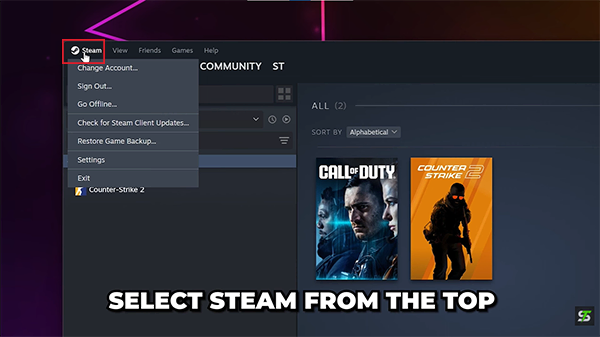
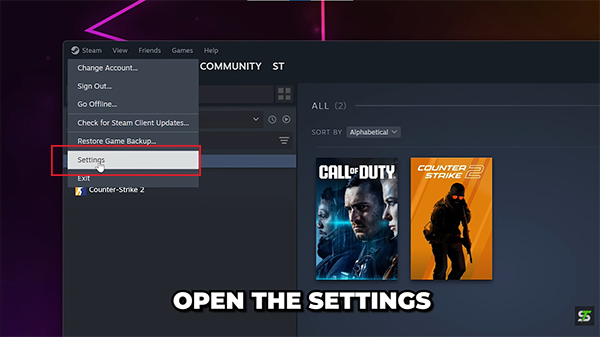
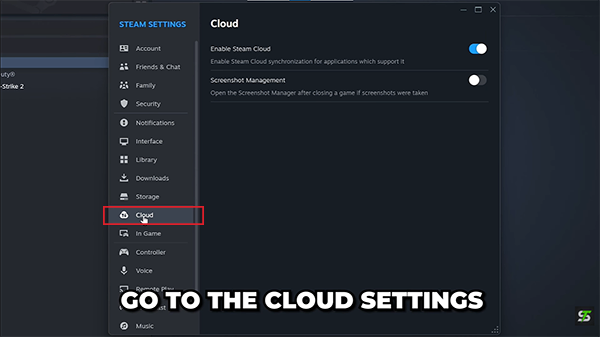
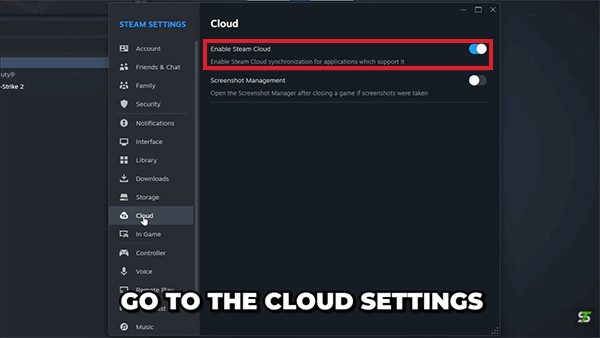
In some Steam accounts, the basic cloud settings get disabled or have never been enabled before, which leads to a loss of connection between you and your games, and guess what? You start wasting hours on the internet trying to find a resolution. Instead, here are some steps you can use to enable your cloud sync easily.
Always check for the latest updates on your Steam servers and purchased games, as they work efficiently with new add-ons and regular maintenance of internal and external files. In fact, many times cloud servers are not connecting with your systems due to incompatibility with older versions and won’t let you access anything before you install new programs.
Sometimes some browser- or server-related bugs are ruining your experience and causing various errors, but you are unaware of them. These glitches are the real troublemakers as they don’t let internal systems run as they should. That’s why giving a steady reopening to your Steam app can fix a lot of chaos in the background.
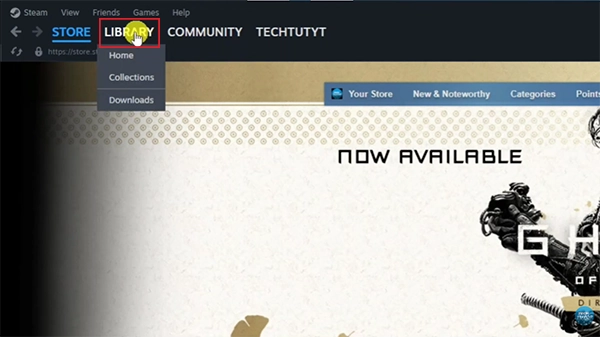
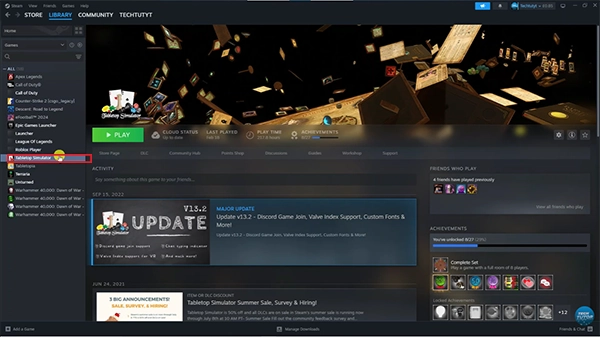
Many users have found some corrupted files in their games, which might be uploaded by developers by mistake, and thus they can easily cause the disconnection between your PC and game servers, which is why ensuring all files are authentic is necessary. Here we have mentioned some easy steps that allow you to validate all the files of your downloaded games.
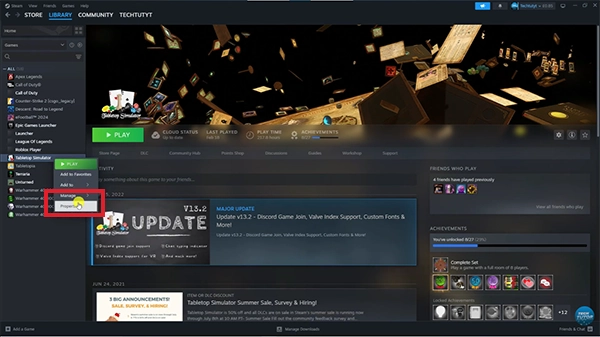
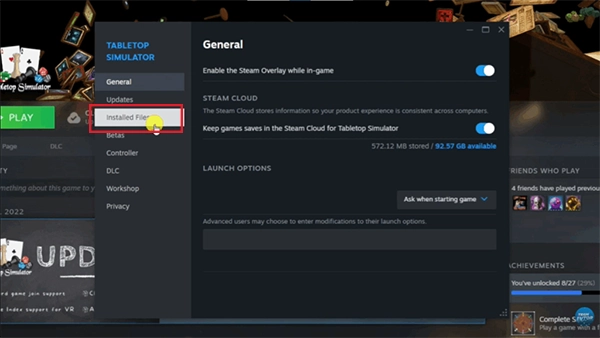
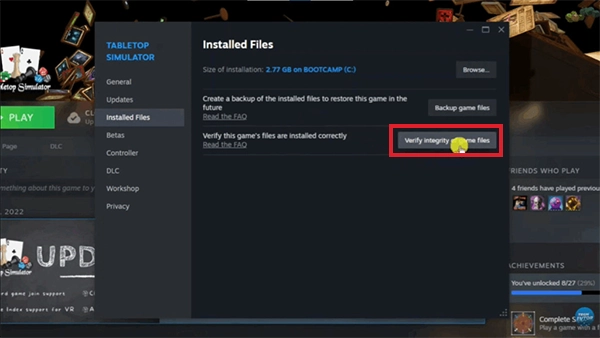
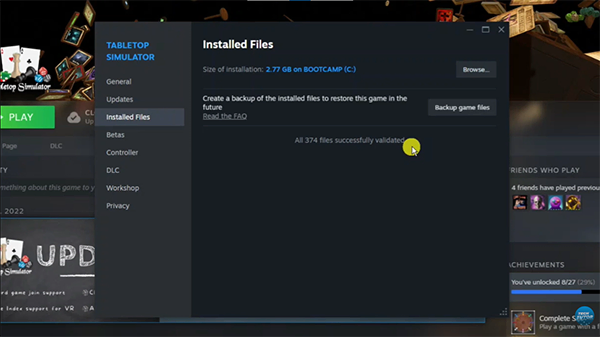
Last but not least, you can adjust the browser and firewall settings of your PC to make Steam easily bypass the security layers by temporarily disabling your antivirus software, as it helps all files download without protocol restrictions. Also, you can turn off Windows Defender just for Steam to access it without totally disabling it because it might be blocking some files that are responsible for its enhanced experience.
That’s how steam cloud sync error can be easily fixed; in fact, many users have found resolution in starting two methods, but if things still don’t work according to your expectations, then you can check out these other methods too and implement them carefully. Also ensure you stay up to date with all the news related to Steam, as sometimes their servers are the main culprit that is causing this error. For gaming updates and troubleshooting guides, make sure to join GetAssist Community, where all your queries are answered within minutes.
The 2-hour rule on Steam says that if you have purchased any game, you can ask for a refund within 14 days and under 2 hours of play. It is more of an eligibility criterion rather than a rule.
This regulation states that users must spend at least $5.00 USD in the Steam store to unlock full account features like group chats, voting on games, submitting reviews, and other gaming-related perks.
On average, 1,000,000 Steam points are worth exactly $10,000 USD in purchasing power, but you cannot redeem them for real cash; instead, you can purchase your favourite games and in-game skins or abilities.