Scrolling your feed, which is full of frustrating ads or unwanted awareness campaigns may irritate the user experience. But these can be removed or restricted by using some of the simple methods like hiding ads, reporting ads, blocking advertising websites and more. All of them are tried and tested and explained in the article below.
At a Glance
To get rid of Facebook ads on your home feed, there are four official ways
- Hiding the ad whenever it surfaces
- Reporting the false claims and misleading ads
- Select your ad preferences and limit the genre you don’t like
- Block the advertisers that are not promoting accurate information or doing ad spam.
If you want to stop ads on Facebook or minimize their influence on the screen, you have four official ways to do that. These ways include some minimal settings and preference management in your Facebook Business Page. Let’s see each of them one by one
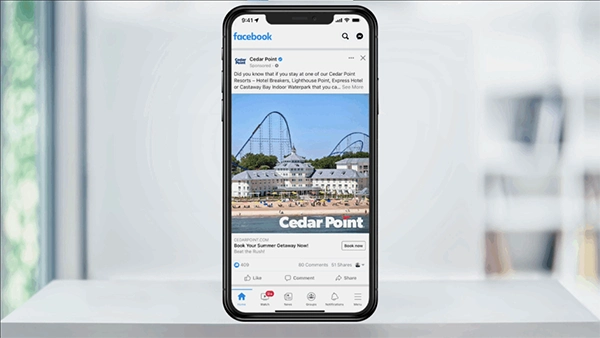
The first method is perhaps the easiest way to get rid of multiple sponsored materials on your feed, as you will get an option to hide them instantly:
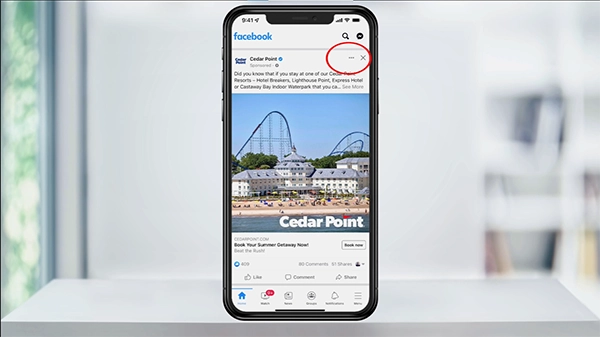
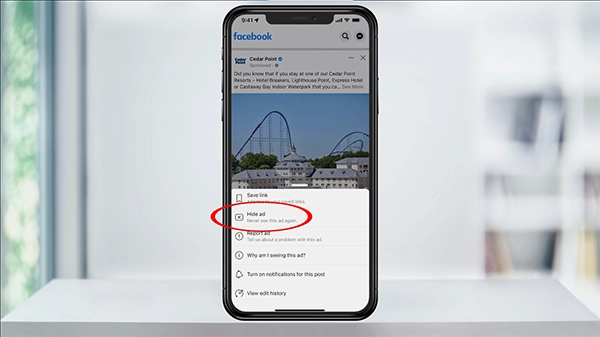
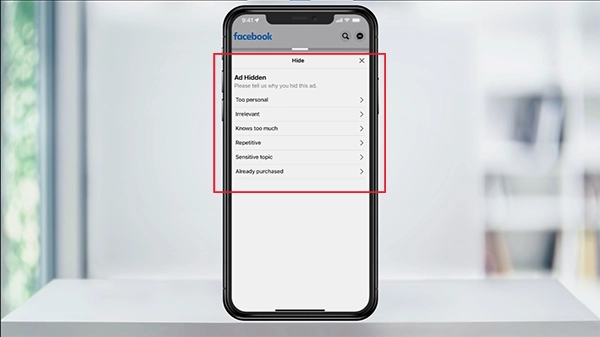
There are so many instances where you guys might encounter some misleading or malicious ads, which can cause sudden discomfort, and many users have reported that their Facebook was not working properly. To avoid them, just follow a few easy steps:
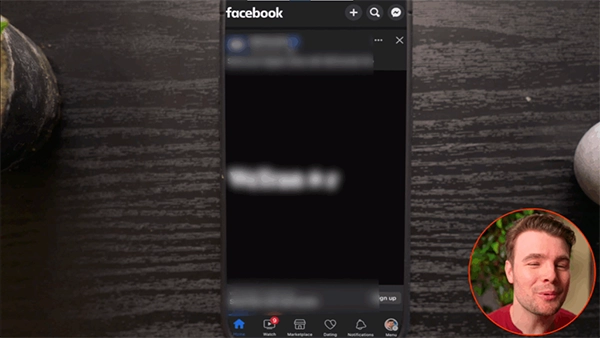
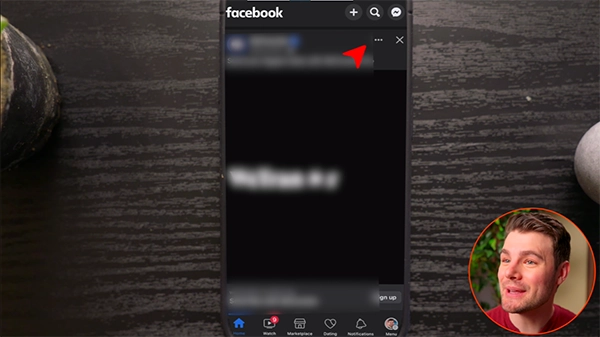
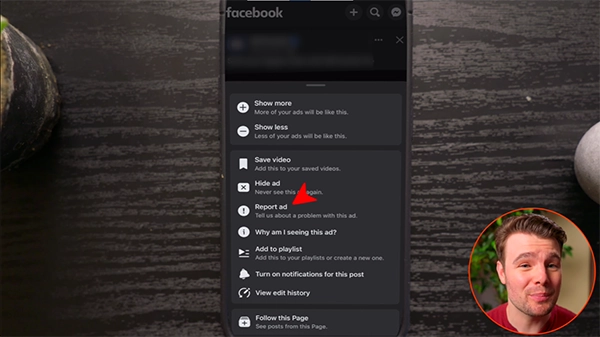
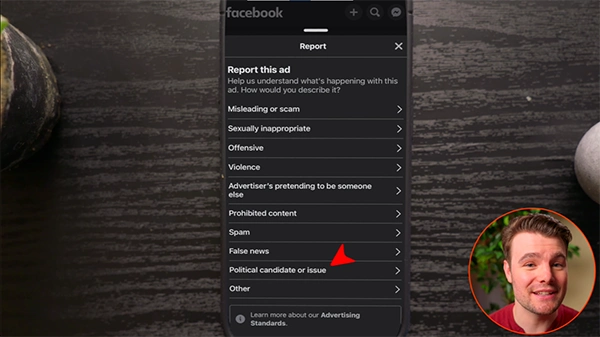
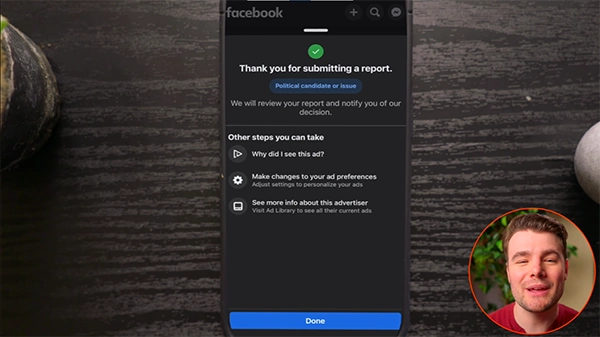
For stopping ads of a specific genre on your feed, which is annoying you for a while, there are some settings that can stop the visibility of the genre you aren’t interested in. Let’s see how it can be done.
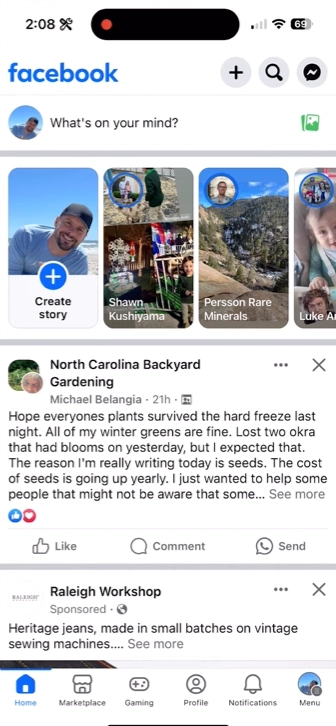
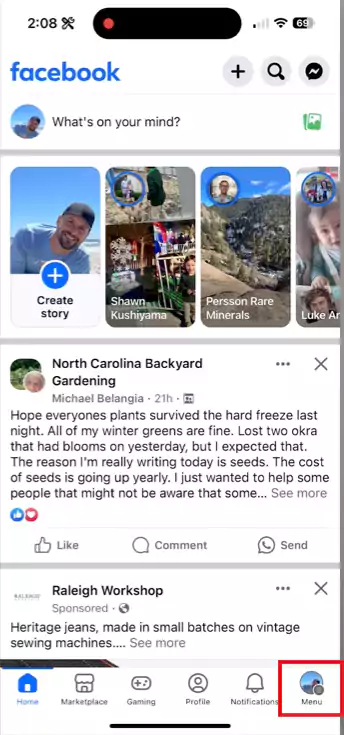
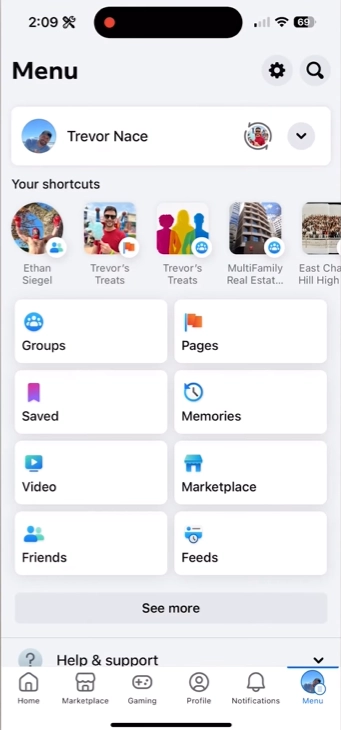
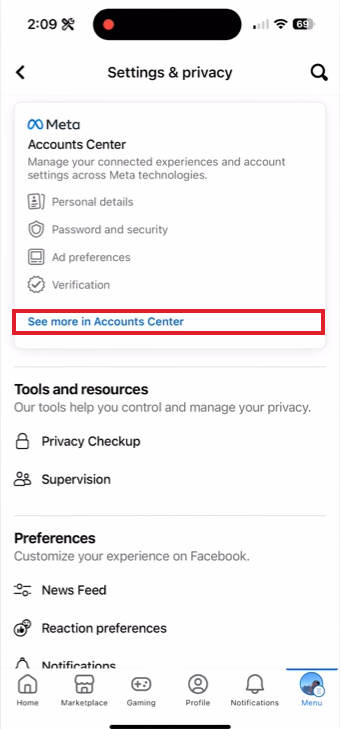
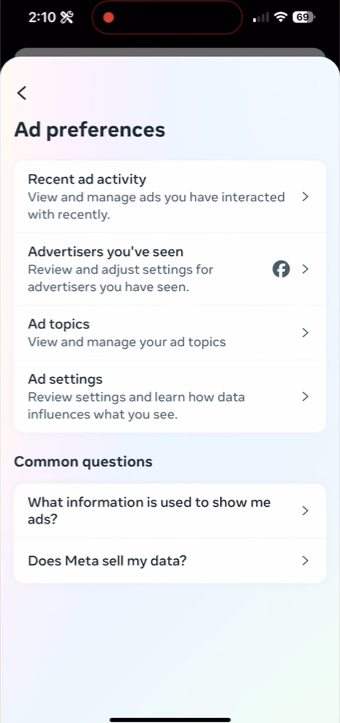
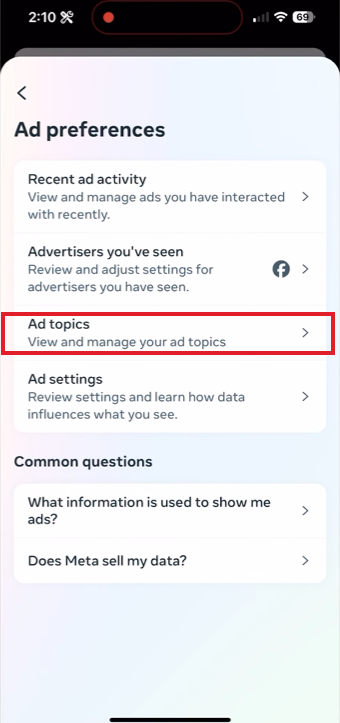
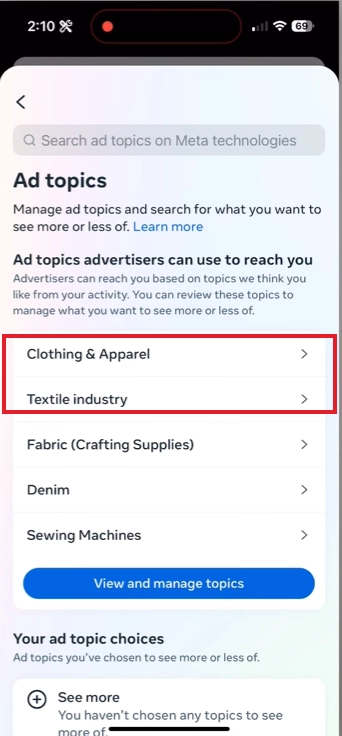
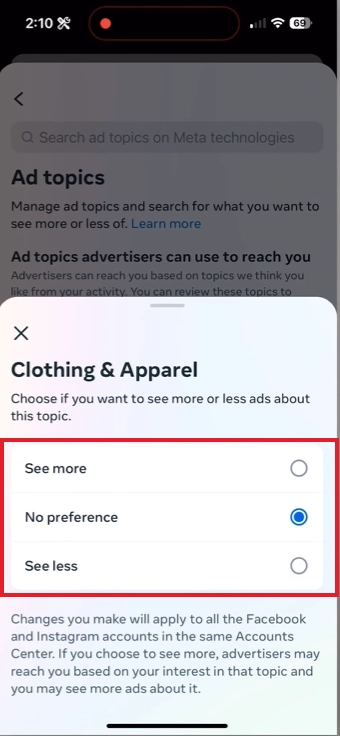
Blocking advertisers who are promoting illegal stuff or spamming ads using algorithm patterns can be a perfect solution to clean your feed. Let’s see how it’s done:
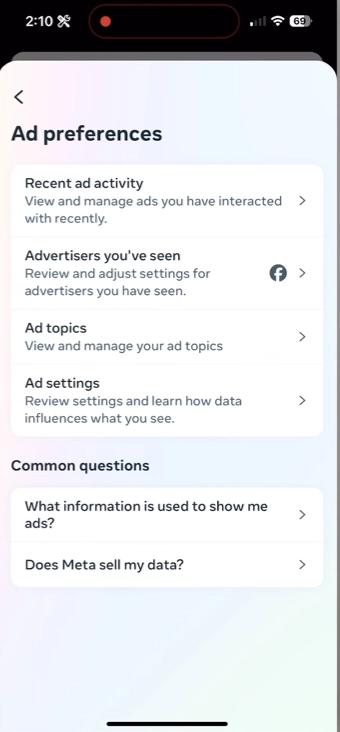
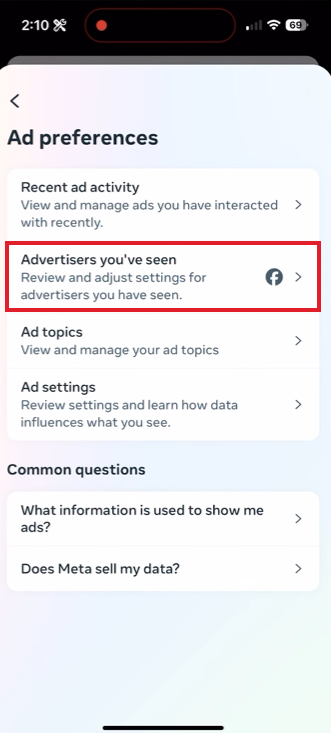
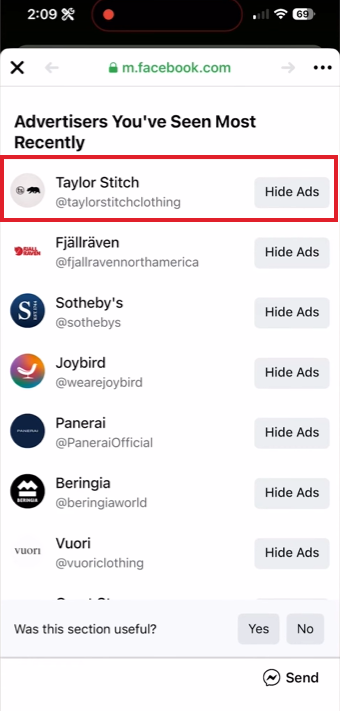
Lastly, if you are still seeing some sort of ads and want to eliminate them from your Facebook feed, then it can be done using some third-party tools, but the catch is that you have to scroll through your activities on browsers.
This is because all the plugins that block ads on Facebook aren’t available with app integration. Some of the best recommendations for plugins are:
Here’s how you can block any sort of ad coming into your Facebook feed, which can ruin your scroll experience and also eliminate the advertisers that are promoting false or misleading stuff.
It also allows you to maintain a clean feed, free from political agendas or election campaign promotions, so it doesn’t disrupt your content-watching experience. If any of the official ways still limit your experience, then there are some browser plugins mentioned in the article above, and you must check out GetAssist for more such blogs.
If you are seeing so many ad pop-ups in your feed lately, then it is happening mostly because of two major reasons. First is due to the updated algorithm of META, which is based on mixing ads in your daily feed, and the second is due to ad triggering of certain products based on your recent searches.
To see more friends and fewer ads on Facebook, you just need to head over to the “ Feeds” tab and close the “Home” window of your applications, which allows you to view all the updates of your close ones.
It doesn’t matter if you follow someone or don’t on Facebook because the latest algorithm of Meta makes the feed preferences according to the user’s behavior, content engagement, and search engine results.