How to Delete a Discord Server on PC and Mobile?

| Updated on March 13, 2026

Facing the toxic behavior of unwanted users on your channel and finding answers on how to delete a Discord server because you’re exhausted of managing them as a moderator for years? Then calm yourself down because this article by GetAssist offers practical methods to delete a Discord server on mobile and PC without performing actions to block someone on Discord.

How to Delete a Discord server on PC?

Most people use Discord Login to set up this platform on a PC or a desktop, as it is more accessible there; that’s why deleting a server on it becomes automatically simple. To delete your server forever, you need to follow the instructions given below in their ideal sequence.
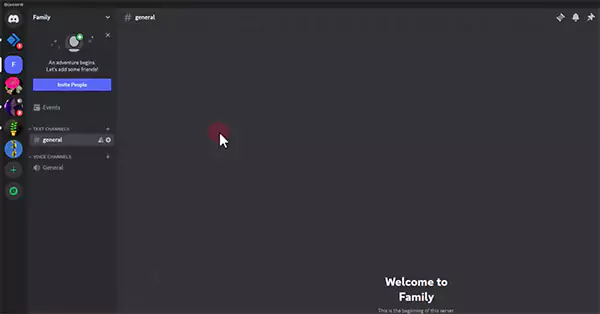
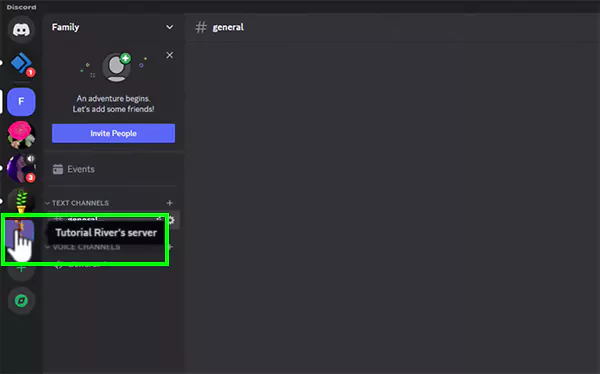
  • Open the Discord application on your system.
    Open Discord on your PC
  • Click on your server icon.
    Click on the Server Badge
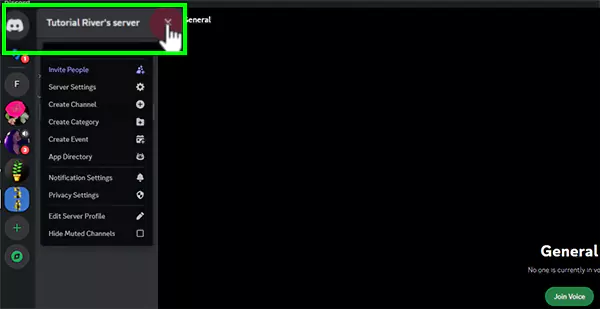
  • Slide down the header by clicking on the “Arrow” button. 
    Click on the Arrow button
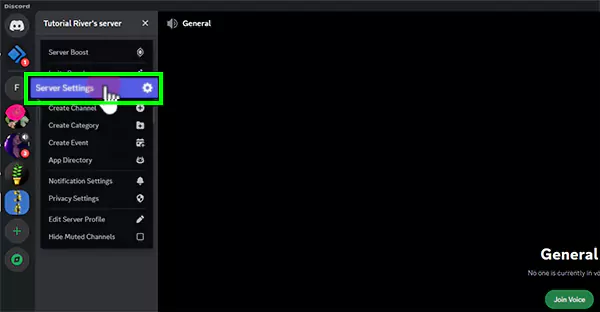
  • Head your cursor towards Server Settings. 
    Click on Server Settings
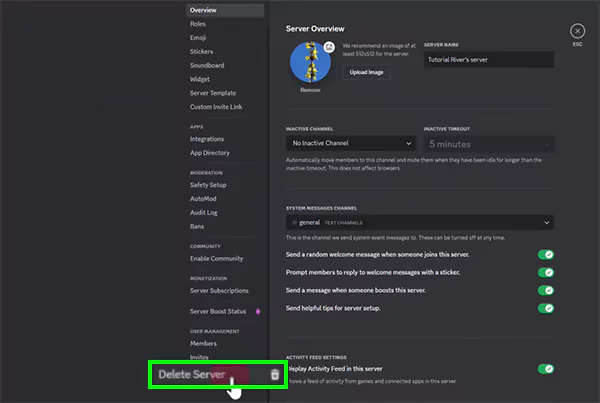
  • Thereafter, you will reach a long accessibility page; just scroll down to Delete Server and click on it.
    Scroll down to the Delete Server option and click on it
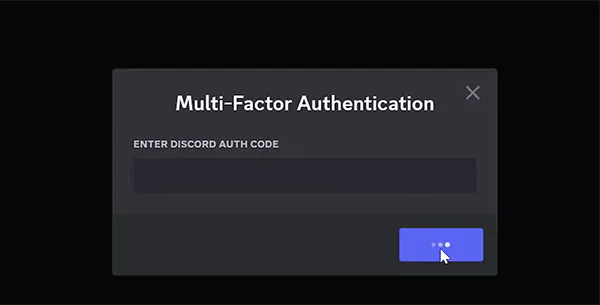
  • In the final step, delete the server by entering your Discord author code.
    Delete the server by entering your Discord author code

If you prefer video tutorials for the same, then you can check out a GetAssist video on How to Delete your Discord Account and a server that provides complete methods and quick tips. 

How to Delete a Server on Discord Mobile?

If you are thinking about how to delete a Discord server on your Android/iOS devices without erasing your personal data and proper authentication, then the steps mentioned below are for you: 
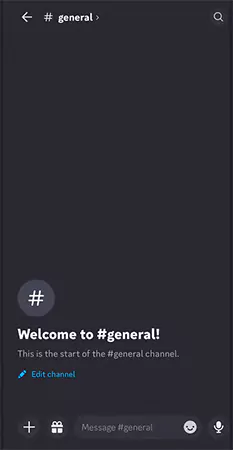
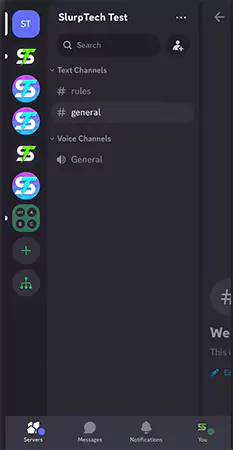
  • Open Discord on your mobile phone. 
    Open Discord on your device
  • Then swipe right to see channel options. 
    swipe right to see channel options
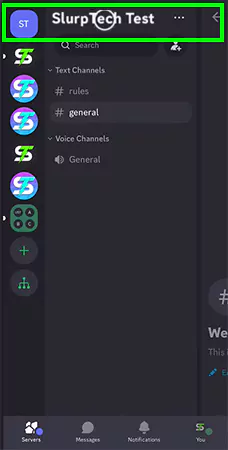
  • Tap on your server name.
    Tap on Your Servers Name
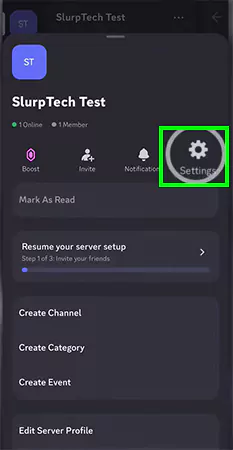
  • A pop-up will appear, tap on the Settings button.
    tap on the Settings button
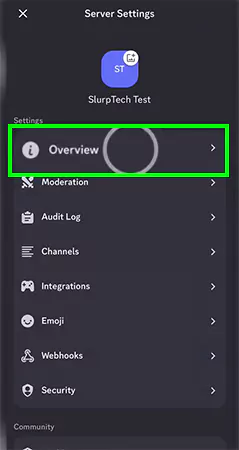
  • Head to the first option, “Overview.
    Click on  the first option Overview
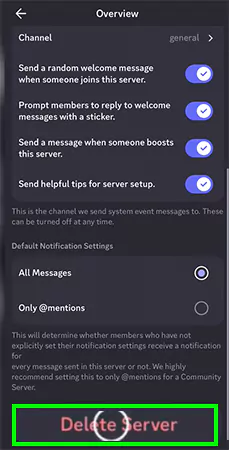
  • At the bottom, you will find a “Delete Server” button.  Just tap on it.
    Scroll down to the Delete server button and tap on it
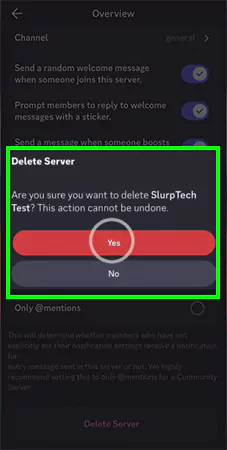
  • Tap “Yes” on the confirmation toggle to perform your final action.
    Tap Yes on the Confirmation toggle to complete the action

For more Discord-related issue resolutions, like fixing Discord phone errors, you can subscribe to the GetAssist YouTube channel and press the bell icon for the latest notifications.

Why Delete a Discord Server?

Deleting servers is important due to several security and long-term regulatory reasons, such as: 

  • The sensitive data of old members needs to be removed due to privacy concerns and their digital well-being.
  • After accomplishing the purpose of a server, e.g., a gaming tournament, a study discussion, etc., moderators must delete it to clean the digital space filled with unwanted messages.
  • Sometimes, people delete their servers because ownership transfers become invalid due to the Discord not opening issue. 

Common Mistakes to Avoid While Deleting the Server on Discord 

Although if you delete a server without proper instructions for user settings on the Discord app or platform guidelines, there can be some unwanted consequences that nobody wants to face, like: 

  • Data backup failure of crucial media and server messages.
  • Deleting the server without warning, causing confusion and disrupting community workflows.
  • Ignoring all the other methods to pin down a Discord server and blindly deleting it.
  • Forgetting to erase the data of API bots. 
  • Sometimes, the deleted servers that contained data are required for compliance or legal reasons.

Conclusion

If you have reached here, then congratulations, you have just learned how to delete a Discord server from any device without losing any crucial data. Make sure to follow all these steps mentioned above in order. For more Discord and tech updates, make sure to subscribe to GetAssist blogs and YouTube channel.

FAQ

Can you completely delete a Discord server?

Yes, after tapping on the delete button and verifying your authentication code, your selected server will be deleted forever.

Will my friends see my deleted Discord?

No, once you delete content, it will no longer be available to any of your friends.

What is a soft ban in Discord?

It is a type of ban that will remove the user for a shorter period of time while also deleting all of the user’s messages ever sent.


Sources


Vera Olehi

Social Media Writer


Related Posts

×