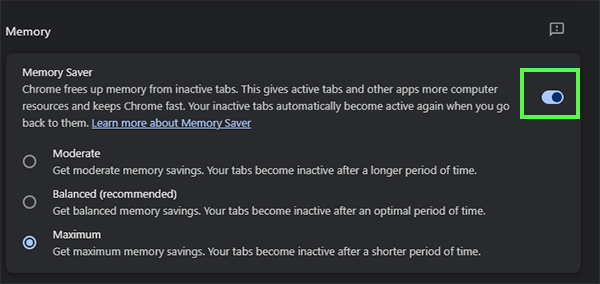
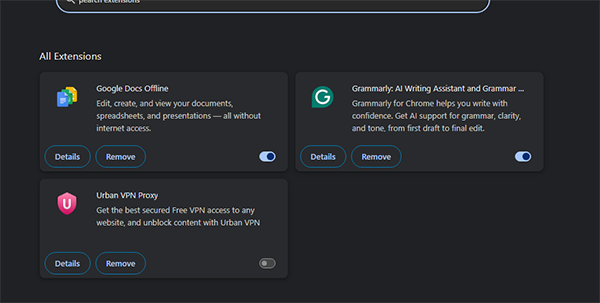
Sometimes we use Chrome, and there is a sudden pop-up of an error code: Out of Memory in Chrome, and all the tabs stop loading or working. There are several reasons for this error; the main reason is that Chrome has run out of RAM or virtual memory. There are some common mistakes people make that give rise to this error: not closing unwanted tabs, Memory Saver is off, Chrome is not updated, unwanted extensions are not closed, and hardware acceleration is turned on.
Check out the 6 methods to fix the chrome out of memory error that is disrupting your browsing experience.
The error code: Out of memory in Chrome means Chrome has run out of virtual memory RAM to load a new tab or process the current tabs in the browser. Some modern web pages and applications like Gmail and Figma have complex interfaces, which cause the RAM shortage, result in Chrome not enough memory to open this page, like issues.
To free up the space, the quickest and easiest way is to close some background applications running on your device to free up some RAM.
You can easily fix the Error Code: Out of Memory in Chrome with these 6 easy fixes, which will help you reduce memory usage and remove the error. Follow these methods step by step.
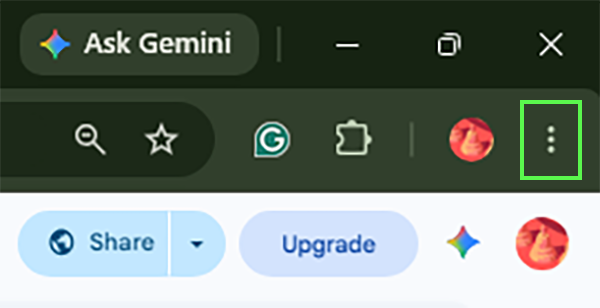
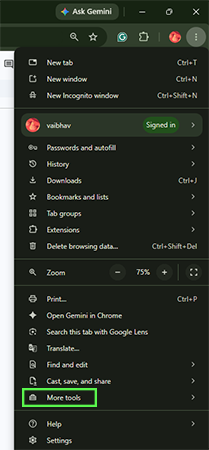
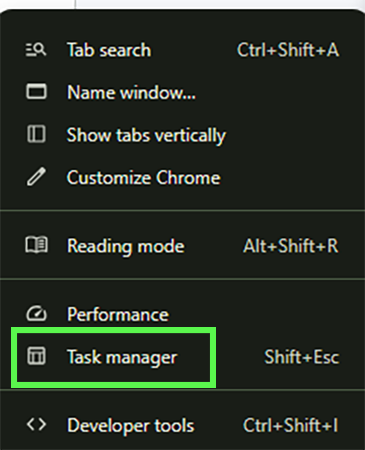
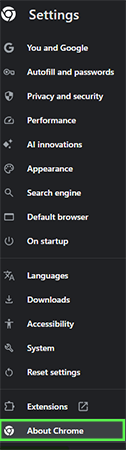
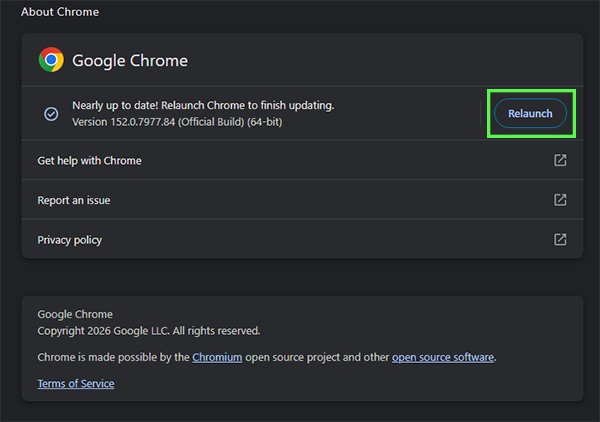
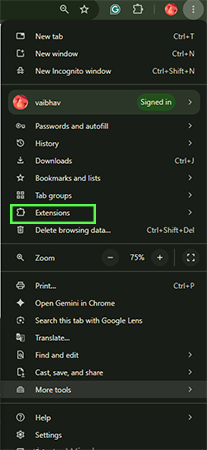
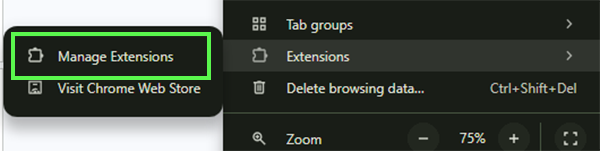
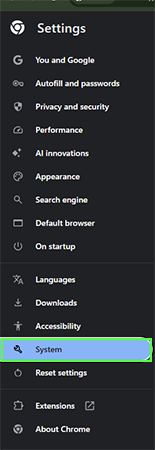
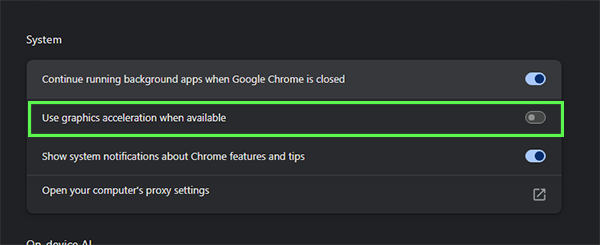
The error code out of memory in chrome is popup when the Chrome is ran out of RAM or virtual memory; it will cause Chrome to freeze or crash. This happens because you are not closing unwanted tabs or the hardware acceleration is turned on. In this guide, we have shown you 6 methods to solve the error. For more such video solutions, you can check out our Getassist YouTube channel.
You can easily remove the out-of-memory error by removing unwanted tabs and freeing up RAM.
Whenever the virtual memory or the given RAM to the Chrome is filled with tabs or background tabs, and extension the Chrome notified you and says ” out of memory.
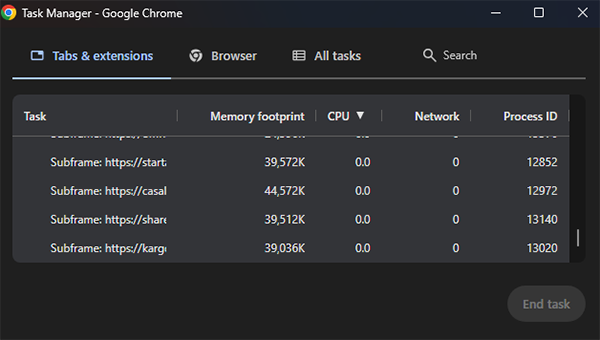
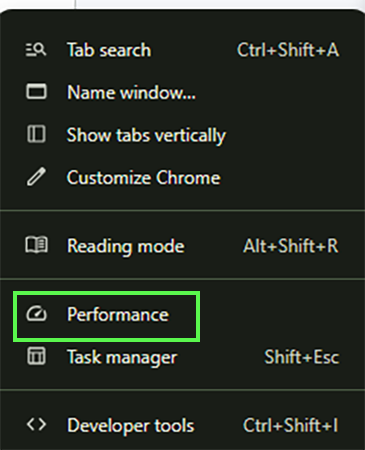
Click (Shift+Esc). This will open Chrome’s built-in Task Manager and remove heavy tabs and unwanted extensions.
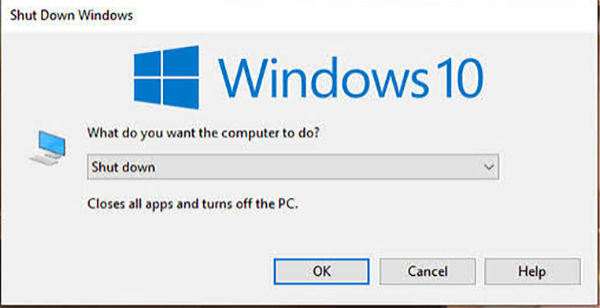
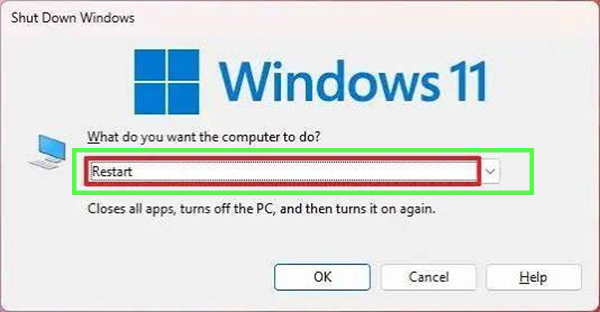
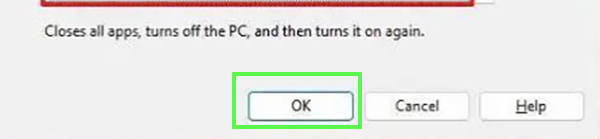
Restart your device and remove background-running applications.
Yes, it is completely okay to clear the Chrome cache.