Picture 5:57 a.m. Coffee cools, tomorrow’s slides sit blank. We’ve all felt that scramble.
Generative AI is now creating everything from outlines, images, and speaker notes to a full deck in seconds, so now you just have to refine the ideas rather than wrangling them out.
This blog explores seven classroom-tested AI slide makers based on different privacy, grade-level tuning, design polish, price, and raw speed, and ranks them. You will also understand why a Google Slides add-on leads, and also about everything from the free educator suite landing second, and where Canva, Microsoft, and the others come into the picture.
Read the full blog to learn more.
We didn’t just watch demos and call it done. Each tool spent a week in real lesson prep: drafting slides, exporting to Google Classroom, and facing the toughest critics—students.
To keep scoring fair, we built a ten-point rubric. Classroom suitability, workflow integration, ease of use, AI accuracy, design quality, accessibility, privacy, pricing, update cadence, and real-teacher sentiment each earned up to ten points, for a possible one hundred.
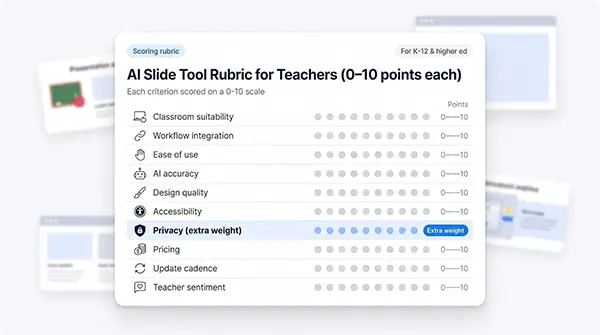
Privacy carried extra weight. District tech teams now demand FERPA and COPPA evidence before any AI processes student data. The reason is simple: only tools with clear safeguards sail through approvals, while generalist apps get flagged or need workarounds.
Scores alone never decided rank. We also asked, “Will this save a busy teacher time next Monday?” When two tools tied, the one with fewer install steps or a larger free tier moved up.
That mix of hands-on testing, hard numbers, and day-to-day practicality shaped the list you’re about to explore.
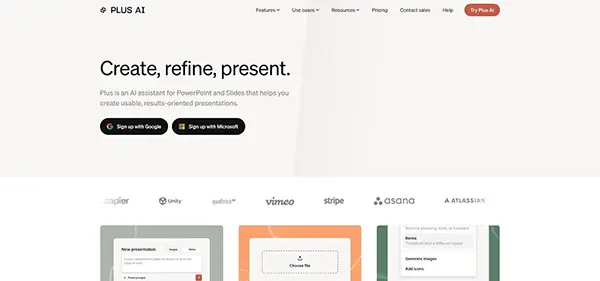
Open a blank slide, click the Plus AI sidebar, and a finished deck appears before your coffee cools. Reviewers tested eight Google Slides add-ons and crowned Plus AI the speed champ, backed by 1.9 million installs and a 4.6-star rating in the Workspace Marketplace, according to tech review site MacSources.
Because Plus AI lives inside Google Slides and PowerPoint, you stay in the editor you already know. No exports, no file conversions, just AI-written titles, bullets, and speaker notes placed onto your template. The add-on even preserves your school brand kit, so every deck still looks “district official.”
Teachers praise the draft quality. Feed the add-on a lesson outline on photosynthesis, and it slices paragraphs into logical slides, adds image cues, and suggests concise talking points. In our classroom trial, the first pass landed 90 percent of the structure; refining facts and local examples took ten minutes, not an hour.
Keep two cautions in mind. First, Plus AI targets business users, so district tech teams often request a privacy review before K-12 rollout. The workaround is simple: exclude student names and grades from prompts and use the tool for teacher-authored content only.
Second, pricing starts with a seven-day, credit-based trial, then about $10 per month for unlimited generation. For many teachers, that fee still beats spending Saturday formatting slides.
Bottom line: If you spend most days in Google Slides or PowerPoint and want an AI co-author that feels native, Plus AI offers convenience and polish. It is our top pick for educators who value workflow harmony over standalone platforms.
Picture an assistant that understands your state standards, rewrites a lesson for three reading levels, and exports polished slides all before the bell rings. That’s MagicSchool.
Open its Presentation Generator, type “Causes of the American Revolution, Grade 7,” pick your Depth-of-Knowledge level, and press Create. The platform drafts a full deck with objectives, key vocabulary, formative-check slides, and suggested discussion prompts. A slider then bumps complexity up for honors or down for intervention; the two versions save side by side, so nothing overwrites your original plan.

Teachers enjoy the time dividend. According to MagicSchool’s internal analytics, 94 percent of users gain seven or more hours a week once they lean on its 80-plus AI tools, from lesson plans to quizzes to, yes, slide creation.
Privacy and compliance also stand tall. MagicSchool states that it is fully FERPA and COPPA compliant and SOC 2 certified, with a clear “does not train on student data” pledge. For many district tech teams, that single row shifts the request from “maybe next semester” to “approved today.”
Workflow stays straightforward. You generate in the browser, then click once to export into Google Slides or PowerPoint for final tweaks. Design is plain; expect white backgrounds and sparse imagery, but that blank-canvas look keeps file size light and lets you apply any district template in seconds.
Cost? Individual teachers pay nothing. The free tier unlocks the entire feature set, while schools can upgrade for admin controls and shared libraries. If you need curriculum-aligned content, built-in differentiation, and solid privacy without touching the budget, MagicSchool is your fast track.
Think of Canva as the art teacher on your planning team. Type “Phases of the Moon, Grade 4,” and Magic Design suggests coordinated layouts, fonts, and images in one sweep. No template hunting, no colour-clashing clip-art, just a ready-to-teach deck that looks like you hired a graphic designer.
The workflow feels simple. Start with a prompt, accept a theme, and drag-and-drop anything you want to adjust. Need a brighter background? One click. Prefer a cartoon astronaut instead of a photo? Type the keyword, swap the image, move on. Students can also co-edit in real time, perfect for group projects that often create long email chains.
Canva for Education sweetens the deal: verified K-12 teachers and students get every premium asset and AI feature for free. That means unlimited stock photos, icons, animations, and yes, Magic Design on tap. Higher-ed instructors outside the Edu program pay about ten dollars a month, still affordable compared with a professional template subscription.
Canva doesn’t write lesson content for you; it handles the visuals. Pair it with a generator such as MagicSchool or Plus AI, paste the text into Canva, and select Magic Design. In minutes, you have standards-aligned slides wrapped in a visual package that keeps even fidgety fourth-graders focused on the board.
Quick recap: Canva rescues you from layout paralysis, adds professional flair, costs schools nothing, and exports smoothly to Google Classroom and PowerPoint. When the lesson is solid, but the slides feel flat, Magic Design delivers the fastest makeover in town.
If your school runs on Google Workspace, the quickest way to try AI already sits in the toolbar. Click the sparkle icon in Slides, answer a couple of prompts about grade level and length, and Gemini drafts a deck with titles, bullets, and custom images, no add-ons or extra log-ins required.
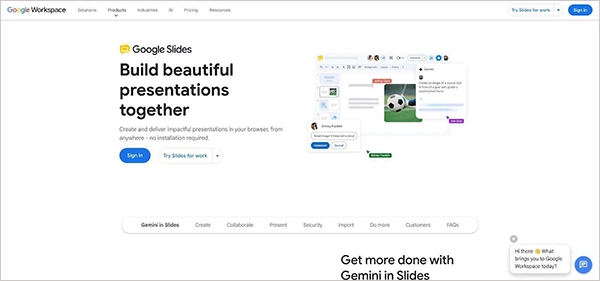
Because Gemini lives inside your current Slides editor, it preserves every share setting, comment thread, and Drive permission. A finished deck drops into Classroom with the same one-click workflow you use today, so there are no version conflicts or broken links.
Cost is the twist. The standalone Gemini app is free for all Google Workspace for Education editions, yet in-app slide generation needs a premium tier. Districts must hold Education Plus, the Teaching and Learning Upgrade, or the Google AI Pro for Education add-on to access the core “help me visualize” tools inside Slides.
Output quality is solid, offering an outline with concise bullets and AI-generated art that avoids copyright headaches. You will still tweak facts or add local examples, but starting from something instead of a blank canvas saves a surprising block of prep time.
Design choices stay basic, mirroring Google’s stock themes. Pair the deck with a branded Slides template or give it a quick pass through Canva to lift the visuals. For teachers working on Chromebooks who need a draft before lunch duty, Gemini’s built-in assistant offers simple convenience.
Ever find a news piece at 7 a.m. and wish you could drop it into a deck for first period? Brisk’s Chrome extension makes it happen. Hover over any article, PDF, or YouTube clip, click Generate Slides, and watch the source condense into a tidy, grade-level presentation in under a minute.
The real strength is context awareness. Before generating, you choose the grade band and slide count. Brisk rewrites complex sentences, captures key images, and auto-adds formative-check slides. The output feels crafted, not pasted, so students can follow along without you re-typing headlines.
Workflow stays inside familiar tools. The deck opens in Google Slides or PowerPoint with native formatting, ready for quick colour tweaks or template swaps. One extra click posts the file to Google Classroom, sparing you the usual download-upload shuffle.
Privacy boxes are ticked: no student accounts, no personal data in prompts, and teacher-only use of the extension. The free tier offers more than 20 core AI tools with usage limits on generations, enough for weekly current-events spotlights or quick flipped-classroom recaps. Heavy users can upgrade for unlimited generations at roughly the cost of two coffees.
Brisk will not win design awards, and you will still want to polish visuals, but when speed matters more than sparkle, it shines. For teachers who love bringing fresh, real-world sources into class, Brisk shortens the trip from URL to projector to a single click.
Traditional slides move left to right, but Gamma flows like a scrollable story. Type a prompt such as “Water Cycle Review, middle school,” and within thirty seconds the AI assembles a sleek, card-based presentation that feels more like a website than PowerPoint. Each card can hide or reveal answers, embed a video, and even collect viewer analytics, so engagement moves past passive reading.
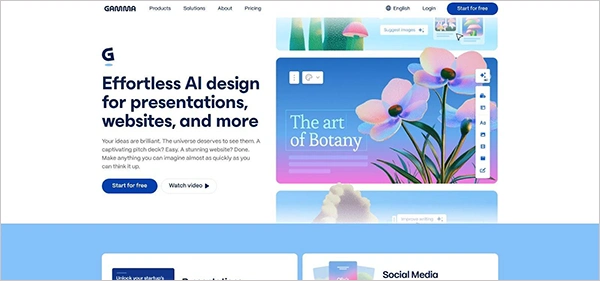
Speed tops the feature list. Posts in teacher and productivity forums report deck creation under three minutes, calling Gamma “five times faster than Beautiful.ai” and a lifesaver on mornings when time disappears. By late 2025, Gamma had crossed 70 million users worldwide, with educators praising its ability to skip traditional slide formatting quirks.
Design arrives pre-polished with clean fonts, balanced whitespace, and modern colour palettes that outshine most default themes. Need a printable copy? Gamma exports to PDF for free. PowerPoint export sits behind an eight-dollar-per-month Pro plan. That credit-based pricing can sting, yet for occasional “wow” lessons the free tier’s 400 one-time signup credits cover several units.
There are drawbacks. The Notion-style editor feels unfamiliar to die-hard Slides users, and content accuracy still needs a teacher’s eye. One popular thread warns against trusting generated statistics without verification, so always skim and fix shaky numbers before class.
When a unit demands interactivity, or you want students to explore a concept at their own pace, Gamma provides a fresh format that grabs attention. Picture virtual science fair boards, scrolling history timelines, or self-paced review packets, all built faster than you can brew another cup.
If your district runs on Microsoft 365, Copilot turns PowerPoint into a handy assistant. Open any deck, type “Summarize this unit plan into ten slides,” and the AI pulls titles, bullets, and charts straight from your Word docs or Excel tables. Because everything happens inside your tenant, data never leaves the Microsoft cloud, satisfying even the strictest FERPA auditors.
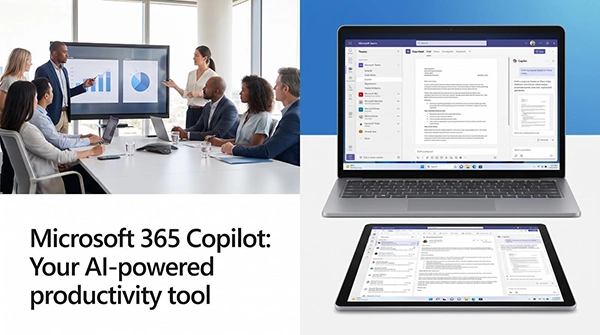
Copilot’s main advantage is context. It reads your slide master, applies school branding automatically, and embeds live charts that stay linked to source spreadsheets. For science labs or budget presentations, that workflow beats pasting screenshots.
Access is the catch. As of December 2025, Copilot is an add-on for Microsoft 365 Education A3 and A5 plans at about eighteen dollars per user per month. Many K-12 districts stay on the cheaper A1 tier or skip the add-on, so Copilot often reaches only select staff.
In practice, the AI draft stays faithful to your content with fewer errors. Design variety trails Canva or Gamma, yet PowerPoint Designer still offers quick theme suggestions inside the app.
Bottom line: when you already manage lesson materials in Word or crunch lab data in Excel, Copilot stitches everything into a presentation faster than any export-import routine. The price puts it last on our list, but for Microsoft-centric schools that can fund the license, it saves time on complex, data-driven lessons.
Choosing the right tool often comes down to one question: Will this fit my class this week? The table below distills cost, standout strength, privacy posture, and where each tool lives, so you can decide in thirty seconds.
| Tool | Best use case | Free tier | Integration | Privacy note | Stand-out feature |
| Plus AI | Slides and PowerPoint power users | 7-day trial | Add-on inside Google Slides / PowerPoint | Review FERPA terms first (teacher-only use) | Generates and remixes slides without leaving the editor |
| MagicSchool | Standards alignment and differentiation | Yes (full features) | Web export to Slides / PowerPoint | SOC 2, FERPA/COPPA compliant | Complexity slider ties to Bloom’s levels |
| Canva (Magic Design) | Instant visual polish | Free for K-12 | Web app → Classroom / PowerPoint | Edu accounts protected | Drag-and-drop AI layout suggestions |
| Google Slides + Gemini | Built-in convenience for Google schools | Free standalone app (in-app tools need premium add-on) | Native in Slides | Google edu data protections | AI image generation inside Slides |
| Brisk | Converting articles or videos fast | 20+ tools with usage limits | Chrome → Slides / PowerPoint | No student accounts | One-click web-to-deck summarizer |
| Gamma | Interactive, web-style decks | Limited credits | Web share link / PDF | Account required, no PII | Scrollable card format with analytics |
| PowerPoint Copilot | Data-heavy decks in Microsoft 365 | None (A3/A5 add-on only) | Inside PowerPoint | Stays in tenant, FERPA safe | Pulls live charts from Excel |
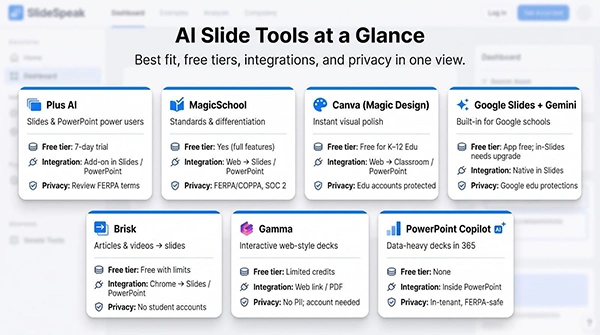
Use the grid as a launchpad. If design flair tops your list, jump to Canva; need curriculum rigor, MagicSchool wins; and for a locked-down Google domain, Gemini is already waiting. The goal is not one perfect pick, but the right match for tomorrow’s lesson.
Teaching has never been a forty-hour gig, but slide prep no longer needs to steal evenings and weekends. The seven tools we explored take different paths—some polish design, others align curriculum, and a few live inside the editors you already use. All share one promise: they give back time you can spend on students, feedback, or a much-needed breather.
Start small. Choose one upcoming lesson, feed it to the tool that fits your ecosystem, and check the savings. If the draft feels 80 percent there—and it usually does—you have hours to redirect toward coaching a struggling reader or catching the school play.
AI will not replace your storytelling, your sense of pacing, or the grin you flash when a concept clicks. It clears the grunt work from your desk. Let algorithms handle bullet formatting; you focus on the aha moments that inspired your career.
Ready to try? Open Plus AI in Slides, spin a differentiated deck in MagicSchool, or tap Canva’s Magic Design and watch the blank page fade. Then share tips with a colleague and help shape how AI supports great teaching. The future classroom is teacher-led, AI-assisted, and a lot less stressful.
Yes, if you pick the right tool. Plus, AI and Copilot lift content from your own documents, so accuracy starts high. Even with prompt-based tools like Gamma, teachers report trimming forty to sixty minutes off each deck after a quick read-through. Treat AI as a draft, not gospel; polishing is still faster than writing from scratch.
Stick to educator-focused platforms. MagicSchool pledges FERPA and COPPA compliance. The simple rule: never paste personally identifiable info into any prompt, and ask IT to confirm a Data Processing Agreement before a district-wide rollout.
Three standouts cost nothing: Canva for Education (unlimited visuals), MagicSchool’s full toolset, and the standalone Gemini app for Google schools. Combine them—generate lesson content in MagicSchool, polish it in Canva, and deliver via Slides—for a zero-dollar upgrade to your prep routine.
Yes, with guardrails. Canva’s classroom collaboration mode and Google Slides AI live inside accounts that many districts already monitor. Make AI a brainstorming aid, then require students to cite sources and explain edits to reinforce critical-thinking skills.
Not at all. AI handles the grunt work—titles, layouts, image searches—so you can focus on the examples, stories, and discussions only you can provide. Think of these tools as the teaching assistant you always wanted, not a substitute for your voice.
Still curious? Try one small lesson this week. You’ll know within ten minutes whether the time savings feel worth inviting AI back for another round.