AI companion apps are easy to start paying for. There’s a free chatting period, a moment where the conversation gets spicy with interactive features like AI language practice and virtual talking experience, and a paywall that shows up right then.
Cancelling is clumsier, mostly because these apps sell through four or five various payment routes, and each one hides its cancel option somewhere else.
This guide covers how to cancel on each route, what the apps’ own refund terms quote, and what to do when the answer is “no refunds”.
The refund details come from the terms of service of 43 companion applications, which I went through in September and October 2026 and keep in a side-by-side table of refund windows and conditions.
This is the step people ignore, and it’s why “I deleted the app, and they still charged me” is one of the most common complaints in app-store reviews. Uninstalling an app cancels nothing. Neither does logging out. The subscription lives with whoever receives your money.
Search your inbox for the receipt, or look at your bank statement. You’ll be in one of these situations:
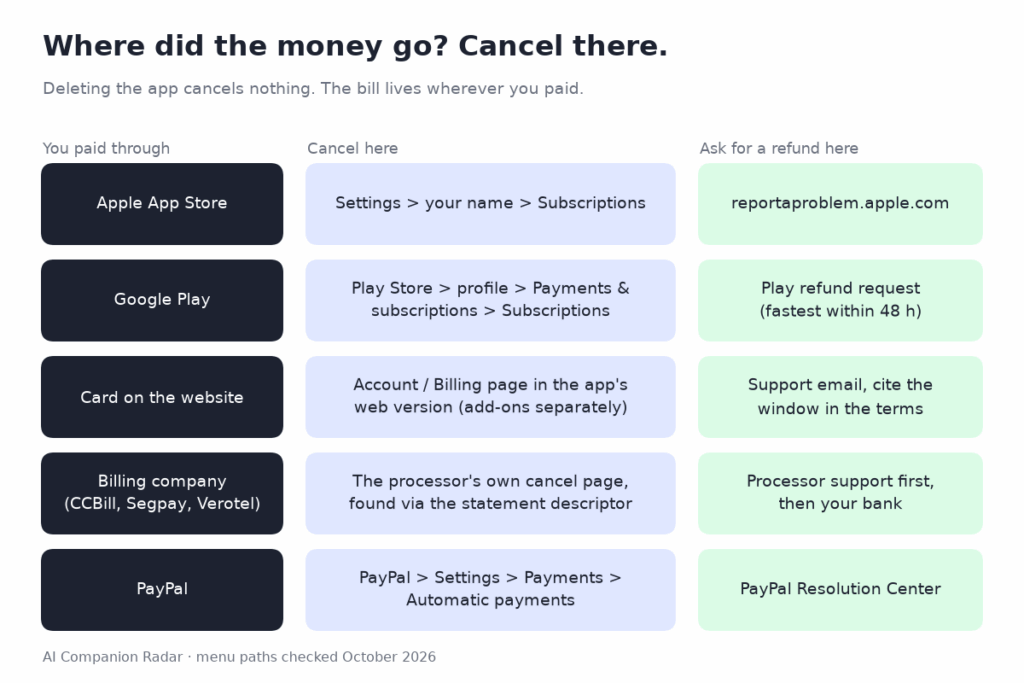
Cancelling the subscription works only when you cancel it from the source or the page you started it on.
Open Settings, enter your name at the top, then Subscriptions. Pick the app and tap Cancel Subscription. You keep access until the end of the time you’ve already paid for. If the app isn’t on that list, you didn’t pay through Apple, so return to step 1.
Open the Play Store, tap your profile picture, then Payments & subscriptions, then Subscriptions. Tap the app and then Cancel subscription.
Log in on the web, not in the app, and search for Billing, Subscription, or Manage plan in the account settings. Watch for two traps.
Add-ons are often separate subscriptions. Kindroid, for example, sells memory enhancements on top of the base plan, and its help pages say each add-on has to be cancelled separately. Cancelling the plan only leaves the add-on billing.
Some web apps only cancel through support. If there’s no option, email support and ask for written confirmation that the renewal has stopped, with the credentials and information. Keep that email.
Here the processor runs the subscription, not the app. Take the processor’s details from your bank statement, go to its consumer support site, search the subscription with your email or card details, and cancel it from there. GirlfriendGPT’s terms, for instance, send CCBill customers to CCBill instead of handling it themselves.
Cancel inside the app first if you can. Then, in PayPal, open Settings, then Payments, then Manage automatic payments, find the merchant, and cancel. That stops future charges even if the app’s own cancel button is broken.
Now the less convincing part. More than half of the 43 apps I checked offer no refund at all under their own terms.
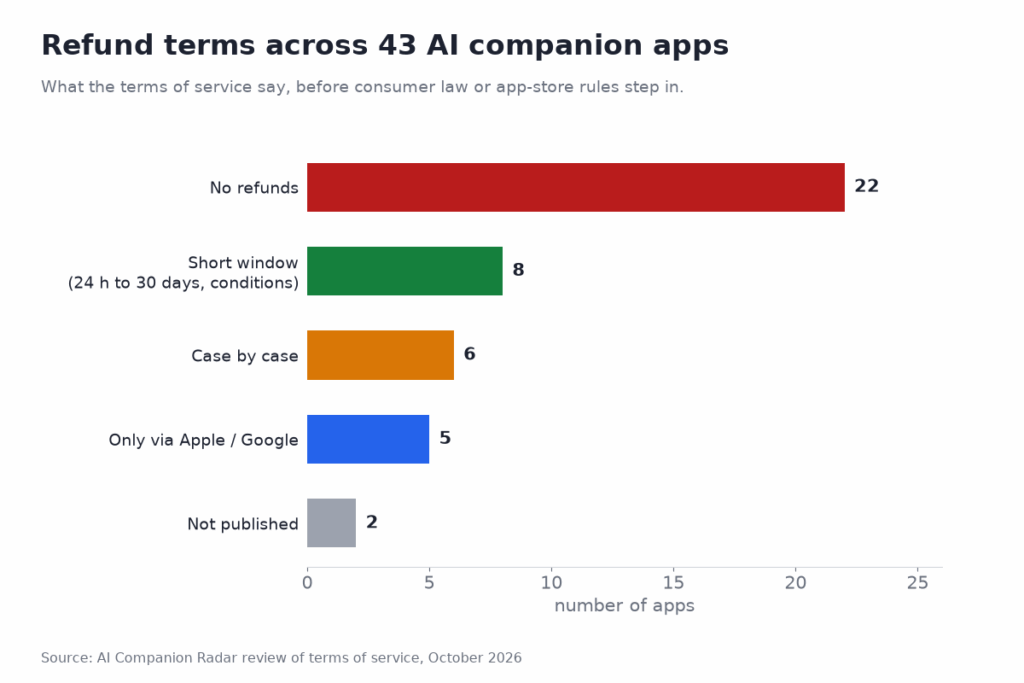
Search your app’s terms before writing to support. Quoting a company’s own terms back to it works better than asking politely.
A few details change the results.
Disputing the charge with your bank is the last option, and it costs something. Kindroid’s terms say a chargeback may get your account banned, and a banned account forfeits whatever time is left on it. Expect others to do the same, if less publicly.
A chargeback makes sense if you were billed after cancelling, charged twice, or never got what you paid for. It’s a bad idea if you simply changed your mind, and you’ll almost certainly lose the account and your companion’s history anyway.
Cancelling stops the billing. It doesn’t delete anything. If you’re done with the service, delete the account as well, in settings or, for about a third of the apps I checked, by emailing support. Ask for confirmation in writing. Some privacy policies keep information for years after an account closes, so the sooner you ask, the less there is to keep.
Menu paths and refund terms checked in October 2026. App stores and apps change their screens often, so if a step looks different, the logic still holds: cancel wherever you paid.
You must cancel the subscription through the platform or website where you purchased it. Uninstalling the application does not cancel upcoming payments.
Review its refund policy and contact customer support with your payment details and cancellation confirmation. If you were charged incorrectly, consider disputing the transaction with the payment provider.
Refunds depend on the application’s refund policy, payment method, and how recently you were charged. Request a refund as soon as possible.