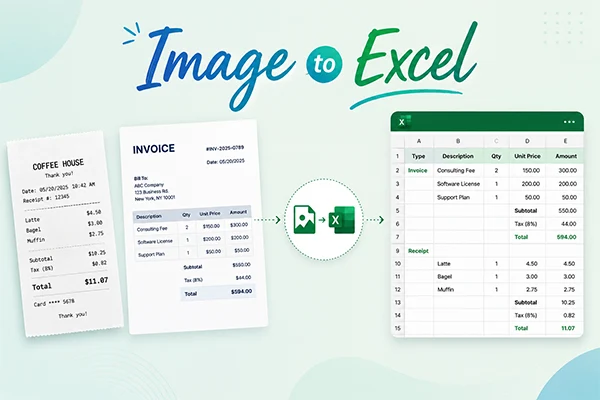
Image to Excel: How to Convert Receipts and Invoices

| Updated on July 10, 2026
Image to Excel

Drawing receipts out of invoice data has become an important prospect in the financial practices. And one of the most demanding and easiest way to do so is by utlizing Excel. 

But despite the importa nce it is an undeniable fact that these documents are one of the hardest to convert accurately. 

Do you why ? 

This is because they have several complications such as variable layouts, faded thermal papers and small prints,etc. 

It is because of these complications that turning receipts and invoices into documents has become so tough. 

In order to ease this process, here’s an article that will help you evaluate the procedure and take necessary actions. 

Key Takeaways 

  • Receipts and invoices are harder to convert than normal tables due to the varying formats, faded thermal power, and complex line-item structures. 
  • Conversion accuracy depends on the image quality. For best OCR results, capture documents early on a dark background and with camera overheld. 
  • Select tools that recognize tables,  so you can get rows, column and ride items, not just plain text in one column. 
  • Always validate key financial data such as vendor names, invoice numbers, dates and even tax amounts.

Why Are Receipts And Invoices Harder To Convert Than Other Documents?

Most people assume that any image to Excel converter  processes receipts and invoices the same as any other document. 

It does not. 

There are four main reasons these documents are harder to convert than standard tables:

  • Layout changes with every vendor: One receipt jots down the total at the bottom right. Another buries it halfway down. A pharmacy receipt shares nothing visually with a fuel station receipt. And what comes up as a result are OCR tools built around fixed templates fall apart when the layout keeps shifting.
  • Thermal paper fades fast: Most retail receipts are said to be printed on thermal paper. This is why the ink is not permanent. Within weeks, the print starts to fade. Within months, entire sections is the one that becomes unreadable. A receipt that looked nice when collected can be nearly blank by processing time.
  • Invoices carry more than a single total: Each line item has a description, a quantity, a unit price, and a subtotal. Those four pieces of data need to be added in four separate columns. A converter that misses the table structure pulls everything into one column, and the relationships between fields disappear.
  • Critical numbers hide in small print: The fields that matter most for financial records often take up the least space on the page. Tax totals, item codes, and invoice references sit in font sizes that a phone camera find difficult to to capture from a normal shooting distance.

How Should You Photograph A Receipt Or Invoice For Conversion?

The converter works with whatever image it receives. Give it a bad image, and even the best tool produces bad output. Three habits change thaT which are : 

Capture thermal receipts before the ink fades.

Thermal paper reacts to heat and light. The print starts shattering down faster than most people expect. Something that appears sharp today can be half-gone in two weeks. Do not leave your receipt photos for later in the week — shoot them the same day they come in.

Use a dark background.

The greatest fact is Placing  the receipt or invoice on a dark, matte surface before photographing. The contrast therefore helps the converter detect document edges and crop content correctly. A light or textured background blends with the paper and then creates edge detection errors.

Hold the camera directly overhead.

No angle. The camera surface should be parallel to the document surface. Any tilt that lets out the perspective distortion that misaligns columns. For invoices with different columns like description, quantity, and unit price, even a small tilt breaks column detection.

How Do You Convert A Receipt Or Invoice Image To Excel Online?

  1. Open the online tool: Navigate to your desired image-to-Excel converter web page.
  2. Upload the file: Drag and drop your JPG or PNG receipt image into the upload box.
  3. Process and download: Wait a few seconds for the tool to draw the table structure, then download the final XLSX file.

For invoices with standard layouts, consistent headers, and visible borders, this process produces a reliable output with a reduced cleanup. For receipts with non-standard layouts or faded print, expect a few minutes of corrections after conversion. 

How Do You Copy Text From Image Files Using Wps Office Desktop?

If you handle sensitive financial data and prefer not to upload files online, here is what will work for you start with processing your documents locally is the safest choice. 

WPS Office desktop permits you to convert receipt and invoice images to Excel directly on your computer in five steps through the Picture-to-Text feature. Once processed, you can copy text from image data automatically into expense reports or accounting software without any aspect leaving your device.

Here is the desktop workflow:

  1. Open WPS Office and go to the Tools menu.
  2. Select Picture to Text, which is the OCR feature.
  3. Upload the receipt or invoice image or use the screen capture tool.
  4. In the dialogue box, select Convert to Excel and click Confirm.
  5. The data is extracted into structured rows and columns, ready to be copied, edited, or exported.

What Fields Should You Verify After Converting A Receipt Or Invoice?

Five fields carry the highest risk of conversion errors on receipts and invoices: These five fields are vendor name, reference number, date, line item totals, and tax figures.

  • Vendor name: OCR at times drops a character or splits a multi-word name. A vendor name that does not match the accounting system exactly breaks automated categorization.
  • Reference number: Invoice and receipt numbers often link the document to a payment record. Check the character count. If every invoice number from this vendor is eight digits and the conversion that is produced seven, something was misread.
  • Date: Date format mismatches are silent. As a result, a document that is dated 05/06/2025 means June 5 on a European system and May 6 on a US system. After conversion, Excel begins to apply its own regional format. Check three or four dates against the original image.
  • Line item totals: Add up the line items in the converted spreadsheet and compare against the subtotal in the original document. Then check the subtotal against what is seen as the grand total. Any difference between the two means something was read incorrectly during conversion.
  • Tax fields: Tax fields is often settled at the bottom of receipts in small print and convert less reliably than main line items. Always verify tax figures that exist against the original image before submitting expense reports.

What Are The Most Common Mistakes When Converting Receipts And Invoices?

Three mistakes cause most receipt and invoice conversion failures.

  • Photographing crumpled or folded receipts. Shadows from creases begin to confuse the OCR engine and warp text lines. Always remember flatten the receipt completely or place a clear acrylic sheet over it before shooting.
  • Skipping the field verification step. The conversion therefore handles the extraction. The verification catches what the extraction has missed. Tax figures, reference numbers, and dates are the fields most likely to contain silent errors that only surface when a formula breaks or a payment record cannot be matched.
  • Using a basic OCR tool for complex invoice layouts. A tool that extracts text without detecting structure collapses line items . For invoices with multiple columns and structured line items, a tool with table detection capability produces far better output.

What Should You Do When A Receipt Is Too Faded To Convert Accurately?

Faded receipts are a real problem that no converter completely solves. Three approaches help, depending on how much detail remains.

  • Boost contrast before uploading. Boosting contrast and brightness in a photo editor before uploading recovers some faded detail. This is expected to work well for lightly faded receipts but has diminishing returns on severely faded ones.
  • Use directional lighting. Shooting under bright directional light at a slight angle makes faded thermal print visible . The ink and paper absorb light differently, making the print stand out at the right angle.
  • Use a hybrid approach. When only partial data is recoverable, convert what the tool reads and fill the rest manually. This hybrid approach is faster than full manual entry when the receipt is partially readable.And is said to provide efficient results. 

What Output Format Works Best For Receipt And Invoice Data?

XLSX is the right format when the converted data goes into an Excel-based expense tracker or a system that accepts Excel imports. 

Other aspects such as Formatting, column structure, and formula capability all stay intact.

When the destination is a database or accounting platform, CSV is the practical choice. 

Having said that it is mainly because It carries the raw data with nothing extra attached, and most accounting platforms accept CSV imports without any additional configuration.

Conclusion

Receipts and invoices are the documents people are more likely want to convert from image to Excel. They even demand the most care in capture, conversion, and verification.

Same-day photo. Dark background. Camera flat above the document. Check vendor names, reference numbers, dates, line totals, and tax figures before anything moves into a financial system. 

These are the factors that often  remains compromised. 

Get those four things right, and the rest takes care of itself.

FAQ

Why do receipts convert less accurately than other documents?

Receipts use thermal paper that fades fast, non-standard layouts that vary by vendor, and small print that demands high image quality. 

How do I convert an invoice image to Excel without losing the line items?

Use a converter with table structure detection. Upload a clean, straight image with good contrast. After conversion, verify that line item rows and columns match the original invoice.

Can I convert image to Excel data from faded thermal receipts?

Yes, partially. Boost brightness and contrast before uploading. Shooting under bright directional light at a slight angle also helps. 

What is the safest way to convert confidential invoice images to Excel?

Use desktop software that processes files locally. WPS Office converts images to Excel on your device through the Picture to Text feature in the Tools menu. 

Which fields are most likely to contain errors after converting a receipt or invoice?

Tax amounts, reference numbers, and dates carry the highest error risk. Tax figures appear in small print. Reference numbers break lookups if one character is wrong. Dates shift with regional format differences. 



Janvi Panthri

Senior Writer, Editor


Related Posts

×