Your iPhone and iPad give you access to many different subscription services today.
Apple’s own services, such as Apple Music, Apple News+, iCloud, etc., are some clear examples of App Store subscriptions. In a similar vein, the App Store offers recurring subscriptions for a large number of third-party apps.
These services may be useful, but you may eventually no longer require them.
Learning how to cancel Apple subscriptions is important if you want to manage your spending and keep your account organized.
It can be difficult to remember to cancel subscriptions for apps you tried but didn’t enjoy, even though it can be thrilling to start a new subscription for the app you love and see lots of benefits.
The purpose of this guide is to teach you how to cancel your iPhone and iPad subscriptions and stop spending money on things you don’t want.
Key Takeaways
- Understanding what Apple subscriptions are and how they work.
- Analyzing how to cancel Apple subscriptions on iPhone and iPad.
- Explaining how to cancel Apple subscriptions on Mac and desktop.
- Figuring out how to check expired and active subscriptions.
Recurring payments for services or apps bought through the App Store that are connected to your Apple ID are known as Apple subscriptions. Unless you cancel them, these subscriptions automatically renew every week, every month, or every year.
Typical examples include services like Apple Music, Apple TV, and additional iCloud storage plans. Additionally, a lot of third-party apps have subscription services that charge your Apple account.
Automatic, ongoing access to services, content, or premium app features is offered by Apple subscriptions. Usually, they receive bills via an Apple ID account on a monthly or annual basis.
Trial periods, billing, sharing, bundling, automatic renewal, and management are some of the most important features.
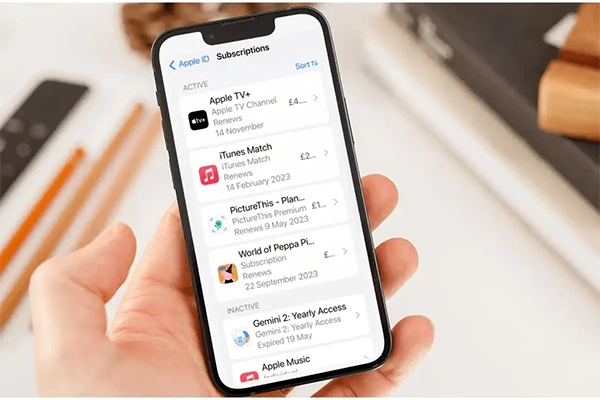
The subscriptions that are currently active on your Apple ID or App Store account can be found in a number of ways. Let’s examine how to view active iPhone or iPad app subscriptions.
How to view subscriptions from Settings
How to view subscriptions via the App Store app
Note: When you delete an app on your iPhone or iPad that has an active recurring subscription via iTunes, it doesn’t automatically cancel the subscription. You have to manually check for active iOS subscriptions and then manually cancel app subscriptions on iPhone or iPad. Here’s how to do that.
These simple steps will help you manage subscriptions from a Mac computer or desktop:
Using your Mac is another quick method to cancel Apple subscriptions without needing your phone.
The subscriptions that are currently active on your Apple ID or App Store account can be found in a number of ways. Let’s examine how to view active iPad or iPhone app subscriptions.
How to access subscriptions through Settings
How to use the App Store application to view subscriptions
After cancelling an Apple subscription, you usually keep using the service until the end of the current billing cycle or trial period.
The subscriptions for every device connected to your Apple ID will be terminated; since they won’t renew, you won’t be billed again.
Important Information About What Happens:
If you were charged after cancelling, you can request a refund using the Apple Report a Problem page.
Like the majority of iPhone users, you most likely have several subscriptions that you no longer require or utilize.
You may have no idea how much these subscriptions cost each month. Find your unwanted subscriptions and cancel them with these simple steps.
Now, all it takes to find and cancel your subscriptions on your iPhone is a few easy steps. You can save money and avoid paying for unnecessary or superfluous items by doing this.
Digital subscription management is essential to maintaining control over your online spending.
You can get rid of services you don’t use and avoid needless recurring fees by learning how to cancel your Apple subscription.
Regularly reviewing your subscriptions and choosing to cancel them when needed will help you keep your Apple account organised and your spending under control.
To do this, simply click on your device’s settings, tap your Apple ID, access your subscriptions, and use 1-866-927-1921 to cancel.
Support must be contacted at least 48 hours prior to the date of your renewal in order to request a cancellation.
A dark pattern, or deceptive design, is a tactic used online to persuade you to do things you might not have planned to do when cancelling a subscription.
Its expensive products, entry into more competitive markets, and incompatibility with other software are some of its various flaws.