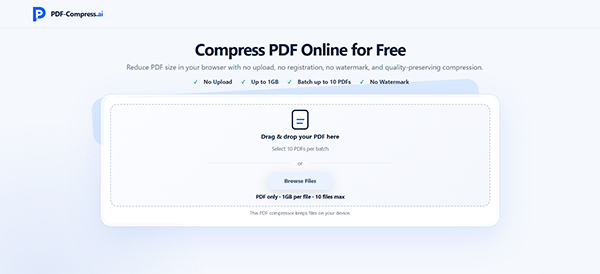
Some webpages, applications, and software refuse to accept large size pdf. It can delay the task of compressing it manually, instead, you can compress your file using PDF-Compress.ai. This tool will help you to reduce the size of the PDF without compromising the quality.
Try a PDF compressor and check whether a smaller version can fulfil the requirements you want.
Check the upload or email limit first. For example, if an online software portal accepts PDFs up to 10 MB and your document is 12 MB, keep a pristine copy of the original, then try the Light or Balanced setting in PDF-Compress.ai. Check the outcome’s file size and open it to make sure text and images remain clear. If it is still over the webpage limit, try a stronger setting and review the file again. There is no need to track the smallest possible file if a temprate reduction is enough.
Keep an untouched copy of the original PDF. That gives you a backup if the compressed version looks undefined or if you later need a higher-quality file for printing or preserving.
PDF-Compress.ai provides three contraction strengths:
The best setting depends on what the PDF contains. A text-based form may respond separately from a scanned document with photographs. Compression results can differ with the file structure, browser, and device memory, so display the output before sending it.
Open the compressed file and examine the pages most likely to show a change. Look carefully at small print, charts, signatures, scanned text and images. If a page is difficult to read at normal zoom, try a slightly larger setting and compare again.
Also confirm that the document is complete and opens correctly. Check page order, direction and any information required by the receiver. A smaller file is useful only if it remains fit for purpose.
Before uploading, confirm:
Students, job seekers, and office teams sometimes have various documents to prepare for the same timeline. PDF-Compress.ai supports selecting up to 10 files at one time. Its batch PDF compression option can make repeated preparation quicker, though each output should still be checked because different files may compact differently.
The tool accepts selected files up to 1 GB each, but execution can depend on the available browser and device memory. For a large batch or particularly image-heavy PDFs, processing lesser files at a time may be more dependable.
Local browser processing means the PDF is managed on the device instead of sent to a compression server. That can be useful for people who choose to keep files on their own device. Businesses should still follow their own policies for classified or regulated documents, including rules about which software may be used.
PDF-Compress.ai does not need registration and does not add a watermark to the output. As with any compression tool, review the result before depending on it for an important submission.
No. The decline depends on what the file contains and how it was created. A PDF with large images may condense more than a text document that has already been improved.
Try Light or Balanced when legibility is important. If the file still exceeds a strict size limit, test Strong and inspect the result carefully.
Yes. PDF-Compress.ai supports batches of up to 10 PDFs. Review each output separately, since the same setting can produce different results across files.
A dependable routine is simple: keep the original, choose a compression level qualified to the document, and check the final PDF before sharing it. That small review can avoid an upload problem from becoming a deadline problem.